00197185-01_IM_Required_Steps_before_using_Support_Media_EN.pdf - 第26页
Required Steps before using Suppo rt Media 10/2011 Edition On newer operating syste ms, the following window appears. Figure 7-2: Network and Sharing Cent er – clicking Change ad apter settings ► Click on Change adapter …
Required Steps before using Support Media 10/2011 Edition
7 Verify Network Settings
Before applying Support Media and other software, it’s strongly recommended to check whether
the network settings of the computer are appropriate.
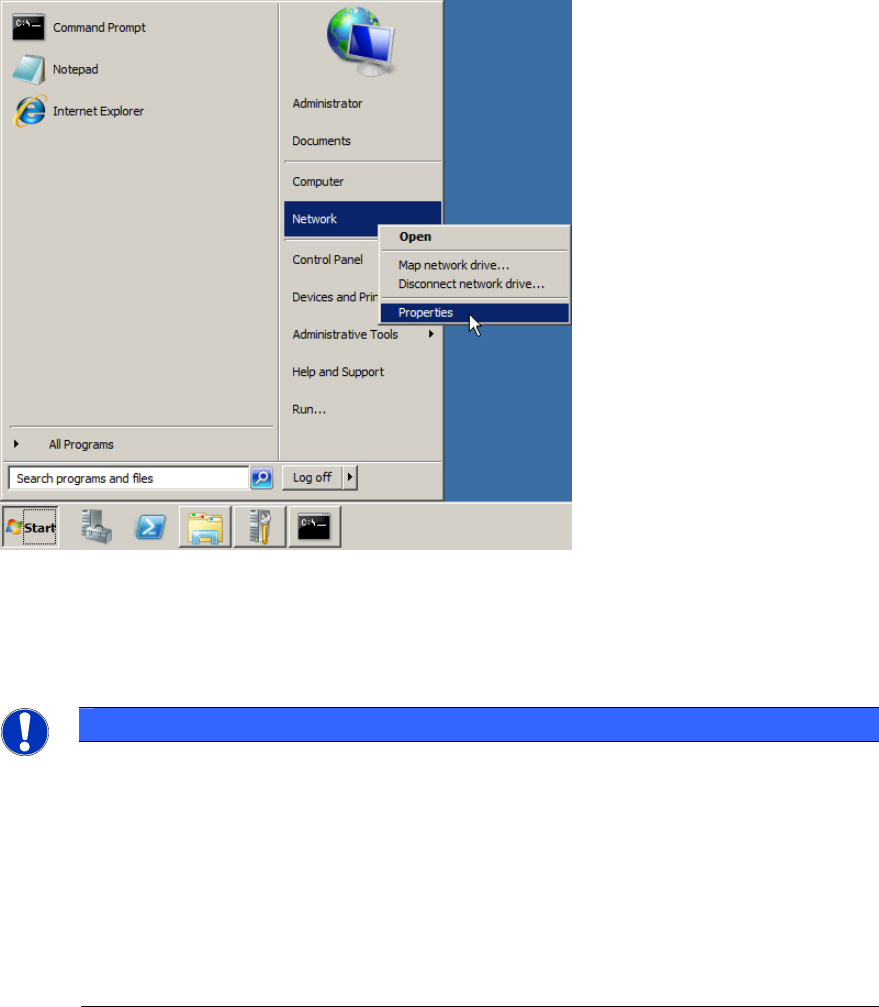
Figure 7-1: Opening Network Settings
► Click on Start.
► Right-click on Network and select Properties.
NOTICE
Alternative ways to Network Settings
If you don’t have such an entry:
a) Search for the My Network Places icon on the Desktop, right-click on it and select
Properties (Windows XP and Windows Server 2003).
b) Open Control Panel – Network and Internet – Network and Sharing Center
(Windows 7)
25
Required Steps before using Support Media 10/2011 Edition
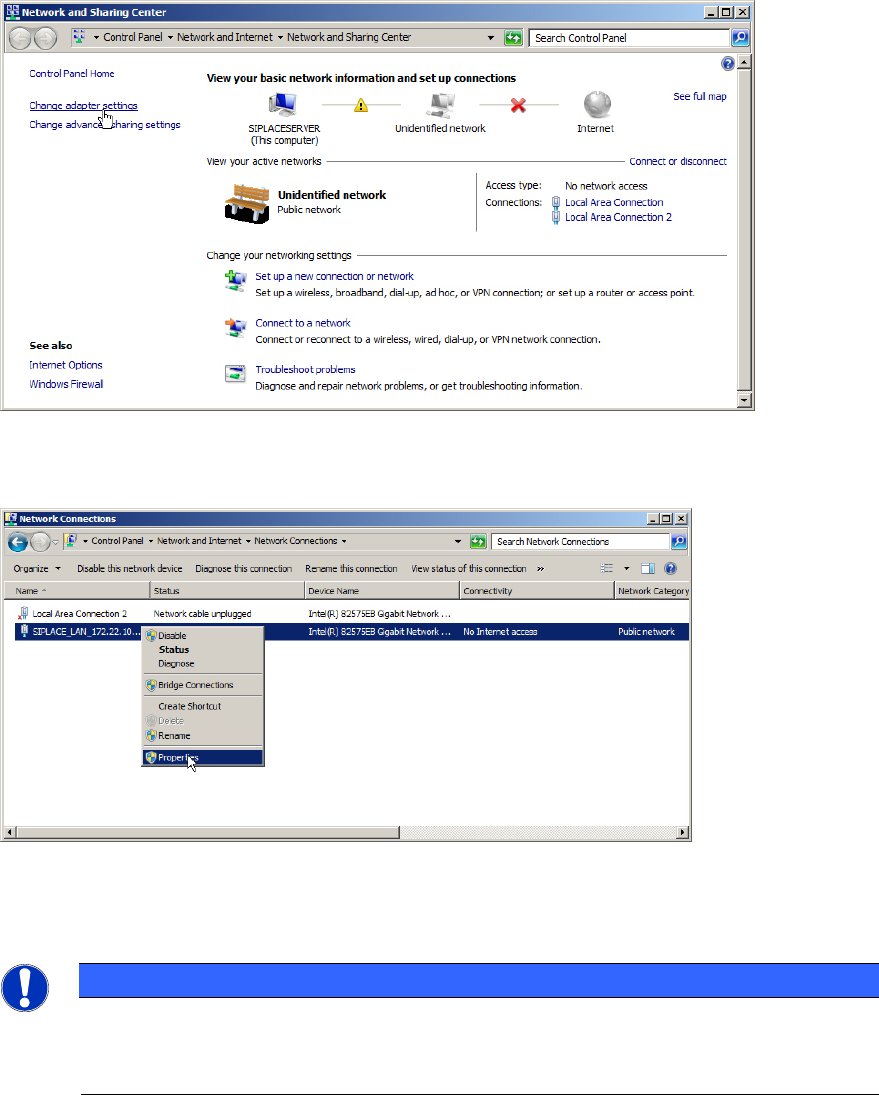
On newer operating systems, the following window appears.
Figure 7-2: Network and Sharing Center – clicking Change adapter settings
► Click on Change adapter settings to view the network adapters.
Figure 7-3: Selecting Adapter Properties
► Select the appropriate adapter, right- click on it and select Properties.
NOTICE
Network Adapter Identification by Connection Name
If you already performed the previous chapters, your network adapter(s) should already
contain a custom Connection Name indicating its usage.
26
Required Steps before using Support Media 10/2011 Edition
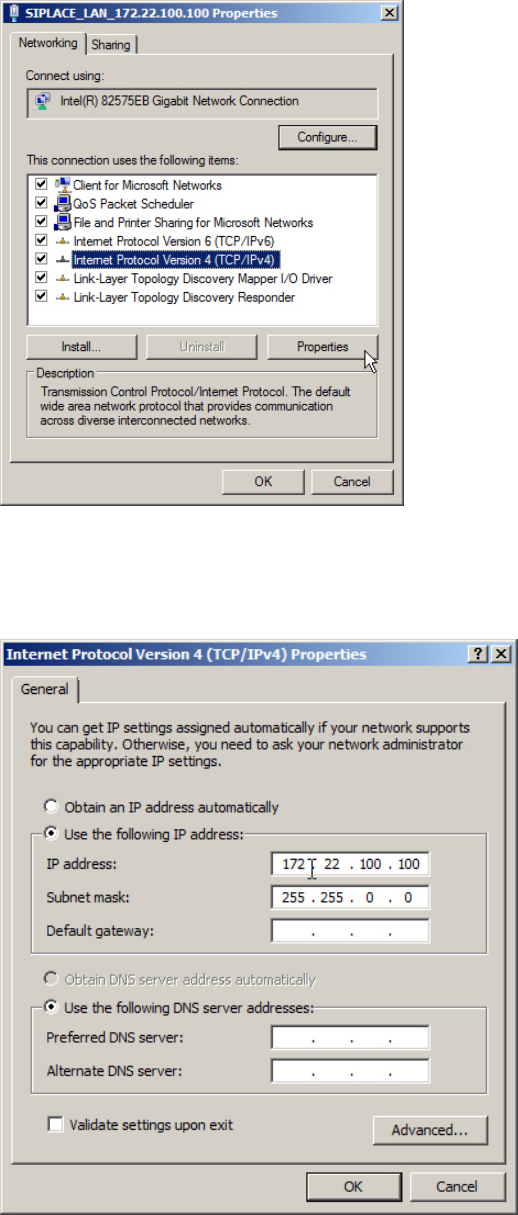
Figure 7-4: Adapter Properties
► Select the entry Internet Protocol Version 4 (TCP/IPv4) (don’t uncheck the checkbox!)
► Click on Properties.
Figure 7-5: TCP/IP Properties
► Verify your TCP/IP settings. If you don’t have a valid default gateway, don’t enter one!!
► Click OK when you’re done.
27