00197185-01_IM_Required_Steps_before_using_Support_Media_EN.pdf - 第6页
Required Steps before using Suppo rt Media 10/2011 Edition 2 General Notes 2.1 Administrative Login This document assumes you are lo gged in with administrative permissions and th erefore are allowed to perform the chang…

Required Steps before using Support Media 10/2011 Edition
1 Purpose
This manual describes the steps required right after Operating System installation of the SIPLACE
Line Computer.
CAUTION
The described Steps are required
Please ensure you’ve executed all the described steps immediately after Operating
System installation before proceeding with Support Media or other installations!
5
Required Steps before using Support Media 10/2011 Edition
2 General Notes
2.1 Administrative Login
This document assumes you are logged in with administrative permissions and therefore are
allowed to perform the changes described.
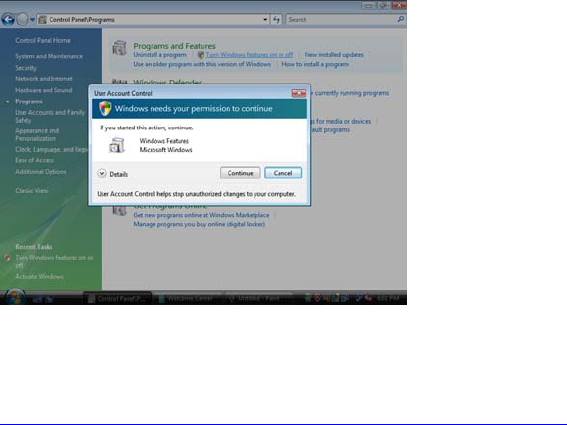
2.2 User Account Control on Vista and higher OS
With Windows Vista there is a new feature called User Account Control introduced, which controls
access to functions that require permissions above the default user. If you see warning messages
between the described steps you have to acknowledge them before proceeding.
Figure 2-1: Vista User Account Control
More information on this feature:
http://technet.microsoft.com/en-us/windowsvista/aa905108.aspx
2.3 Differences between Windows Versions
For this documentation, Windows Server 2008 R2 / Windows 7 are used. In most cases, the basic
steps are very similar compared to other Windows versions. If a setting differs too much, we hint
you where to find it in other Windows versions.
6
Required Steps before using Support Media 10/2011 Edition
3 Verify/Change Computer Name and Workgroup
Before installation of any additional products, it is required to check the Computer name and the
Workgroup setting of the Line Computer.
CAUTION
Renaming Computer Name causes Errors
Some products, like Microsoft SQL Server, depend strictly on the Computer Name.
Renaming the Computer Name after installation of SQL Server causes it to stop working
correctly if you don’t fix the dependent entries. Therefore, we recommend deciding for
the final Computer Name before installing SQL Server and other products.
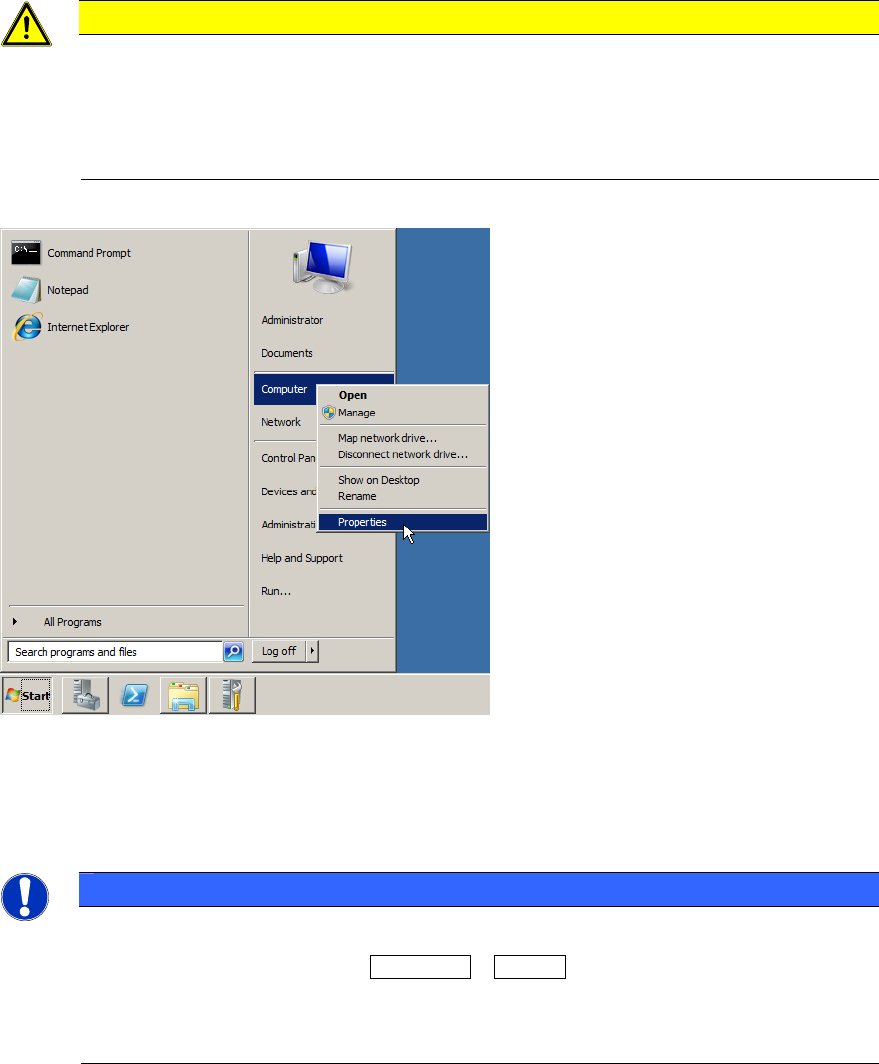
Figure 3-1: Starting System Settings
► Click on Start.
► Right-click on Computer and select Properties.
NOTICE
Alternative Ways to System Settings
As alternative, you may use the Windows + Pause key combination to call the same
dialog. This works on all currently known Windows versions.
If you don’t have a keyboard with the Windows key and can’t find the Computer entry in
the start menu, have a look for the My Computer icon on the Desktop instead.
7