SOM-1756-001.pdf - 第18页
*3 ACV Check Status Displayed is the ACV check status. T able 6 Items Status Not check The ACV checking is not being made. Finished Check The component ID identical to the information in the ACV line server was detected …
8.3.1 "F1", "F3", and "F4" Tab Sheets
These tab sheets enable the operator to confirm the ACV check status
for Feeder Bases #1, #2, and #3.
The ACV checking means that the system of the machine works
to check if the data in the ACV line server matches the data in
the memory of the main body (the main machine) or not.
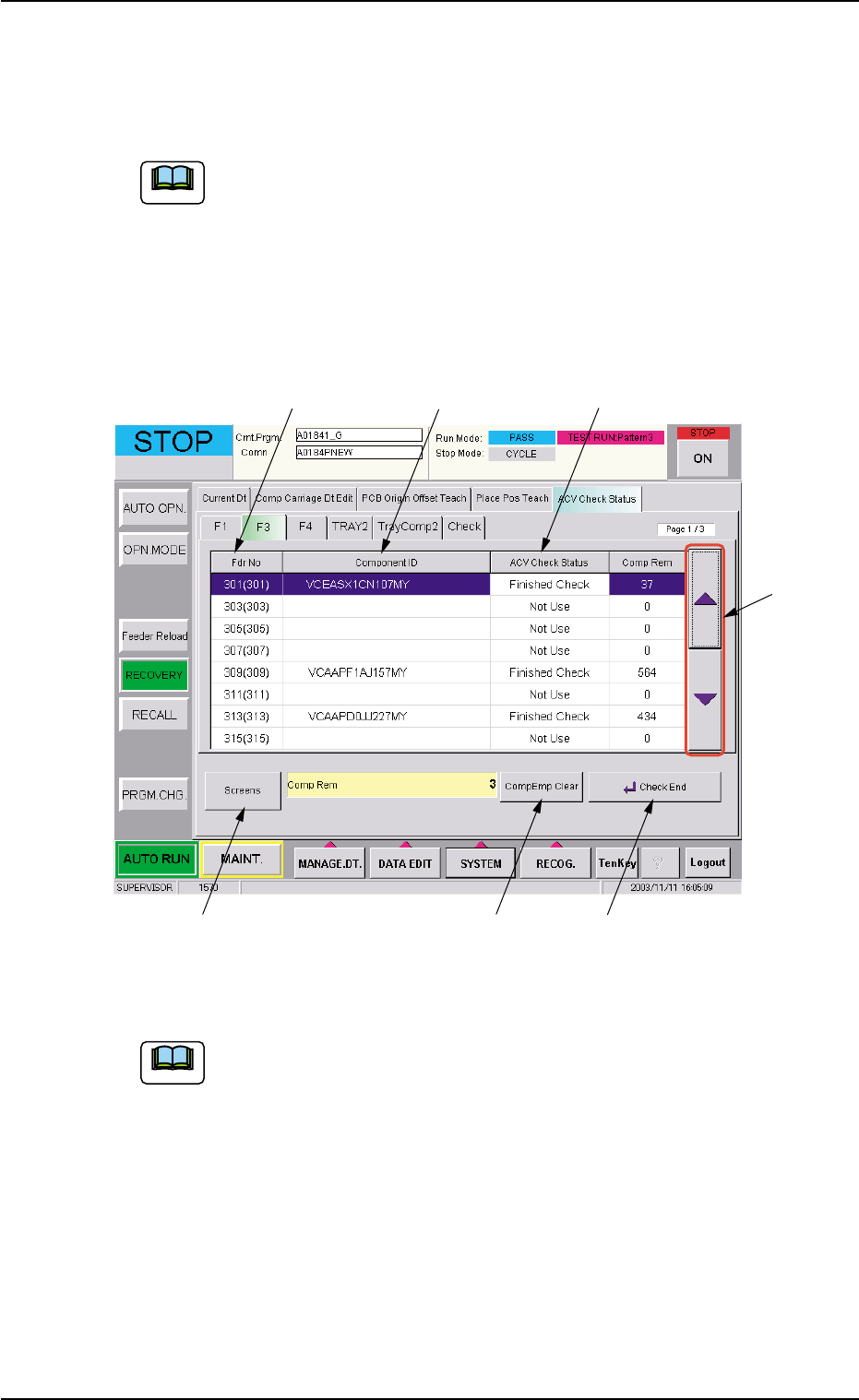
• Sheet Layout
When the "F3" tab is pressed in the "RECOVERY" window (submenu),
the following tab sheet appears.
Fig. 7 "F3" Tab Sheet
When the "F1" and "F4" tabs are pressed, the corresponding
tab sheets also appear in the same way.
*1 Fdr. No. (Actual Fdr No.)
Displayed are the feeder Nos. used for the current program and the
actual feeder Nos. in ( ).
*2 Component ID
Displayed are the component IDs of the placement feeder location
data related to the feeder No.
8.3 "ACV Check Status" Tab Sheet
Note
*1 *2 *3
*4
*5 *6 *7
Note
0311-001 16 AIT01EGP
*3 ACV Check Status
Displayed is the ACV check status.
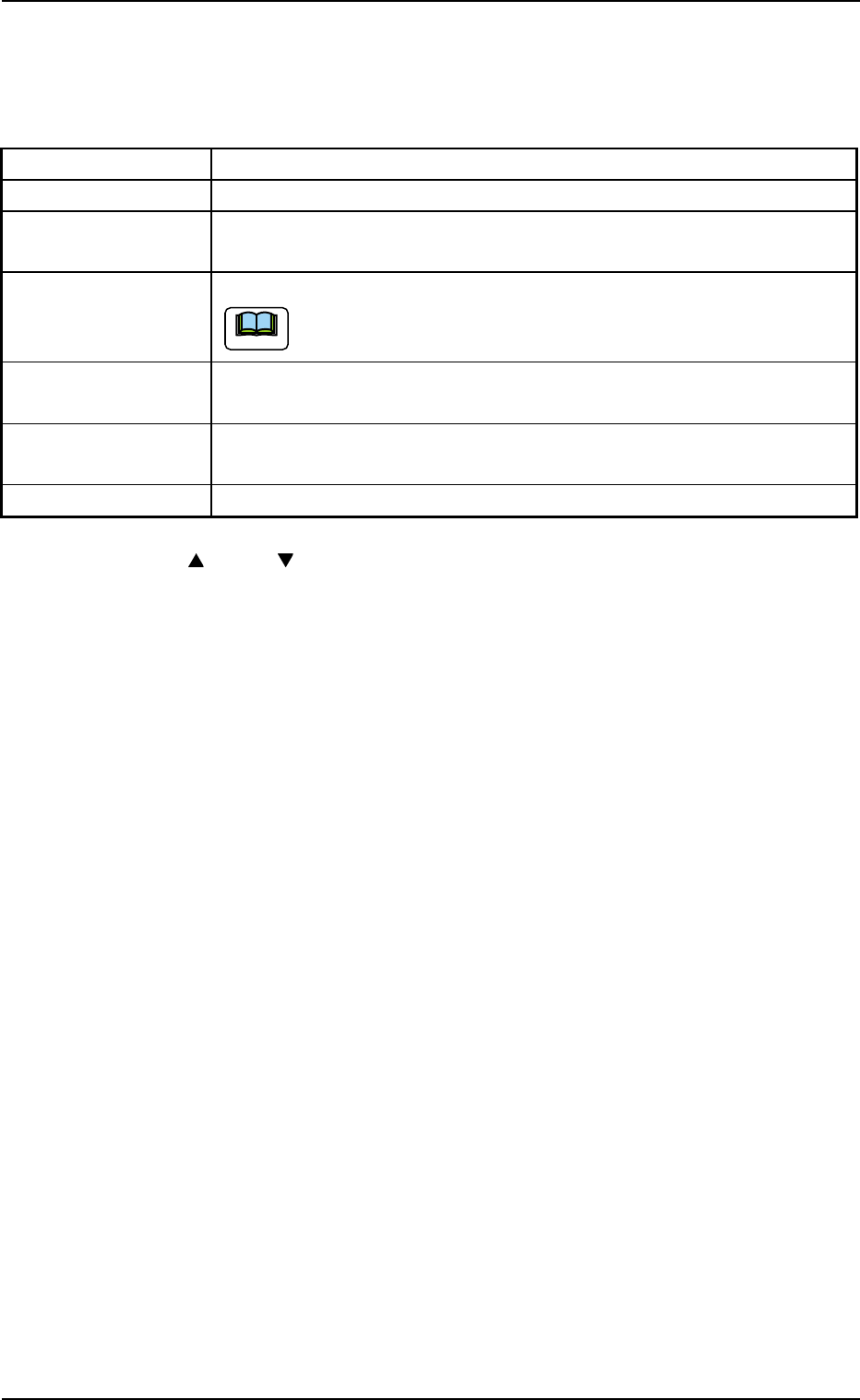
Table 6
Items Status
Not check The ACV checking is not being made.
Finished Check The component ID identical to the information in the ACV line server
was detected during the ACV checking.
Comp Empty A component shortage error was detected during the ACV checking.
It is required to register the component.
Out of NC FDR The component ID nonidentical to the information in the ACV line server
was detected during the ACV checking.
Not Register A feeder provided with components not registered in the ACV line server
was detected.
Not Use Not used in the pattern program.
*4 [ ] and [ ] Buttons
The up or the down arrow can be pressed to scroll up or down the
tab sheet to expose hidden items.
*5 [Screens] Button
When this button is pressed, another tab sheet appears.
*6 [CompEmp Clear] Button
After the components are replenished to the feeder in which a com-
ponent shortage error is detected ("Comp Empty" has appeared in
the "ACV Check Status" text box (*3)), press this button.
*7 [Check End] Button
After all check status is confirmed in the "ACV Check Status" text
boxes (*3), press this button.
8.3 "ACV Check Status" Tab Sheet
Note
0311-001 17 AIT01EGP
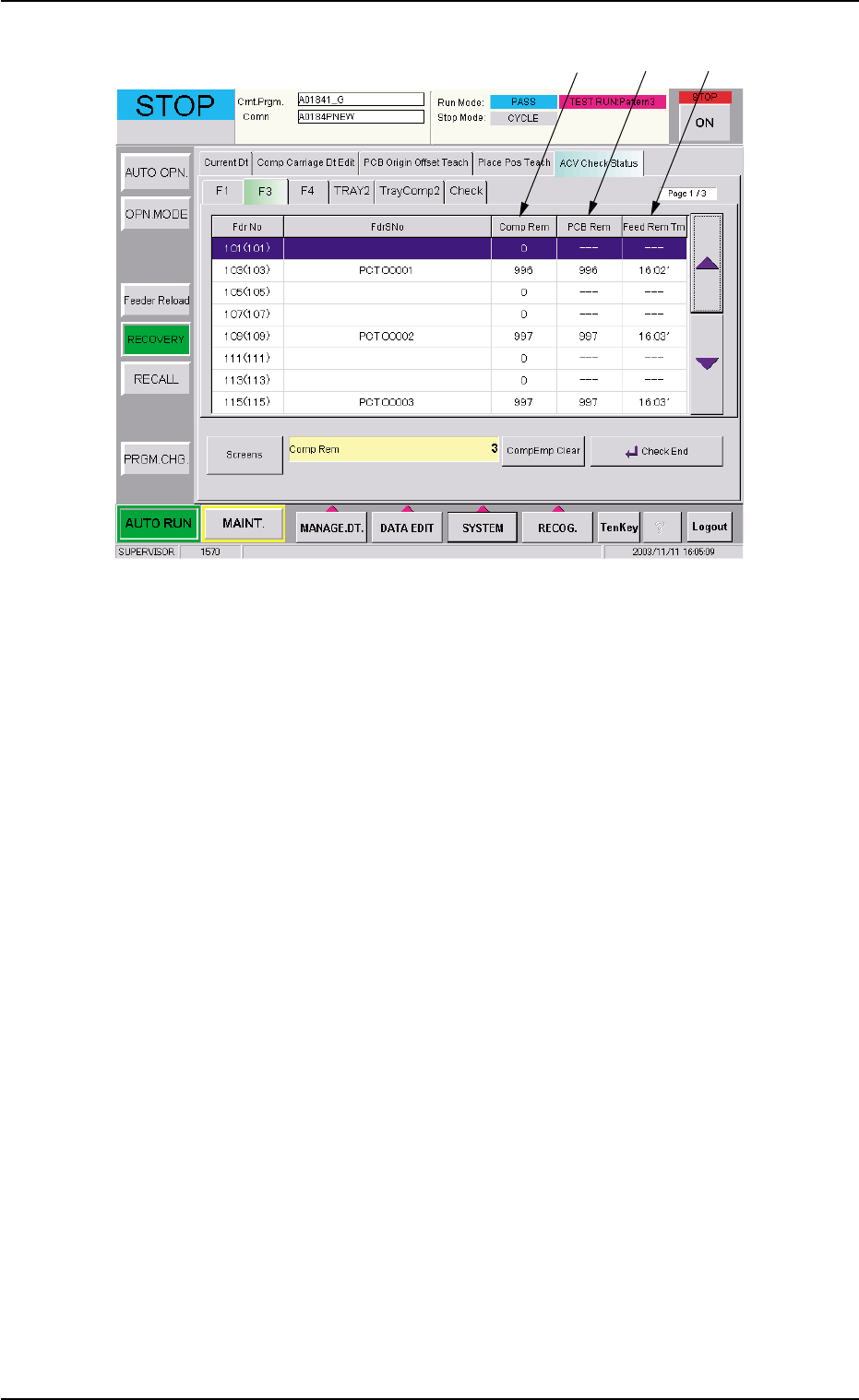
Fig. 8
*8 Comp Rem
Displayed is the component remainder data that was read from the
Tag memory.
When the [Enable] button is selected in the "Record Component
Remainder" group box, one piece of component is subtracted from
the remainder data every time a component is picked up during au-
tomatic operation.
When the [Comp Remainder] button is selected in the "Alarm for
Component Remainder" group box and the value under "Comp Rem"
is smaller than the specified one, the background color of the nu-
merical value turns yellow.
When the machine is powered or a program change operation is
performed, "---" appears.
8.3 "ACV Check Status" Tab Sheet
*8
*9 *10
0311-001 18 AIT01EGP