00197214_IM_SupportMediaV1.15_EN.pdf - 第22页
Support Media V1.15 10/2013 Edition 22 Figure 4- 11 : Selecting Missing Pre requisites Do wnloader in SIPLAC E Installer app lication ► Select the option “Missing Prerequ isites Downloader” Figure 4- 12 : Hint me ssage ►…
Support Media V1.15 10/2013 Edition
21
4.4.5 Downloading for multiple configurations
If you plan to prepare multiple (different) computer configurations, you may want to download all
missing required software packages in advance.
To do this, you have to perform the following steps.
► Insert the Support Media DVD / mount the ISO file of Support Media and execute the file
Autorun.cmd, if no auto run dialog appears.
The Software Launcher application opens.
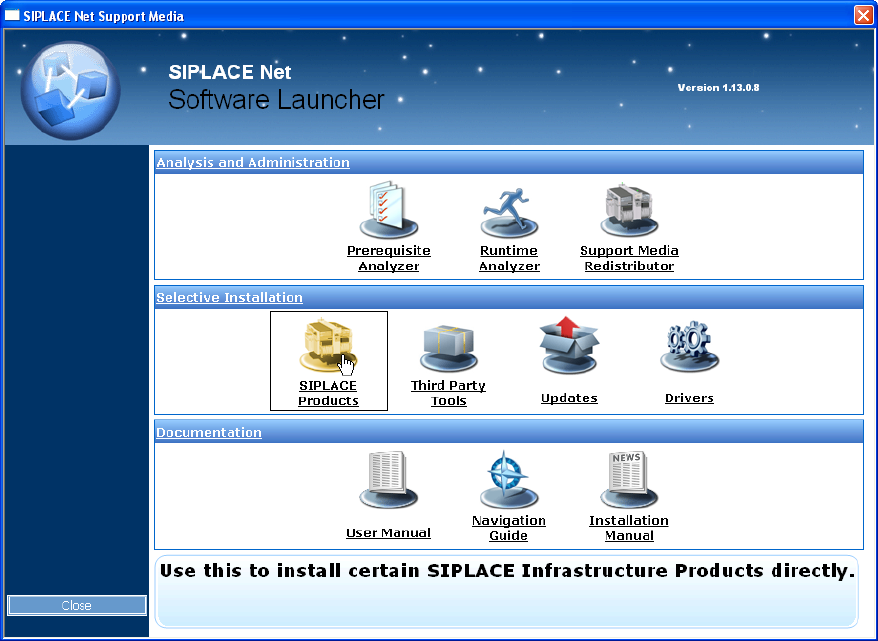
Figure 4-10: Selecting SIPLACE Products in Software Launcher
► In the Software Launcher application, select SIPLACE Products.
The SIPLACE Installer application opens.
Support Media V1.15 10/2013 Edition
22
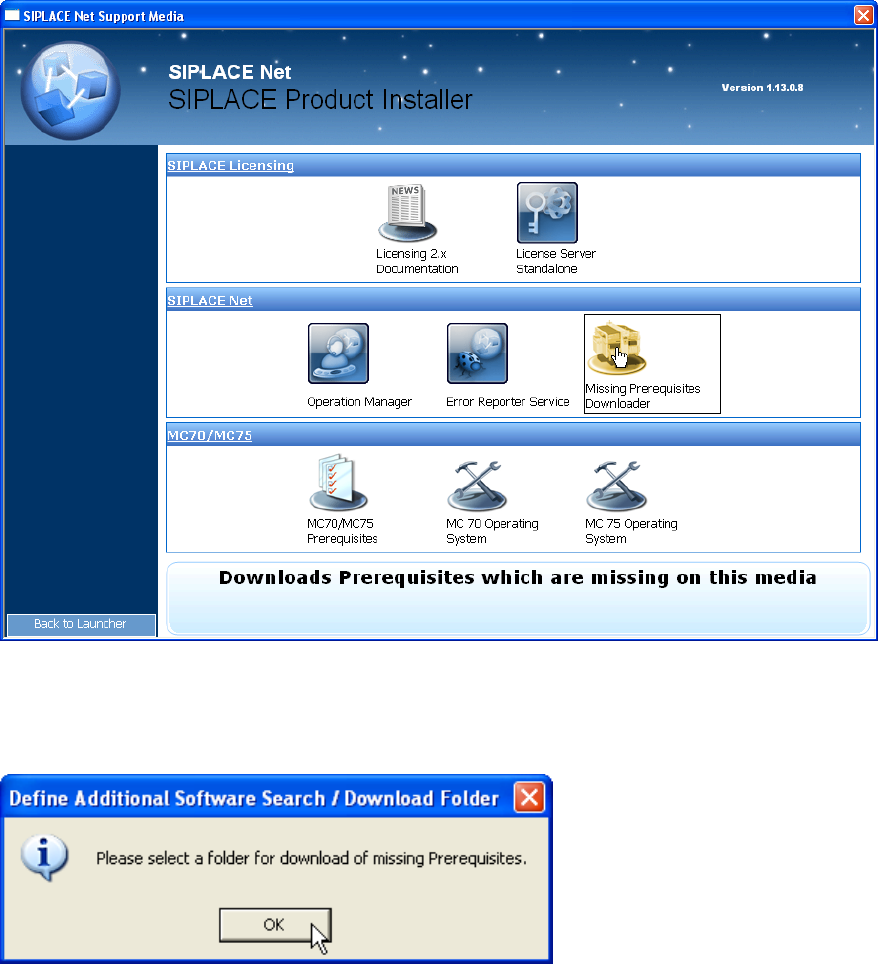
Figure 4-11: Selecting Missing Prerequisites Downloader in SIPLACE Installer application
► Select the option “Missing Prerequisites Downloader”
Figure 4-12: Hint message
► Click OK.
Support Media V1.15 10/2013 Edition
23
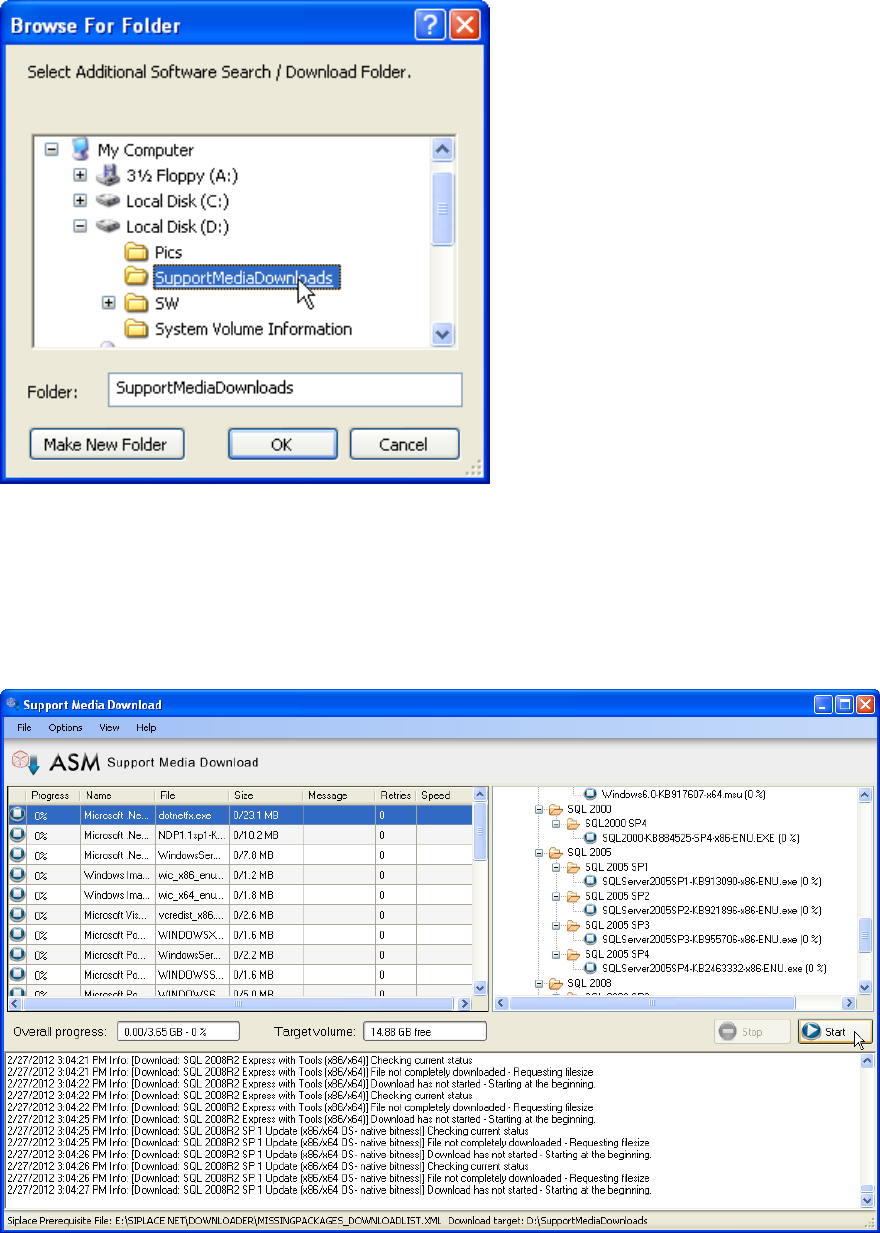
Figure 4-13: Folder Selection dialog window
► In the new folder selection dialog window, select or create the Download Folder.
► Click OK to accept the choice
The Support Media Download Tool will be started.
Figure 4-14: Support Media Download Tool
► Click the Start button to start the download.
► After the download completes, click the “Done” button to close the Download Tool.
► In Prerequisite Analyzer, select this new directory structure as Additional Software Search
Folder, as described in the chapters above.