ELA Generic Tooling.pdf - 第31页
MACHI NE PROG RAMMI NG STAGE 5 D - MULTIFLEX TOOLING User Manual 1.45 slide the adju ster to the rear of the machine to lock in place. 50. Ens uring for the corr ect orient ation of the s tencil, load the stenc il agains…
MACHINE PROGRAMMING
STAGE 5D - MULTIFLEX TOOLING
1.44 User Manual
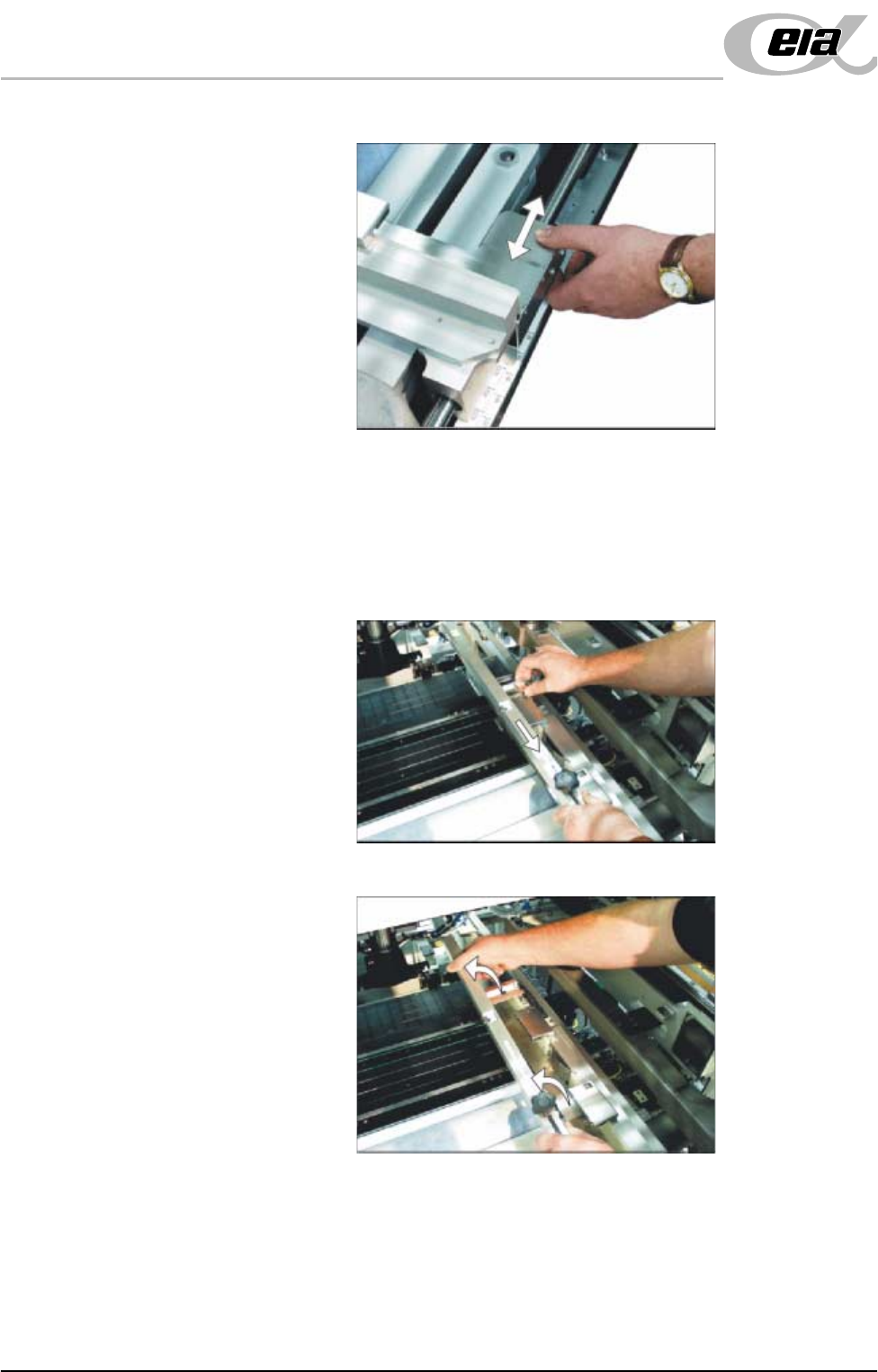
graduated scale.
c. Release the push button valve.
d. Repeat the procedure for the right hand chase rail.
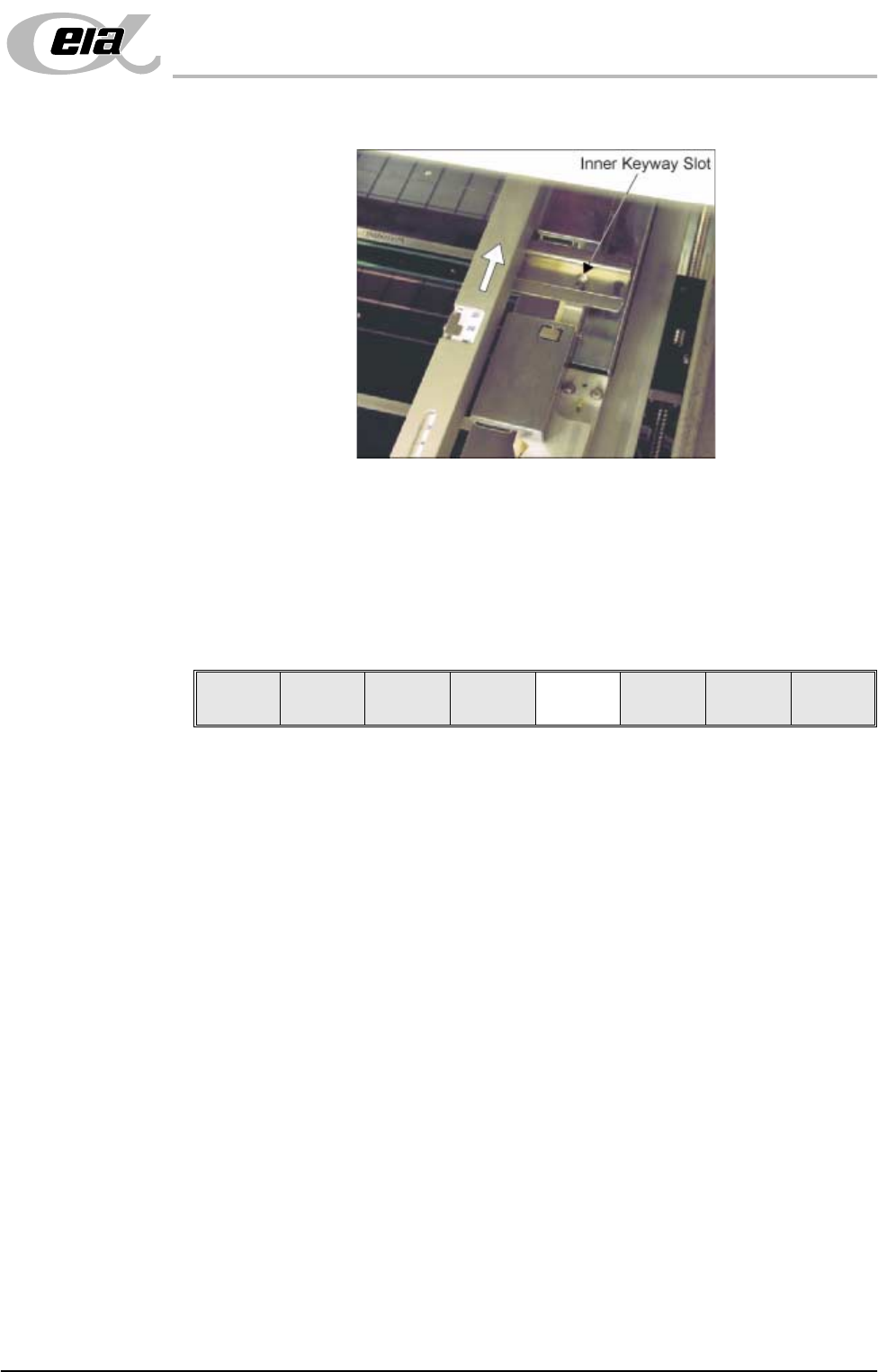
49. If the stencil size is less than 29″ x 29″ the screen depth adjuster position is
to be adjusted as follows (ASM only):
a. Slide the screen depth adjuster towards the front of the machine.
b. Lift the adjuster clear of the two locating screws.
c. Using the inner pair of keyway slots locate the adjuster on the chase and
MACHINE PROGRAMMING
STAGE 5D - MULTIFLEX TOOLING
User Manual 1.45
slide the adjuster to the rear of the machine to lock in place.
50. Ensuring for the correct orientation of the stencil, load the stencil against the
left hand chase rail.
51. Toggle screen clamp switch to down (On) (fixed width chase only).
52. Raise drop down panel, lower machine shutter.
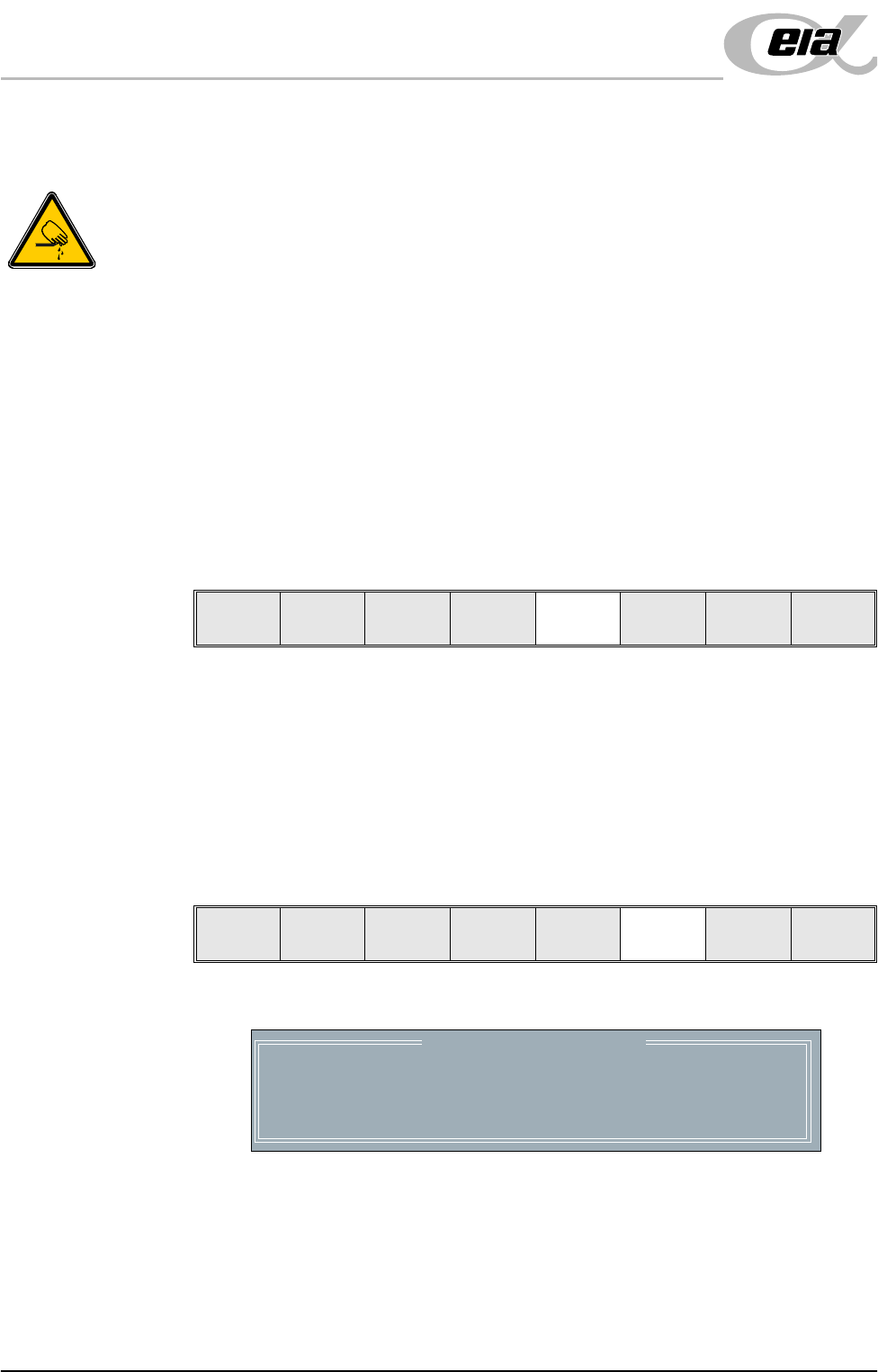
53. Press the System button.
54. Select Change Screen (F2).
55. Go to Stage 6.
Mode
Load
Data
Edit
Data
Setup
Squeegee
Change
Screen
Change
Tooling
Change
Language
Exit
MACHINE PROGRAMMING
STAGE 5E - FORMFLEX TOOLING
1.46 User Manual
STAGE 5E - FORMFLEX TOOLING
Setup Plate and Weights Procedure
WARNING
BOARD CLAMPS. EXTREME CARE MUST BE EXERCISED WHEN WORKING IN
THE TOOLING AREA OF THE MACHINE TO AVOID INJURY. THE FOILS ON THE
FRONT AND REAR BOARD CLAMPS ARE VERY SHARP.
CAUTION
BOARD CLAMPS.
Care must be taken to ensure that the board clamps are
not damaged when removing or replacing tooling.
NOTE
1. Ensure that Generic Tooling is set to Enabled in Set Prefs.
2. When using FormFlex, the print gap in the product file must be set to zero.
1. If there is a screen loaded continue with Step 2. If there is no screen loaded
go to Step 8.
2. Select Change Screen (F5). The message ‘Open Front Cover and
Remove Screen’ is displayed.
3. Raise the printhead shutter and lower the drop down panel.
4. Toggle screen clamp switch to the up position (Off) (fixed width chase only).
5. Remove the stencil from the printer.
6. Raise the drop down panel and lower the printhead shutter.
7. Press the System button.
8. Select Change Tooling (F6). The print carriage and the under screen
cleaner are moved to the rear.
The Change Tooling Parameters window is displayed:
NOTE
If the remote board stop is fitted the Board Stop X and Board Stop Y
parameters are replaced by Remote Board Stop X.
9. Setting up the board stop position is automatically done using the board
dimensions previously set in the product file. If they need adjustment to re-
position the board stop for any reason, ie any routing on the board edge or
a badly positioned image on the stencil, this can be done now. If adjustment
Mode
Load
Data
Edit
Data
Setup
Squeegee
Change
Screen
Change
Tooling
Change
Language
Exit
Mode
Load
Data
Edit
Data
Setup
Squeegee
Change
Screen
Change
Tooling
Change
Language
Exit
Change Tooling Parameters
BOARD WIDTH
BOARD STOP X
BOARD STOP Y
UNDER CLEARANCE
216.0
125.0
142.6
19.0
mm
mm
mm
mm