ELA Generic Tooling.pdf - 第37页
MACHI NE PROG RAMMI NG STAGE 5 E - FORMFLEX TOOLING User Manual 1.51 34. W ait until the pneumati c indicator on the front cover displays gre en. 35. Remove the weights and the For mFlex setup plate from the toolin g are…
MACHINE PROGRAMMING
STAGE 5E - FORMFLEX TOOLING
1.50 User Manual
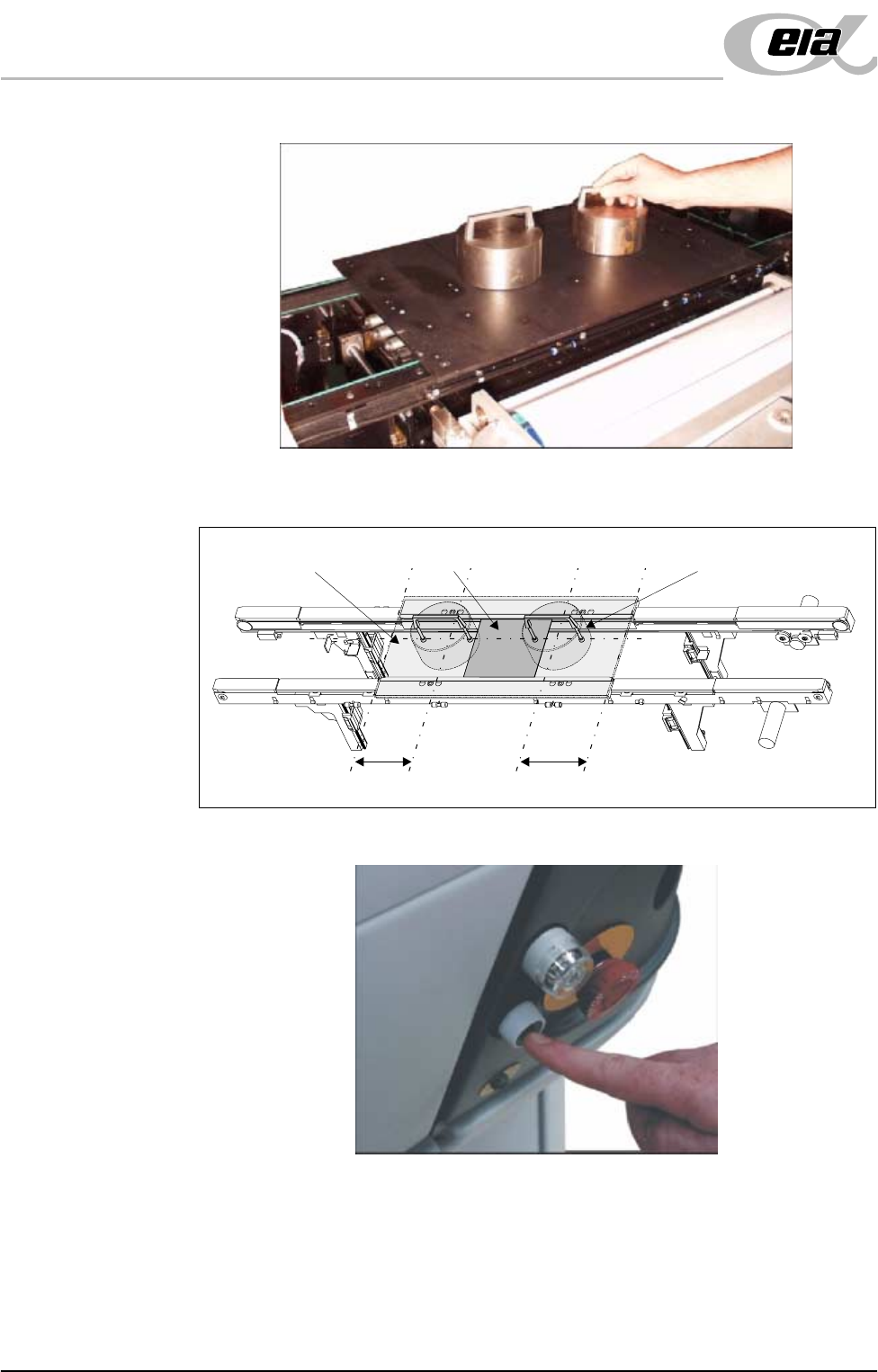
and place the weights on top of the setup plate.
32. Align the weights along the centre line in the Y axis and one third of the plate
length in the X axis.
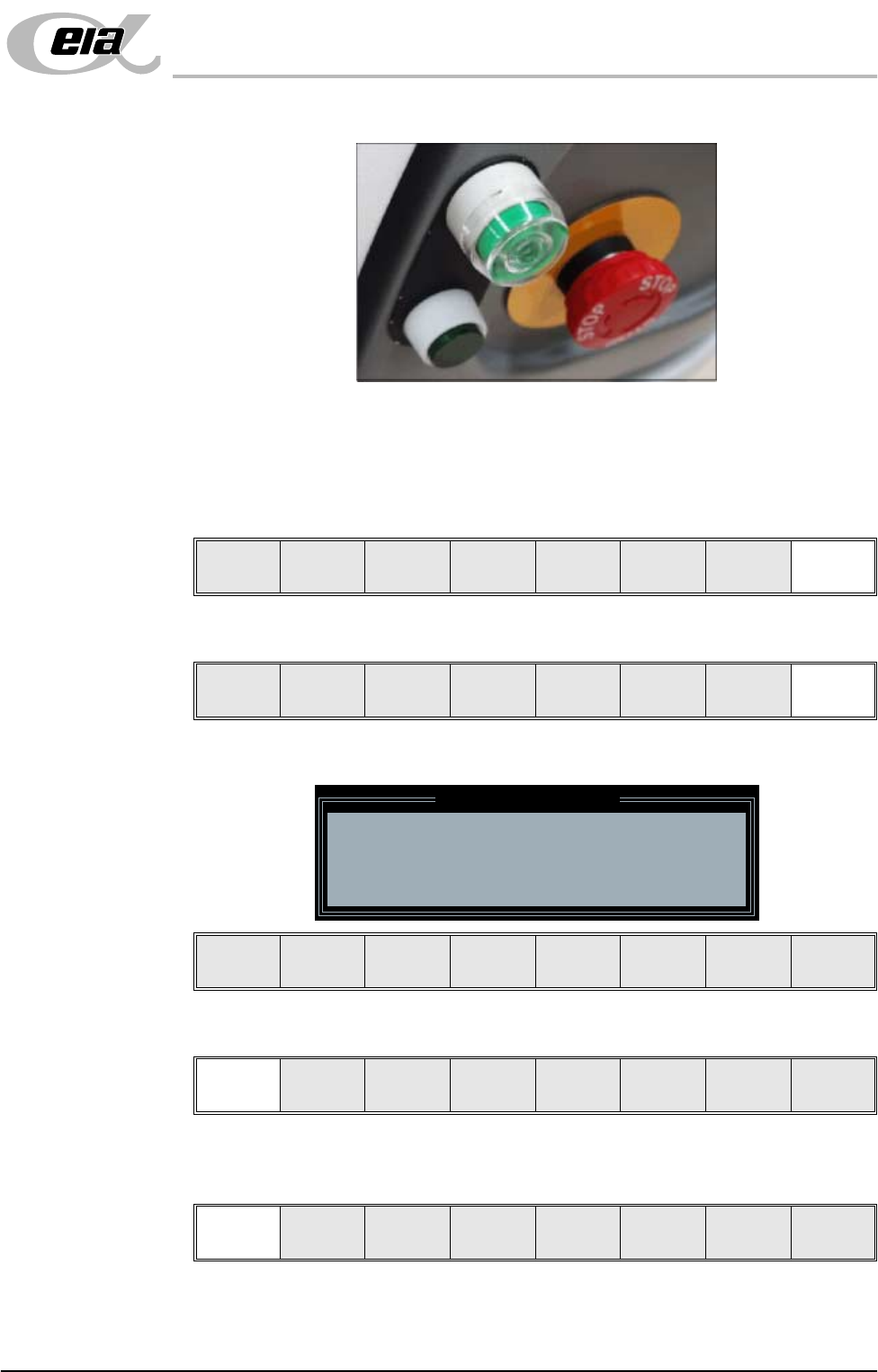
33. Press the operator switch on the front of the machine covers.
C/L
1/3
1/3
BoardSetup Plate Weight (in 2 positions)
MACHINE PROGRAMMING
STAGE 5E - FORMFLEX TOOLING
User Manual 1.51
34. Wait until the pneumatic indicator on the front cover displays green.
35. Remove the weights and the FormFlex setup plate from the tooling area.
36. Lower the printhead shutter.
37. Press the System button.
38. Select Exit (F8).
39. Select Exit (F8).
The following window and menu bar is displayed:
40. Select Continue (F1).
41. Select Auto Board (F1). The message ‘Board on rails, remove and
continue’ is displayed.
42. Remove the board from the rails.
Exit
Vision
Height
Open
Cover
Exit
Leaving Generic Tooling
WARNING You are about to return
to the Setup Page
Clear all tooling setup
equipment before proceeding
Continue Exit
Continue Exit
Auto
Board
Manual
Board
MACHINE PROGRAMMING
STAGE 5E - FORMFLEX TOOLING
1.52 User Manual
43. Select Continue (F1).
44. Raise the printhead shutter and lower the drop down panel.
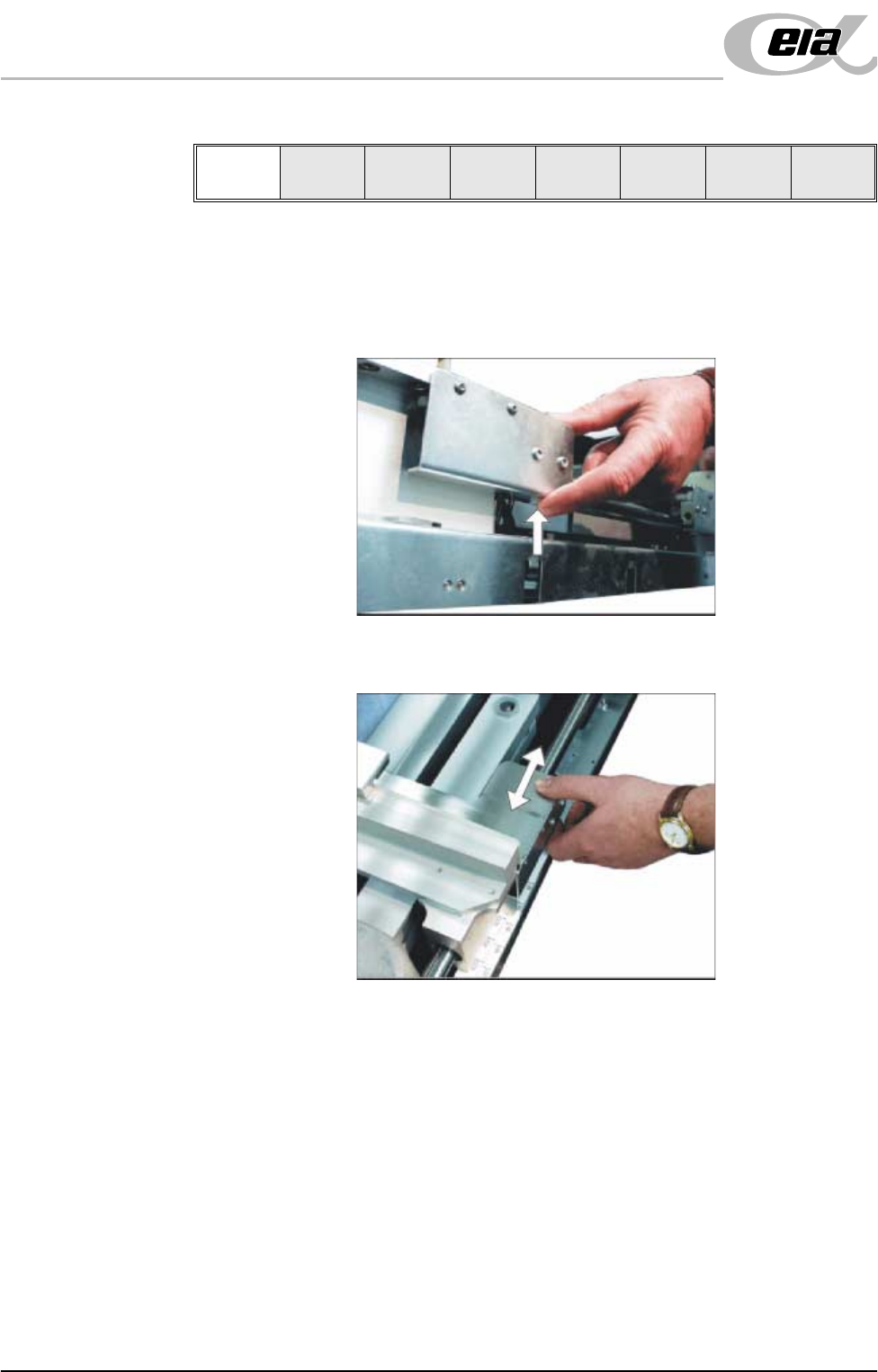
45. To adjust the width of the chase rails to accommodate the stencil for the
product file loaded, carry out the following (ASM only):
a. Press and hold the left hand chase rail push button valve.
b. Slide the left hand chase rail to the desired position indicated on the
graduated scale.
c. Release the push button valve.
d. Repeat the procedure for the right hand chase rail.
46. If the stencil size is less than 29″ x 29″ the screen depth adjuster position is
to be adjusted as follows (ASM only):
Continue
Open
Cover