00198501-02_IM_711.1_R18-1_EN.pdf - 第27页
Station Software V ersion 711.1 (R 18 - 1) / Installat ion Manual 05/2018 Edition 27 The Packages and F eatures dialo g box is displayed. Figure 5-8: Selecting packages and features All software compon ents are enabl ed …
Station Software Version 711.1 (R18-1) / Installation Manual 05/2018 Edition
26
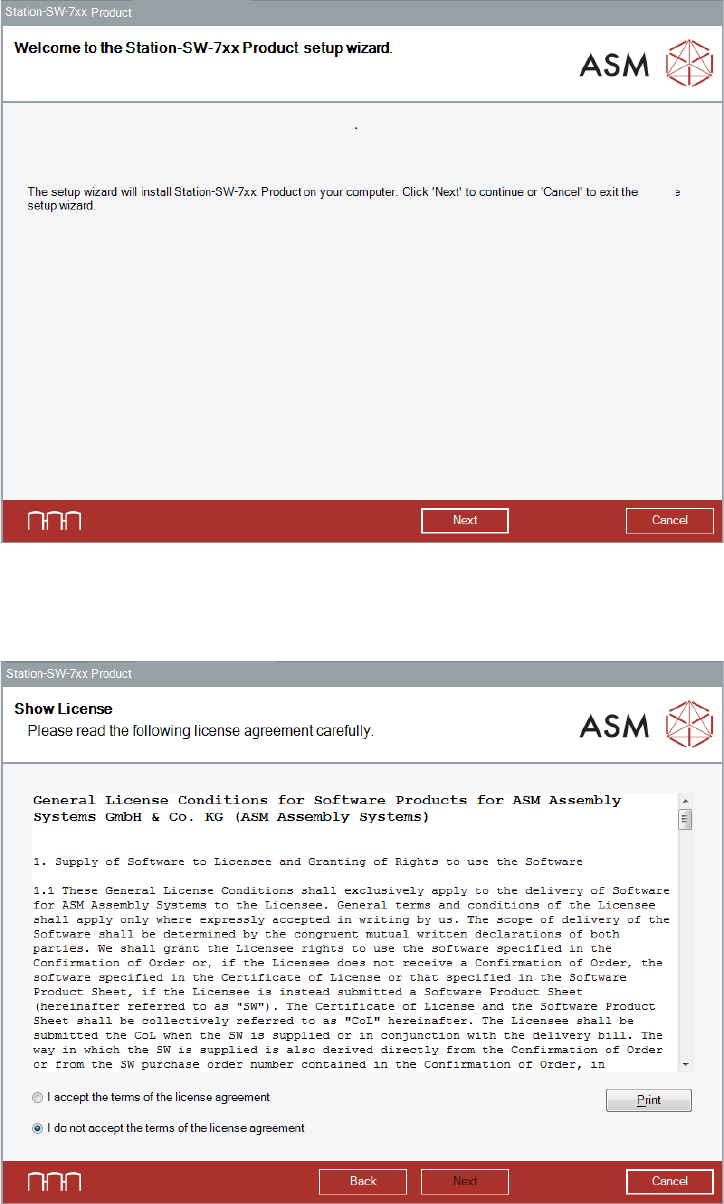
The Welcome dialog box of the station software setup wizard is displayed.
Figure 5-6: Welcome dialog box
► Click the Next button.
The Show License dialog box is displayed.
Figure 5-7: Accepting license
► Select I accept the terms of the license agreement to accept the license conditions.
► Click the Next button.
Station Software Version 711.1 (R18-1) / Installation Manual 05/2018 Edition
27
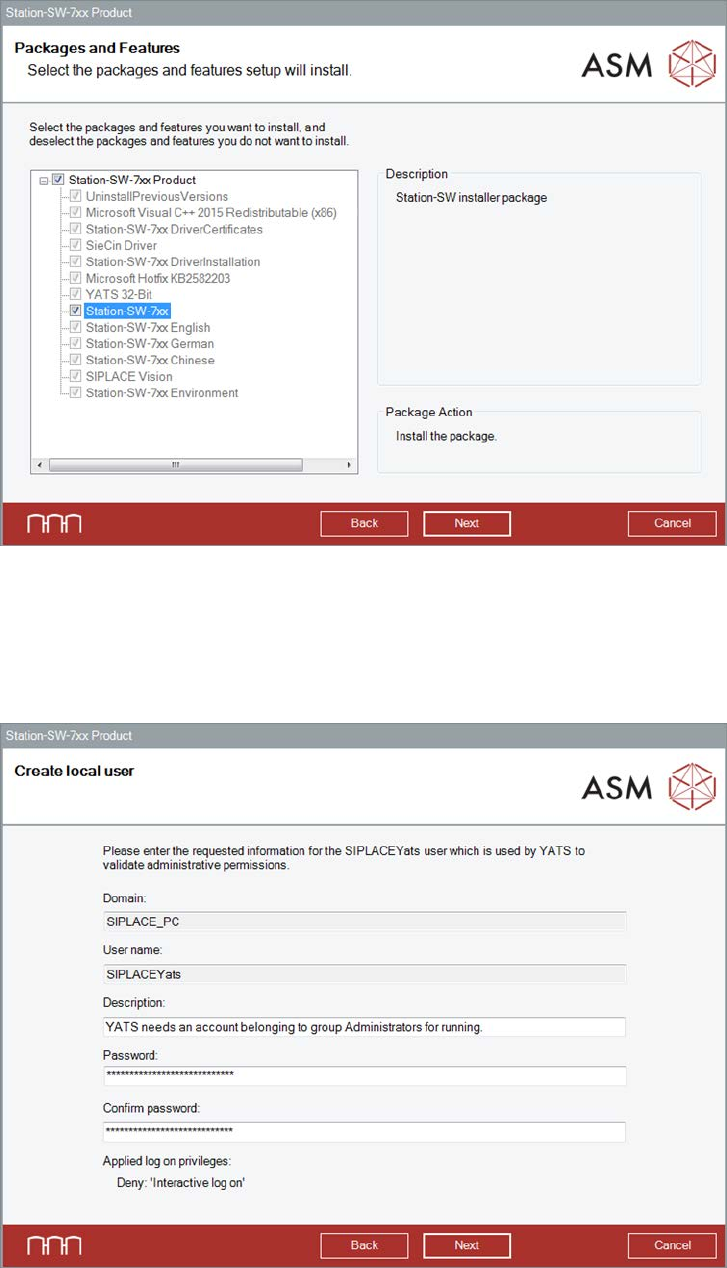
The Packages and Features dialog box is displayed.
Figure 5-8: Selecting packages and features
All software components are enabled by default. However, according to the dependency, individual
packages may be deselected.
► Click the Next button.
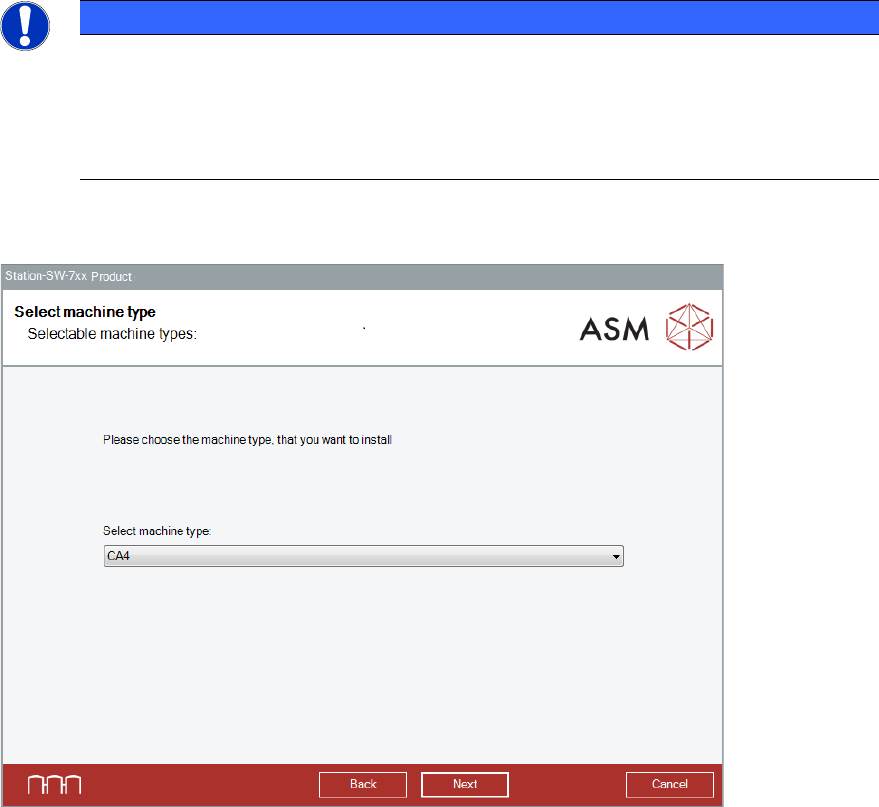
The Create local user dialog box is displayed.
Figure 5-9: Changing password for SIPLACEYats account
► You may change the password for the SIPLACEYats account here.
Station Software Version 711.1 (R18-1) / Installation Manual 05/2018 Edition
28
NOTICE
► If you want to change the password for the SIPLACEYats account and an older
station software version is already installed, you will have to uninstall the old station
software version manually first.
► If problems occur during installation of the SIPLACEYats account after that, you will
have to delete the account manually and install it again.
► Click the Next button.
The Select machine type dialog box is displayed.
Figure 5-10: Selecting the machine type
► Select the machine type for which the software shall be configured.
This entry field will be empty in the following cases:
– At initial installation.
– If a previous station software version < 710.x has been automatically uninstalled by the setup
wizard before installation.
– If a previous station software version 710.x (or higher) has been manually uninstalled before
installation. In this case, an initial installation will be performed.
► Click the Next button.