00198501-02_IM_711.1_R18-1_EN.pdf - 第36页
Station Software V ersion 711.1 (R 18 - 1) / Installat ion Manual 05/2018 Edition 36 If you install stat ion software 71 1.x and station softwar e Language Pack 710. x is still installed, a correspondent error message is…
Station Software Version 711.1 (R18-1) / Installation Manual 05/2018 Edition
35
5.4.1 Error Handling
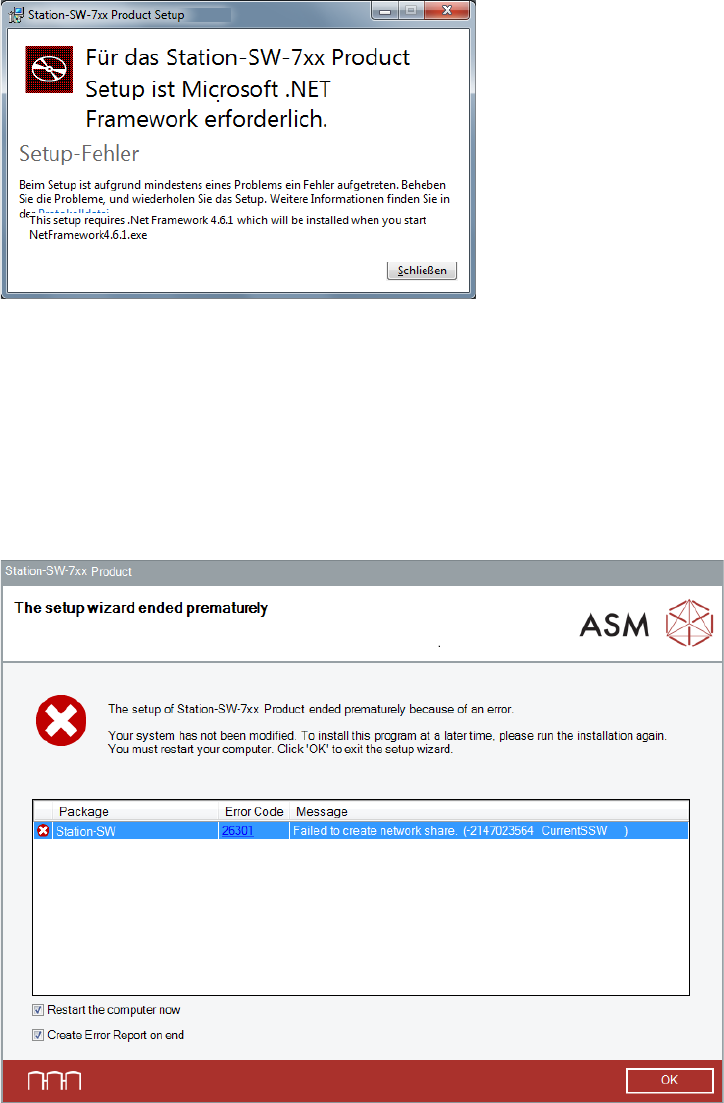
The following error message may be displayed after starting the station software installation.
Figure 5-23: Failing .NET Framework installation
In this case, .NET Framework 6.4.1 has to be installed manually.
► Click Close to exit the setup wizard.
► Install .NET Framework 4.6.1. Please refer to section 5.3.2.
► Start the BundleInstaller.exe file to run the installation again.
If an error occurs during installation, the setup is interrupted and the following dialog box displayed.
Figure 5-24: Error during installation
► Ensure that the Restart the computer now option is selected (default).
► Ensure that the Create Error Report on end option is selected (default).
► Click OK to exit the setup wizard.
You will be prompted to store the Error Report (as zip file).
► After the problem has been solved, start the BundleInstaller.exe file to run the installation
again.
Station Software Version 711.1 (R18-1) / Installation Manual 05/2018 Edition
36
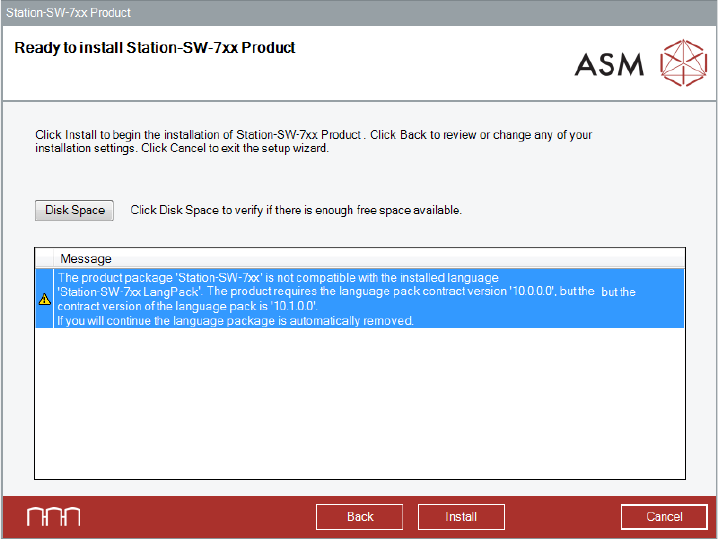
If you install station software 711.x and station software Language Pack 710.x is still installed, a
correspondent error message is displayed. If you continue installing the station software, the
station software Language Pack will be automatically removed.
Figure 5-25: Error station software and language pack
Station Software Version 711.1 (R18-1) / Installation Manual 05/2018 Edition
37
5.5 Installing Product Patches
If patches are available for the station software, these have to be installed separately.
► Log in under the ASM_Admin user account.
► Insert the installation media and mount the *.iso file.
► Open Windows Explorer.
► Double-click the Station_SW_Patches.exe file to start installing the product patches for the
station software.
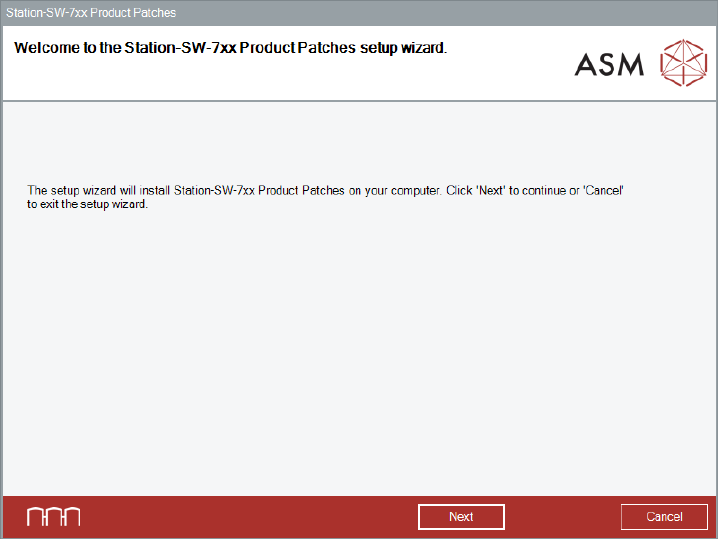
► The Welcome dialog box of the patches setup wizard is displayed.
Figure 5-26: Welcome dialog box
► Click the Next button.