00198501-02_IM_711.1_R18-1_EN.pdf - 第54页
Station Software V ersion 711.1 (R 18 - 1) / Installat ion Manual 05/2018 Edition 54 The Ready to instal l dialog box is di splayed again. ► Click the Install button to start the install ation. The necessary f iles for t…
Station Software Version 711.1 (R18-1) / Installation Manual 05/2018 Edition
53
NOTICE
The Coplan computer software and feeder computer software cannot be combined with
each other!
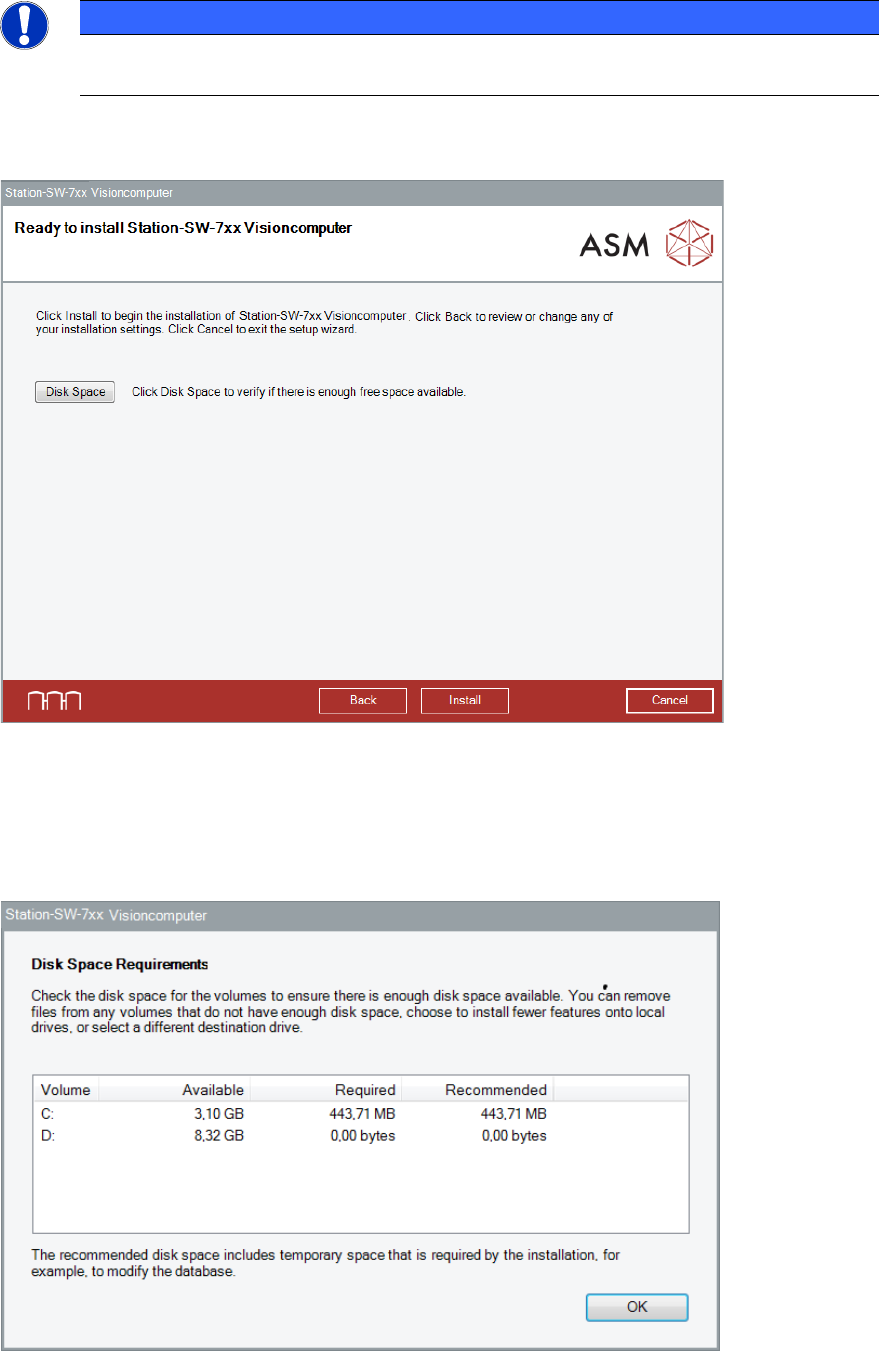
The Visioncomputer software is now ready to be installed. The following dialog box is displayed.
Figure 6-5: Ready for installation
Before installing, you can check the available, required and recommended disk space (per drive) to
perform the installation.
► Click the Disk Space button.
The Disk Space Requirements dialog box is displayed.
Figure 6-6: Disk Space Requirements
► Click the OK button.
Station Software Version 711.1 (R18-1) / Installation Manual 05/2018 Edition
54
The Ready to install dialog box is displayed again.
► Click the Install button to start the installation.
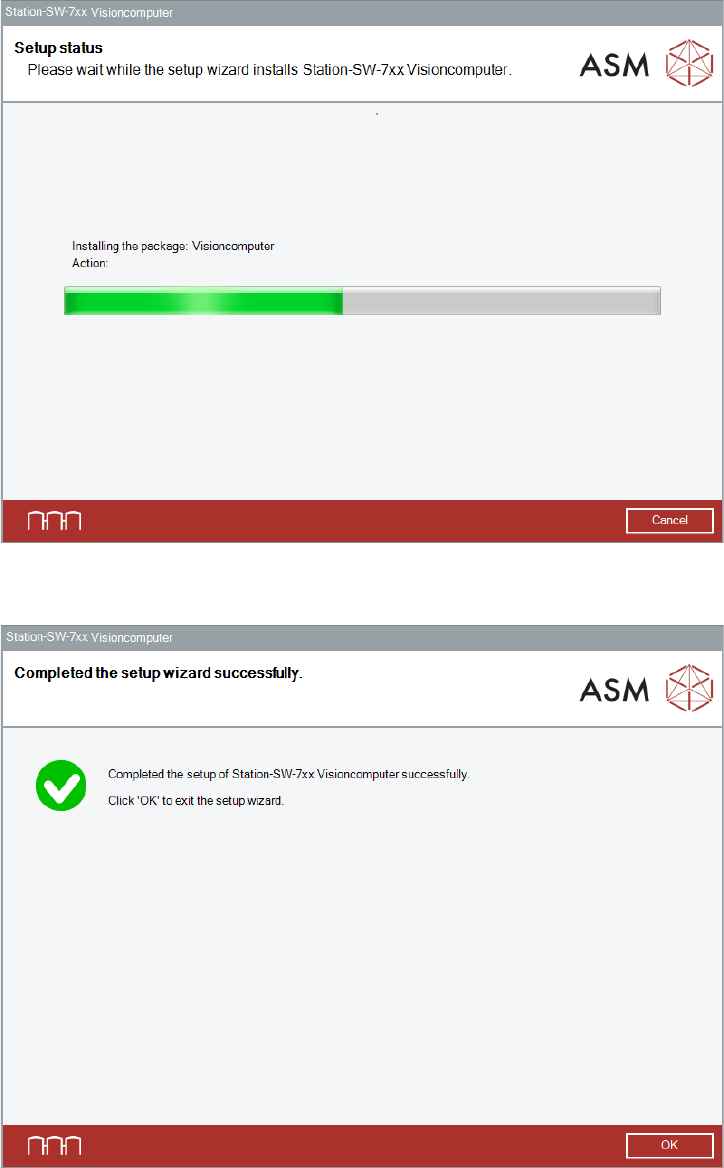
The necessary files for the respective software will be installed on the Vision computer.
The setup status is displayed during installation.
Figure 6-7: Setup status
After successful installation, the following dialog box is displayed.
Figure 6-8: Installation completed

Station Software Version 711.1 (R18-1) / Installation Manual 05/2018 Edition
55
NOTICE
To establish the connection between the SIPLACE Coplan computer software or feeder
computer software and the SIPLACE station software after the installation has been
completed, the Vision computer and the station computer must first be shut down and
the machine then switched off completely.
► To do this, open the Start menu on the station computer and select All Programs – ASM
Station-SW-7xx – Shutdown all computer.
► Switch the machine off when the computer systems have shut down.
► Then, switch the machine on again. This reboots the Vision computer and the station computer.