00198501-02_IM_711.1_R18-1_EN.pdf - 第32页
Station Software V ersion 711.1 (R 18 - 1) / Installat ion Manual 05/2018 Edition 32 If Windows cannot v erify the publishe r of the driver sof tware, the fol lowing dialog box is displ ayed. Figure 5-16: Verifying drive…
Station Software Version 711.1 (R18-1) / Installation Manual 05/2018 Edition
31
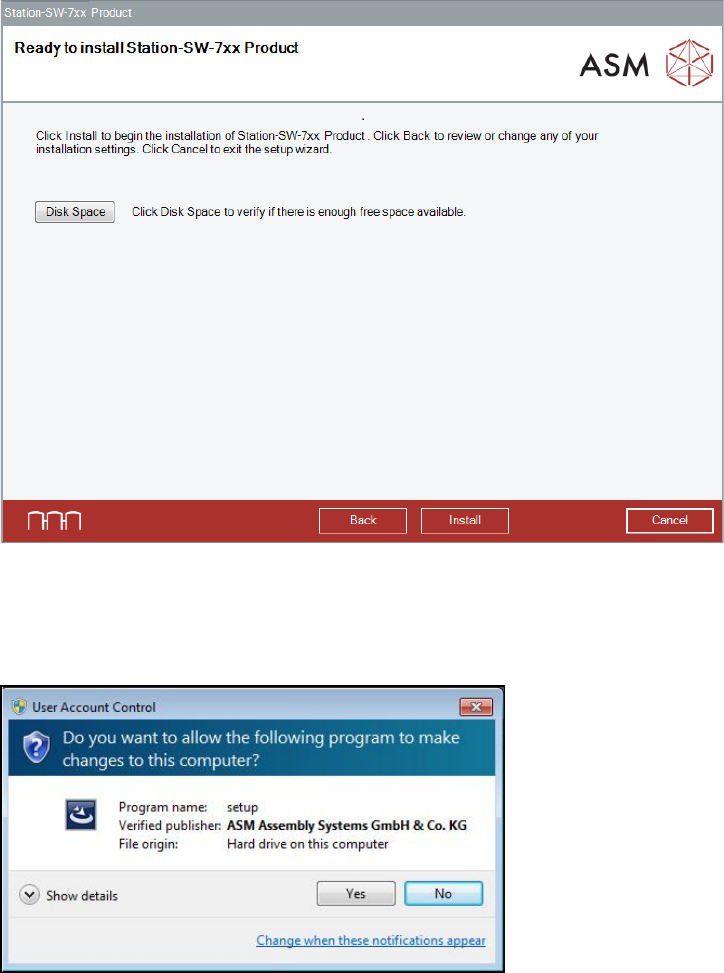
The Ready to install dialog box is displayed again.
Figure 5-14: Ready for installation
► Click the Install button to start the installation.
If User Account Control is enabled under Windows Embedded Standard 7, the following dialog
boxes are additionally displayed.
Figure 5-15: User Account Control
► Click the Yes button to allow the ASM Software installation.
Station Software Version 711.1 (R18-1) / Installation Manual 05/2018 Edition
32
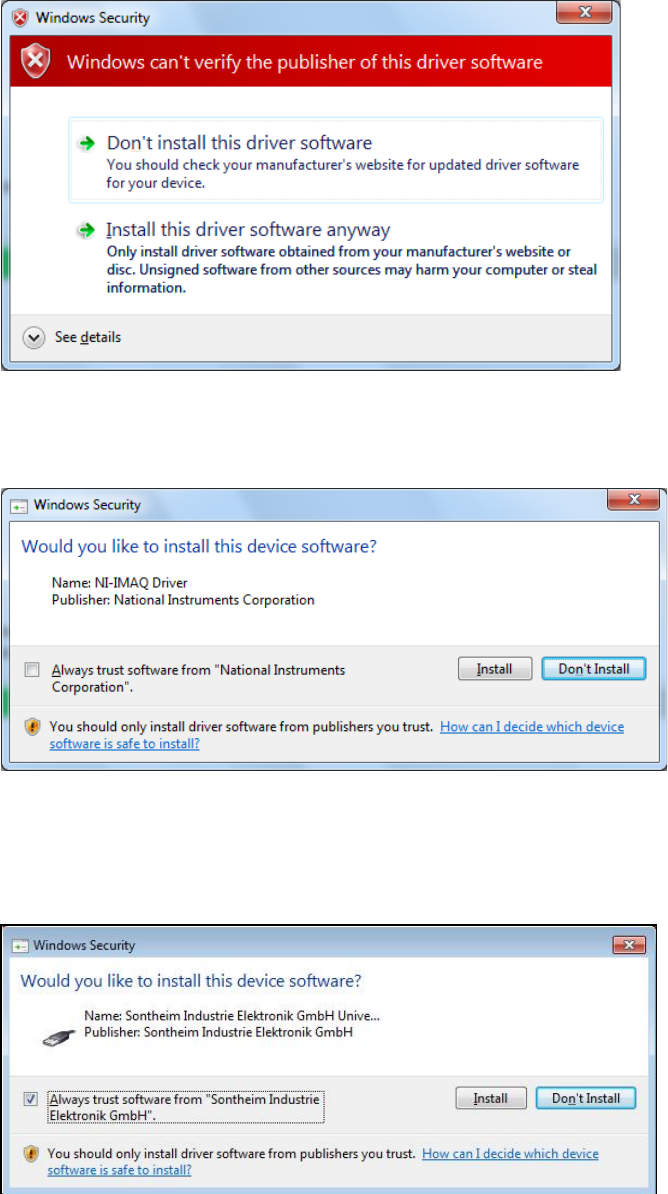
If Windows cannot verify the publisher of the driver software, the following dialog box is displayed.
Figure 5-16: Verifying driver software
► Select the Install this driver software anyway option.
► If an NI-IMAQ driver is connected, the following dialog box is displayed.
Figure 5-17: Installation driver software for NI-IMAQ Driver
► Activate the Always trust software from "National Instruments Corporation" field.
► Click the Install button to install the corresponding driver software.
If a Sontheim device is connected, the following dialog box is displayed.
Figure 5-18: Installing driver software for Sontheim device, part 1
► Activate the Always trust software from "Sontheim Industrie Elektronik GmbH" field.
► Click the Install button to install the corresponding driver software.
Station Software Version 711.1 (R18-1) / Installation Manual 05/2018 Edition
33
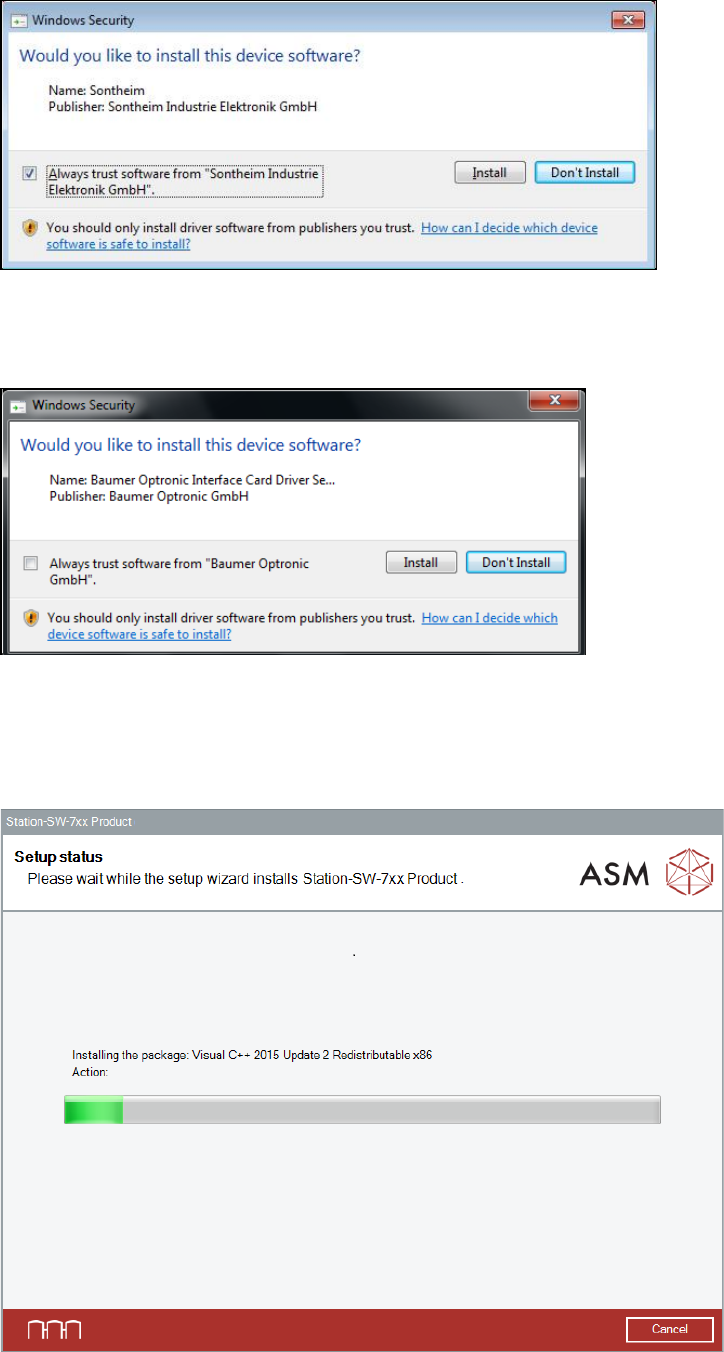
Thereafter, the following dialog box is displayed again.
Figure 5-19: Installing driver software for Sontheim device, part 2
► Perform the same steps as in the previous dialog box.
If a Baumer card is installed, the following dialog is displayed.
Figure 5-20: Installing driver software for Baumer card
► Activate the Always trust software from "Baumer Optronic GmbH" field.
► Click the Install button to install the corresponding driver software.
The setup status is displayed during installation.
Figure 5-21: Setup status