SOM-1929-001_w.pdf - 第11页
8 Tg 1423 -ID-SO 5. Operation 0606 - 001 5. Operation 5.1 "Zeroing" T ab Perform the single axis zeroing operation for the cmpnt scraper . • Sheet Layout When the [Zeroing] tab is pressed in the "MNL OPN.&…
7
Tg1423-ID-SO
4.2 Control Action and Description
0606-001
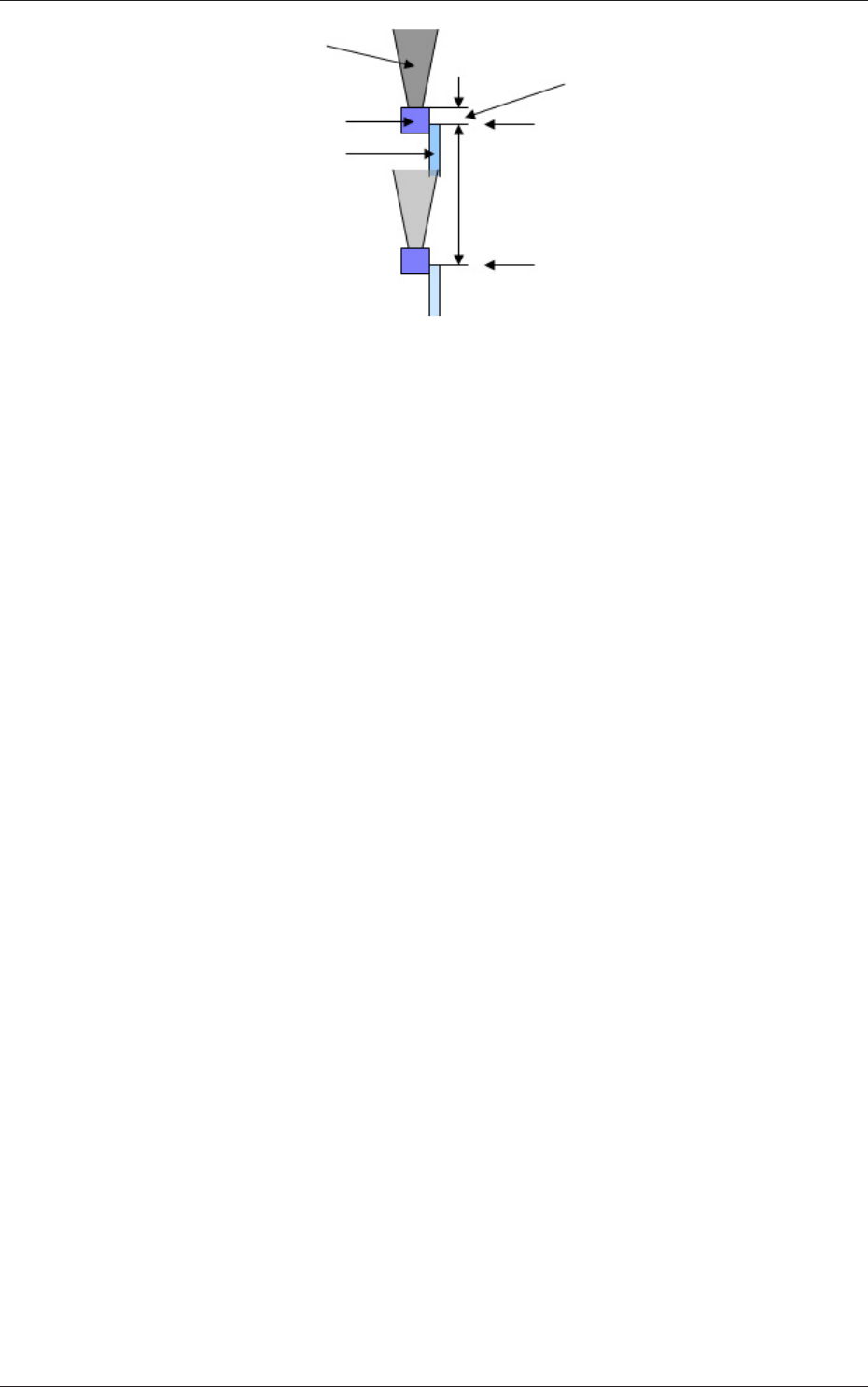
Component
Component Scraping Plate
(Depending on the vacuum
nozzle position, it moves up
and down keeping a certain
distance from the nozzle).
Gap between the Vacuum Nozzle
and Scraping Plate
Uppermost Position
Driving Range
(0.5 mm)
Origin Position
(Lowermost Position)
Vacuum Nozzle
(Position varies due to
Individual Di
fference)
Fig.2
4.3 Other Actions
(1) In the machine zeroing operation and stopping condition excluding
pause mode, the component scraping plate is located at the origin
position (lowermost position).
(2) In the start-up of the automatic operation of the machine, the warm-up
operation of the component scraping plate driving motor is performed
automatically.
8
Tg1423-ID-SO
5. Operation
0606-001
5. Operation
5.1 "Zeroing" Tab
Perform the single axis zeroing operation for the cmpnt scraper.
•
Sheet Layout
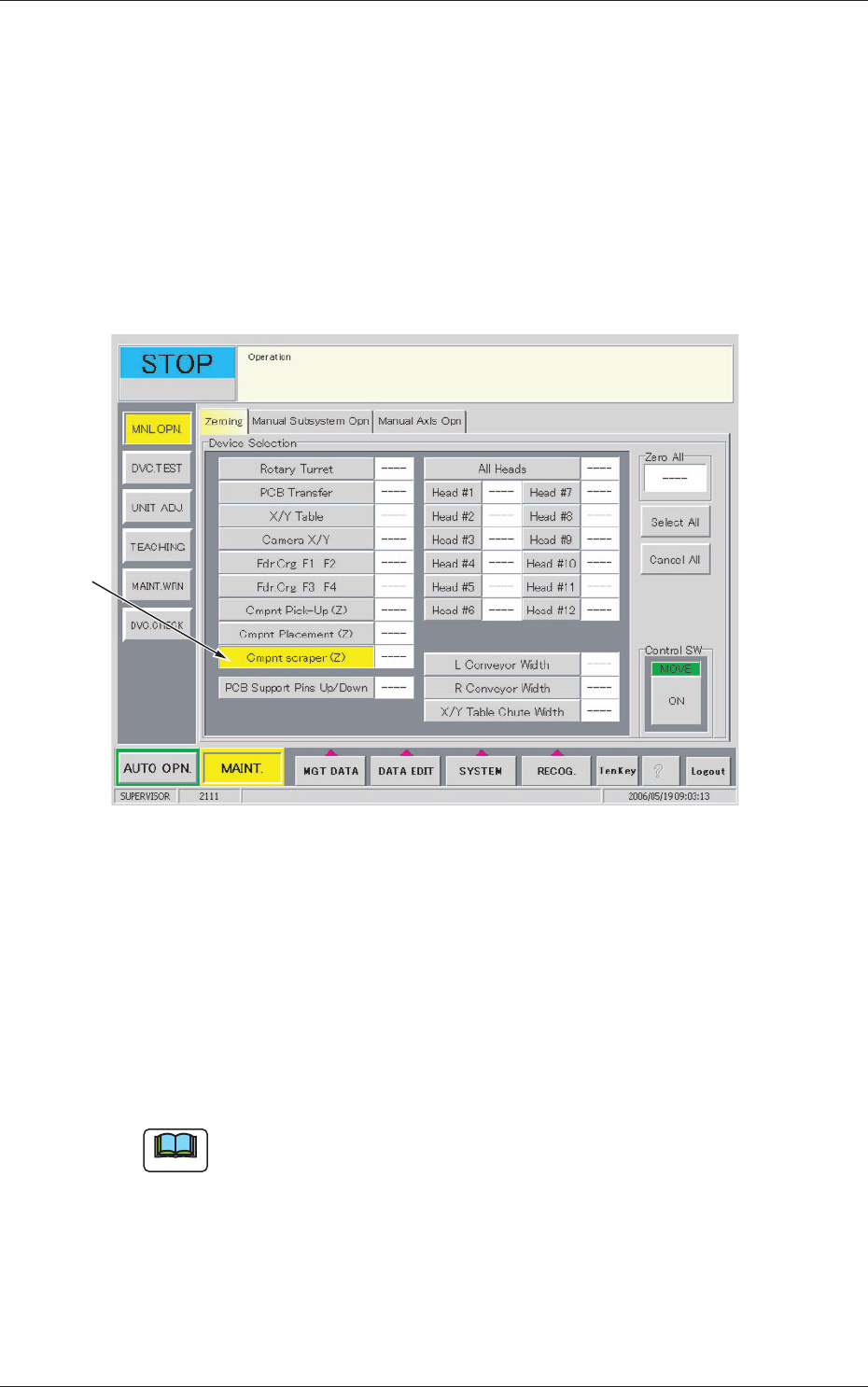
When the [Zeroing] tab is pressed in the "MNL OPN." window (submenu),
the following tab sheet appears inside the window.
[1]
Fig.3 "Zeroing" Tab Sheet
•
Sheet Composition
[1] [Cmpnt Scraper] Button
Pressing this button changes the color of it to yellow and selects this
unit. Pressing it again cancels the yellow color and the selection. In
the data box on the right side of the button, the status of each unit is
displayed.
Note
When zeroing is performed with the other axes, such as in [All Zero] and
two or more axes zeroing, etc., the other axes start moving after the single
axis zeroing for the component scraper has been completed.
9
Tg1423-ID-SO
5.2 "Others" Tab
0606-001
5.2 "Others" Tab
Inching operation for the component scraper is performed.
•
Sheet Layout
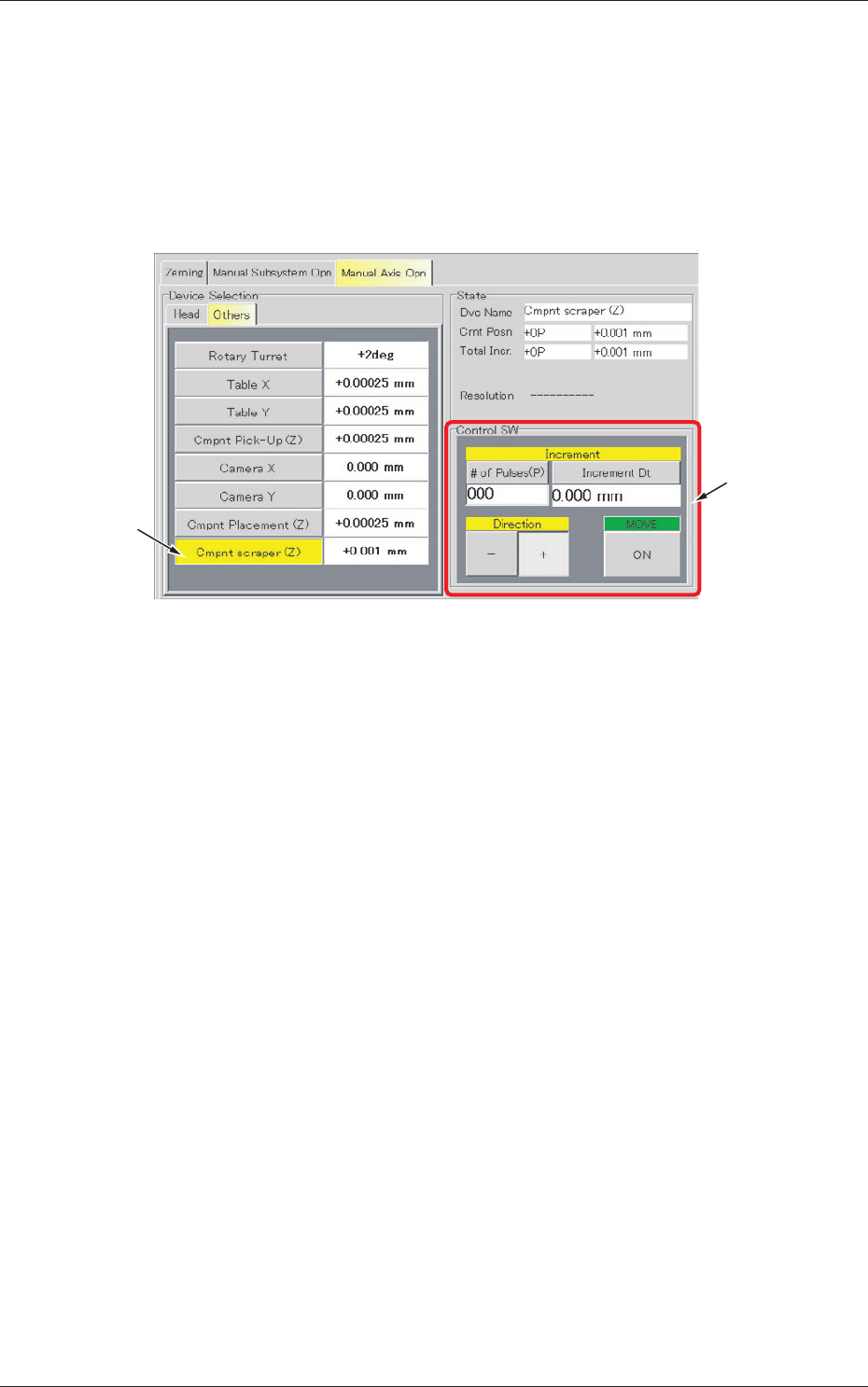
When the [Others] tab is pressed in the "Manual Axis Opn" tab sheet,
the following tab sheet appears.
[1]
[2]
Fig.4 "Others" Tab Sheet
•
Sheet Composition
[1] Operation Selection Buttons
[Cmpnt Scraper] Button
When a button is pressed, the background color turns yellow, indicating
that the corresponding device is selected.
Each button has a box on the right side and the current position of
the corresponding device is displayed.
[2] Control SW
The following operation buttons are provided in this group box.
[# of pulses (P)] Button (entitled "Increment") :
Enter an amount of movement (# of pulses).
The calculated value (travel) appears in the
"Increment Dt" text box.
[-] and [+] Buttons (entitled "Direction") :
Press either the [-] or the [+] button to specify
the direction of manual axis operation for the
selected device.