00196068_Install_Vista_unattended.pdf - 第10页
Installation Manual for Windows Vista (unattended setup) 11/2007 US+DE Installationsanleitung für Windows Vista (unattended setup) 5.1.4 Operating System Configuration The following dialog is displayed: Fig. 4 Operating …
Installation Manual for Windows Vista (unattended setup) 11/2007 US+DE
Installationsanleitung für Windows Vista (unattended setup)
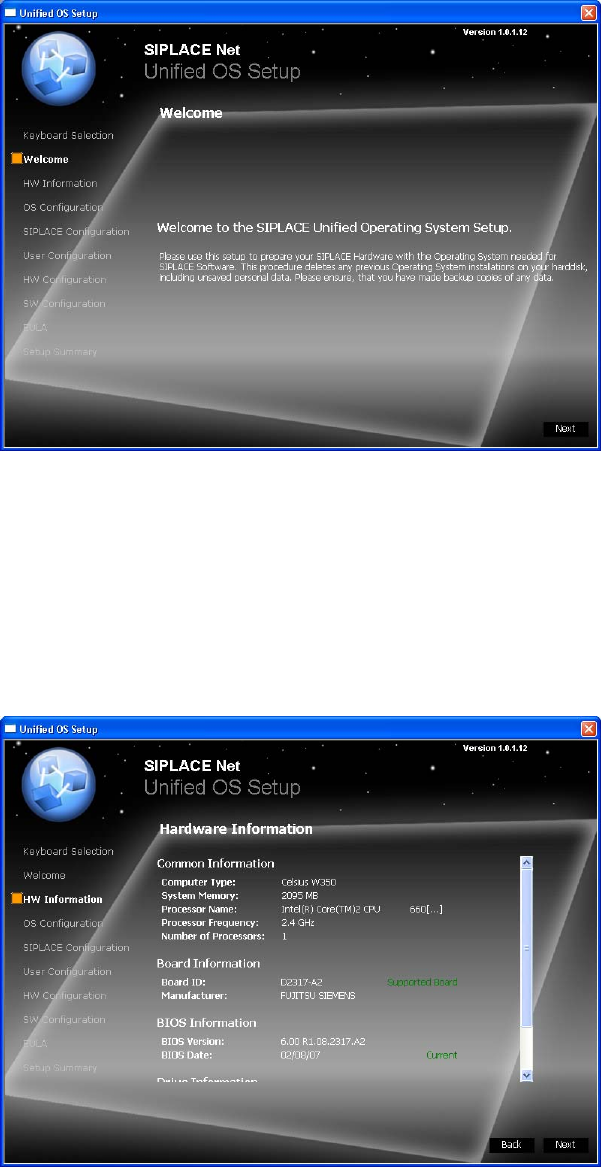
5.1.2 Welcome Screen
The following dialog is displayed:
Fig. 2 Welcome Screen
→ Click the Next button to continue.
5.1.3 Hardware Information
The hardware configuration is determined. It is also checked for possible configuration problems. This may take a
while.
The following dialog is displayed:
Fig. 3 Hardware Information
→ Click the Next button to continue.
9 / 35
Installation Manual for Windows Vista (unattended setup) 11/2007 US+DE
Installationsanleitung für Windows Vista (unattended setup)
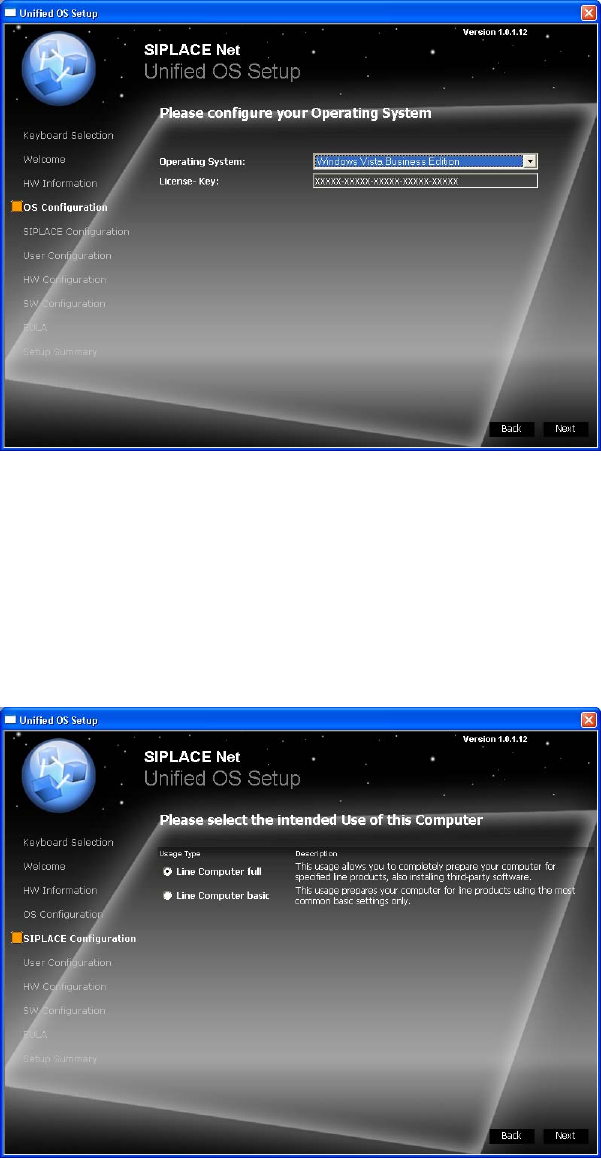
5.1.4 Operating System Configuration
The following dialog is displayed:
Fig. 4 Operating System Configuration
→ Select the operating system to be installed from list.
→ Enter the license key for the operating system to be installed.
→ Click the Next button to continue.
5.1.5 SIPLACE Configuration
The following dialog is displayed:
Fig. 5 SIPLACE Configuration
→ Select the option Line Computer full for an adapted installation for specified SIPLACE products.
→ Select the option Line Computer basic for a default installation without specified SIPLACE products.
→ Click the Next button to continue.
10 36 /
Installation Manual for Windows Vista (unattended setup) 11/2007 US+DE
Installationsanleitung für Windows Vista (unattended setup)
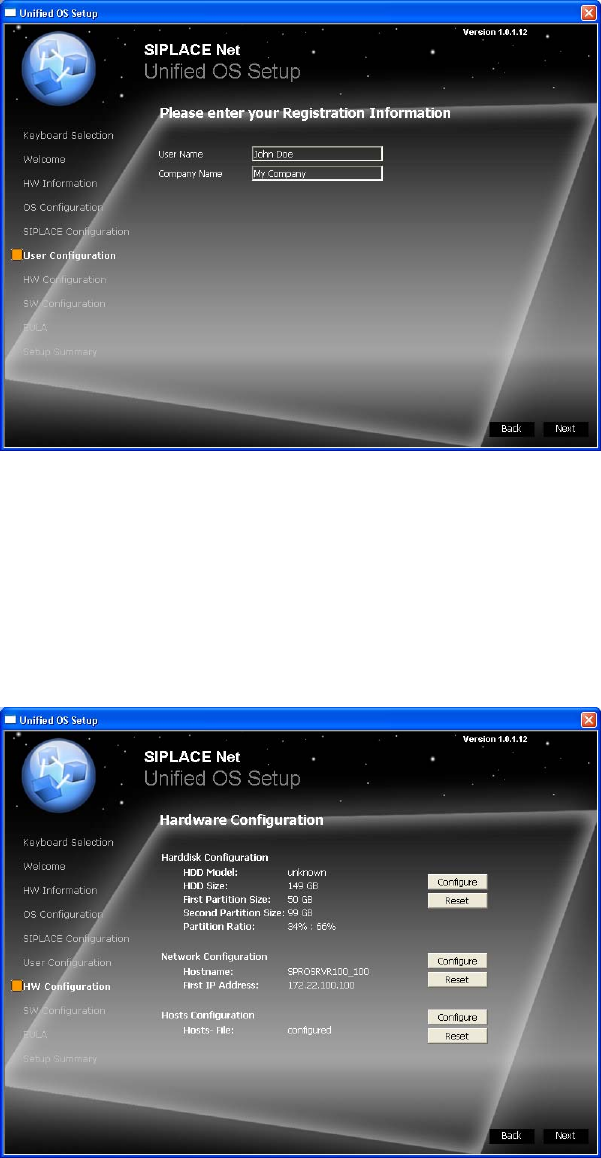
5.1.6 User Configuration
The following dialog is displayed:
Fig. 6 User Configuration
→ Enter the user name.
→ Enter the company name.
→ Click the Next button to continue.
5.1.7 Hardware Configuration
The following dialog is displayed:
Fig. 7 Hardware Configuration
If you want to change the configuration of an option, click on the Configure button.
If you want to reset the configuration, click on the Reset button.
→ Click the Next button when the configuration is finished.
11 / 36