00196068_Install_Vista_unattended.pdf - 第9页
Installation Manual for Windows Vista (unattended setup) 11/2007 US+DE Installationsanleitung für Windows Vista (unattended setup) 5.1.2 Welcome Screen The following dialog is displayed: Fig. 2 Welcome Screen → Click the…
Installation Manual for Windows Vista (unattended setup) 11/2007 US+DE
Installationsanleitung für Windows Vista (unattended setup)
5 Installation
Note:
During the setup you can navigate the dialogs with Next or Back buttons.
5.1 Installation procedure
Note:
All data on the first hard disk is overwritten during the unattended setup. Therefore, save the
necessary data before starting the setup.
→ Insert the “BOOT DVD-ROM for Windows Vista Unattended Setup” into the drive to start the unattended
setup.
→ Remove all external drives (e.g. USB sticks or USB hard disks).
→ Reboot the computer.
→ If the system does not accept the DVD ROM as the boot medium, change the boot devices in your BIOS.
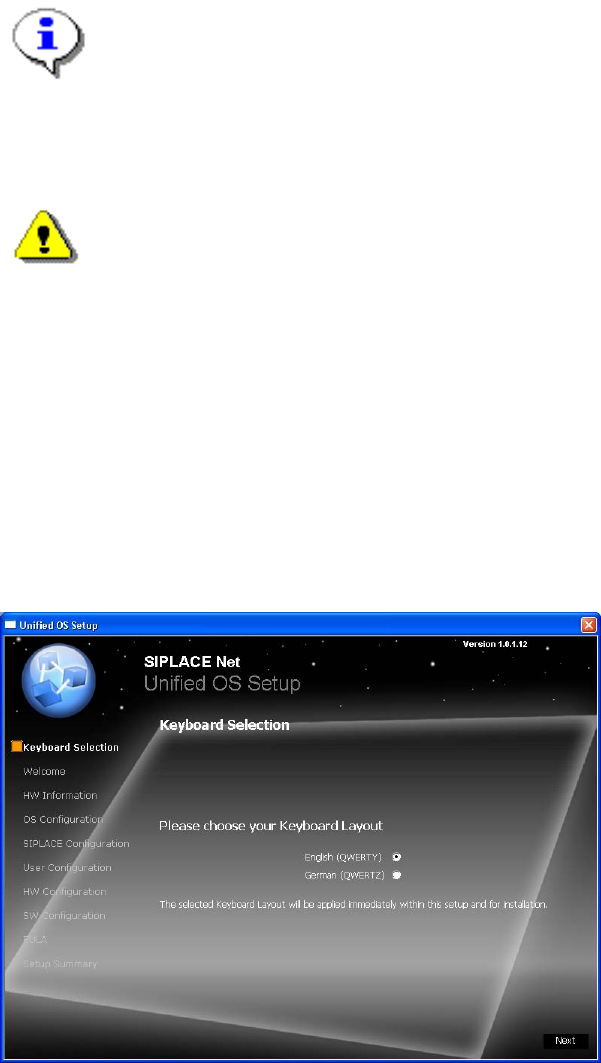
5.1.1 Keyboard Layout Selection
The following dialog is displayed:
Fig. 1 Keyboard Layout
→ Select the keyboard layout.
The selected layout is applied immediately for the following dialogs.
→ Click the Next button to continue.
8 35 /
Installation Manual for Windows Vista (unattended setup) 11/2007 US+DE
Installationsanleitung für Windows Vista (unattended setup)
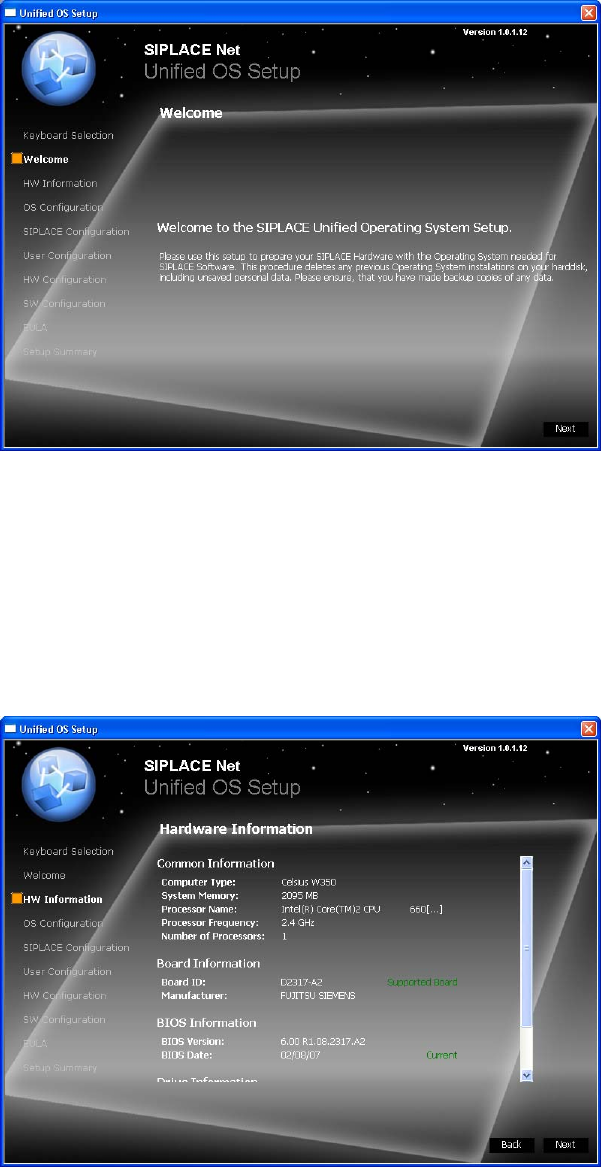
5.1.2 Welcome Screen
The following dialog is displayed:
Fig. 2 Welcome Screen
→ Click the Next button to continue.
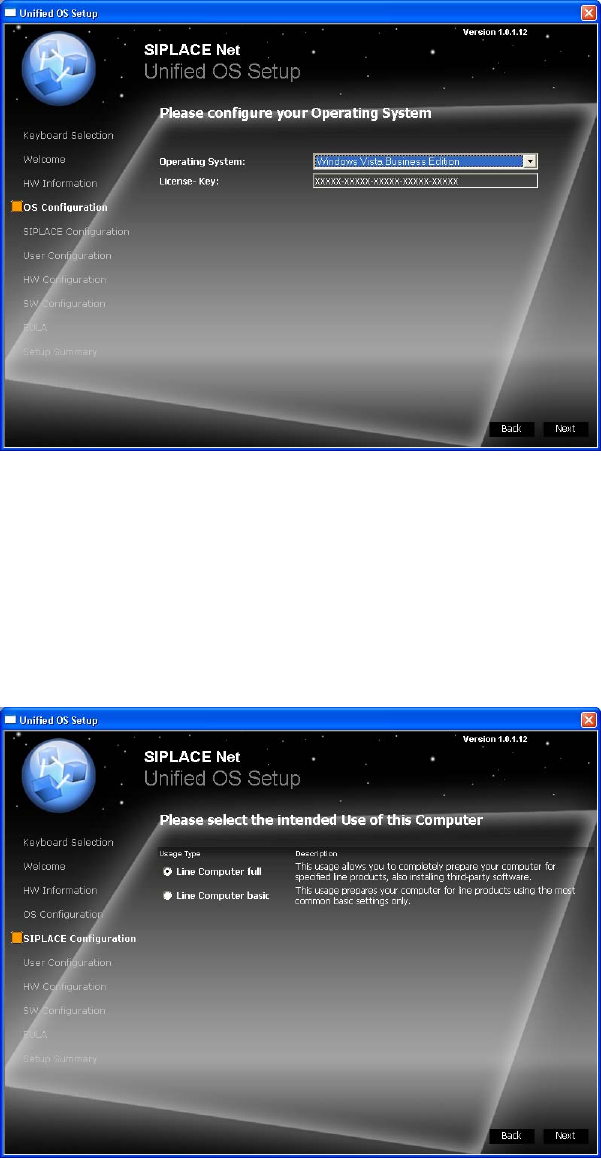
5.1.3 Hardware Information
The hardware configuration is determined. It is also checked for possible configuration problems. This may take a
while.
The following dialog is displayed:
Fig. 3 Hardware Information
→ Click the Next button to continue.
9 / 35
Installation Manual for Windows Vista (unattended setup) 11/2007 US+DE
Installationsanleitung für Windows Vista (unattended setup)
5.1.4 Operating System Configuration
The following dialog is displayed:
Fig. 4 Operating System Configuration
→ Select the operating system to be installed from list.
→ Enter the license key for the operating system to be installed.
→ Click the Next button to continue.
5.1.5 SIPLACE Configuration
The following dialog is displayed:
Fig. 5 SIPLACE Configuration
→ Select the option Line Computer full for an adapted installation for specified SIPLACE products.
→ Select the option Line Computer basic for a default installation without specified SIPLACE products.
→ Click the Next button to continue.
10 36 /