00196068_Install_Vista_unattended.pdf - 第18页
Installation Manual for Windows Vista (unattended setup) 11/2007 US+DE Installationsanleitung für Windows Vista (unattended setup) 6 Windows Activation After the installation Windows must be activated within 30 days. 6.1…

Installation Manual for Windows Vista (unattended setup) 11/2007 US+DE
Installationsanleitung für Windows Vista (unattended setup)
5.2 Standard Settings and Final Administration
5.2.1 Default settings
Screen resolution: 1024 x 786, 24-bit (16 mill.) Colors, 60 Hz Refresh Frequency
Time Zone: GMT (London, Edinburgh, Lisbon)
Network Protocol: TCP/IP
In addition to the default user groups of Windows Vista, the following users and user groups are configured:
• plr
• SIPLACEServices
• SIPLACEAdmin
Note:
If the computer you installed is equipped with a CRT (cathod ray tube), please set the refresh
frequency to a higher value. The default value of 60 Hz is preset for TFT displays.
5.2.2 Passwords
Administrator
For the local administrator the unattended setup uses the default password MS128. It is recommended to
assign a new password.
plr
The default user „plr“ uses the default password plr.
SIPLACEServices
The user “SIPLACEServices“ is created for the COM+ components. The password must not be changed.
Otherwise the necessary rights of the SIPLACEPro Components are missed.
Administrator group
The user “SIPLACEAdmin“ is defined in the local administrator group. This user must not be removed from
the group. Otherwise the Siemens service technician can not perform any maintenance. The password is
only known by the SIPLACE Service. The password must not be changed.
Other settings depend on the configuration specified by the user.
17 / 39
Installation Manual for Windows Vista (unattended setup) 11/2007 US+DE
Installationsanleitung für Windows Vista (unattended setup)
6 Windows Activation
After the installation Windows must be activated within 30 days.
6.1 Starting the Activation
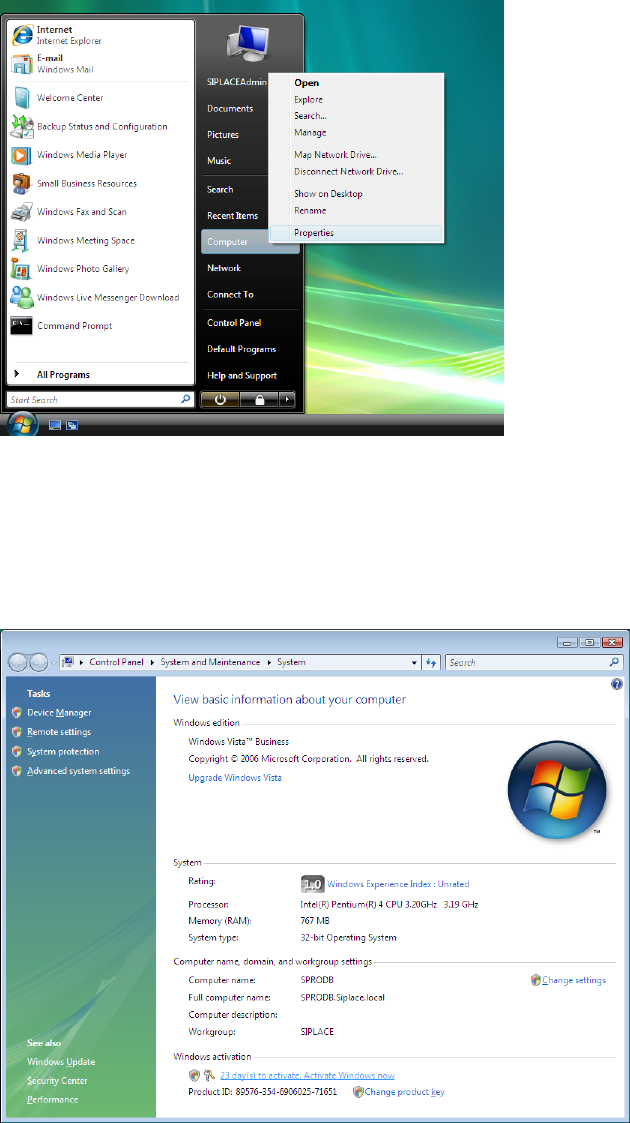
Fig. 16 Starting Windows Activation
→ Click on the Start button.
→ Right- click on Computer.
→ Select Properties.
The following dialog is displayed:
Fig. 17 Starting Windows Activation
18 39 /
Installation Manual for Windows Vista (unattended setup) 11/2007 US+DE
Installationsanleitung für Windows Vista (unattended setup)
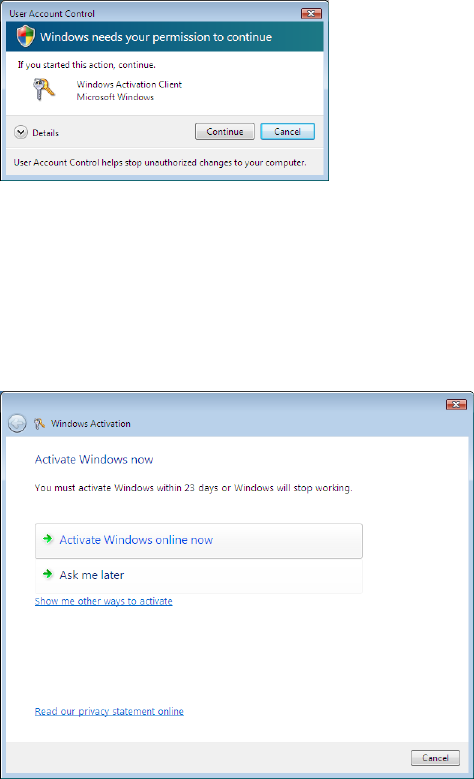
→ Click the link xx day(s) to activate. Activate Windows now.
The following dialog is displayed:
Fig. 18 Starting Windows Activation
→ Click on the Continue button.
6.2 Activating Windows
The following dialog is displayed:
Fig. 19 Performing Activation
Choose the way you want to activate Windows:
→ To activate Windows using the internet connection, click on Activate Windows online now.
→ To activate Windows via the telephone, at first click on Show me other ways to activate.
6.2.1 Activation via the internet
The following dialog is displayed:
19 / 39