00196068_Install_Vista_unattended.pdf - 第8页
Installation Manual for Windows Vista (unattended setup) 11/2007 US+DE Installationsanleitung für Windows Vista (unattended setup) 5 Inst allation Note: During the setup you can navigate the dialogs with Next or Back but…

Installation Manual for Windows Vista (unattended setup) 11/2007 US+DE
Installationsanleitung für Windows Vista (unattended setup)
3 Requirements
3.1 Hardware
Minimum Hard Disk Capacity:
25 GB
Minimum System Memory:
512 MB RAM
Supported Computer Hardware:
Celsius W360 Board D2587-A1
3.2 Required configuration parameters
For the installation procedure, please note the following information:
• 1
User Name
• 2
Company Name
• 3
IP address of the network adapter connection to the station (Default: 172.22.100.100)
• 4
IP address of the remaining network adapter connection
• 5
IP address of the default gateways (Optional, if no Remote Support was installedÆ no entry.
Default: no entry)
• 6
Subnet mask of the local IP network
• 7
License Key of the Operating System
• 8
Planned SIPLACE Products and their versions, if known
• 9
Custom hard disk partition sizes, if required
• 10
Custom Hosts- File entries, if required
• 11
Custom settings of line product Prerequisites (like SQL 2005 Express), if required
4 Hotfixes
The hotfixes for Windows Vista are available on a separate CD.
Apply hotfixes from the latest delivered Windows Vista Hotfix-CD.
7 / 35
Installation Manual for Windows Vista (unattended setup) 11/2007 US+DE
Installationsanleitung für Windows Vista (unattended setup)
5 Installation
Note:
During the setup you can navigate the dialogs with Next or Back buttons.
5.1 Installation procedure
Note:
All data on the first hard disk is overwritten during the unattended setup. Therefore, save the
necessary data before starting the setup.
→ Insert the “BOOT DVD-ROM for Windows Vista Unattended Setup” into the drive to start the unattended
setup.
→ Remove all external drives (e.g. USB sticks or USB hard disks).
→ Reboot the computer.
→ If the system does not accept the DVD ROM as the boot medium, change the boot devices in your BIOS.
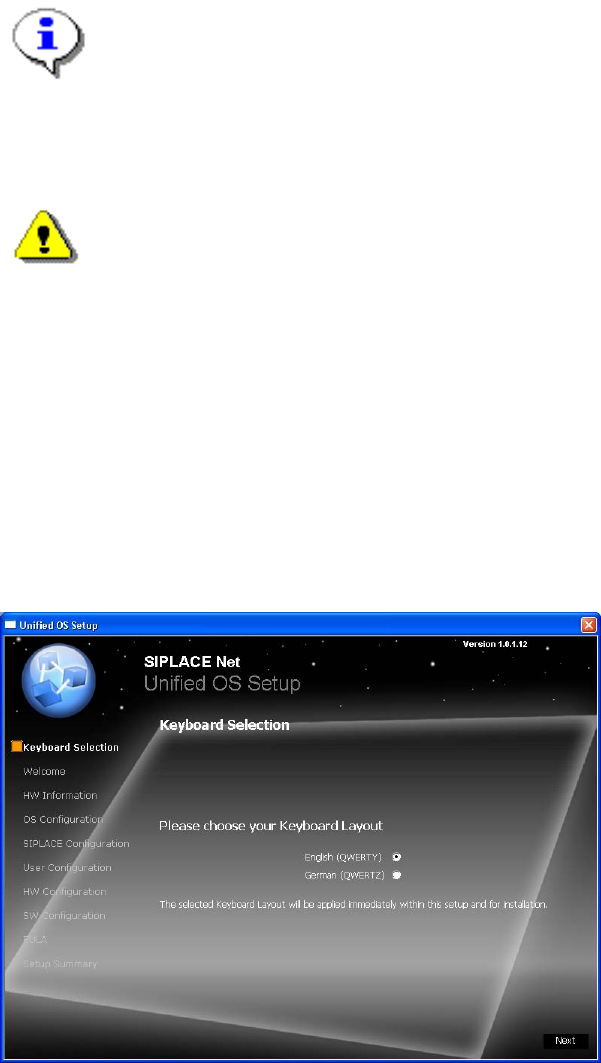
5.1.1 Keyboard Layout Selection
The following dialog is displayed:
Fig. 1 Keyboard Layout
→ Select the keyboard layout.
The selected layout is applied immediately for the following dialogs.
→ Click the Next button to continue.
8 35 /
Installation Manual for Windows Vista (unattended setup) 11/2007 US+DE
Installationsanleitung für Windows Vista (unattended setup)
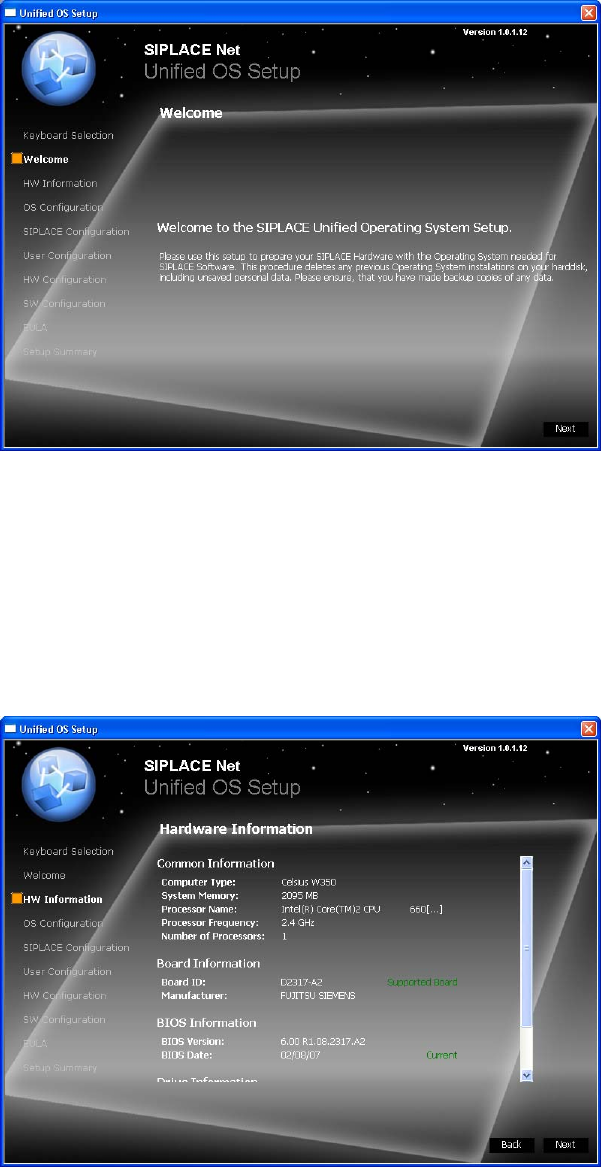
5.1.2 Welcome Screen
The following dialog is displayed:
Fig. 2 Welcome Screen
→ Click the Next button to continue.
5.1.3 Hardware Information
The hardware configuration is determined. It is also checked for possible configuration problems. This may take a
while.
The following dialog is displayed:
Fig. 3 Hardware Information
→ Click the Next button to continue.
9 / 35