00196068_Install_Vista_unattended.pdf - 第14页
Installation Manual for Windows Vista (unattended setup) 11/2007 US+DE Installationsanleitung für Windows Vista (unattended setup) → If you want to add a new entry, click the New entry button. → If you want to delete the…
Installation Manual for Windows Vista (unattended setup) 11/2007 US+DE
Installationsanleitung für Windows Vista (unattended setup)
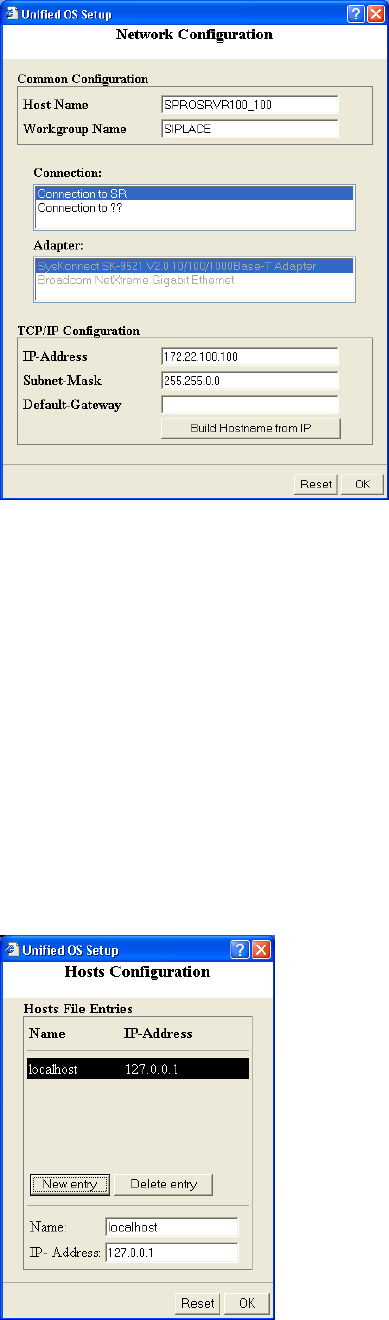
Fig. 9 Network Configuration
→ Enter the host name of your computer.
→ Enter the workgroup name.
→ Select the connection you want to configure.
→ Enter the IP address for the selected connection.
→ Enter the subnet mask for the selected connection.
→ Enter the default gateway for the selected connection.
→ If you want to extend the current hostname with the last two values of the IP address of the selected
connection, click on the button Build Hostname from IP
→ Click the OK button to apply your changes.
→ If you want to reset the default settings, click the Reset button.
3. Hosts Configuration
To change the entries of the hosts file, click on the button Configure of the option Hosts Configuration.
Fig. 10 Hosts Configuration
→ Select the entry.
13 / 37
Installation Manual for Windows Vista (unattended setup) 11/2007 US+DE
Installationsanleitung für Windows Vista (unattended setup)
→ If you want to add a new entry, click the New entry button.
→ If you want to delete the selected entry, click the Delete entry button.
→ You can change the name of the selected entry in the field Name.
→ You can change the IP address of the selected entry in the field IP- Address.
→ Click the OK button to apply your changes.
→ If you want to reset the default settings, click the Reset button.
5.1.8 Software Configuration
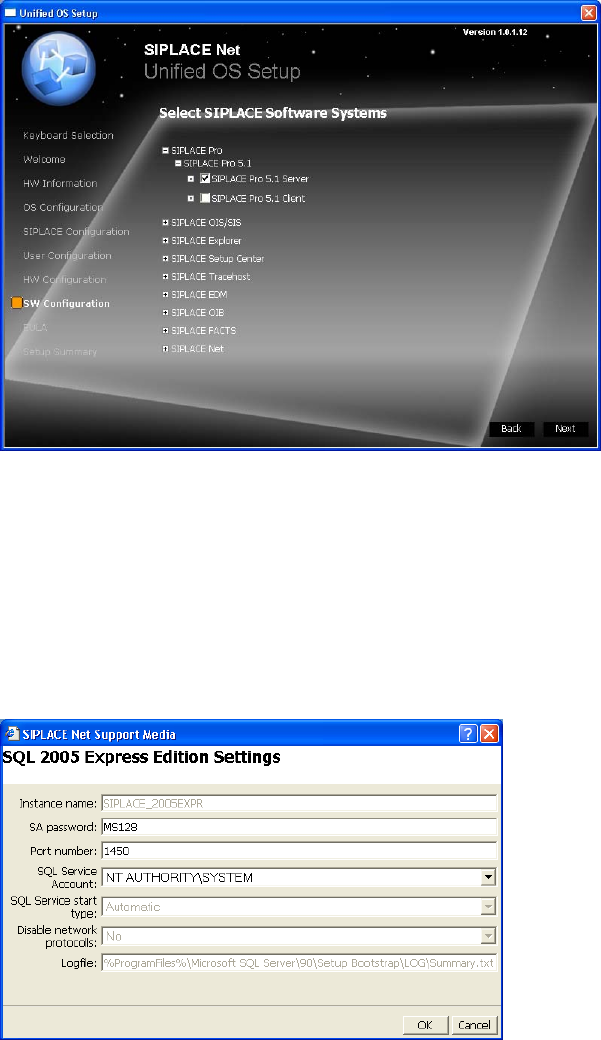
The following dialog is displayed:
Fig. 11 Software Configuration
The software configuration depends on the selected usage.
→ Select the SIPLACE products you want to use on this computer by activating the check boxes.
→ To display the detailed software products click on the “+” buttons in the menu tree.
→ Click the Next button to continue.
For some selected products, the configuration of prerequisites is required.
In this case the following dialog is displayed:
Fig. 12 Prerequisite configuration (Example)
→ Verify and modify the settings of the prerequisite.
14 37 /
Installation Manual for Windows Vista (unattended setup) 11/2007 US+DE
Installationsanleitung für Windows Vista (unattended setup)
→ Click the OK button to continue.
→ If you want to cancel the ongoing SIPLACE product selection, click the Cancel button.
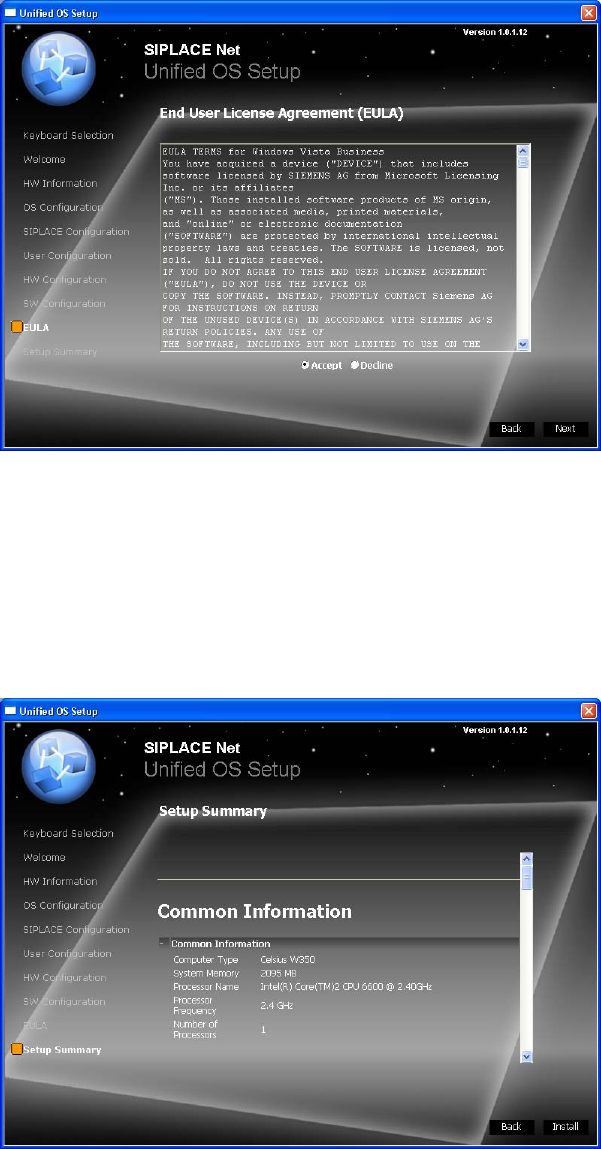
5.1.9 End User License Agreement (EULA)
The following dialog is displayed:
Fig. 13 EULA
→ Read the license agreement carefully.
→ Select the Accept radio button to accept the EULA.
→ Click the Next button to continue.
5.1.10 Summary and Installation
The following dialog is displayed:
Fig. 14 Summary and Installation
15 / 38
→ Verify the summarized information about the ongoing installation procedure carefully.