Workcell-Installation-Guidelines-Troubleshooting-Maintenance-REV-G.pdf - 第57页
Workcell Installation and General Guidelines Revision G / Nov ember 2021 Page 57 of 60 5. Fill in the information request ed and use as mu ch detail as p ossible. In clude the equipment seri al number an d any scree nsho…
Workcell Installation and General Guidelines
Revision G / November 2021
Page 56 of 60
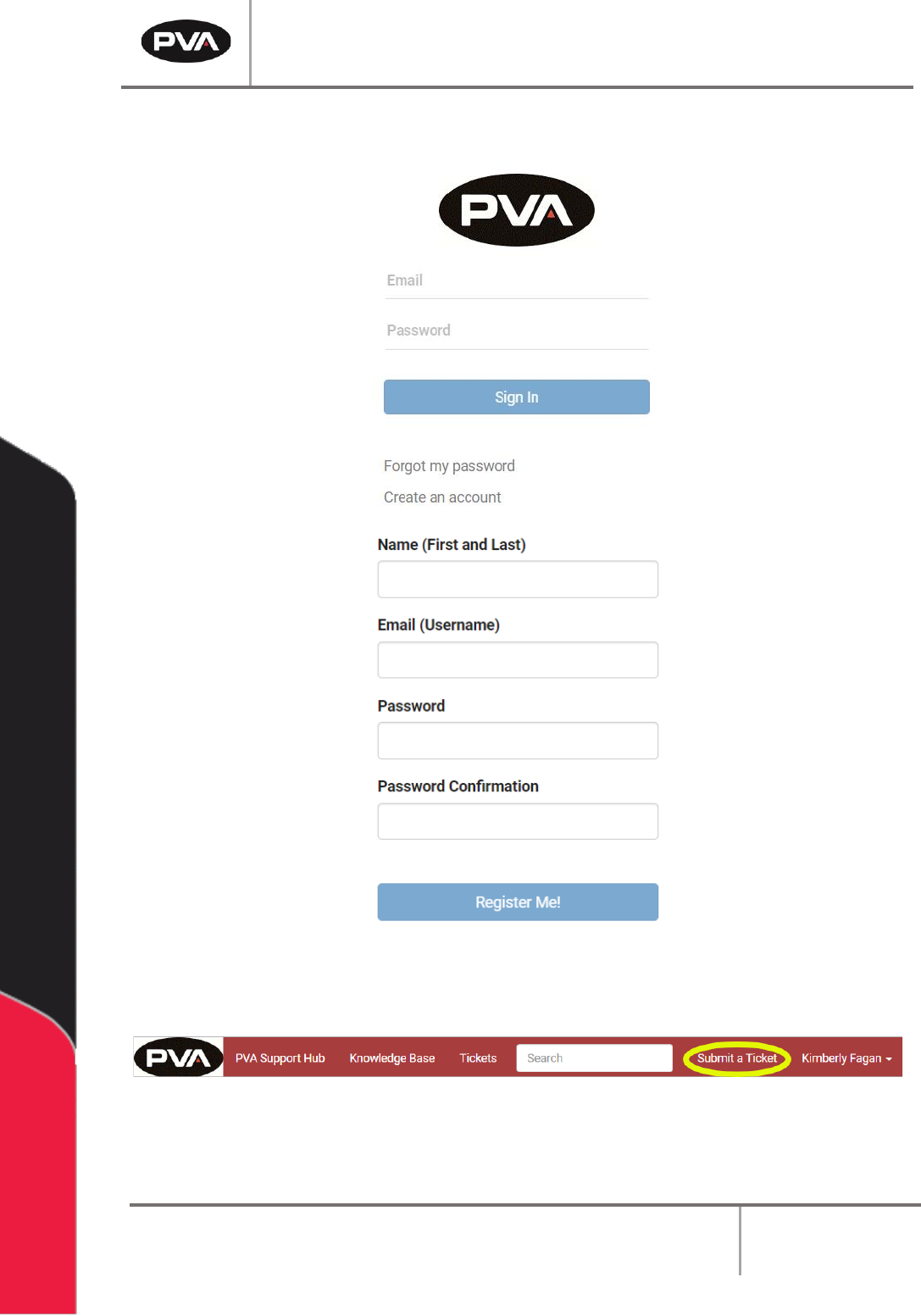
3. The Sign In screen will be shown. Fill in the information and select “Sign In” or,
select “Create an account” fill in the information and select “Register Me!”.
Figure 40: Sign In or Register
4. When you are signed in, select “Submit a Ticket” from the header.
Figure 41: Submit a Ticket
Workcell Installation and General Guidelines
Revision G / November 2021
Page 57 of 60
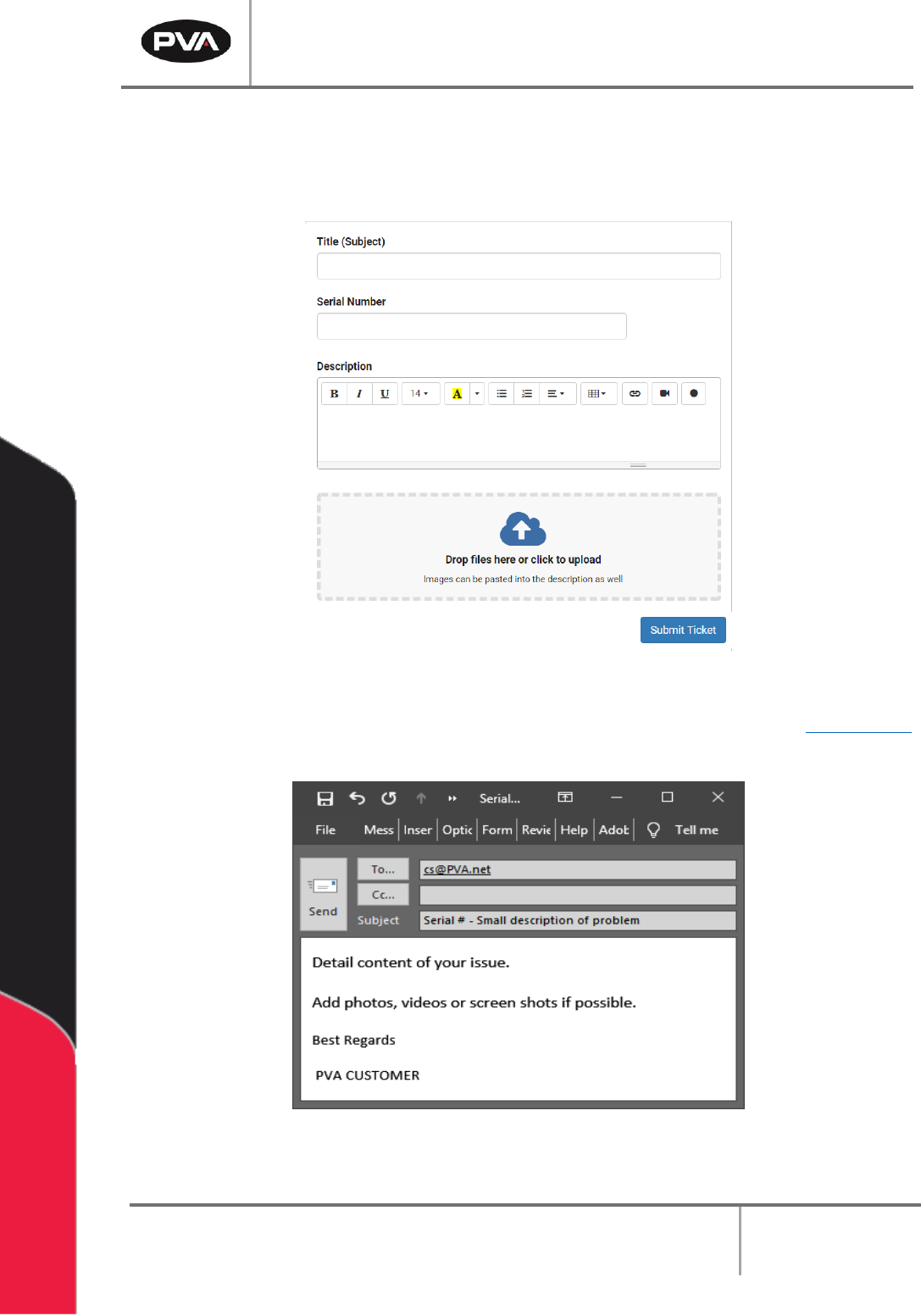
5. Fill in the information requested and use as much detail as possible. Include the
equipment serial number and any screenshots, photos, or videos.
6. Once complete, select “Submit Ticket.”
Figure 42: Complete the Ticket
7. If you cannot access the PVA Support Portal, email customer service at cs@PVA.net
to create a ticket. To reply to a ticket email, select Reply (not Reply All).
Figure 43: Example Ticket Email
Workcell Installation and General Guidelines
Revision G / November 2021
Page 58 of 60
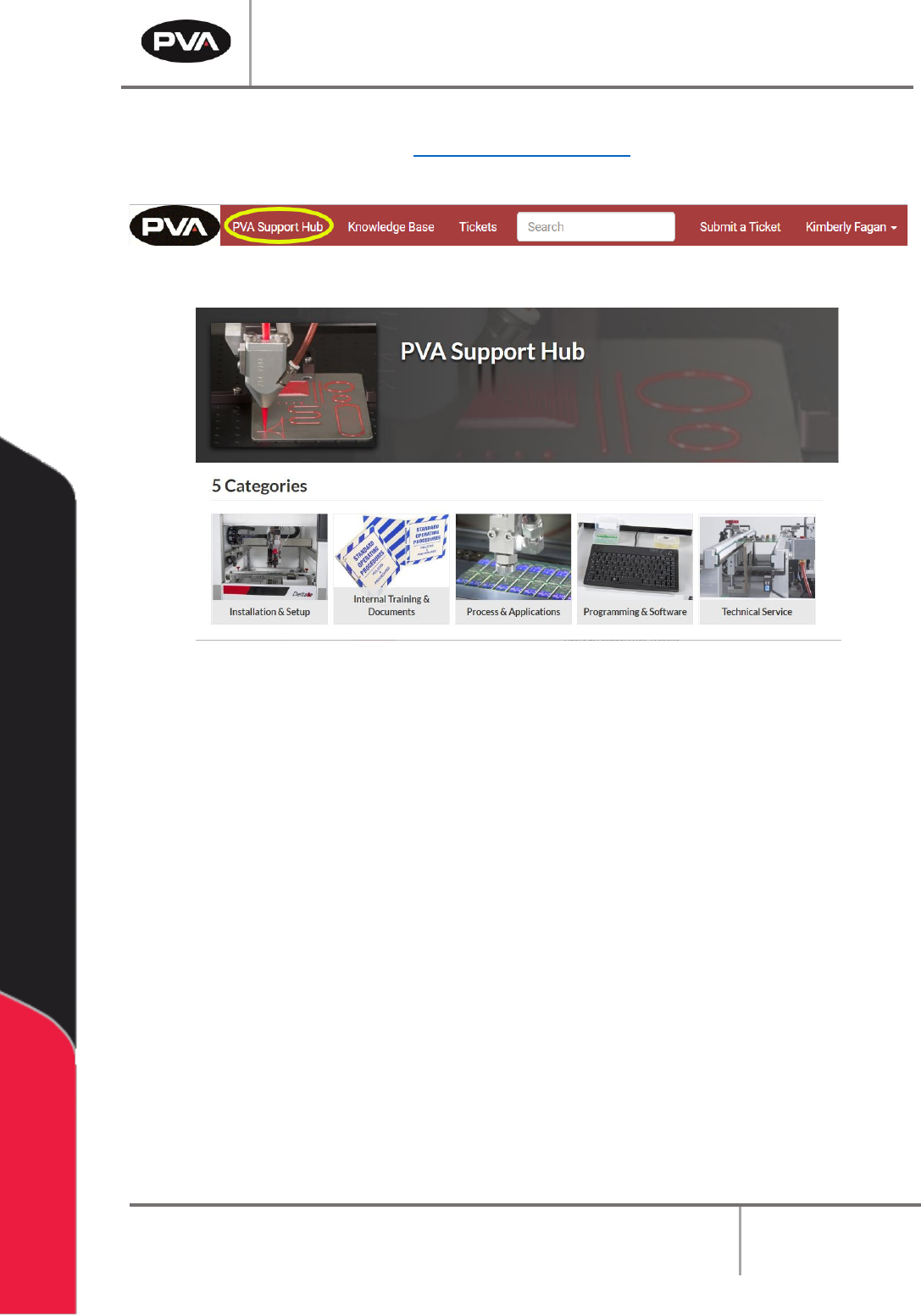
8. You can also acess the PVA Support Hub from “PVA Support Hub” option in the
header or through the link https://support.pva.net/. The support hub has processes
and procedures on common topics and issues.
Figure 44: PVA Support Hub
Figure 45: Support Hub Website