00196825_Install_SQLExpress2008R2_manual.pdf - 第13页
Installation of SQL 2008 R2 Express 02/2011 Edition 13 An Explorer Window appears. → Navigate to the following folder: <DRIVE>:\TOOLS\SQL 2008R2\S QL2008R2EXPREDWITHTOOLS → Double-click the appli cation SQLEXPRWT_X…
Installation of SQL 2008 R2 Express 02/2011 Edition
12
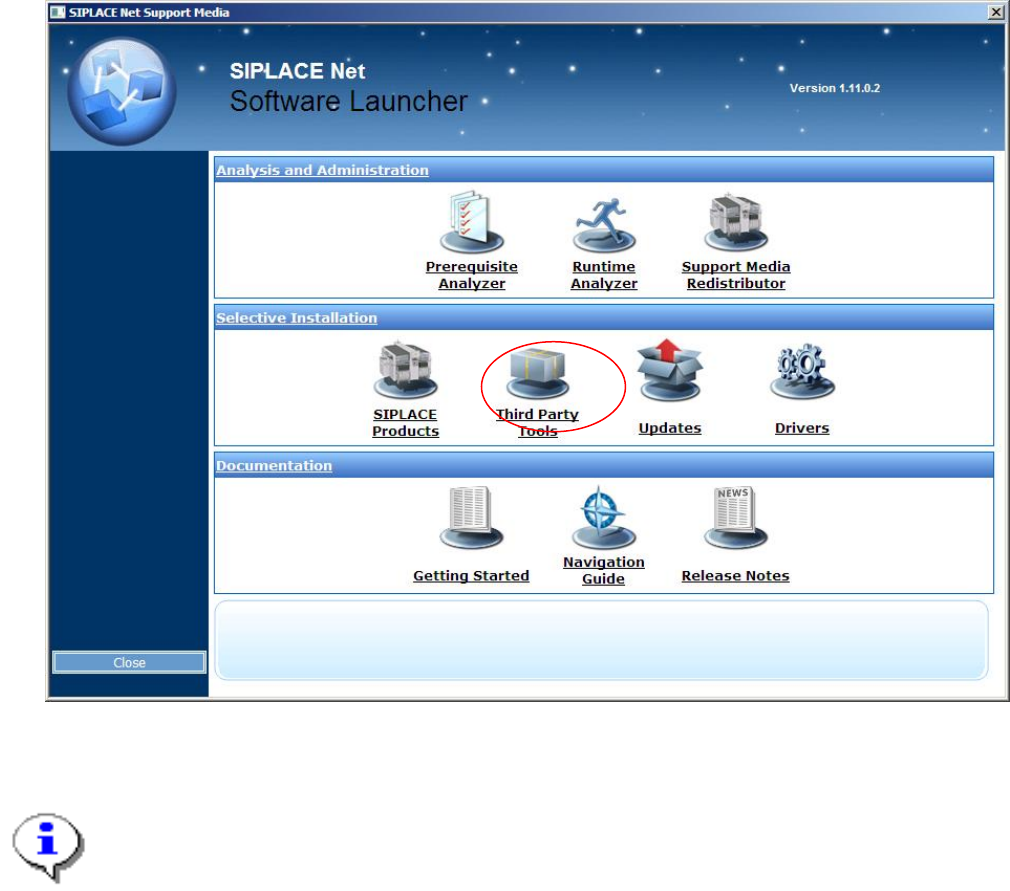
The following dialog appears:
Fig. 3-4: Support Media Software Launcher
Note:
If the dialog does not appear start your Windows Explorer, browse to the file autorun.cmd on
the DVD and double-click it.
→ Select “Third Party Tools”.
Installation of SQL 2008 R2 Express 02/2011 Edition
13
An Explorer Window appears.
→ Navigate to the following folder:
<DRIVE>:\TOOLS\SQL 2008R2\SQL2008R2EXPREDWITHTOOLS
→ Double-click the application SQLEXPRWT_X86_ENU.EXE / SQLEXPRWT_X64_ENU.EXE
(depending on the Operating System, you use) in the folder.
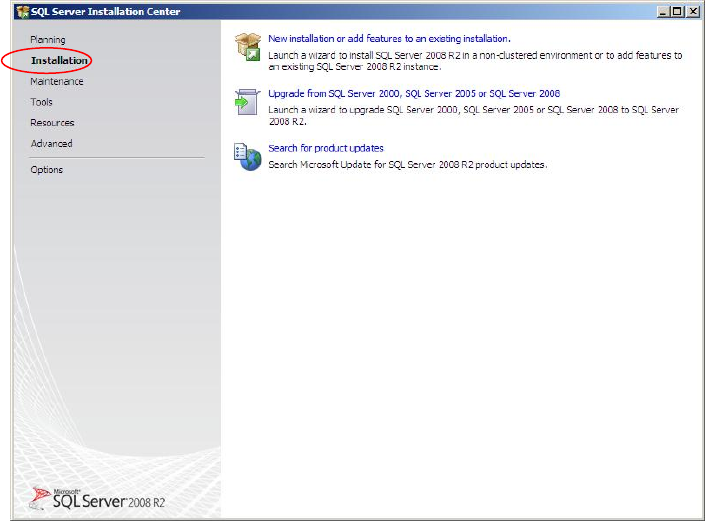
After some seconds, the following dialog is displayed:
Fig. 3-5: SQL Server Installation Center - Planning
→ Click on Installation on the left side
Installation of SQL 2008 R2 Express 02/2011 Edition
14
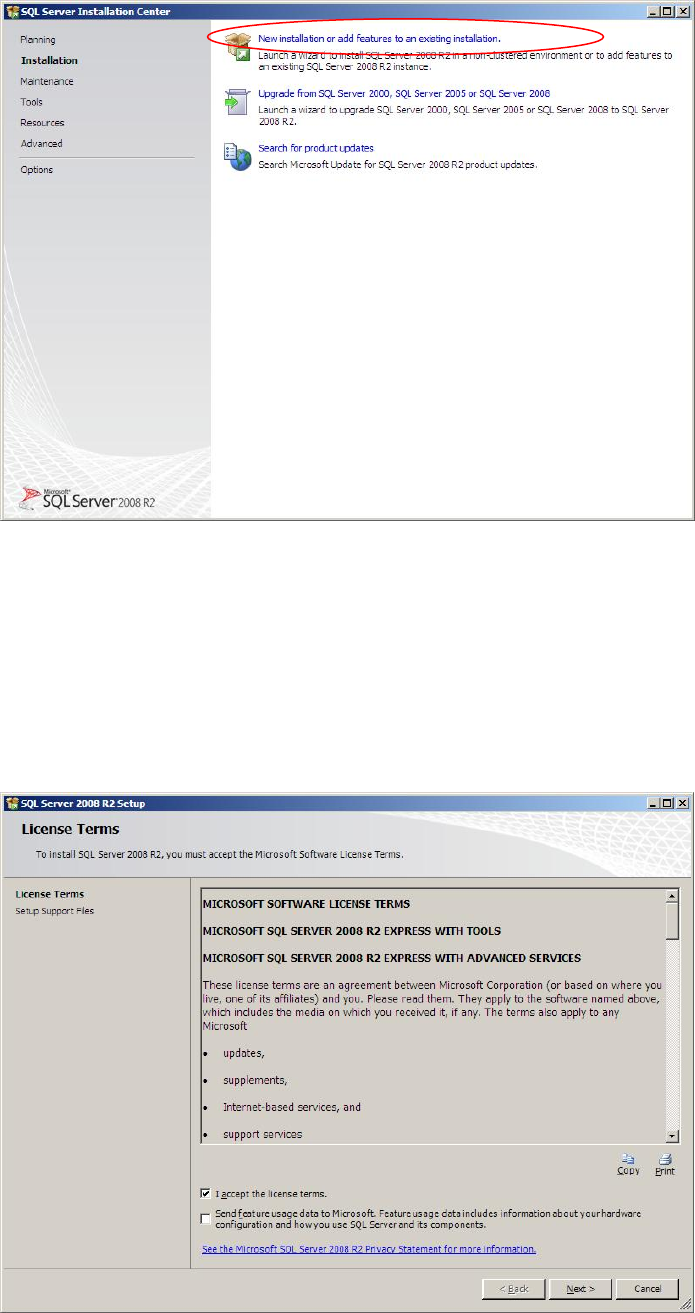
The window should look like this:
Fig. 3-6: SQL Server Installation Center - Installation
→ Click on New SQL Server stand-alone installation or add features to an existing
installation.
After some seconds, the following window will be displayed:
Fig. 3-7: SQL Server Setup License Terms
→ Ensure the checkbox besides I accept the license terms is checked.