00196825_Install_SQLExpress2008R2_manual.pdf - 第25页
Installation of SQL 2008 R2 Express 02/2011 Edition 25 After connecting successful ly, the following dialog is displayed: Fig. 3-23: SQL Server Management Console → Right-click on your se rver connect ion on the left sid…
Installation of SQL 2008 R2 Express 02/2011 Edition
24
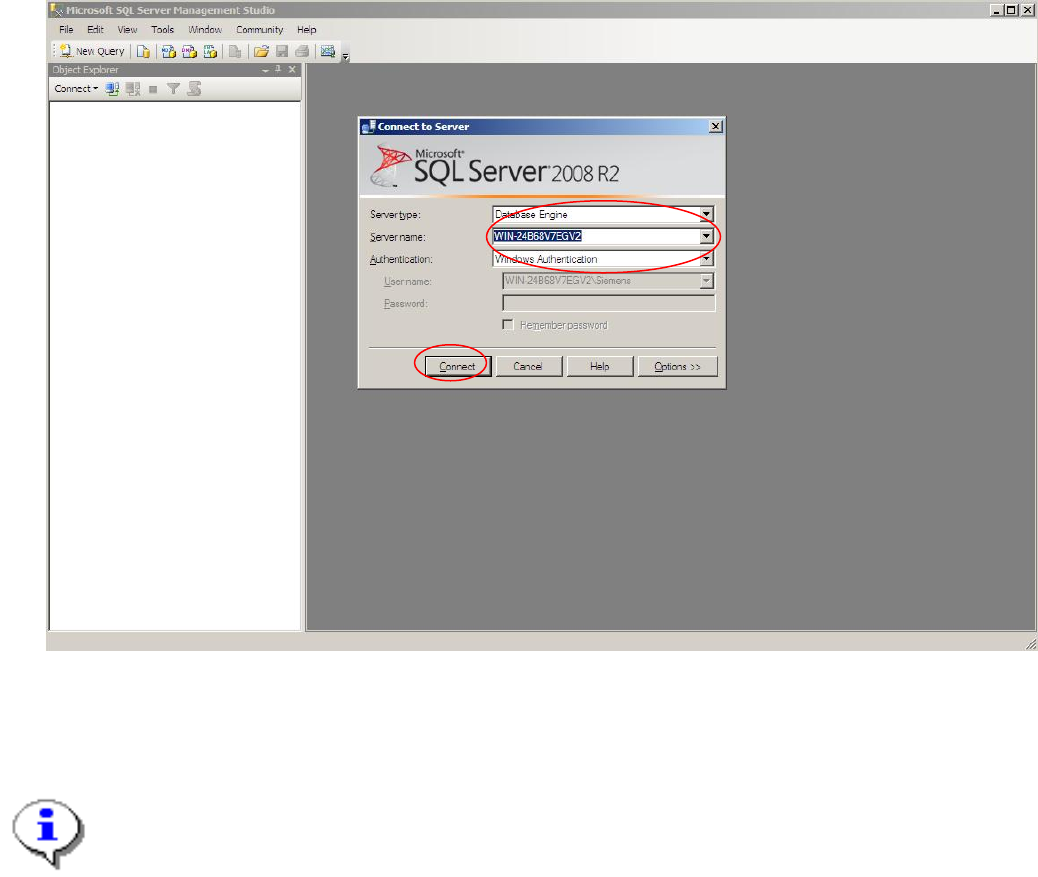
Fig. 3-22: SQL Server Enterprise Manager
→ Select your Server- and Instance name and specify the Windows Authentication.
→ Click the Connect button.
Note:
On Windows Vista and newer Operating Systems, connecting using Windows Authentication
may fail due to SQL Management Studio not started with full administrative permissions.
To avoid this problem, either use SQL Server Authentication with user “sa” (and the password
you specified during setup) or right- click on the SQL Management Studio link in the start menu
and select “Run as administrator” to start SQL Management Studio with full permissions
allowing you to login using Windows Authentication.
Installation of SQL 2008 R2 Express 02/2011 Edition
25
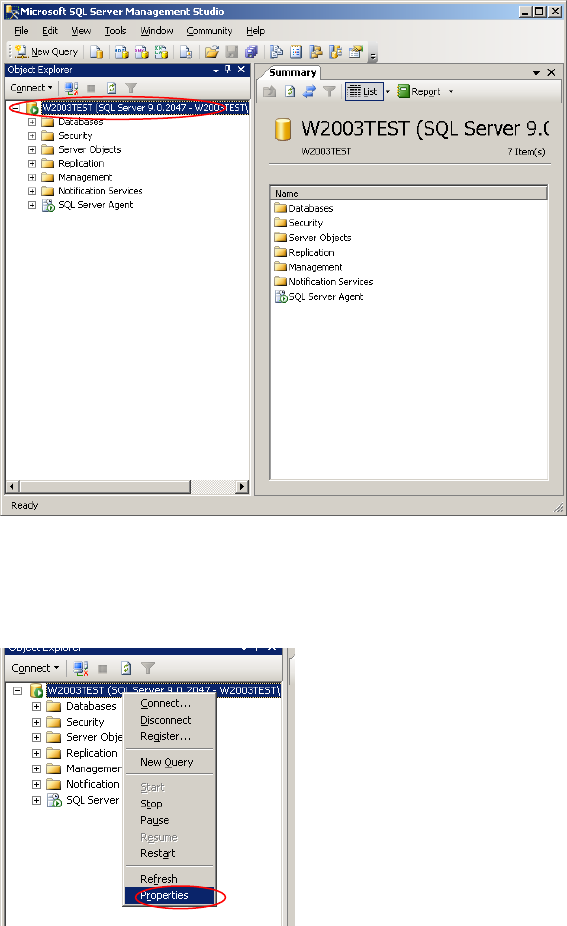
After connecting successfully, the following dialog is displayed:
Fig. 3-23: SQL Server Management Console
→ Right-click on your server connection on the left side and select Properties.
Fig. 3-24: Server connection properties
Installation of SQL 2008 R2 Express 02/2011 Edition
26
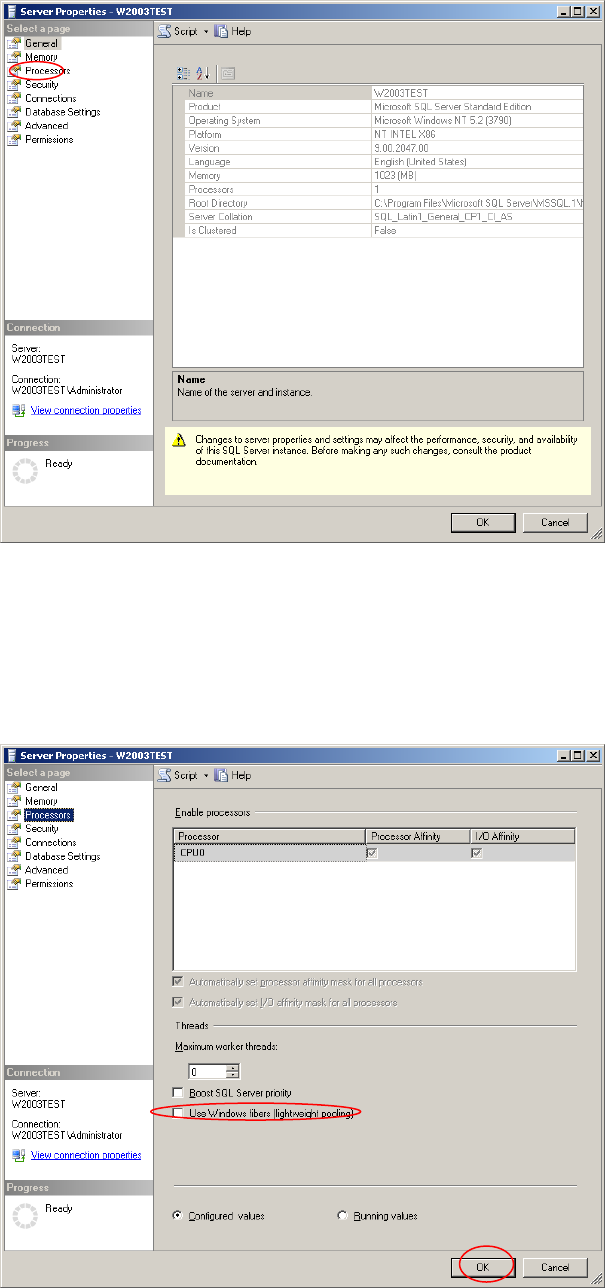
The following dialog is displayed:
Fig. 3-25: Server connection properties - General
→ Select the processors option- page on the left side
The following dialog is displayed:
Fig. 3-26: Server connection properties - General