00196825_Install_SQLExpress2008R2_manual.pdf - 第17页
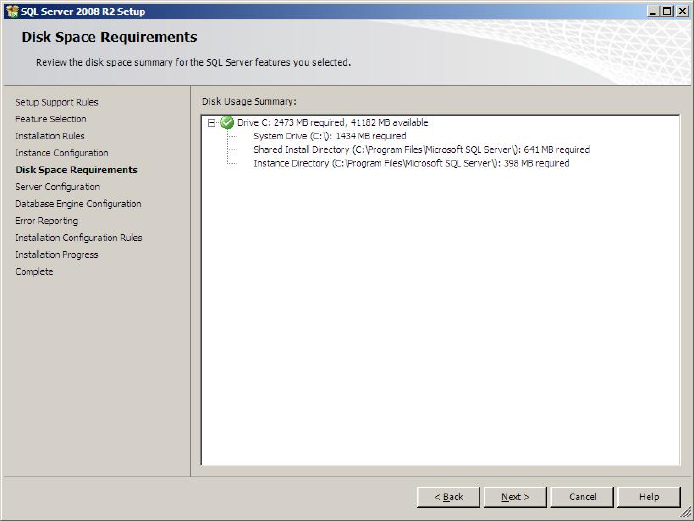
Installation of SQL 2008 R2 Express 02/2011 Edition 17 Fig. 3-11: SQL Server Setup Instance Configurati on → Leave the Named Instance button checked to install the SQL Serv er using the “SQLEXPRESS” – default instance. →…
Installation of SQL 2008 R2 Express 02/2011 Edition
16
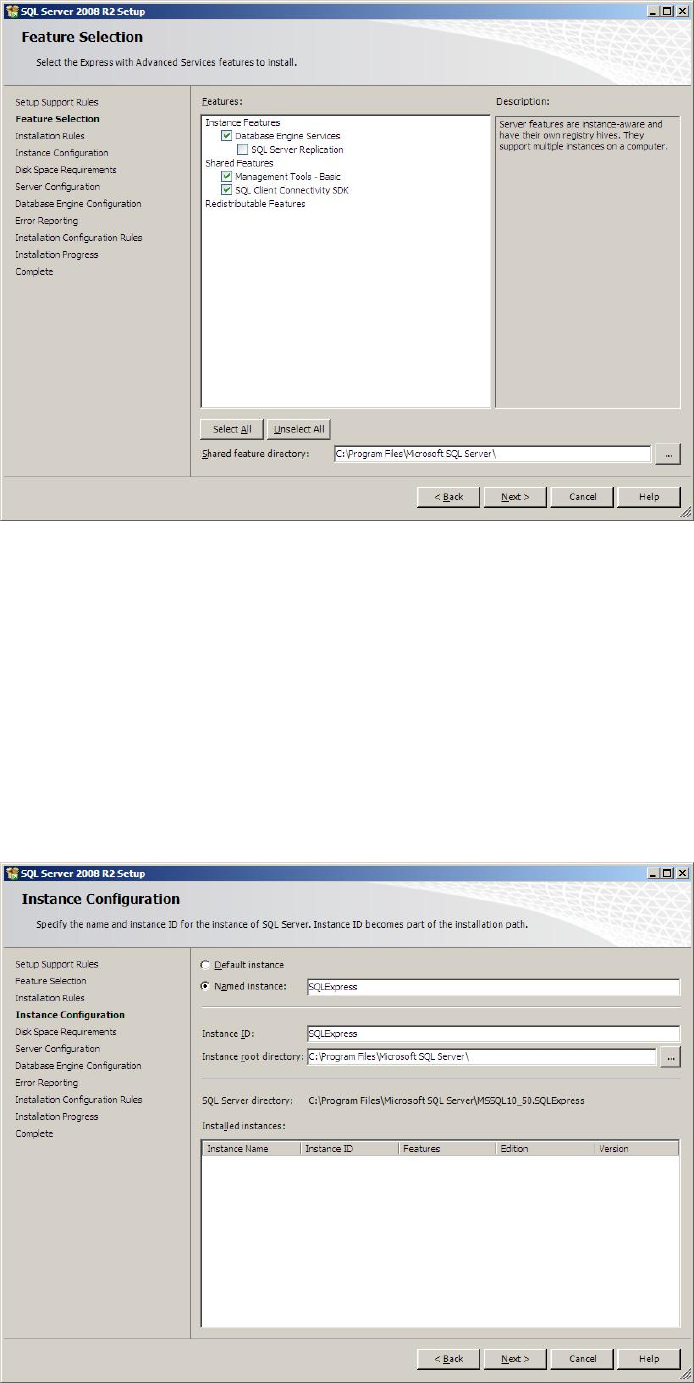
The feature selection window appears:
Fig. 3-10: SQL Server Setup Feature Selection
→ Ensure the following features being selected:
- Database Engine Services
- Management Tools – Basic
- SQL Client Connectivity SDK
→ Click the Next > button to continue.
The following window will be shown:
Installation of SQL 2008 R2 Express 02/2011 Edition
17
Fig. 3-11: SQL Server Setup Instance Configuration
→ Leave the Named Instance button checked to install the SQL Server using the
“SQLEXPRESS” – default instance.
→ Click the Next > button to continue.
The following window will be displayed:
Fig. 3-12: SQL Server Setup Disk Space Requirements
→ Click the Next > button to continue.
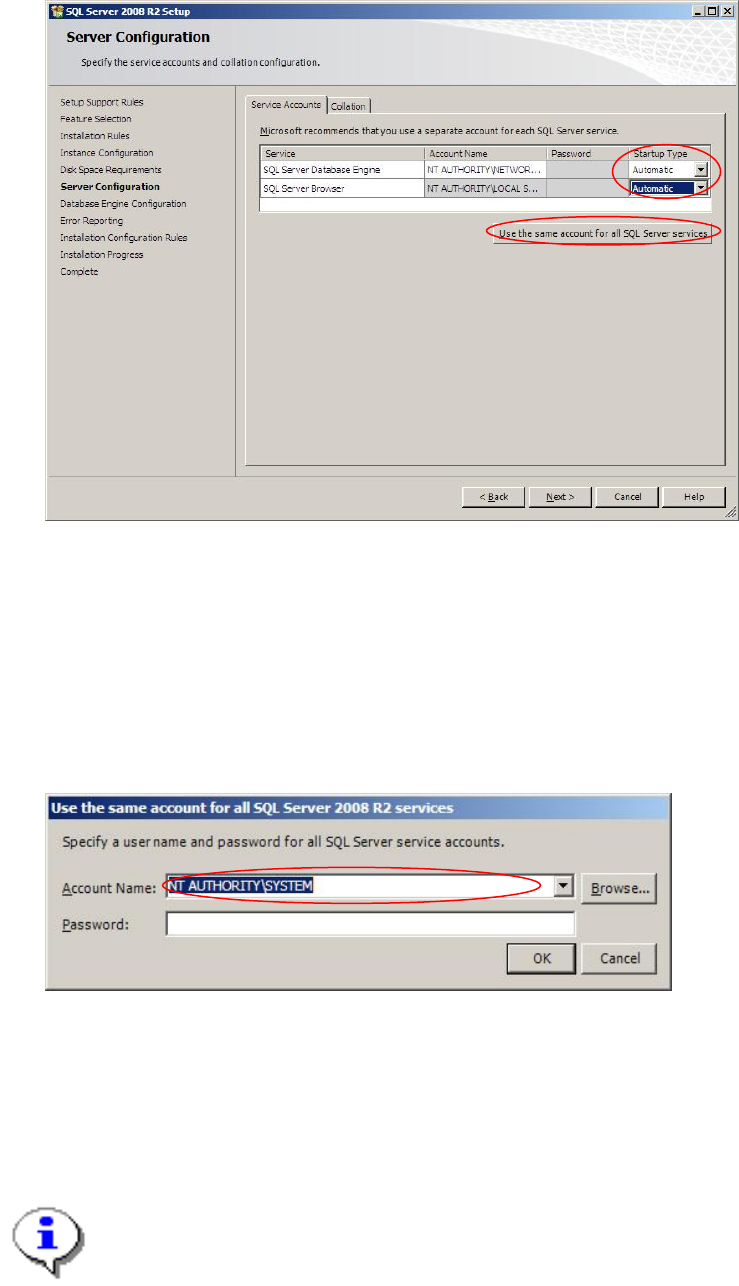
A window similar to the following will be displayed:
Installation of SQL 2008 R2 Express 02/2011 Edition
18
Fig. 3-13: SQL Server Setup Server Configuration
→ Ensure the Startup Type of all services is set to “Automatic”
→ Click the Button Use the same account for all SQL Server services.
The following message box should appear:
Fig. 3-14: SQL Server Setup account configuration message box
→ Select the local system account (“NT AUTHORITY\SYSTEM”) from the dropdown menu.
→ Click the OK button to close the message box.
Note:
Depending on the language of your Operating System, the local system account might be
named differently.