00196825_Install_SQLExpress2008R2_manual.pdf - 第7页
Installation of SQL 2008 R2 Express 02/2011 Edition 7 You may also download an d execute the appropriate installation package from the followin g URL: http://www.microsoft.com/download s/details.aspx?FamilyID=ab 99342f-5…
Installation of SQL 2008 R2 Express 02/2011 Edition
6
3 Installation
Note:
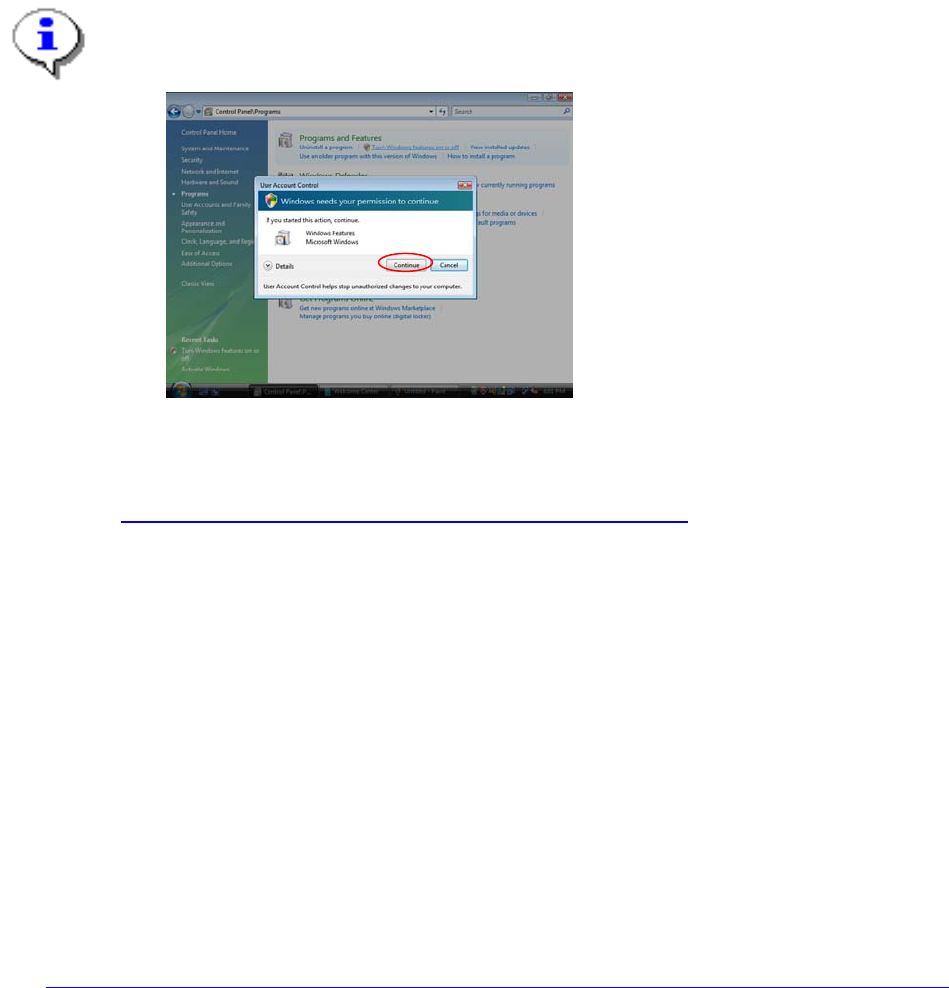
With Windows Vista there is a new feature called “User Account Control” introduced, which
controls access to functions that require permissions above the default user. If you see warning
messages between the described steps you have to acknowledge them before proceeding.
Fig. 3-11: Vista User Account Control
More information on this feature:
http://technet.microsoft.com/en-us/windowsvista/aa905108.aspx
3.1 Installation of SQL Server 2008 R2 Prerequisites
3.1.1 Windows Installer 4.5
SQL Server Express 2008 R2 requires Microsoft Windows Installer 4.5 or later.
You have to install this package manually if it is missing before you start with the SQL Server installation.
It is provided on the SIPLACE Net Support Media in the directory
<DVD-Drive>\Updates\Windows Installer\4.5.
You may also download the appropriate installation package from the following URL:
http://www.microsoft.com/downloads/details.aspx?FamilyID=5a58b56f-60b6-4412-95b9-54d056d6f9f4
3.1.2 .Net Framework 3.5 SP 1
SQL Server Express 2008 R2 requires Microsoft .Net Framework 3.5 SP 1 or later.
→ Insert the SIPLACE Net Support Media CD/DVD into your drive.
→ Navigate to the directory <DVD-Drive>\TOOLS\DOTNETFRAMEWORK\GENERAL\3.5 SP1.

Installation of SQL 2008 R2 Express 02/2011 Edition
8
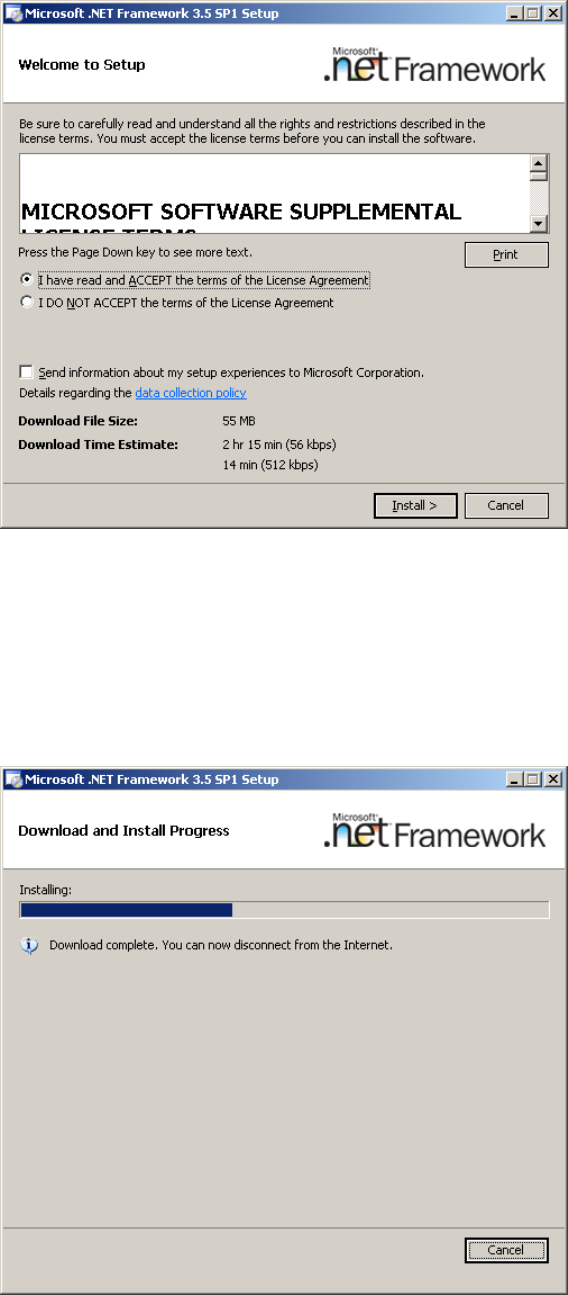
Some files will be extracted to your hard disk. After that, the following window will appear:
Fig. 3-1: .Net Framework 3.5 SP 1 initial setup window
→ Click the I have read and ACCEPT the terms of the License Agreement radio button.
→ Click the Install > button to begin the installation.
During the installation, the window might look like this:
Fig. 3-2: .Net Framework 3.5 SP 1 during setup