00196825_Install_SQLExpress2008R2_manual.pdf - 第15页
Installation of SQL 2008 R2 Express 02/2011 Edition 15 → Click the Next > button to continue. The following window might be displaye d: Fig. 3-8: SQL Server Setup Support Files → Click the Install button to continue i…
Installation of SQL 2008 R2 Express 02/2011 Edition
14
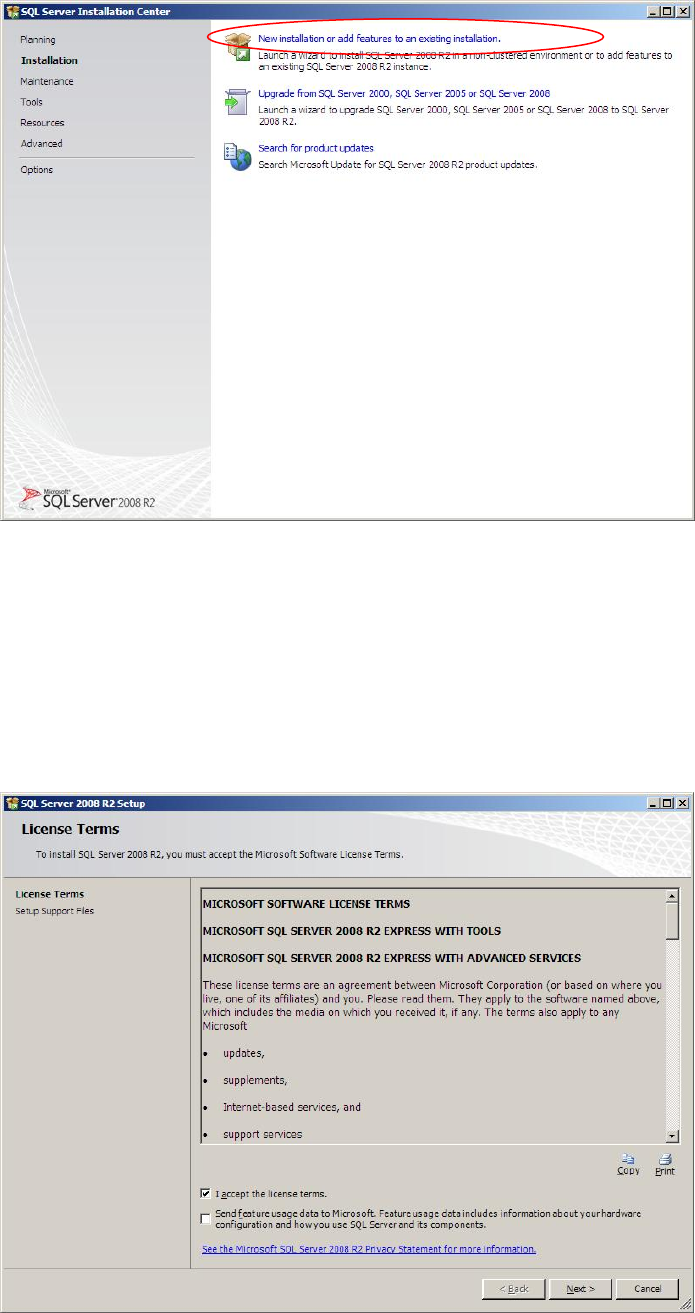
The window should look like this:
Fig. 3-6: SQL Server Installation Center - Installation
→ Click on New SQL Server stand-alone installation or add features to an existing
installation.
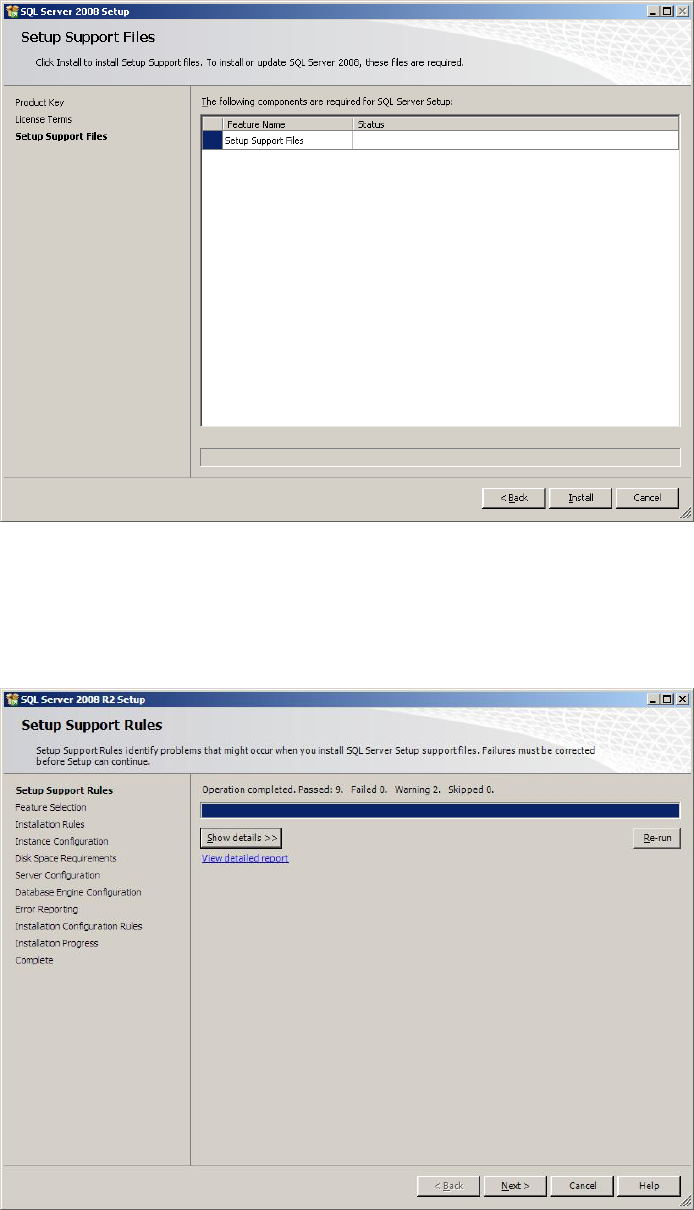
After some seconds, the following window will be displayed:
Fig. 3-7: SQL Server Setup License Terms
→ Ensure the checkbox besides I accept the license terms is checked.
Installation of SQL 2008 R2 Express 02/2011 Edition
15
→ Click the Next > button to continue.
The following window might be displayed:
Fig. 3-8: SQL Server Setup Support Files
→ Click the Install button to continue installing support files. This may take some seconds.
The “Setup Support Rules” window reappears.
Fig. 3-9: SQL Server Setup Support Rules
→ Click the Next > button to continue.
Installation of SQL 2008 R2 Express 02/2011 Edition
16
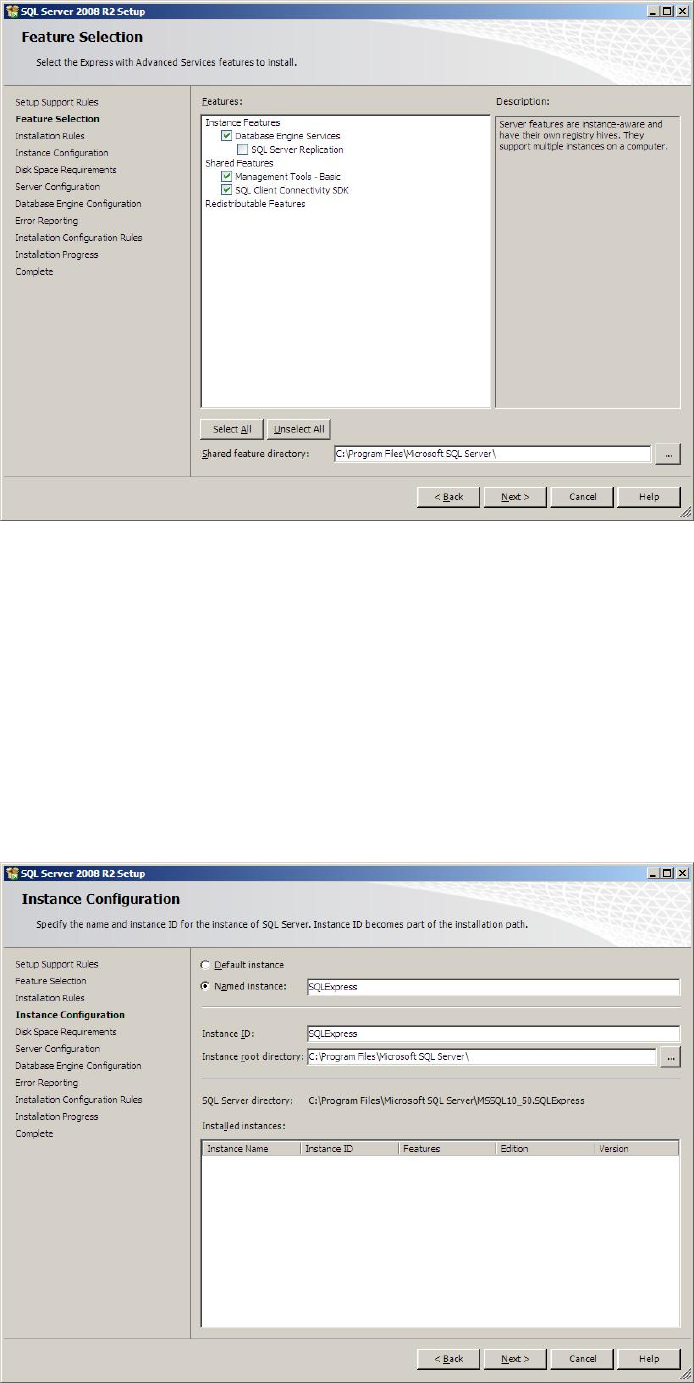
The feature selection window appears:
Fig. 3-10: SQL Server Setup Feature Selection
→ Ensure the following features being selected:
- Database Engine Services
- Management Tools – Basic
- SQL Client Connectivity SDK
→ Click the Next > button to continue.
The following window will be shown: