00196825_Install_SQLExpress2008R2_manual.pdf - 第19页
Installation of SQL 2008 R2 Express 02/2011 Edition 19 The window now should look like this: Fig. 3-15: SQL Server Setup Server Confi guration – configured to l ocal system account → Click the Next > button to continu…
Installation of SQL 2008 R2 Express 02/2011 Edition
18
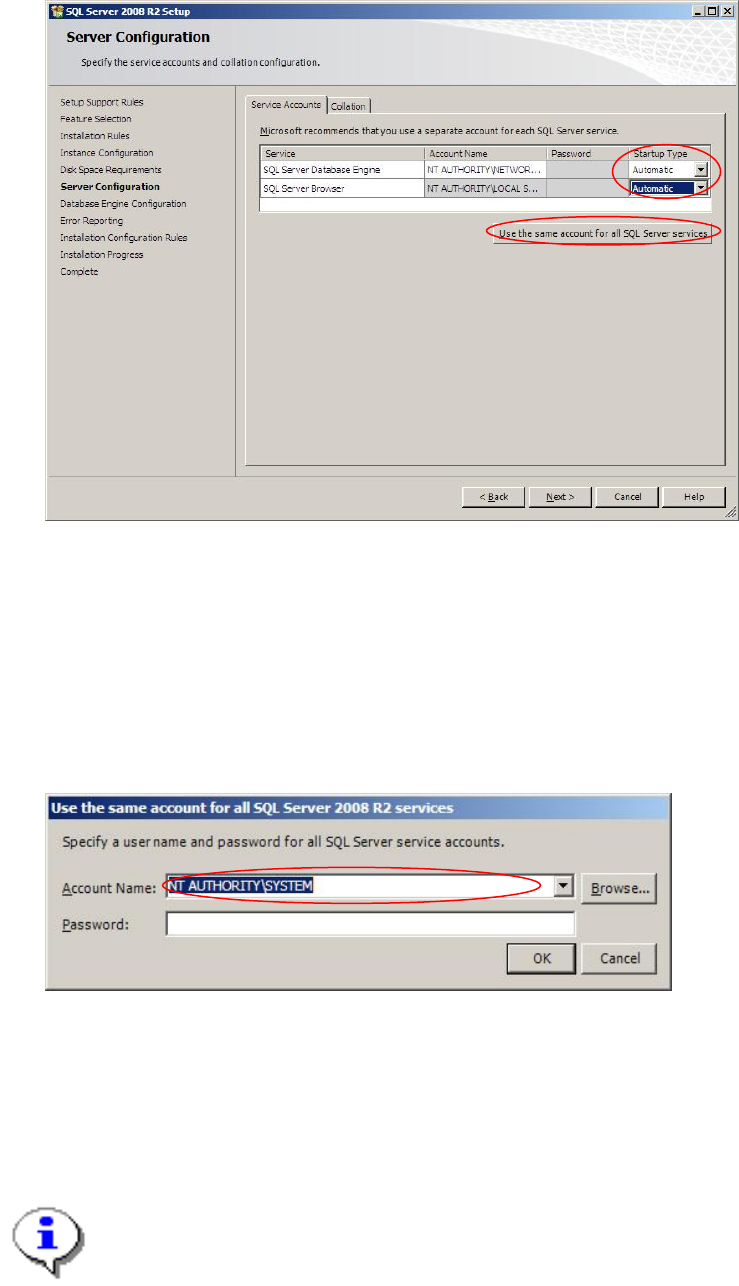
Fig. 3-13: SQL Server Setup Server Configuration
→ Ensure the Startup Type of all services is set to “Automatic”
→ Click the Button Use the same account for all SQL Server services.
The following message box should appear:
Fig. 3-14: SQL Server Setup account configuration message box
→ Select the local system account (“NT AUTHORITY\SYSTEM”) from the dropdown menu.
→ Click the OK button to close the message box.
Note:
Depending on the language of your Operating System, the local system account might be
named differently.
Installation of SQL 2008 R2 Express 02/2011 Edition
19
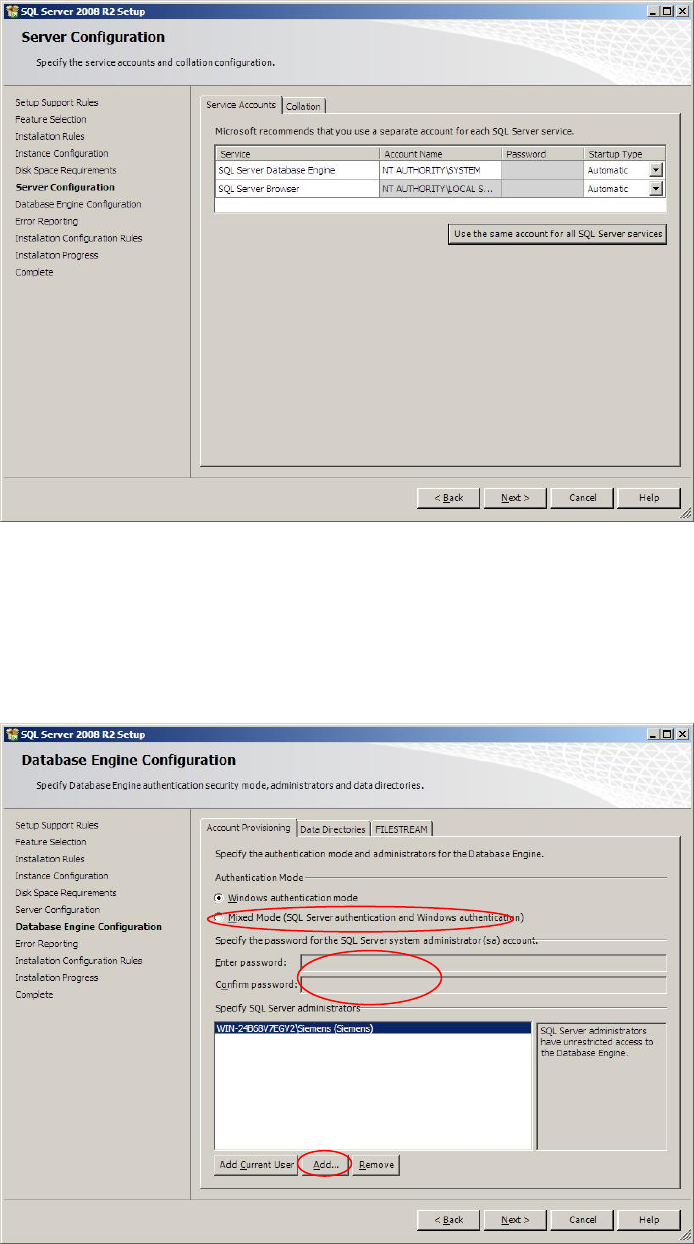
The window now should look like this:
Fig. 3-15: SQL Server Setup Server Configuration – configured to local system account
→ Click the Next > button to continue.
The following window will appear:
Fig. 3-16: SQL Server Setup Database Engine Configuration
→ Click the radio button Mixed Mode (SQL Server authentication and Windows
authentication).
Installation of SQL 2008 R2 Express 02/2011 Edition
20
→ Enter the password for the SQL user “sa”.
→ Click the button Add….
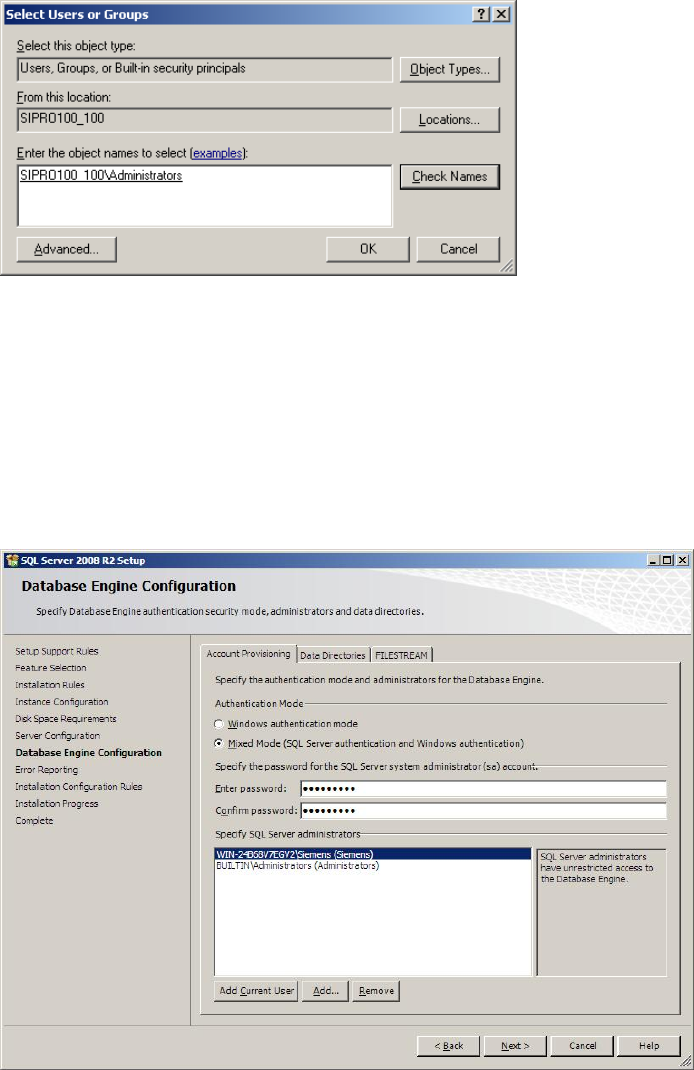
The following message box will appear:
Fig. 3-17: SQL Server Setup - specific SQL Server administrators – Select Users or Groups message box
→ Enter the local administrators group in the format <computername>\<groupname>.
→ Click the button Check Names to ensure you typed the correct name.
→ Click the OK button to close the message box and save the settings.
The window now should look like this:
Fig. 3-18: SQL Server Setup Database Engine Configuration – SIPLACE conform settings
→ Click the Next > button to continue.