00196825_Install_SQLExpress2008R2_manual.pdf - 第26页
Installation of SQL 2008 R2 Express 02/2011 Edition 26 The following dialog is disp layed: Fig. 3-25: Server connecti on properties - General → Select the processors option- page on the left side The following dialog is …
Installation of SQL 2008 R2 Express 02/2011 Edition
25
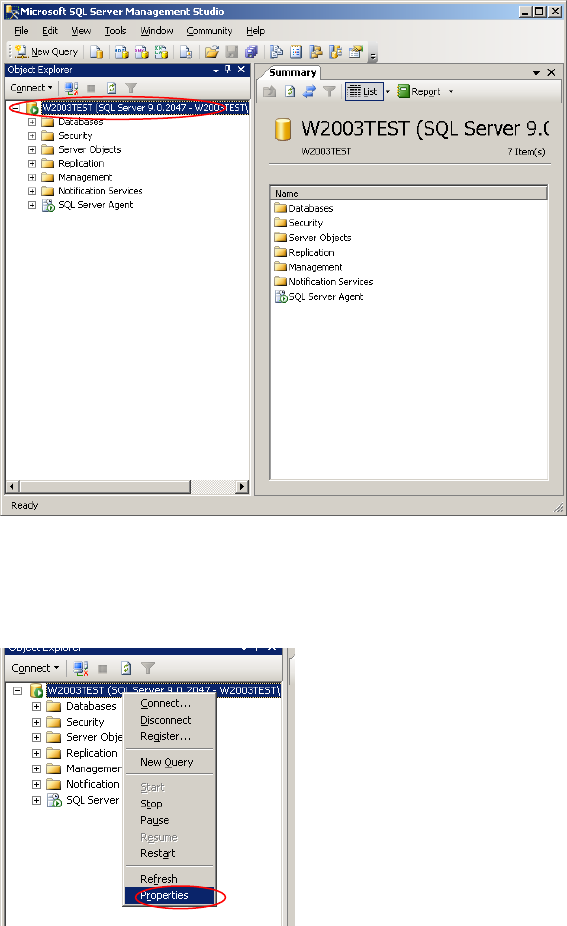
After connecting successfully, the following dialog is displayed:
Fig. 3-23: SQL Server Management Console
→ Right-click on your server connection on the left side and select Properties.
Fig. 3-24: Server connection properties
Installation of SQL 2008 R2 Express 02/2011 Edition
26
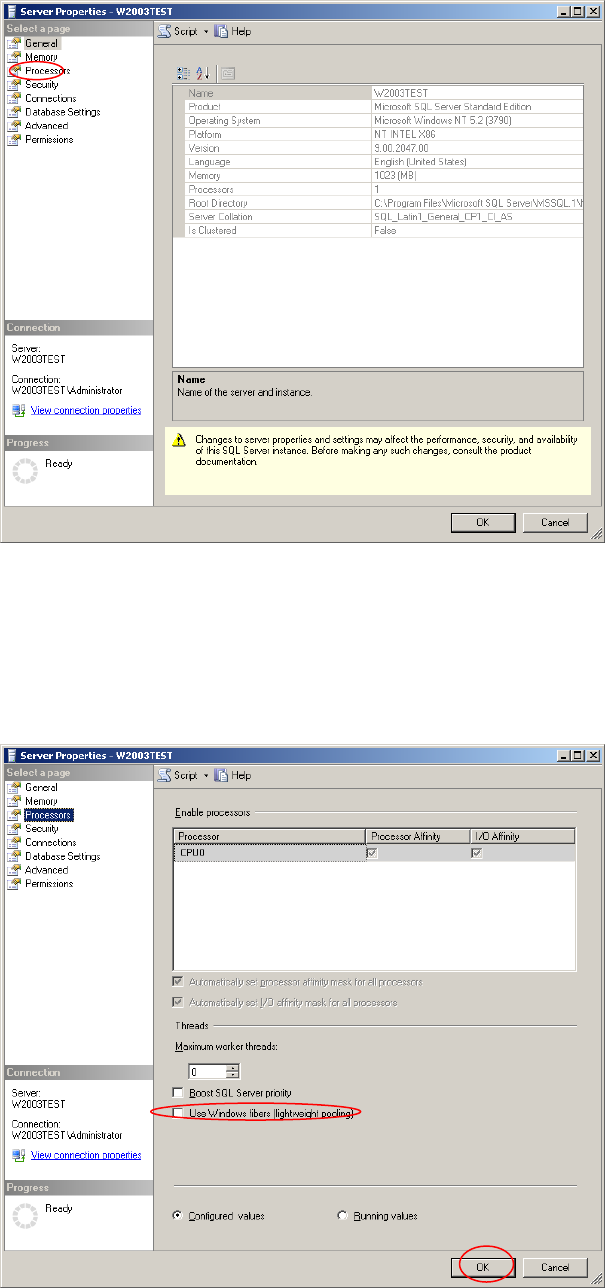
The following dialog is displayed:
Fig. 3-25: Server connection properties - General
→ Select the processors option- page on the left side
The following dialog is displayed:
Fig. 3-26: Server connection properties - General

Installation of SQL 2008 R2 Express 02/2011 Edition
27
Note:
Maximum worker threads value: Unlike the SQL Server 2000 setting which was “255”, this
value is set to zero by default which causes SQL Server 2008 to automatically configure this
value at startup.
→ Ensure “Use Windows fibers (lightweight pooling)” is not selected.
→ Click the OK button.
3.3.2 Optional Settings
Proxy account setting
After installation you may enable the proxy server account option, needed for some SIPLACE products,
like SIPLACE Explorer.
This setting is needed when you have to use an account with permissions other than the configured SQL
service account for executing specific tasks. A more detailed description can be found in the Microsoft
Knowledge Base:
http://support.microsoft.com/?id=kb;en-us;890775
→ Click Start – Programs – Microsoft SQL Server 2008 R2 – SQL Server Management
Studio
The following dialog is displayed: