00198014-01_IM_SQL_Server_2014_EN.pdf - 第10页
SQL Server 2014 / I nstallation Manual 11/2015 Edition 10 4.2 Installing S QL Server 2014 Standard Edition F ollow the instructi ons below for the manual install ation of SQL Server 2014 St andard Edition. ► Ensure that …
SQL Server 2014 / Installation Manual 11/2015 Edition
9
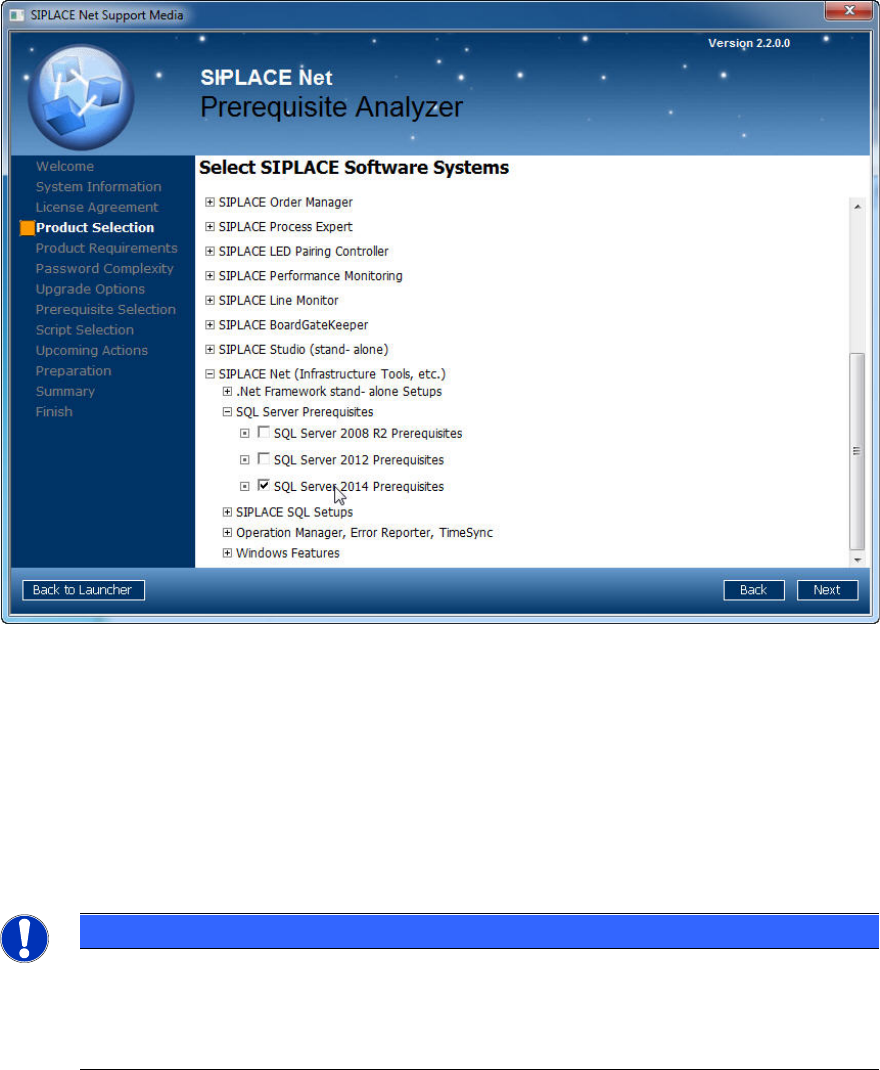
Figure 4-1: Product Selection page of Prerequisite Analyzer
► Expand the SIPLACE Net (Infrastructure Tools, etc.) profile group.
► Expand the SQL Server Prerequisites profile group.
► Select SQL Server 2014 Prerequisites.
► Click the Next button.
► Continue preparing your computer with the Prerequisite Analyzer. The Prerequisite Analyzer
will automatically install all packages as required for SQL Server/Express 2014.
NOTICE
Internet connection possibly required
Because of limited redistribution permissions
, some required packages might be missing
on Support Media. In this case, the Prerequisite Analyzer will offer the possibility to
automatically download the missing packages.
SQL Server 2014 / Installation Manual 11/2015 Edition
10
4.2 Installing SQL Server 2014 Standard Edition
Follow the instructions below for the manual installation of SQL Server 2014 Standard Edition.
► Ensure that you have installed the SQL Server 2014 Prerequisites as described in section 4.1.
► Close all other applications before you start the installation.
► Double-click Setup.exe in the root directory of the DVD.
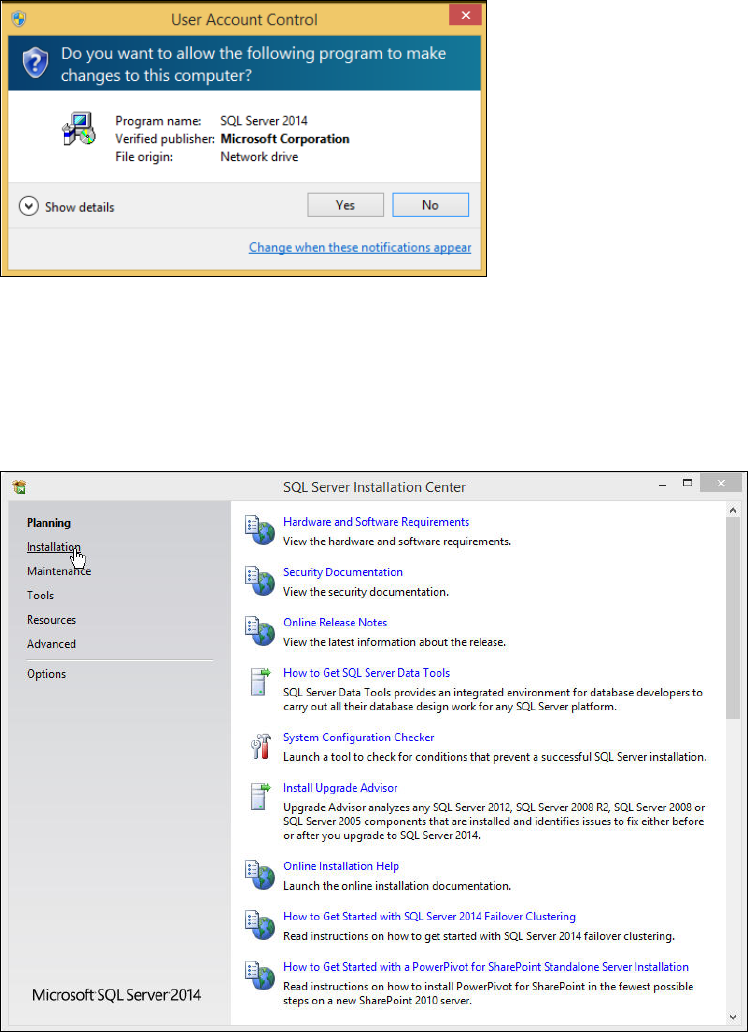
The UAC (User Account Control) warning may occur:
Figure 4-2: User Account Control warning message
This message informs you that the started application requires permissions above the standard
user (in this case administrative permissions).
► Click the Yes button.
The SQL Server Installation Center is displayed.
Figure 4-3: SQL Server Installation Center
► Click Installation on the left side.
SQL Server 2014 / Installation Manual 11/2015 Edition
11
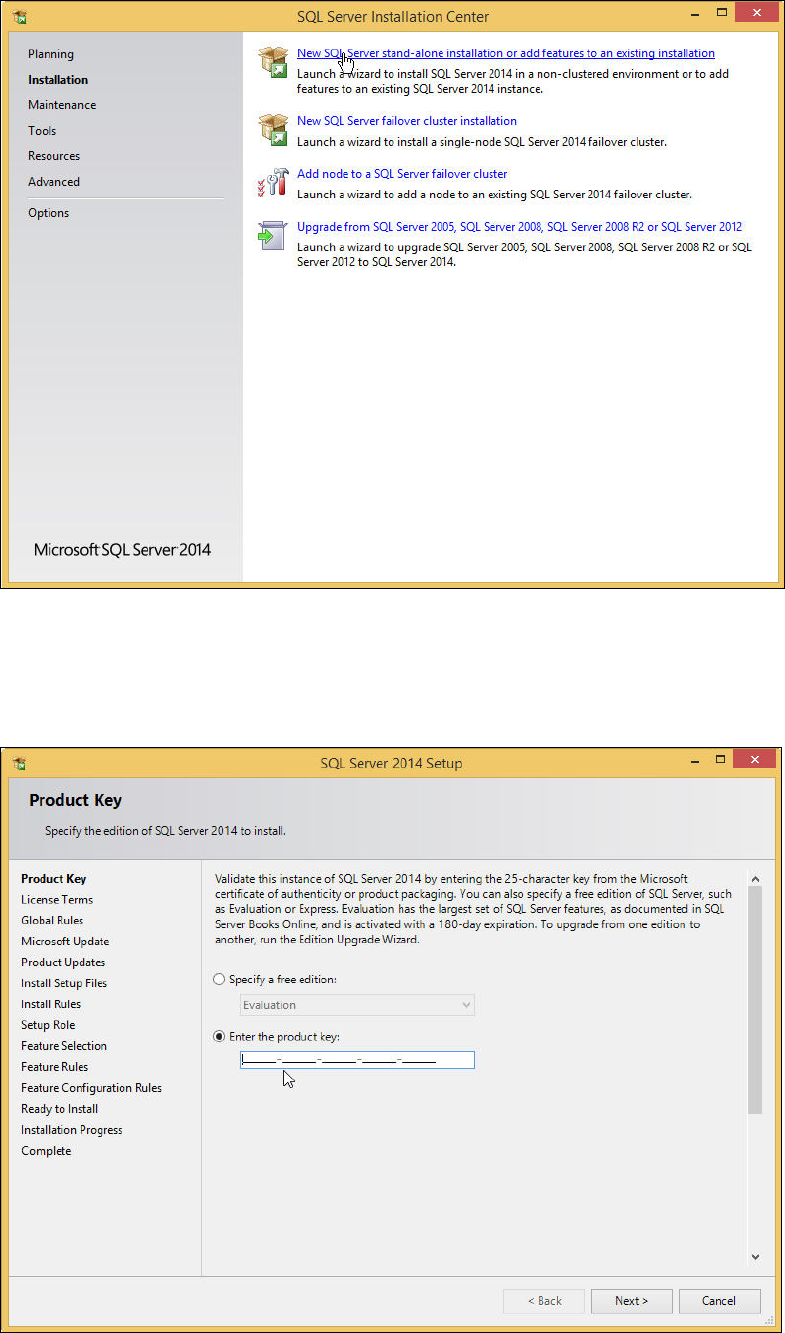
The Installation window is displayed.
Figure 4-4: Installation window of SQL Server Installation Center
► Click the New SQL Server stand-alone installation or add features to an existing installation
link.
The Product Key window is displayed.
Figure 4-5: Product Key window of SQL Server Setup