00198014-01_IM_SQL_Server_2014_EN.pdf - 第24页
SQL Server 2014 / I nstallation Manual 11/2015 Edition 24 The Ready to Instal l window is displayed. Figure 4-23: Ready to Install wi ndow ► Klick the Install button. The installation start s. ► Wait for the inst allatio…
SQL Server 2014 / Installation Manual 11/2015 Edition
23
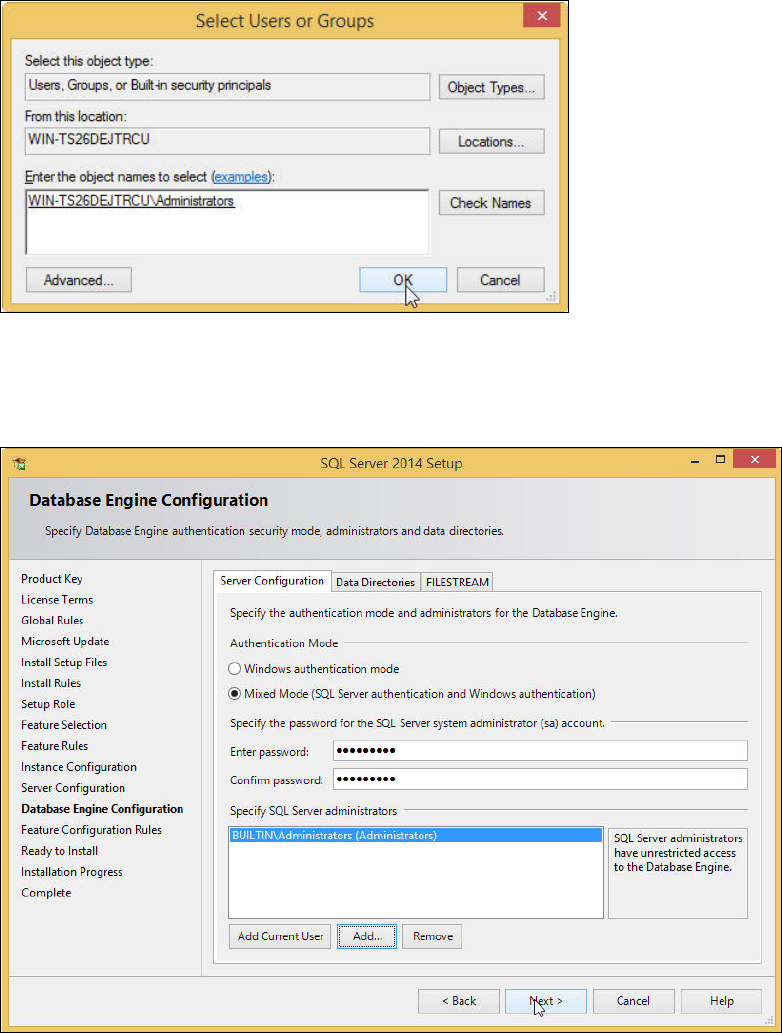
The group should now be automatically detected and underlined, as displayed in the following
figure.
Figure 4-21: Adding the administrators group – step 2
► Click the OK button to close the window.
After you have performed all settings as described, the window should look like this:
Figure 4-22: Database Engine Configuration window with SIPLACE compatible settings
► Click the Next > button to continue.
SQL Server 2014 / Installation Manual 11/2015 Edition
24
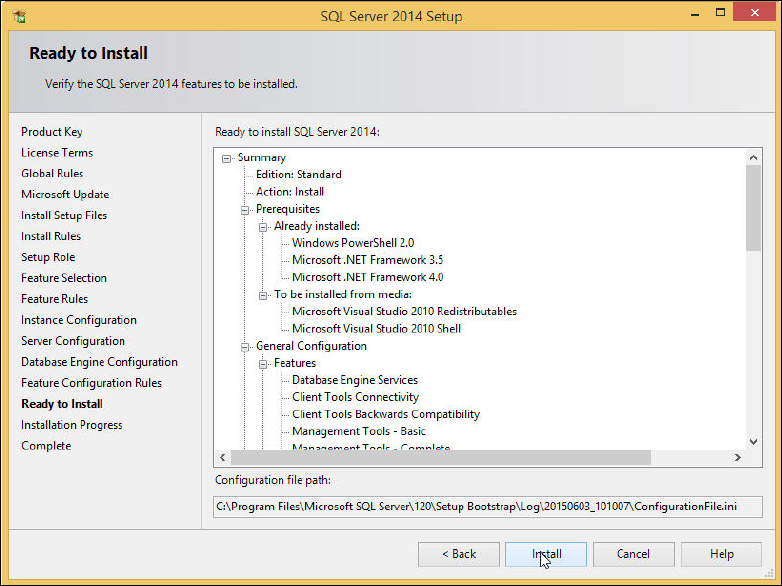
The Ready to Install window is displayed.
Figure 4-23: Ready to Install window
► Klick the Install button.
The installation starts.
► Wait for the installation to complete. This may take 30 minutes or more.
SQL Server 2014 / Installation Manual 11/2015 Edition
25
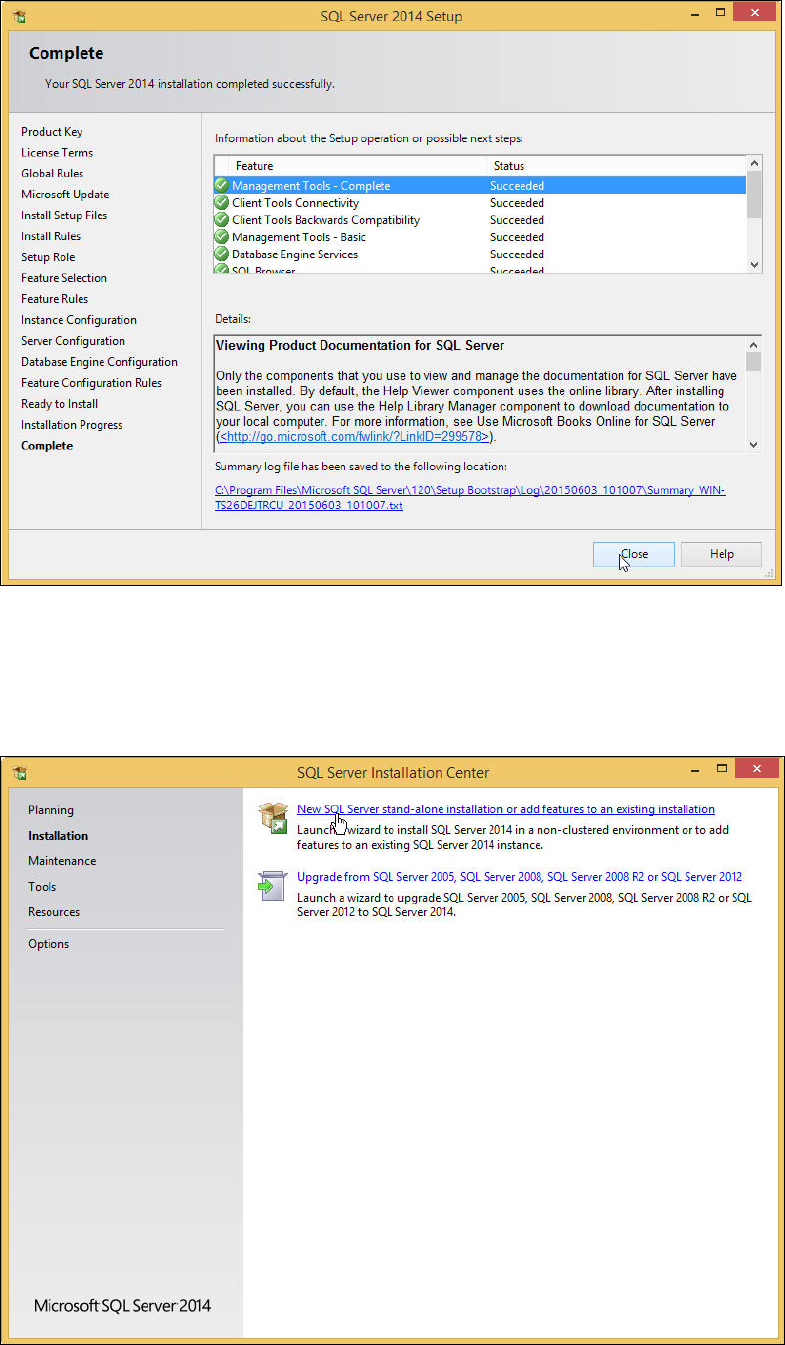
After installation has finished, the Complete window is displayed.
Figure 4-24: Setup completed
► Examine the status of all features – they should be Succeeded.
► Click the Close button to close the setup.
You return to the initial window.
Figure 4-25: Closing the initial window