00198014-01_IM_SQL_Server_2014_EN.pdf - 第13页
SQL Server 2014 / I nstallation Manual 11/2015 Edition 13 The Microsoft Update win dow is displayed. Figure 4-7: Microsoft Update wind ow ► Deselect the Use Mic rosoft Update to check f or updates (recommended) chec k bo…
SQL Server 2014 / Installation Manual 11/2015 Edition
12
► Enter or verify the product key.
► Click the Next > button to continue.
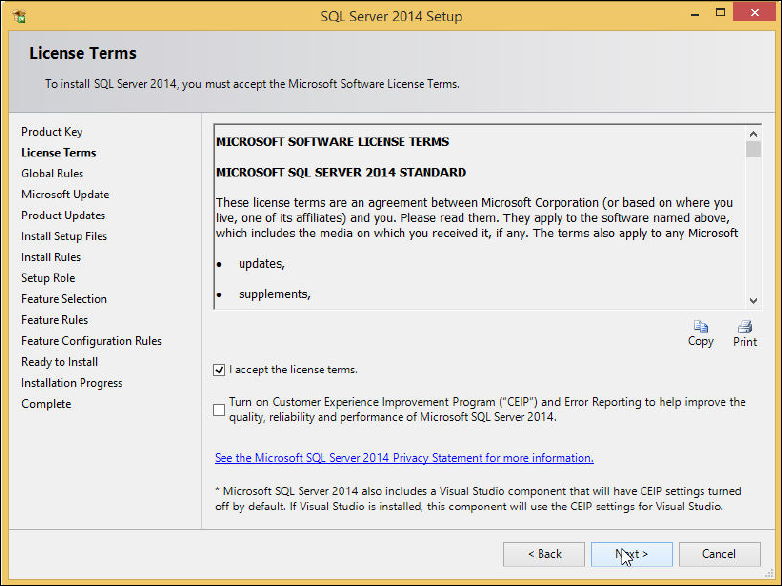
The SQL Server License Terms window is displayed.
Figure 4-6: SQL Server License Terms window
► Click the I accept the license terms check box.
► Click the Next > button.
SQL Server 2014 / Installation Manual 11/2015 Edition
13
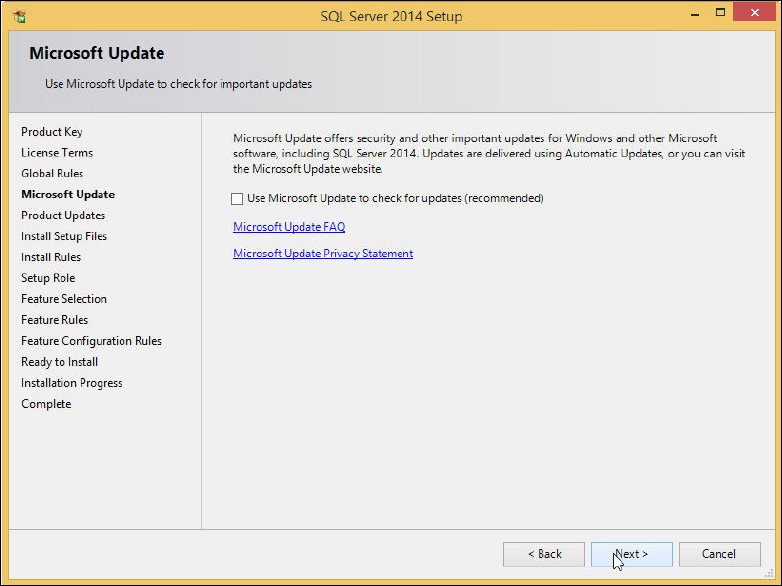
The Microsoft Update window is displayed.
Figure 4-7: Microsoft Update window
► Deselect the Use Microsoft Update to check for updates (recommended) check box to ensure
that you install the version as delivered on the media only.
► Click the Next > button.
SQL Server 2014 / Installation Manual 11/2015 Edition
14
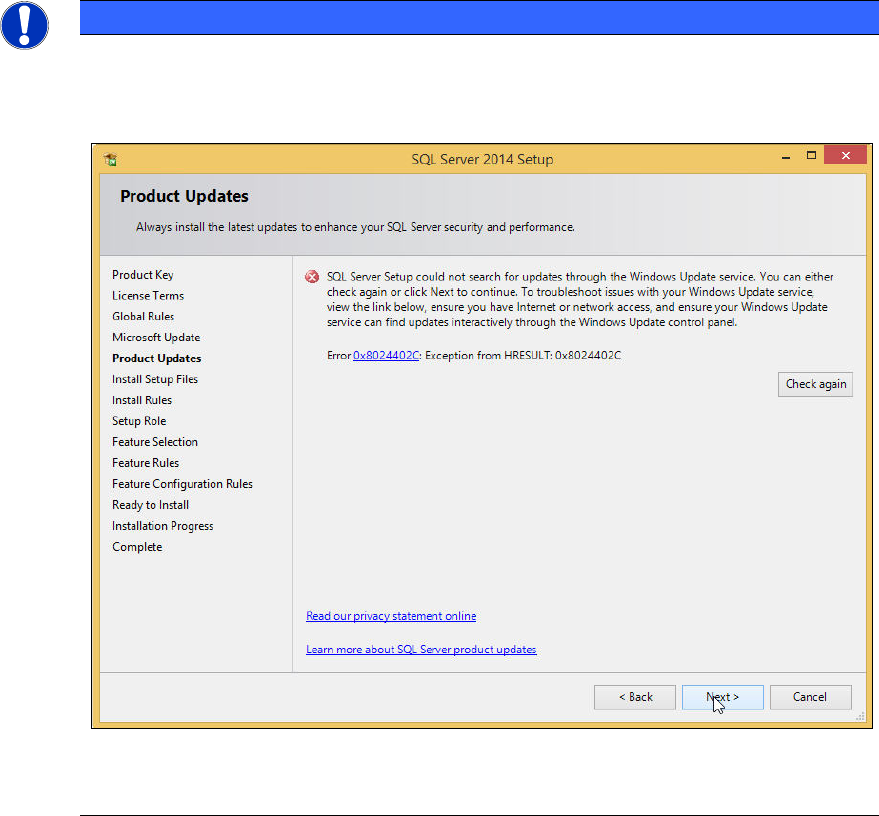
NOTICE
Possible error message
If you did not immediately deselect the previously mentioned check box, the following
error message may be displayed if you do not have connection to the Internet.
Figure 4-8: Error message without Internet connection
► In this case, ignore this message.
The SQL setup now installs its setup files.