00198014-01_IM_SQL_Server_2014_EN.pdf - 第29页
SQL Server 2014 / I nstallation Manual 11/2015 Edition 29 The SQL Server Configuration Manager is displayed. ► On the left side, ex pand each group and select ea ch Protocols entry . ► E nsure that TCP/IP is E nable d. I…
SQL Server 2014 / Installation Manual 11/2015 Edition
28
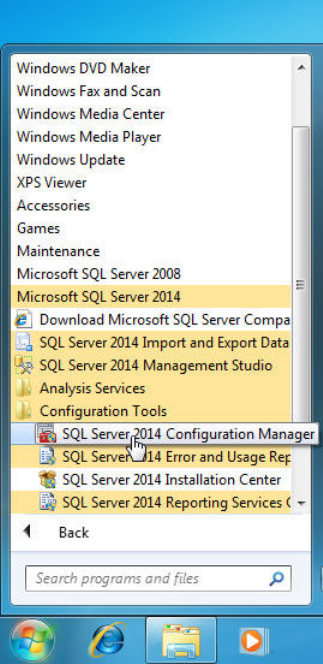
► Expand Microsoft SQL Server 2014.
► Expand Configuration Tools.
► Click SQL Server 2014 Configuration Manager.
Figure 5-2: Selecting SQL Server 2014 Configuration Manager
► Accept any possibly appearing User Account Control message by clicking its Yes button.
SQL Server 2014 / Installation Manual 11/2015 Edition
29
The SQL Server Configuration Manager is displayed.
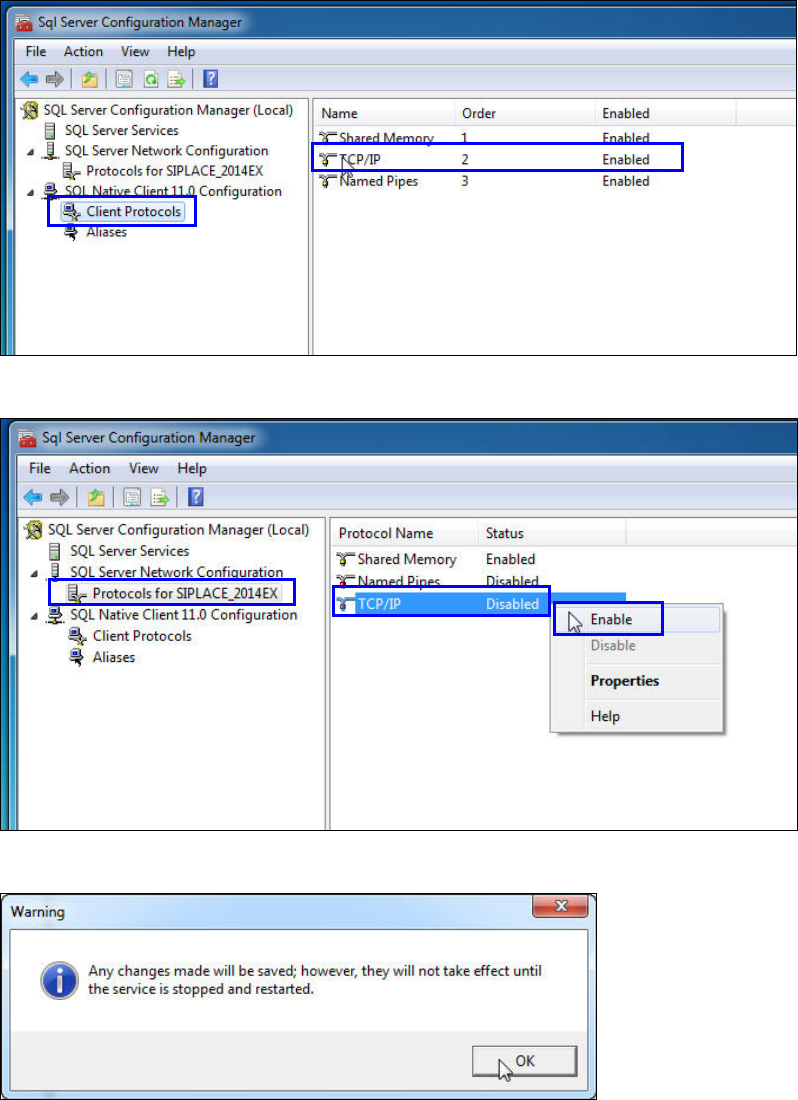
► On the left side, expand each group and select each Protocols entry.
► Ensure that TCP/IP is Enabled. If you need to change the setting to Enabled, right- click the
entry and select Enable.
The whole procedure is displayed in the following figures.
Figure 5-3: Enabling TCP/IP – verifying Client Protocols for 32-bit interface
Figure 5-4: Enabling TCP/IP – changing setting for "Protocols for SIPLACE_2014EX"
Figure 5-5: Accepting warning message after changing setting
SQL Server 2014 / Installation Manual 11/2015 Edition
30
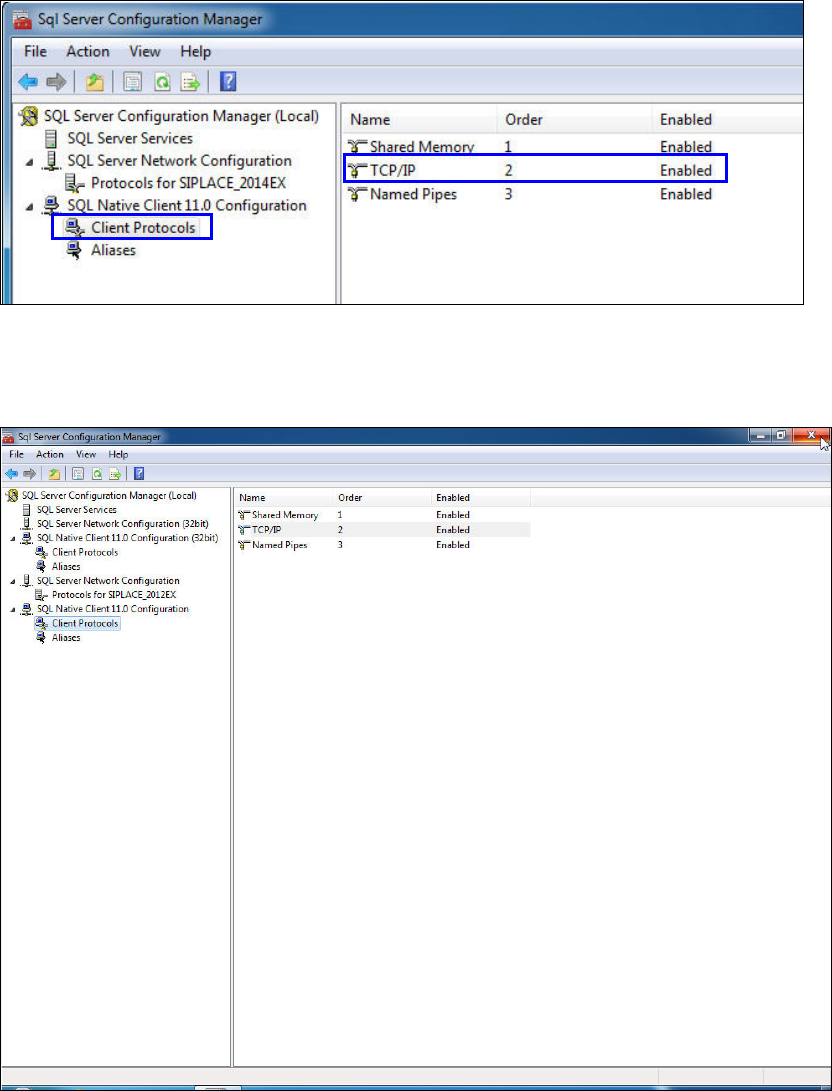
Figure 5-6: Enabling TCP/IP – verifying "Client Protocols" of 64-bit interface
► After you have changed the settings, click the X in the upper right corner to close the SQL
Server Configuration Manager.
Figure 5-7: Closing Configuration Manager
► Restart your computer for the changes to take effect.