00198014-01_IM_SQL_Server_2014_EN.pdf - 第12页
SQL Server 2014 / I nstallation Manual 11/2015 Edition 12 ► Enter or verify the p roduct k ey. ► Click the Next > button to continue. The SQL Ser ver License Terms window is displayed. Figure 4-6: SQL Server Licens e …
SQL Server 2014 / Installation Manual 11/2015 Edition
11
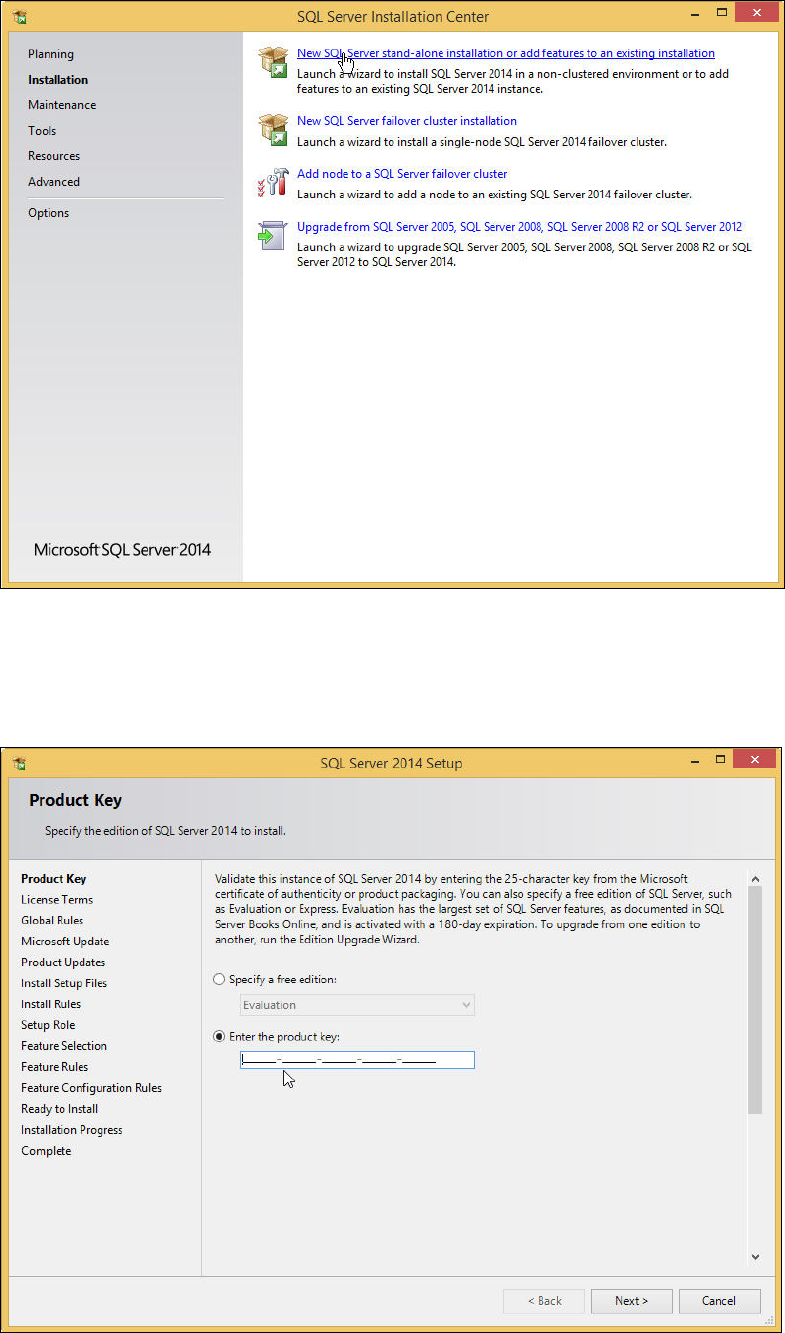
The Installation window is displayed.
Figure 4-4: Installation window of SQL Server Installation Center
► Click the New SQL Server stand-alone installation or add features to an existing installation
link.
The Product Key window is displayed.
Figure 4-5: Product Key window of SQL Server Setup
SQL Server 2014 / Installation Manual 11/2015 Edition
12
► Enter or verify the product key.
► Click the Next > button to continue.
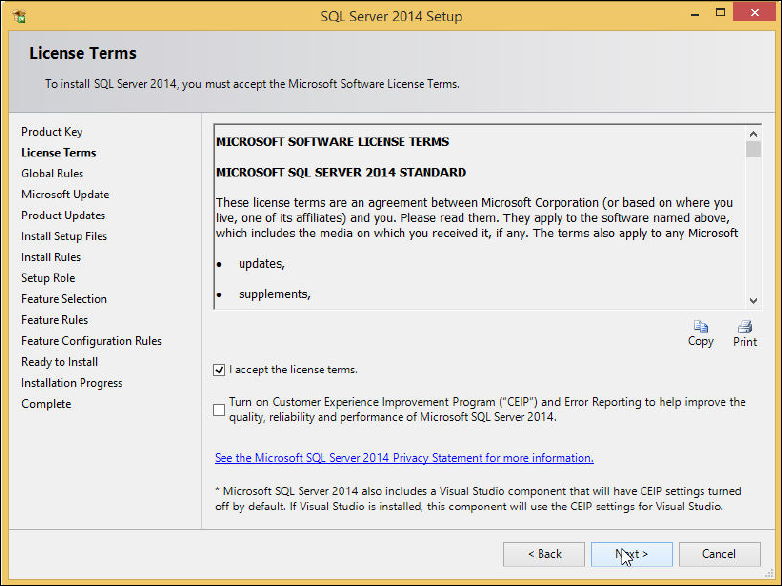
The SQL Server License Terms window is displayed.
Figure 4-6: SQL Server License Terms window
► Click the I accept the license terms check box.
► Click the Next > button.
SQL Server 2014 / Installation Manual 11/2015 Edition
13
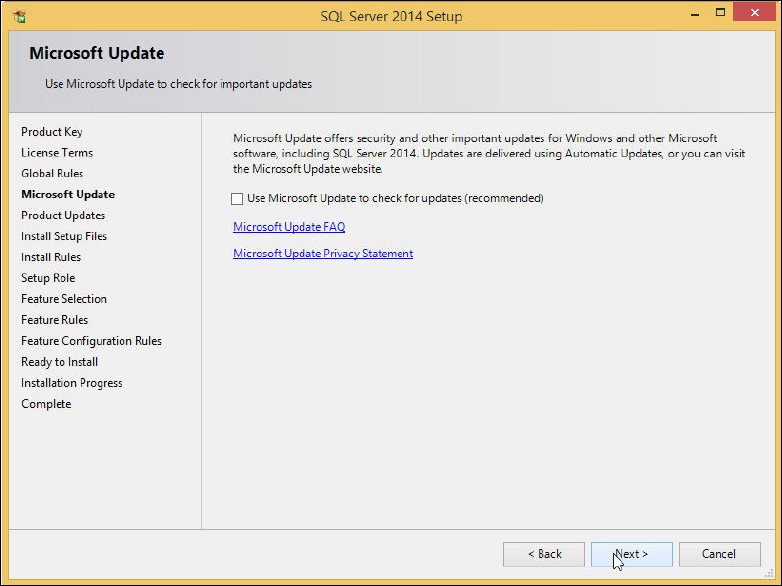
The Microsoft Update window is displayed.
Figure 4-7: Microsoft Update window
► Deselect the Use Microsoft Update to check for updates (recommended) check box to ensure
that you install the version as delivered on the media only.
► Click the Next > button.