00198014-01_IM_SQL_Server_2014_EN.pdf - 第18页
SQL Server 2014 / I nstallation Manual 11/2015 Edition 18 The Instance Configuration window is di splayed. Figure 4-13: Instance Configurati on window ► Leave the Defaul t instance button select ed to install the SQL Ser…
SQL Server 2014 / Installation Manual 11/2015 Edition
17
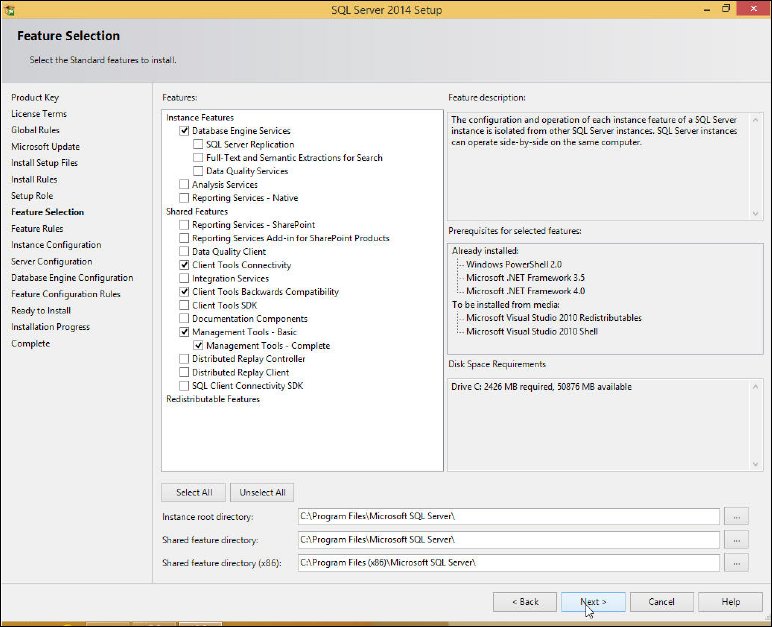
The Feature Selection window is displayed.
Figure 4-12: Feature Selection window
► Ensure that the following features are selected:
– Database Engine Services
– Client Tools Connectivity
– Client Tools Backwards Compatibility
– Management Tools – Basic
– Management Tools - Complete
► Click the Next > button to continue.
SQL Server 2014 / Installation Manual 11/2015 Edition
18
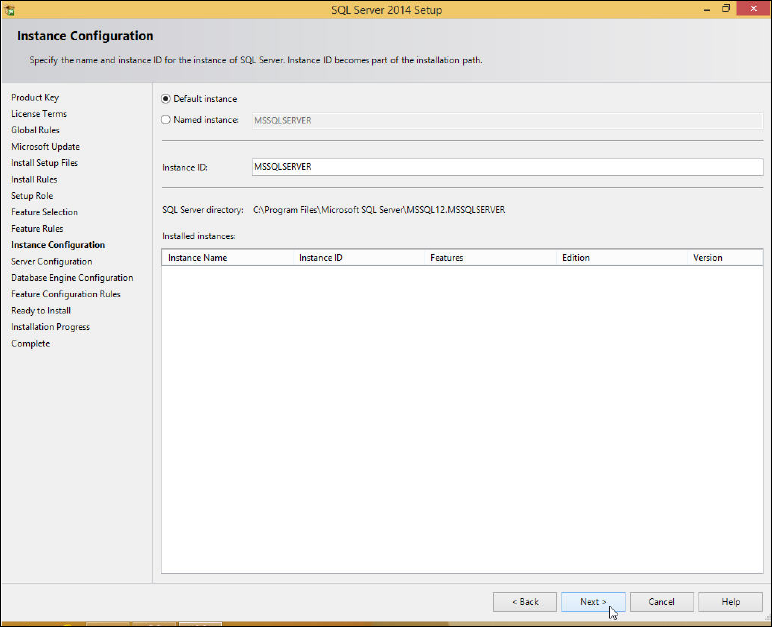
The Instance Configuration window is displayed.
Figure 4-13: Instance Configuration window
► Leave the Default instance button selected to install the SQL Server using the MSSQLSERVER
default instance.
► Click the Next > button to continue.
SQL Server 2014 / Installation Manual 11/2015 Edition
19
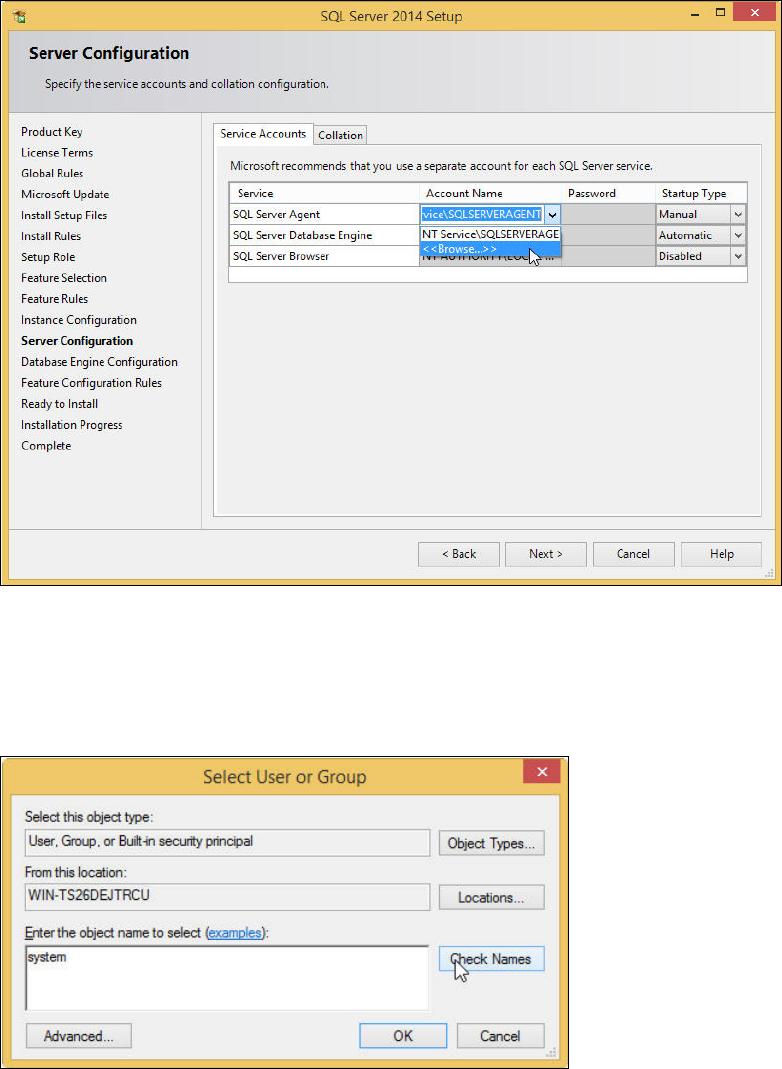
The Server Configuration window is displayed.
Figure 4-14: Server Configuration window
► Click the dropdown arrow besides Account Name in the first line of the table.
► Click the <<Browse…>> button.
The Select User or Group window is displayed.
Figure 4-15: Select User or Group window
► Ensure that the local computer name is selected under From this location: – otherwise you
have to select it using the Locations… button.
► Enter system and click the Check Names button.