Portal_Manual_1.2.1_Rev_H-1.pdf - 第15页
Portal PVA Revisio n H ( 2018 ) 15 of 93 3.2 Teach Penda nt PVA workcells come with a teach pendant. Each teach pendan t has a Trackball, Teach butto n, Purge butto n, Axis select ion button, a nd LED indicator s for sel…
Portal
PVA
Revision H (2018)
14 of 93
3 System Overview
3.1 Software
The complete Portal software package has several components. Every operator must
understand what each piece of software is and its function before you operate the
workcell.
3.1.1 Portal
Portal is the main user interface that allows the user to interact with the workcell. It sets
the mode the workcell is operating in, allows the operator to monitor each system of
the workcell, allows the operator to select different PathMaster routines, and conveys
system messages to the user.
3.1.2 PathMaster®
PathMaster is PVA’s Windows®-based programming software. It is used to create,
maintain and download project files for the workcell. Refer to the PathMaster manual
for more information.
Portal
PVA
Revision H (2018)
15 of 93
3.2 Teach Pendant
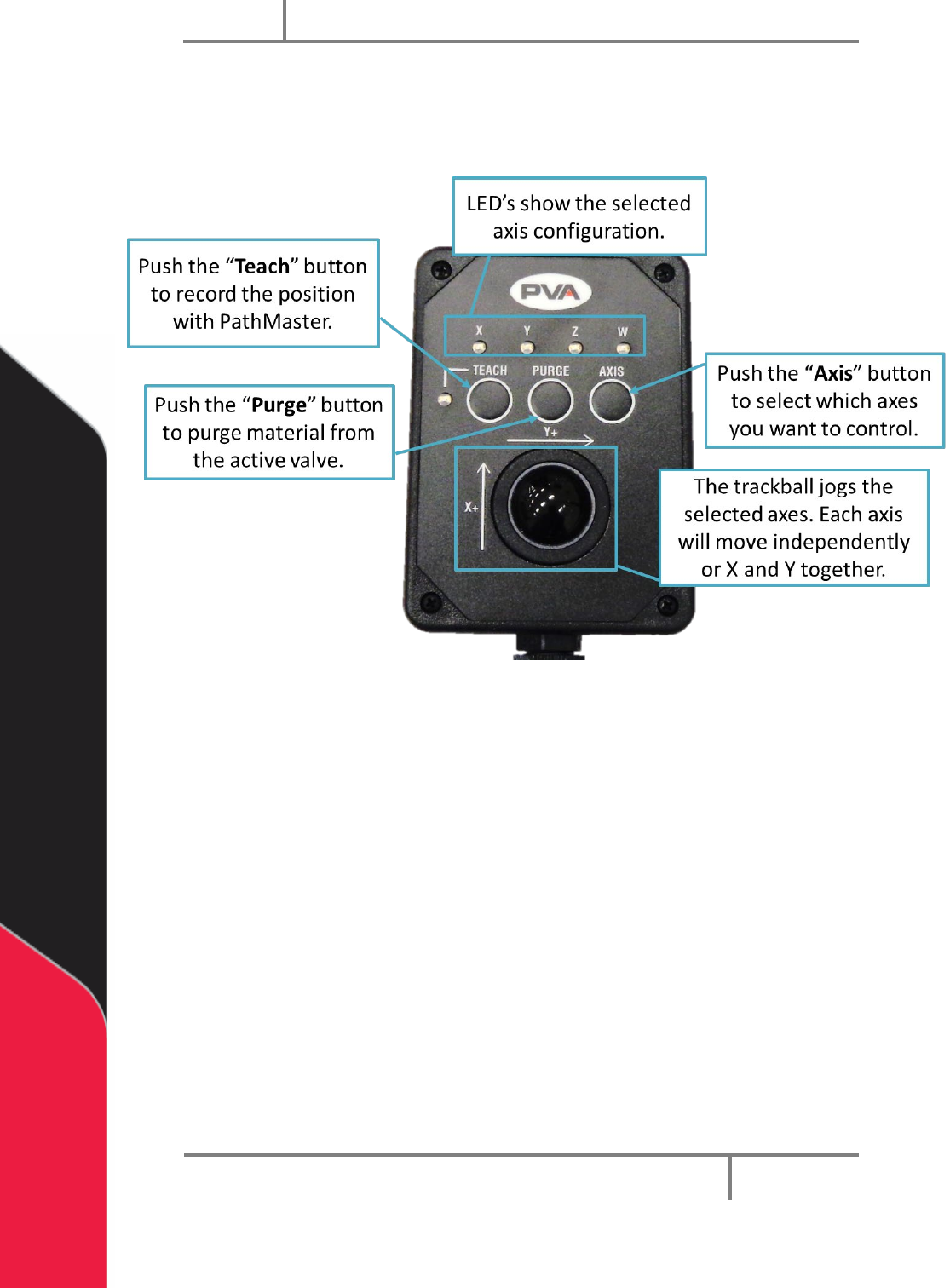
PVA workcells come with a teach pendant. Each teach pendant has a Trackball, Teach
button, Purge button, Axis selection button, and LED indicators for selected axes and
teach function.
Figure 1: Teach Pendant-Update Image
LED’s – The X, Y, Z and W LED’s show the selected axis configuration. The Teach LED
shows a position was correctly recorded by PathMaster®. The light tower buzzer will
“beep” when the Teach LED illuminates.
NOTE: W-axis trackball control is locked if the Teach Tool is enabled, unless
the PathMaster Tool Offset window is open (Setup-> Machine Parameters->
“Tool Offsets”). This is so the operator does not accidentally teach a theta
position with the teach tool. You can also enable or disable this function in
Setup mode (refer to Figure 24). When teaching with a device that is not the
camera, the theta position will be taught.
The speed of the trackball can be changed if you have a vision system.
1. Push and hold the “Axis” button for three seconds.
2. The red teach light will illuminate and the trackball function will move 10x
slower.
3. Do the steps again to change the speed back to normal.
Portal
PVA
Revision H (2018)
16 of 93
4 Portal Shell Overview
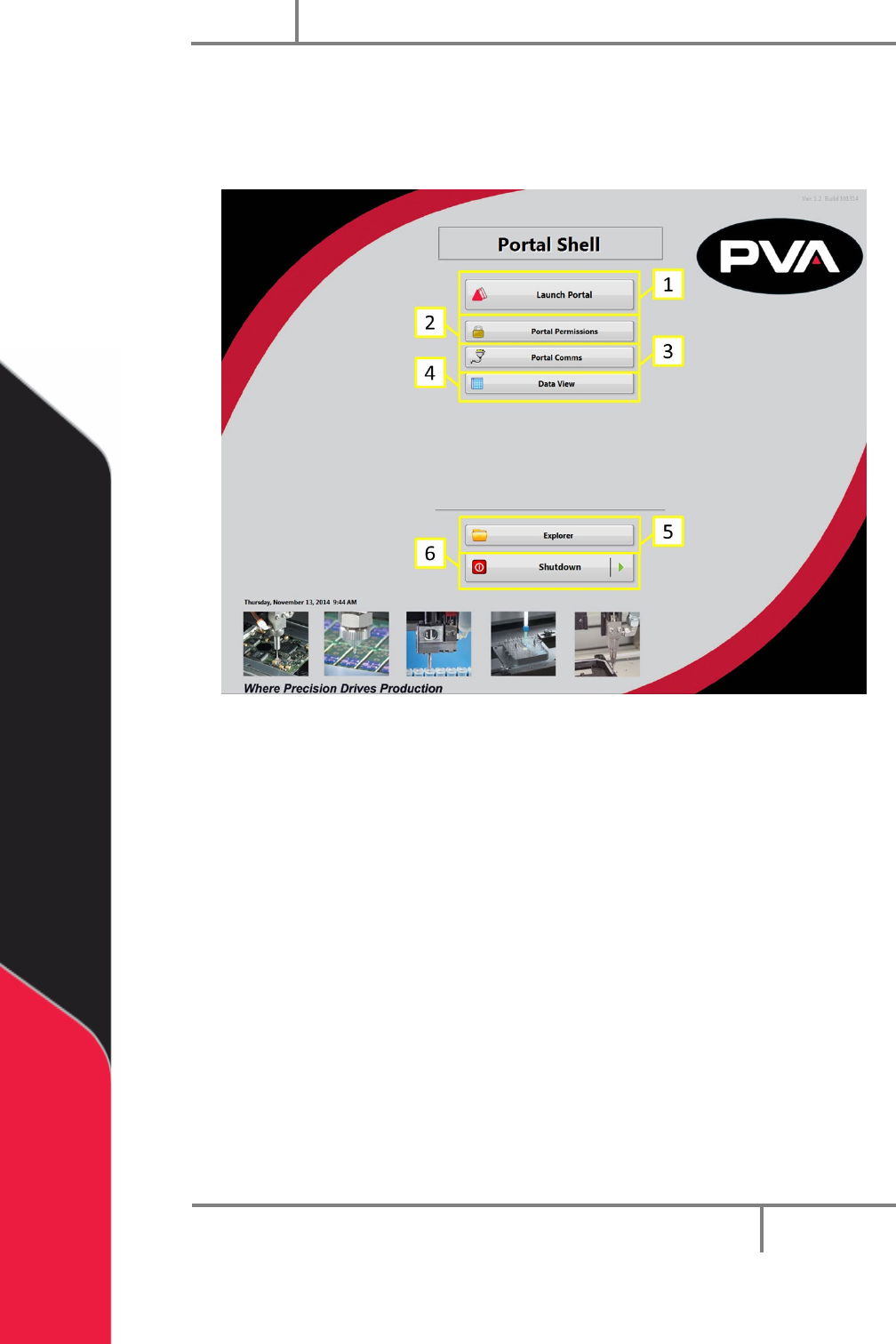
Portal shell provides the operator with access to general setup of the workcell. It
provides an interface to launch any software needed to interact with the workcell.
Figure 2: Portal Shell Overview
1. Select “Launch Portal” to start the Portal software and operate the workcell
through the portal window. Refer to Section 5 for more information on Portal.
2. Select “Portal Permissions” to start the Portal Permissions software. This opens
the options to adjust user access. Refer to Section 11 for more information on
Portal Permissions.
3. Select “Portal Comms” to open the Portal Comms software, allowing the
operator to adjust the Galil communication settings. Refer to Section 12 for
more information.
4. Selecting “Data View” will allow the operator to view any logged data. Please
refer to Section 13 for more information.
5. Selecting “Explorer” will open Windows® explorer, allowing the operator to
navigate the folders located on the computer.
6. Selecting “Shutdown” will shut down the computer.
The number of options on the Portal Shell screen depends on the machine
configuration. Refer to your machine specific manuals for more information