Portal_Manual_1.2.1_Rev_H-1.pdf - 第19页
Portal PVA Revisio n H ( 2018 ) 19 of 93 5.1 Cyc le Stop Interface Fig ure 4 : Cycle Stop After you log in and selec t “ Conti nue ” , Portal opens in cycle s top mode. I t is the d efault mo de fo r t he workcell. A ll …
Portal
PVA
Revision H (2018)
18 of 93
5 Portal Overview
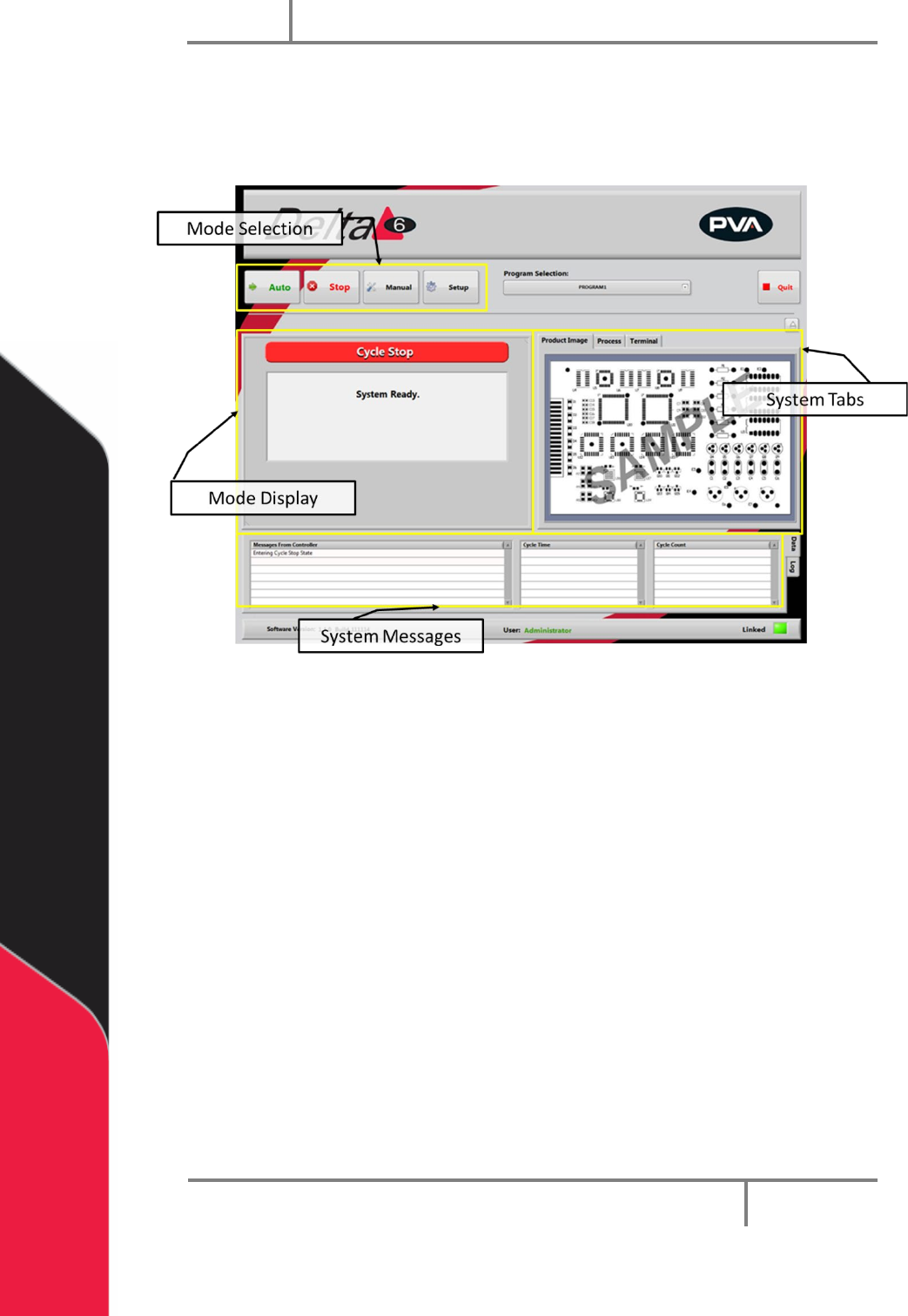
The Portal screen has several components. Understanding the sections of the Portal
screen will help you to successfully navigate the Portal program.
Figure 3: Portal Screen Overview
• Select the necessary mode from the mode selection.
Note: You must be in Cycle Stop to select a new mode.
• When you select a mode, the options for that mode will be shown in the mode
display section of the screen.
• The system tabs section of the screen remains the same no matter what mode
you select. This section of the screen contains the terminal used to
communicate with the controller. The terminal is used as a debug tool.
Portal
PVA
Revision H (2018)
19 of 93
5.1 Cycle Stop Interface
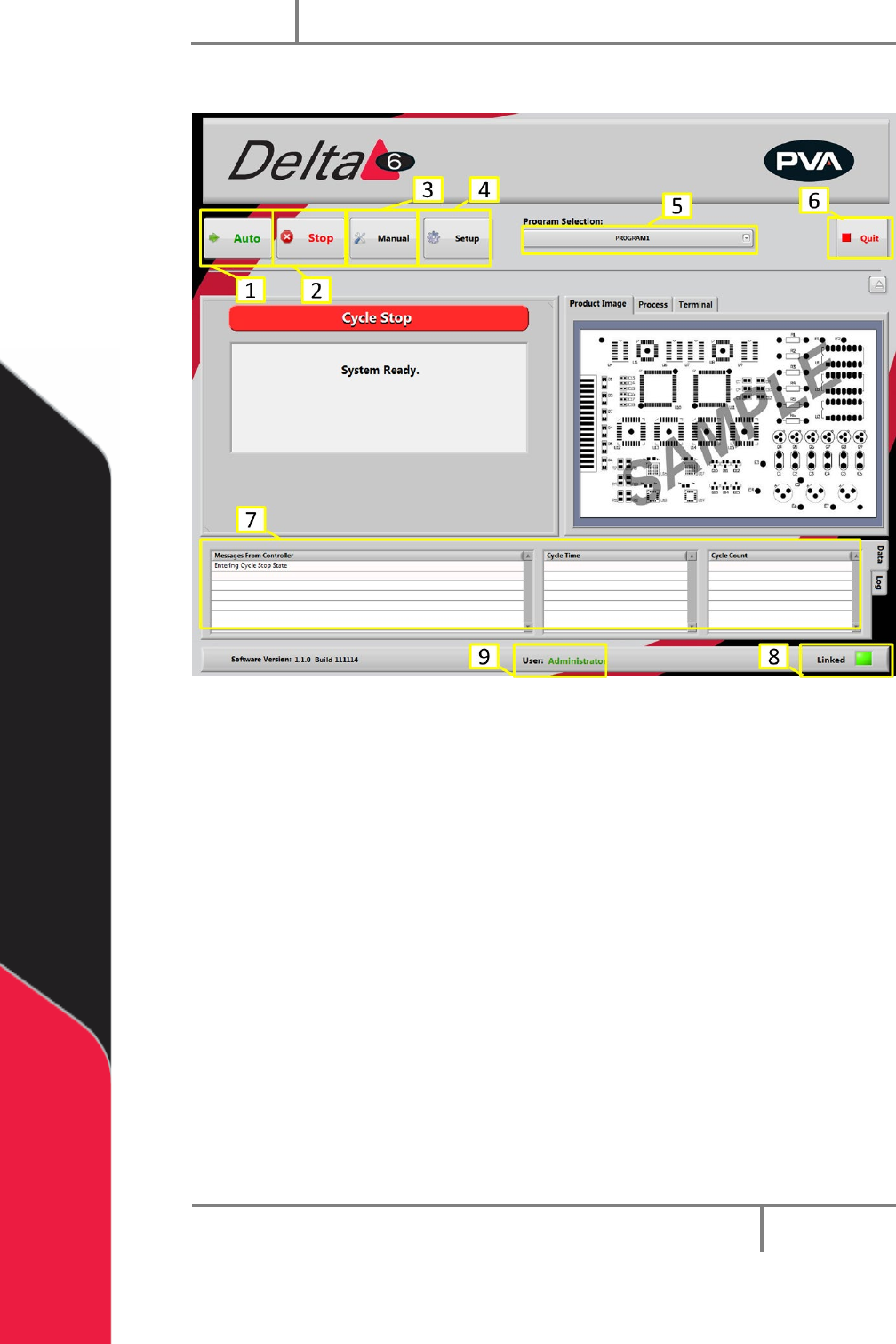
Figure 4: Cycle Stop
After you log in and select “Continue”, Portal opens in cycle stop mode. It is the default
mode for the workcell. All other modes and options can be accessed from this mode
with the buttons shown. You must return to Cycle Stop to access all other modes.
1. Select “Auto” to operate the machine in Auto Cycle. Refer to Section 7.
2. Select “Stop” to go to Cycle Stop mode from any other mode.
3. Select “Manual” to operate the machine manually. Refer to Section 6.
4. Select “Setup” to see or change the setup functions of the machine. Refer to
Section 8.
NOTE: You must select “Stop” to change from one mode to another. For
example to go from Manual mode to Auto Cycle you must select “Stop” and
then select “Auto”. You must be in Cycle Stop to shut down Portal.
5. Select the desired program to use while in auto mode from the Program
Selection dropdown menu. Refer to Section 5.2.
6. Select “Quit” to shutdown the program (Portal).
Portal
PVA
Revision H (2018)
20 of 93
7. All system messages will be shown in the Messages From Controller window.
8. The Linked display shows the machine “heartbeat”. This indicator will blink
while the PC is connected to the workcell, but NOT while the machine is in an
error state.
Figure 5: Linked
9. To change the User, select Cycle stop and select the User at the bottom of the
window.
Figure 6: User
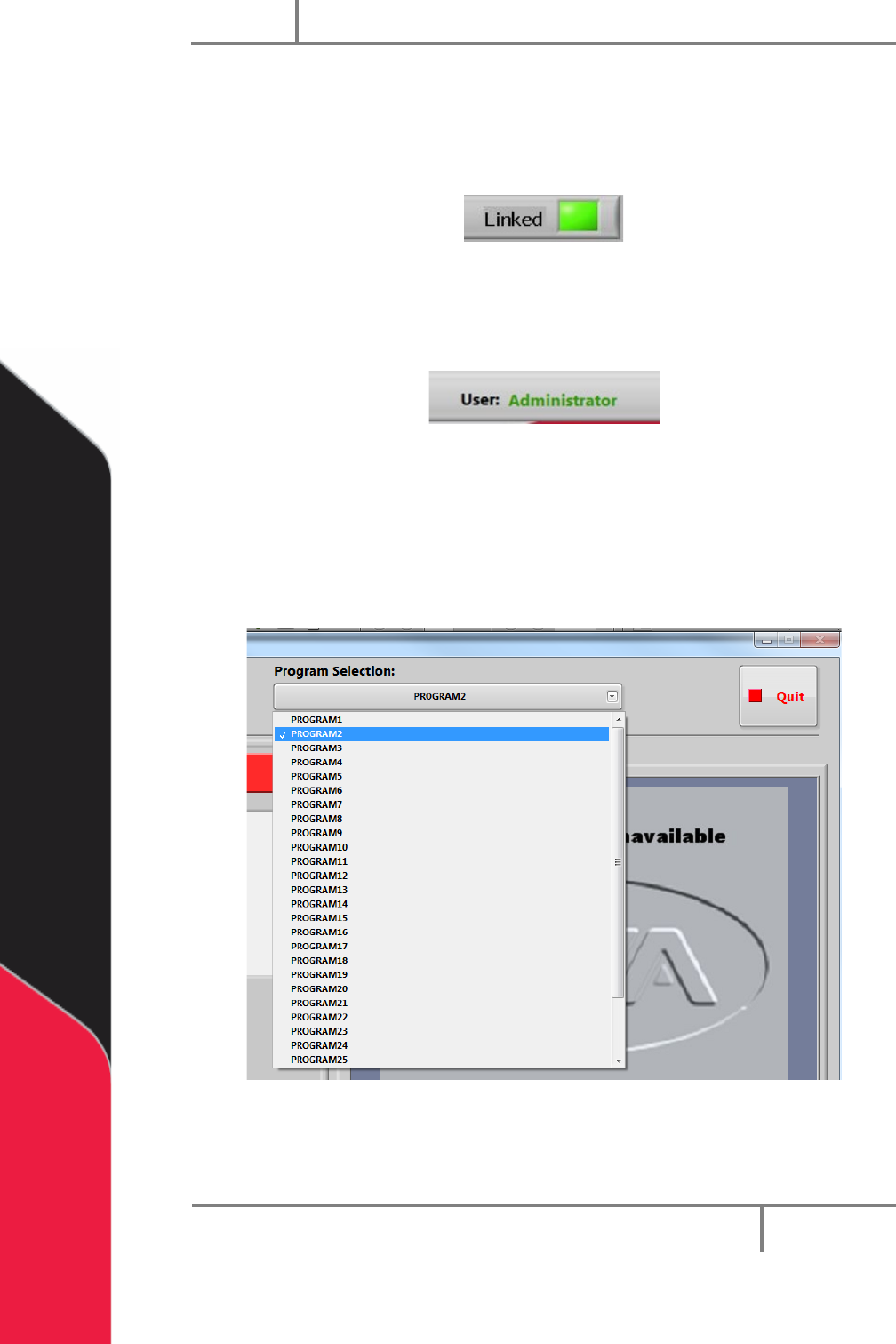
5.2 Program Selection
The active program can be changed at any time with the Program Selection drop-down
menu. Path programs are downloaded to the motion controller with the PathMaster®
software.
Figure 7: Program Selection