Portal_Manual_1.2.1_Rev_H-1.pdf - 第46页
Portal PVA Revisio n H ( 2018 ) 46 of 93 9 System Tabs There ar e thee normal syst em tabs: Product Image, Process, and Ter minal. The options shown in Portal depend on the w orkcell configuration. Refer to your machine …
Portal
PVA
Revision H (2018)
45 of 93
8.5 Pump (Optional)
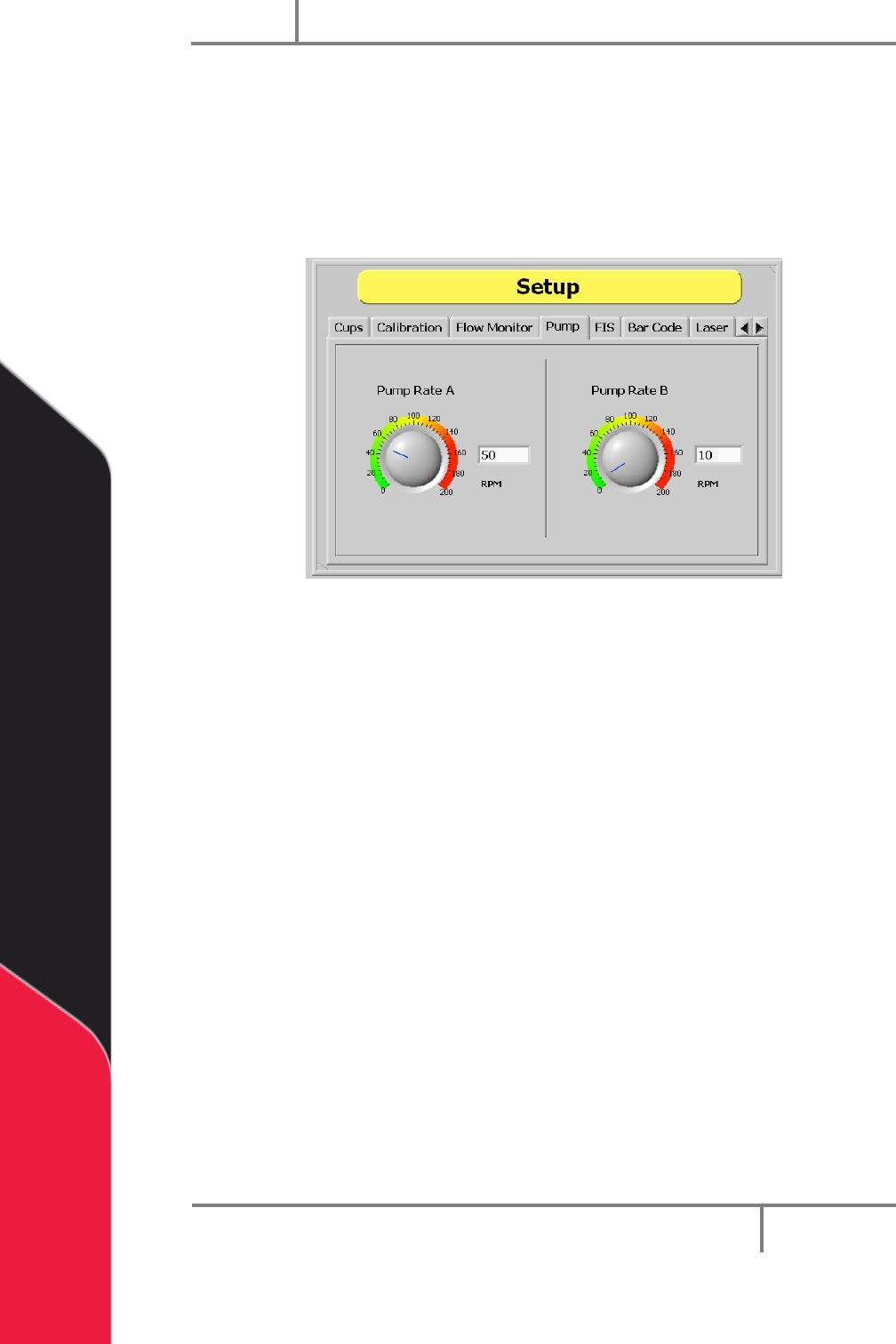
The pump configuration can be changed under the “Pump” tab in Setup mode as
shown. Refer to the Optional Equipment folder of your electronic manual for more
information.
1. In Setup mode, select the “Pump” tab.
Figure 31: Pump Setup
2. To change the pump rate, type the value in the “Pump Rate A (RPM)” or “Pump
Rate B (RPM)” box or use the cursor to move the dial to the necessary position.
NOTE: The stated RPM is of the motor, not the pump. In general, the ratio will
be 20:1, 50:1 or 100:1 depending on the system. This in can also be found in
the Setup tree. Refer to your valve manual for more information.
Portal
PVA
Revision H (2018)
46 of 93
9 System Tabs
There are thee normal system tabs: Product Image, Process, and Terminal. The options
shown in Portal depend on the workcell configuration. Refer to your machine specific
manuals and appendices for more information.
9.1 Product Image
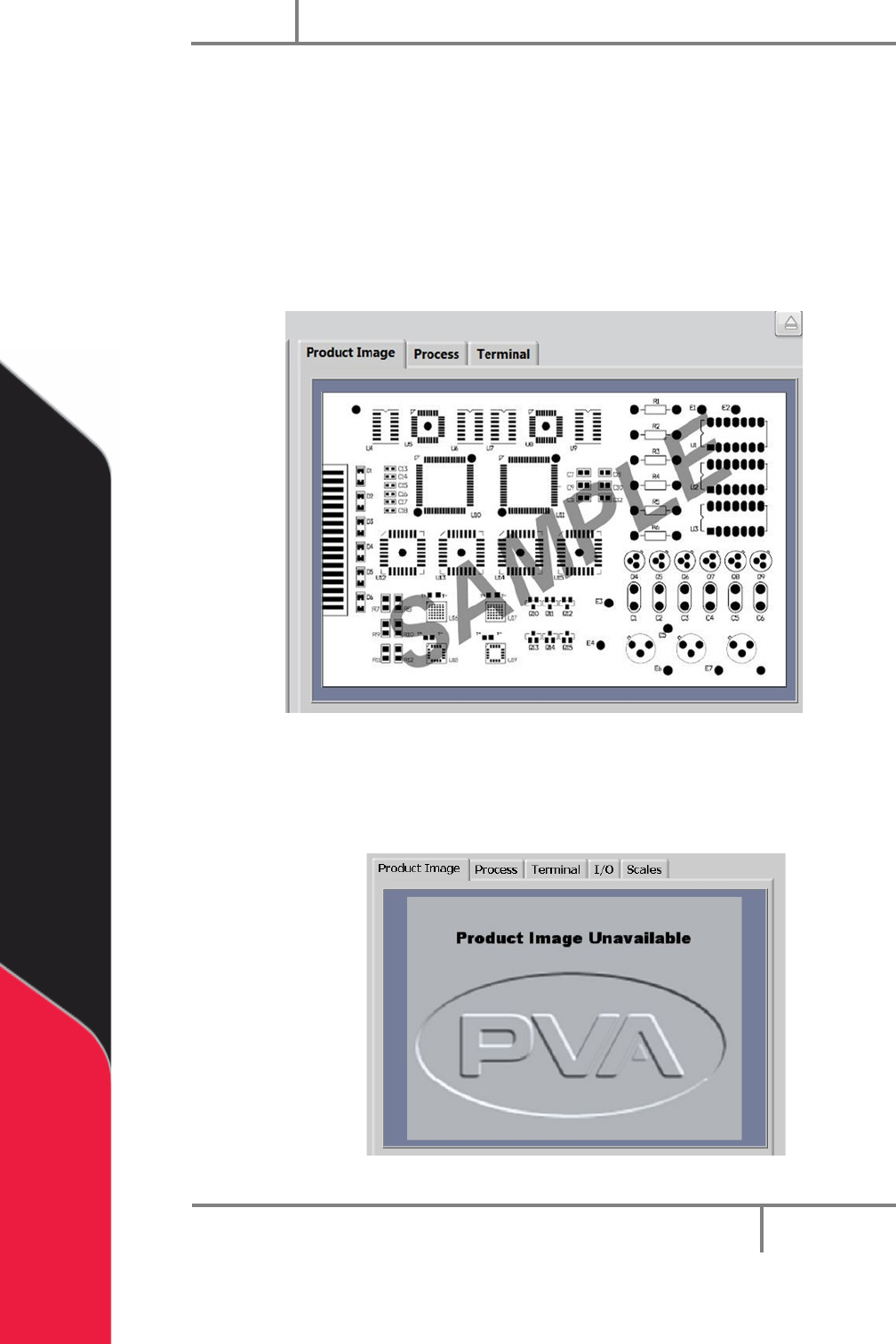
The product image tab will show an imported image or the sample image shown below.
Figure 32: Product Image Tab
If the file name does not match the Program name or there are no images
associated with a program, the following image will be displayed:
Figure 33: Product Image Unavailable
Portal
PVA
Revision H (2018)
47 of 93
9.1.1 Adding Product Images
1. Copy and Paste the Product Image to the following Directory:
C:\Program Files\PVAPortal\Images
Note: The images must be JPEG/JPG file type.
2. Rename the file to match the PathMaster Program Name.
Figure 34: Product Image Directory
9.2 Process
9.2.1 Product
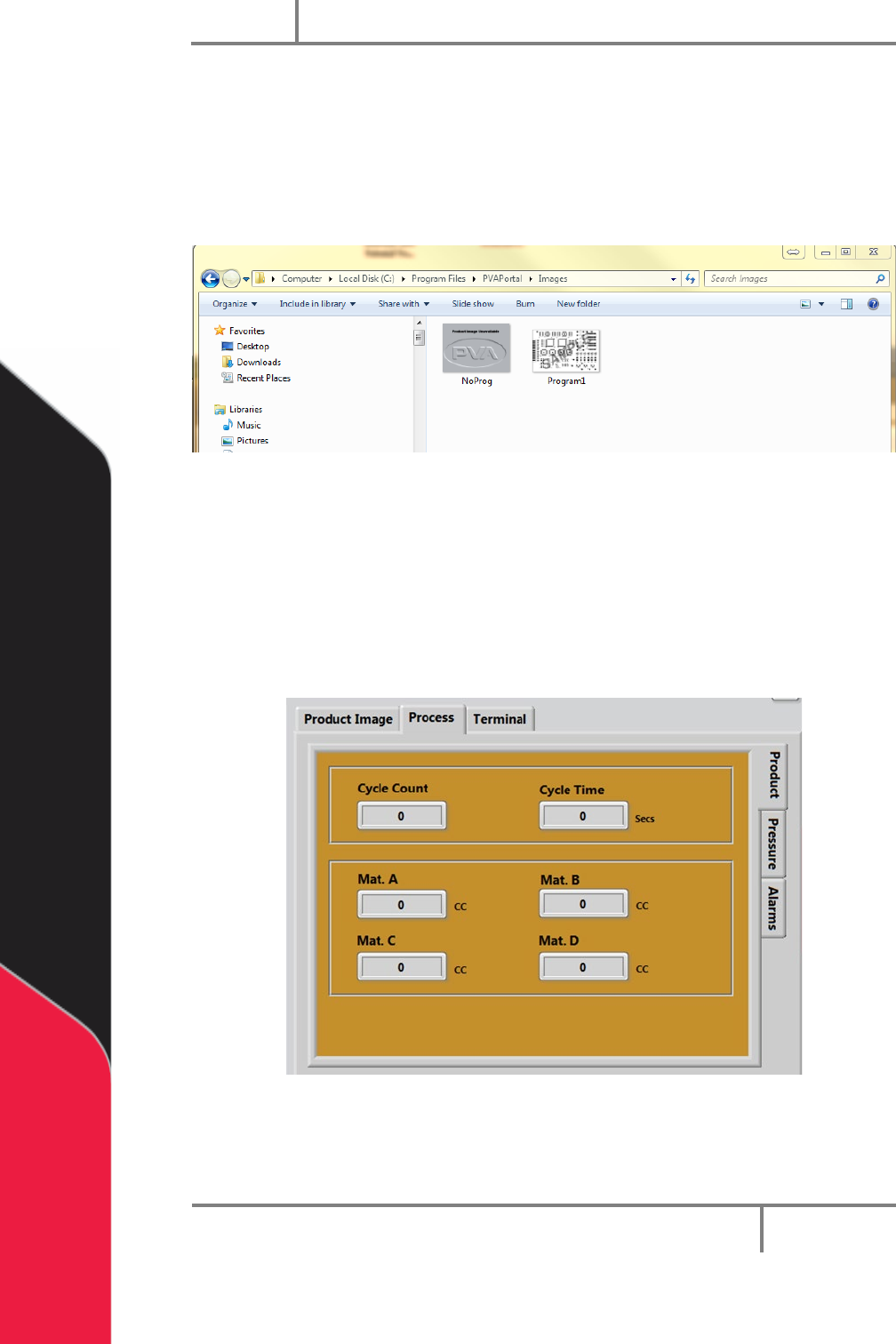
The Product tab is on the right hand side of the system tabs screens under the Process
tab. This screen shows the cycle count and cycle time. It also shows the material volume
from the previous Auto Cycle or One Shot Run. The data is updated after every run.
Figure 35: Process Product Tab