Portal_Manual_1.2.1_Rev_H-1.pdf - 第23页
Portal PVA Revisio n H ( 2018 ) 23 of 93 6.2 Convey or Co ntro l Fig ure 10 : Conveyo r Control, Ma nual Mode The conv eyor and th e board s tops are contr olled und er the “ Conveyor ” tab so the operator can adj ust th…
Portal
PVA
Revision H (2018)
22 of 93
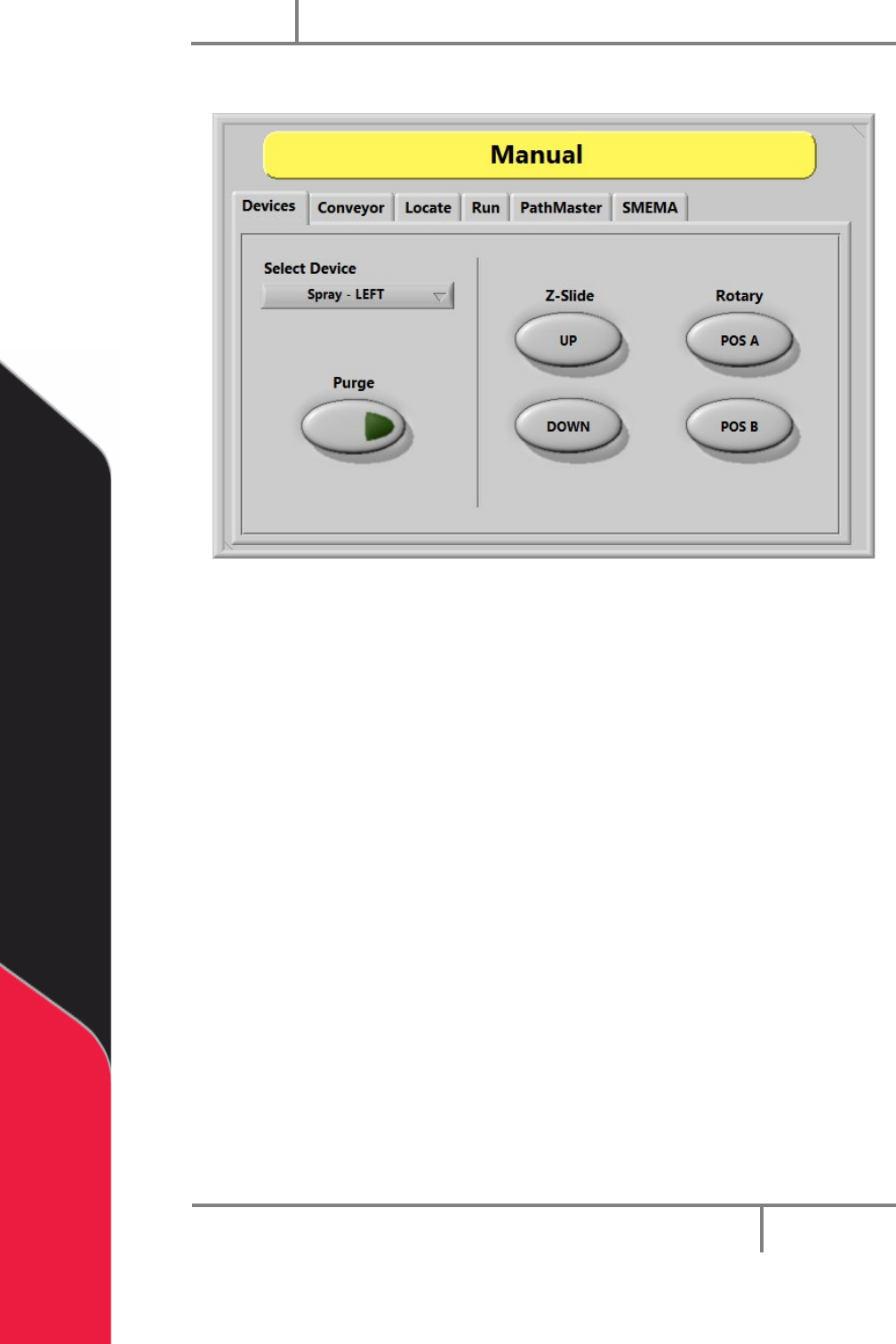
6.1 Device Selection
Figure 9: Device Selection, Manual Mode
Workcells with devices have Device Selection mode. Select the active head or valve from
the drop-down menu under the “Devices” tab. The pneumatics Z-slide(s) and rotary(s)
(if equipped) can be operated with the applicable buttons.
NOTE: When you program or operate the workcell, do not use the valve to
move components or boards. Precision Valve & Automation is not responsible
for damages caused from operating the valves incorrectly.
1. Select the “Devices” tab.
2. Select a device from the Select Device drop down menu.
3. Select “Purge” to operate the valve selected. The valve will purge until you
release the “Purge” button so it is no longer selected.
4. Select Z-Slide “UP” or “Down” to raise or lower the pneumatic Z-slide for the
active head.
5. Select Rotary “POS A” or “POS B” to put the rotary in the home position
(Default, A), or the auxiliary position (B).
Portal
PVA
Revision H (2018)
23 of 93
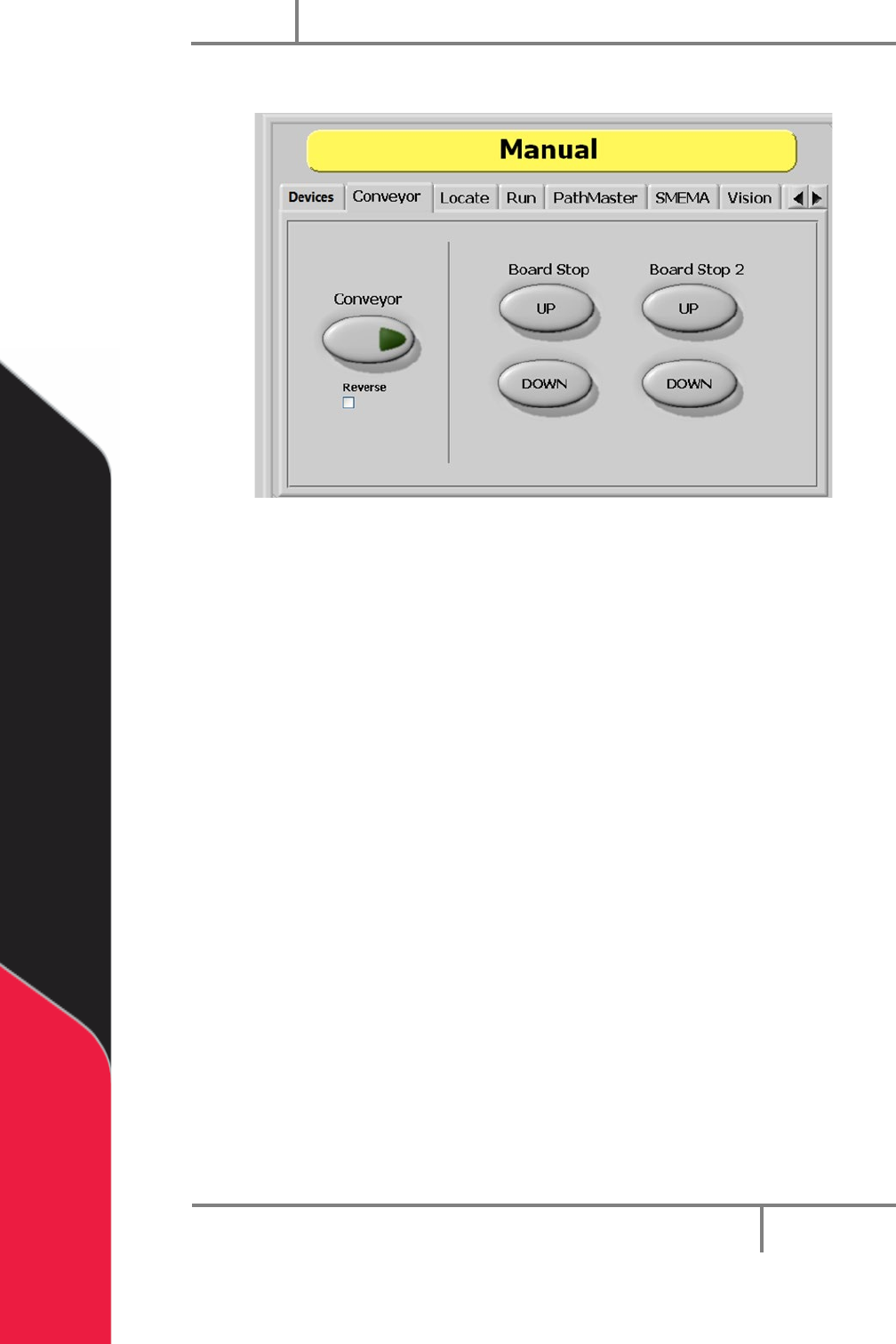
6.2 Conveyor Control
Figure 10: Conveyor Control, Manual Mode
The conveyor and the board stops are controlled under the “Conveyor” tab so the
operator can adjust the position of boards in the workcell. Only workcells with
conveyors will have this option.
1. Select the “Conveyor” tab.
2. Select the “Conveyor” button to toggle the conveyor on or off.
3. Select the “Reverse” (Bi-directional systems ONLY) checkbox to reverse
conveyor direction.
4. Select Board Stop “UP” to turn the board stops off.
5. Select Board Stop “DOWN” to turn the board stops on.
6. Board Stop 2 operates the upstream board stops for bi-directional systems. Do
steps 4 and 5 for Board Stop 2 to operate the upstream board stop. Could also
be for any additional stops like a buffer, queue zone, or conveyor.
Portal
PVA
Revision H (2018)
24 of 93
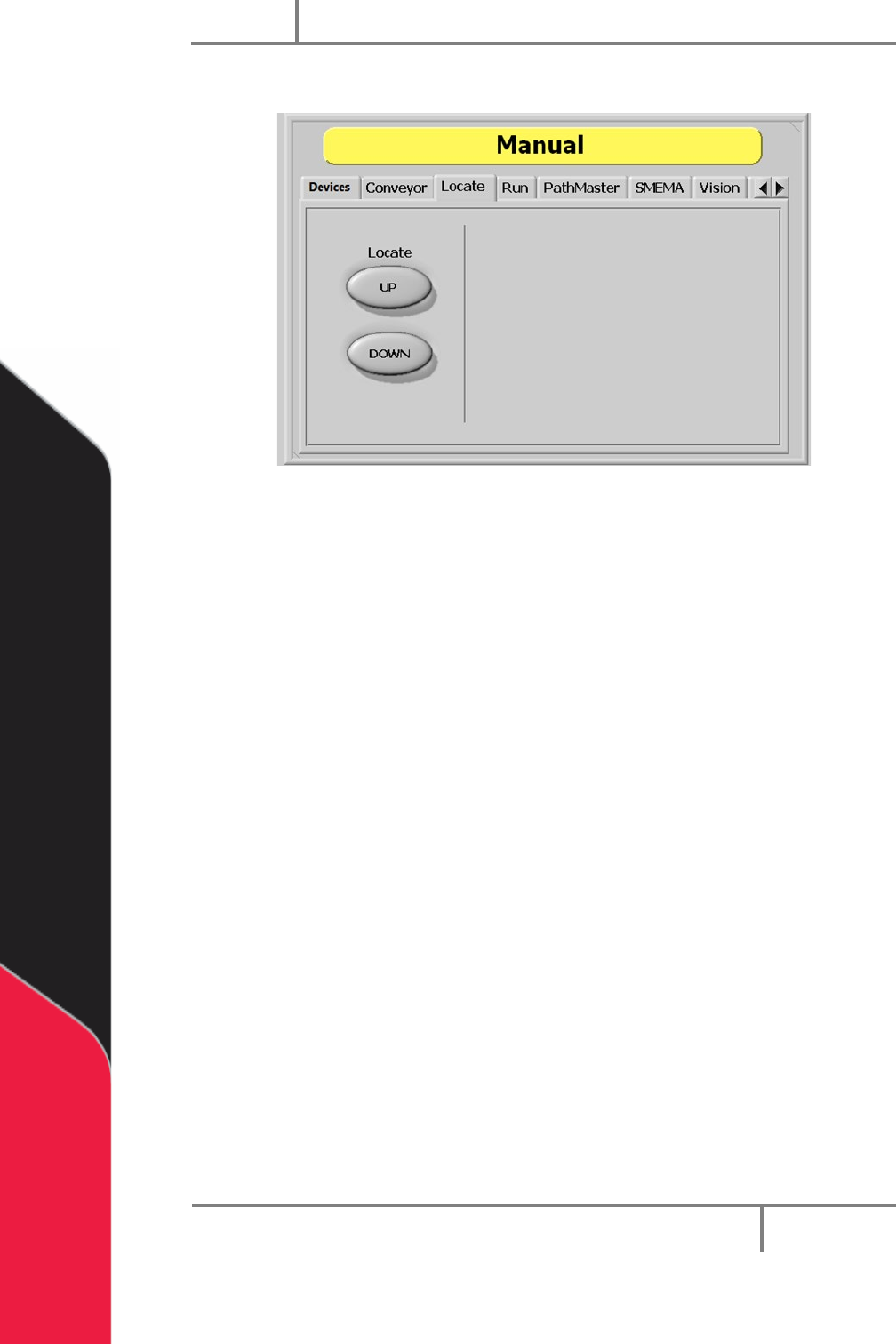
6.3 Board Locators
Figure 11: Board Locators, Manual Mode
Board Locators are controlled under the “Locate” tab. This is an optional feature for
workcells with pneumatic-powered board locators. Only workcells with board locators
will have this option. If this feature is present, the operator can move the board locators
to the up and down positions.
1. Select the “Locate” tab.
2. Select Locate “UP” to move the locators to the up position.
3. Select Locate “DOWN” to move the locators to the down position.