Portal_Manual_1.2.1_Rev_H-1.pdf - 第70页
Portal PVA Revisio n H ( 2018 ) 70 of 93 14.2.2 To Edit a Property Field 1. To edit a prope rty field, cli ck on the part name to expand the pro perty list. 2. Doubl e click on the prope rty to be edit ed. The edit prope…
Portal
PVA
Revision H (2018)
69 of 93
3. Select “Open” to open an existing Dataset file.
4.
Select “Save As” to save the current Dataset file as a new Dataset file
(Make a copy).
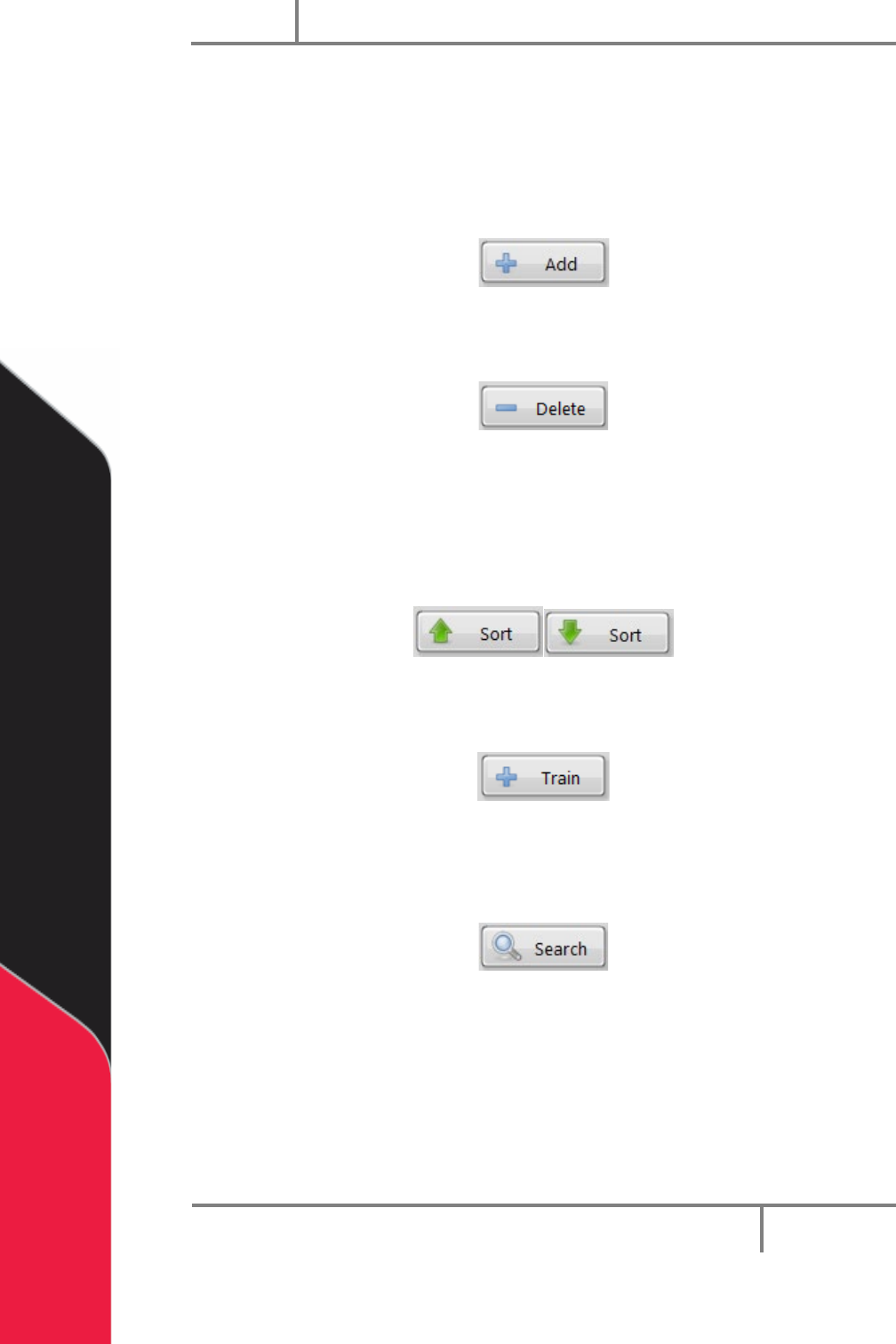
5. Select “Add” to add a new part to the current data set. Make sure the new part
name is unique.
Figure 72: Add
6. Select “Delete” to delete the selected part record.
Figure 73: Delete
7. The part record can be viewed in ascending or descending order. To view the
part record in ascending order, select the “Sort” button with the up arrow. To
view the part record in descending order, select the “Sort” button with the
down arrow.
Figure 74: Sort
8. Select “Train” to add a new part record based on a trained part code.
Figure 75: Train
9. Select “Search” to search for a part by name in the current dataset. The search
is case sensitive.
Figure 76: Search
14.2.1 To Edit Part Name or Part ID
• To edit a Part Name or Part ID, hold the CTRL key down and double click the
necessary field. This prevents accidental edits to these fields.
Portal
PVA
Revision H (2018)
70 of 93
14.2.2 To Edit a Property Field
1. To edit a property field, click on the part name to expand the property list.
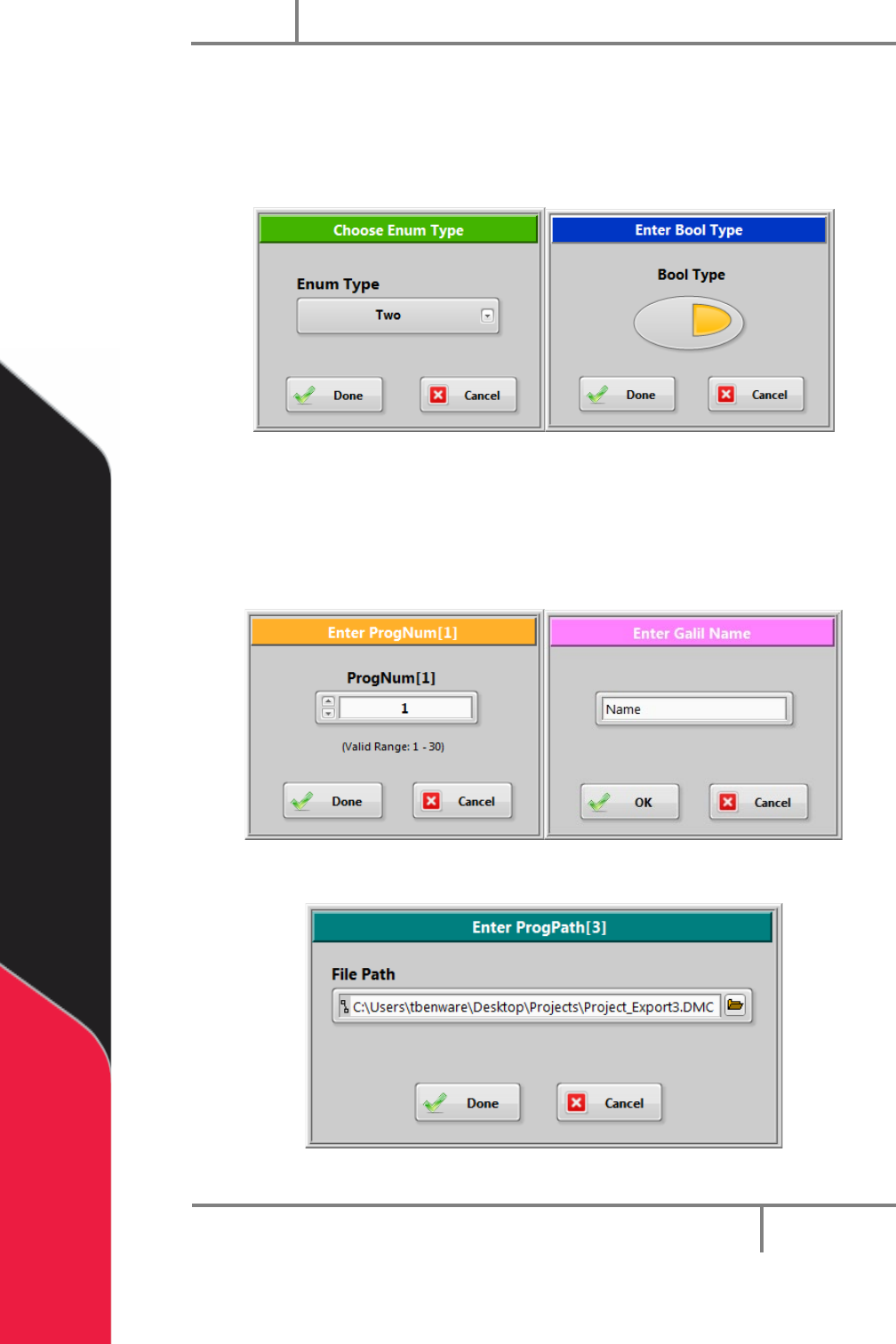
2. Double click on the property to be edited. The edit property window shown will
depend on the data type of the selected property.
Figure 77: Example Windows
3. The edit field May have limits on what you can enter. For example a property of
type ‘String’ may be restricted to a length of 12 characters and some characters
may not be allowed. A property of type ‘Num’ may only allow numbers in the
range of 1-30 to be entered.
Figure 78: Num and String Window Examples
Figure 79: Path Program File
Portal
PVA
Revision H (2018)
71 of 93
14.3 To Train A New Part
To make a new part record, you must train a partcode. A partcode could be a
barcode, RFID tag, etc. Partcodes must be unique to the dataset. If the trained
partcode is found in the dataset, the Train window will close and the part
matching the partcode will be selected.
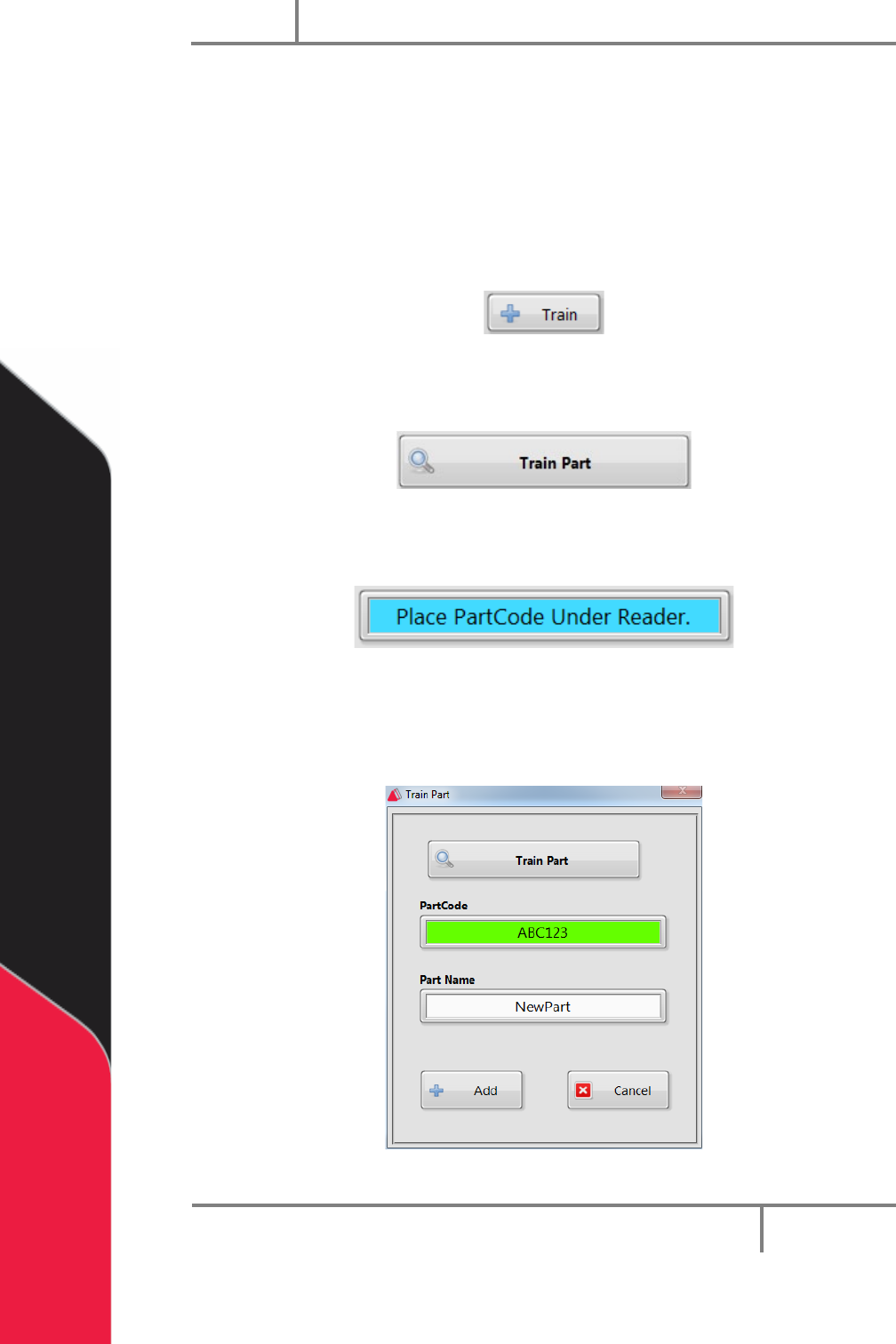
1. Select the “Train” button from the Recipe Manager window.
Figure 80: Train
2. The train window will open. Select “Train Part”.
Figure 81: Train Part
3. The Train window will prompt you to put the partcode under the reader.
Figure 82: Partcode Prompt
4. After the partcode is read, the value is shown in the Partcode field.
5. Enter a unique part name in the part name field.
Figure 83: Train Part Window