00195425-01.pdf - 第105页
In st alla tio n an d Co nf ig ura tio n G ui de S IP LAC E Ex plor er 5 U n inst all at ion Edi tion 05 /200 7 EN 5.4 R emov e 105 5. 4 Re m ove 5 Fig. 5 - 9 SIPLA CE Expl ore r 2.2 - ins tal l shi eld w izar d → Click …
5 Uninstallation Installation and Configuration Guide SIPLACE Explorer
5.3 Repair Edition 05/2007 EN
104
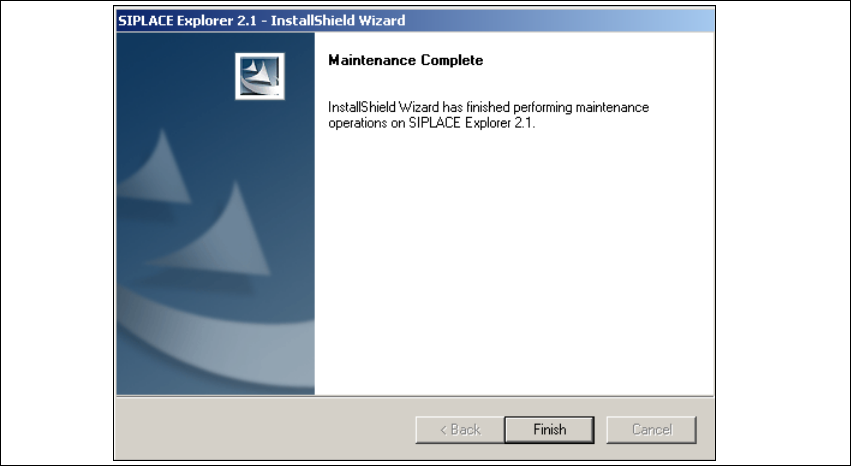
→ SIPLACE Explorer 2.2 recovery has been completed.
5
Fig. 5 - 8 Repair completed
→ Click on Finish to close the SIPLACE Explorer 2.2 - InstallShield Wizard.
Installation and Configuration Guide SIPLACE Explorer 5 Uninstallation
Edition 05/2007 EN 5.4 Remove
105
5.4 Remove
5
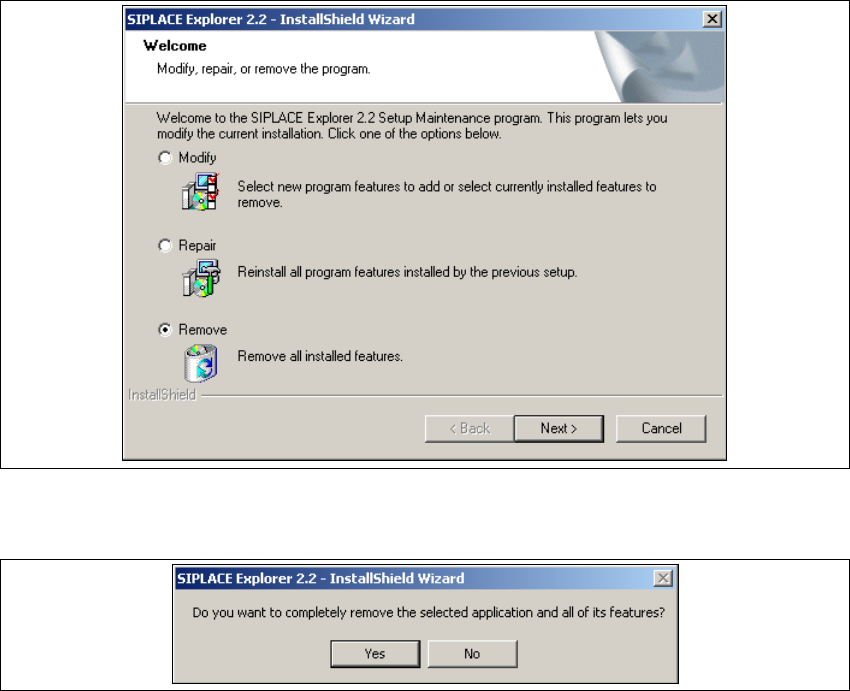
Fig. 5 - 9 SIPLACE Explorer 2.2 - install shield wizard
→ Click on Remove and then on Next to continue.
5
Fig. 5 - 10 Uninstallation query: confirm deletion of file
→ Confirm deletion with Yes.
5 Uninstallation Installation and Configuration Guide SIPLACE Explorer
5.4 Remove Edition 05/2007 EN
106
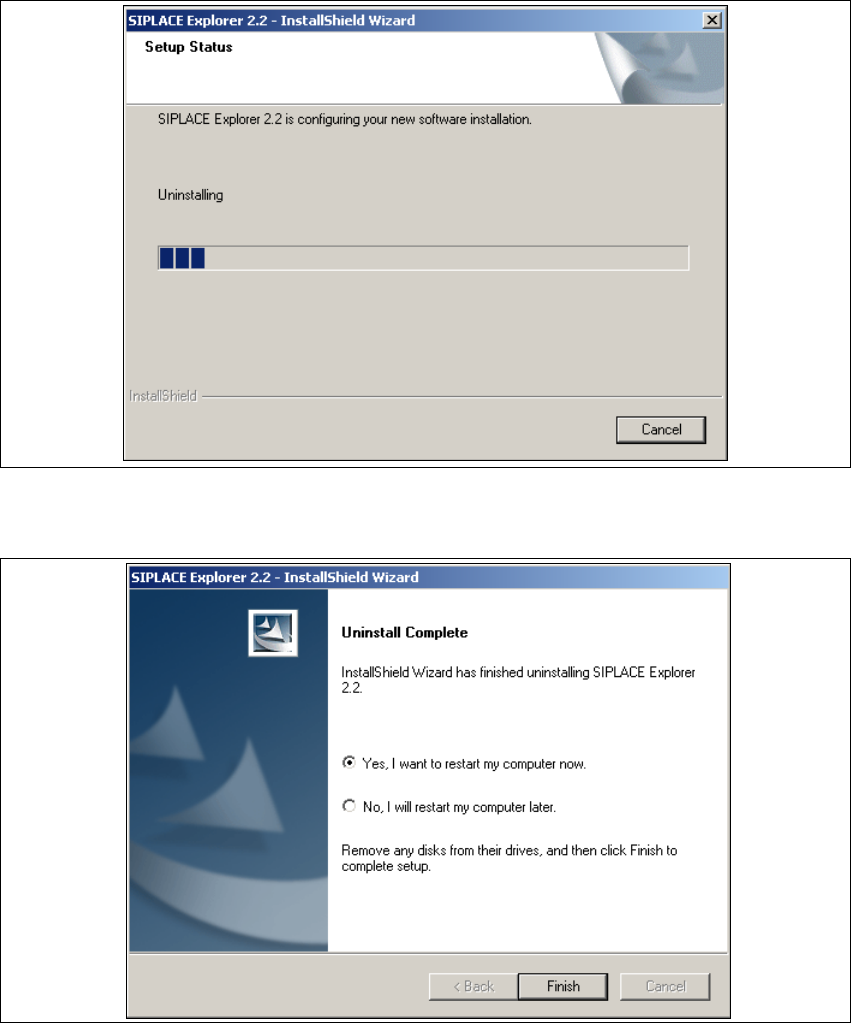
The uninstallation process will be performed. The Setup Status dialog box will show the
uninstallation status. 5
5
Fig. 5 - 11 Uninstallation process
→ SIPLACE Explorer V2.2 uninstallation has been completed.
5
Fig. 5 - 12 Uninstallation completed
→ Click on Finish to close the SIPLACE Explorer 2.2 - InstallShield Wizard.
→ After you have rebooted your computer, SIPLACE Explorer 2.2 will no longer be available.