00195425-01.pdf - 第69页
Ins tall ati on and Confi gurat ion G uid e SIPL ACE E xplo rer 4 Co nfig urati on Edi tion 05 /200 7 EN 4.1 St an dar d Mo ni to rin g A pp lica tio n (SM A) 69 → S pecify the access data for the T omcat administrator .…
4 Configuration Installation and Configuration Guide SIPLACE Explorer
4.1 Standard Monitoring Application (SMA) Edition 05/2007 EN
68
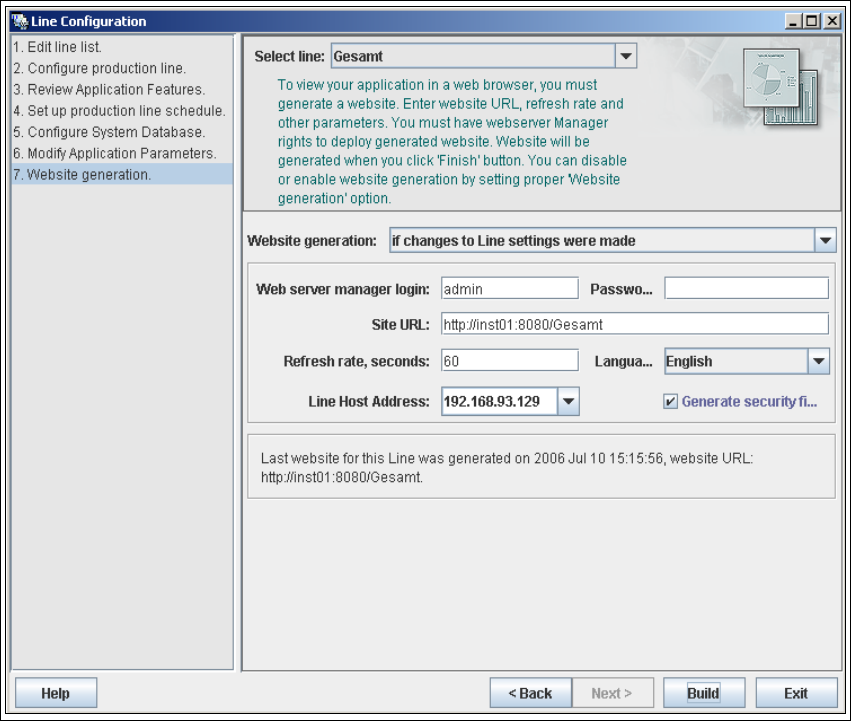
4.1.1.8 Step 7: Website Generation
→ In order to monitor your production line in the web browser, you will need to generate a website.
For this purpose, you require web server manager privileges (Tomcat administrator) and the
corresponding password.
4
Fig. 4 - 20 Step 8: generating the website
→ At Website Generation, specify whether and when the website is to be generated. The
following options are available:
– Generate line website
The website will be generated for the selected line.
– If changes to line settings were made
A website will only be generated if changes have been made to the line configuration.
– Do not generate line website
Website generation will not be performed. This can be performed later, while editing the
generated application.
Installation and Configuration Guide SIPLACE Explorer 4 Configuration
Edition 05/2007 EN 4.1 Standard Monitoring Application (SMA)
69
→ Specify the access data for the Tomcat administrator. If you entered admin and an empty
password during Tomcat configuration, this data will be automatically used as a default login.
If this is not the case, use the data you specified during Tomcat configuration.
→ Enter the following information here:
– the folder where the website will be generated to;
– the website URL;
This URL contains a port number, which applies to the web server (Tomcat 5.5) e.g. "8080".
If you change the port number here, you will also need to update the port number of the web
server see “Port Configuration after Changing Tomcat Port Number” on page 50.
– the refresh rate;
For capacity purposes, we recommend a refresh rate of at least one minute (60000 ms).
– website language
– specify whether the login page is to be generated
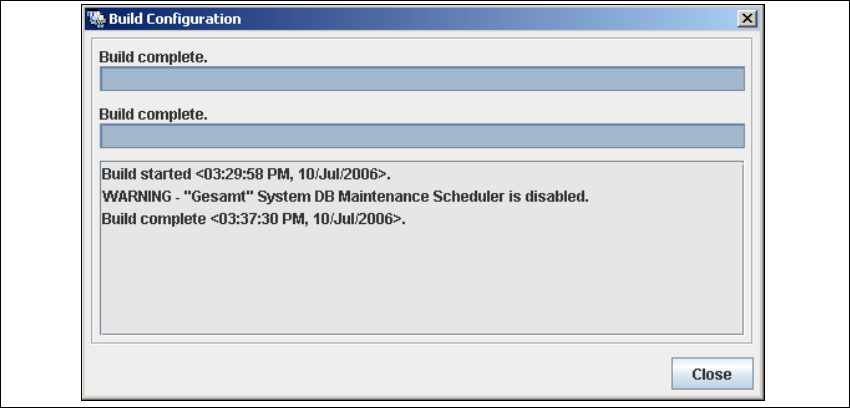
→ Once you have made and checked all entries, click on the Build button. An information box,
showing the website generation, will appear.
4
Fig. 4 - 21 Build configuration
At this point, the application is generated automatically and is loaded into SIPLACE Explorer.4
→ Once the website has been fully generated, click on Close. The SMA has been completed.
Click on the Exit button in the Line Configuration - Website Generation dialog box.
4 Configuration Installation and Configuration Guide SIPLACE Explorer
4.1 Standard Monitoring Application (SMA) Edition 05/2007 EN
70
4.1.2 Development Environment: Creating an SMA with the Application Wizard
In order to create an SMA with the application wizard, you must have SIPLACE Explorer
Development Environment installed on your computer. SMA creation consists of the following
steps: 4
– Application wizard (wizard with 8 steps)
– Establishing a connection to the database (wizard with 3 steps)
4.1.2.1 Starting the Application Wizard
→ Start the SIPLACE Explorer Developer Studio by selecting Programs → SIPLACE Explorer
2.2 → Development Environment → SE Developer Studio from the menu in Windows. The
login dialog will appear:
4
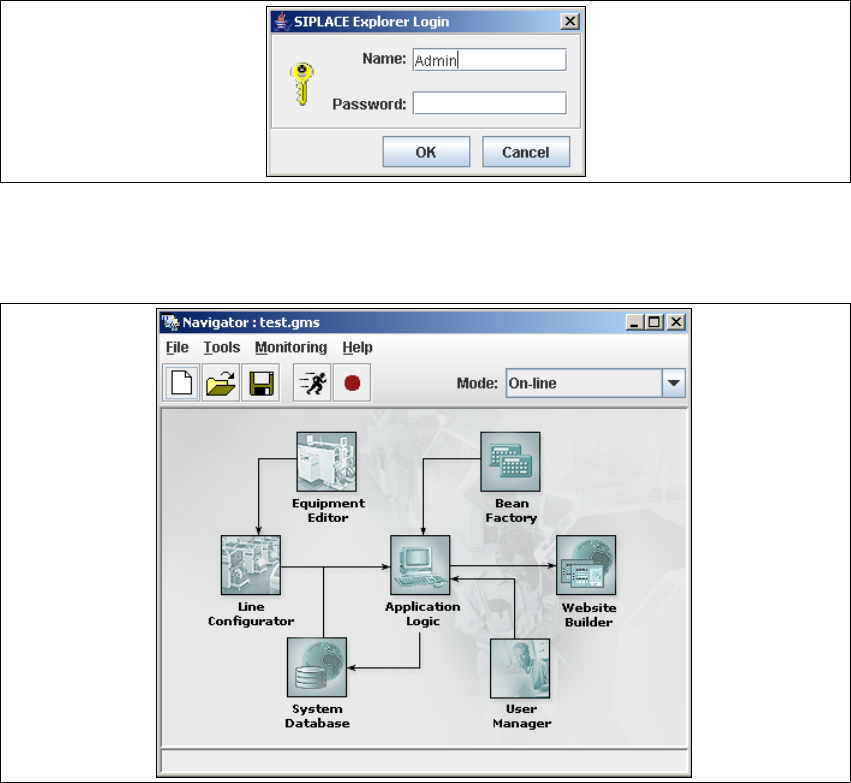
Fig. 4 - 22 Login
→ Register yourself as Admin with an empty password and click on the OK button. The SIPLACE
Explorer navigator will appear.
4
Fig. 4 - 23 SIPLACE Explorer navigator