00195425-01.pdf - 第48页
3 In stalli ng SIP LAC E Expl orer Ins tall ati on and Confi gur ation Guid e SIPL ACE E xplo rer 3. 4 T omc at Confi gu rat ion Ed iti on 05 /200 7 EN 48 → Sele ct the file tomcat5. exe and click on the Op en button. → …
Installation and Configuration Guide SIPLACE Explorer 3 Installing SIPLACE Explorer
Edition 05/2007 EN 3.4 Tomcat Configuration
47
3
Fig. 3 - 26 Windows firewall - exceptions
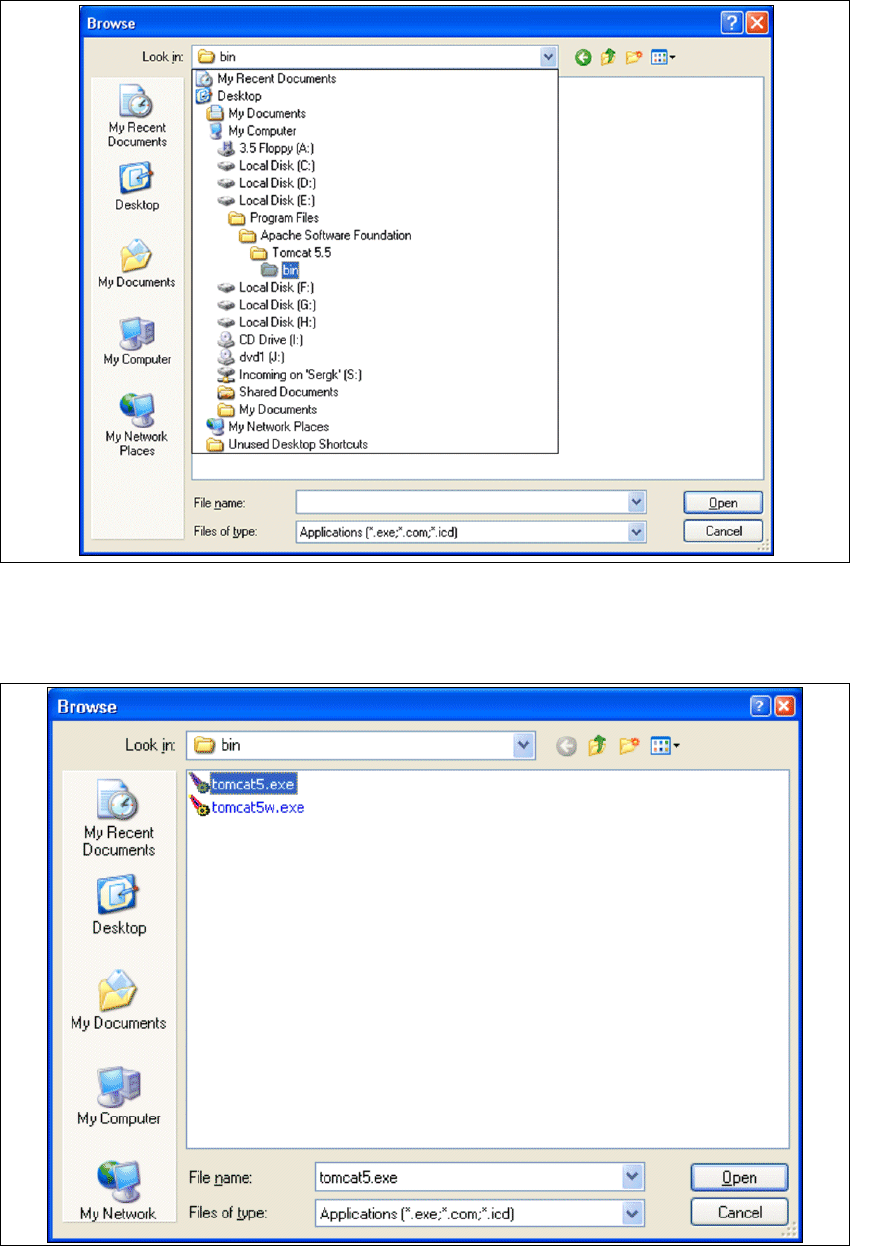
→ In the Tomcat installation path, click on the ..\Tomcat 5.5\bin path and then on the Open
button.
3
Fig. 3 - 27 Windows firewall - exceptions
3 Installing SIPLACE Explorer Installation and Configuration Guide SIPLACE Explorer
3.4 Tomcat Configuration Edition 05/2007 EN
48
→ Select the file tomcat5.exe and click on the Open button.
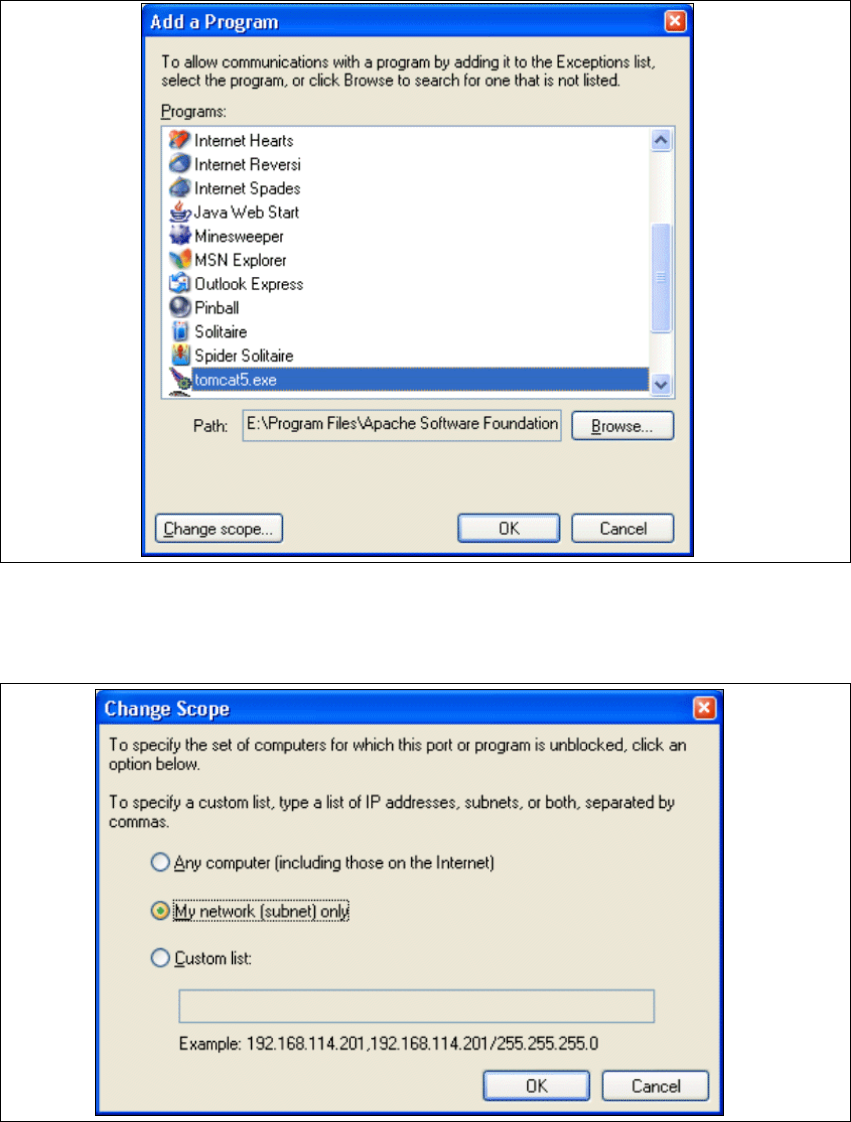
→ The Add a Program dialog box will open again:
3
Fig. 3 - 28 Add a program
→ Select the entry tomcat5.exe from the Programs menu and click on the Change Scope
button.
3
Fig. 3 - 29 Change scope
Installation and Configuration Guide SIPLACE Explorer 3 Installing SIPLACE Explorer
Edition 05/2007 EN 3.4 Tomcat Configuration
49
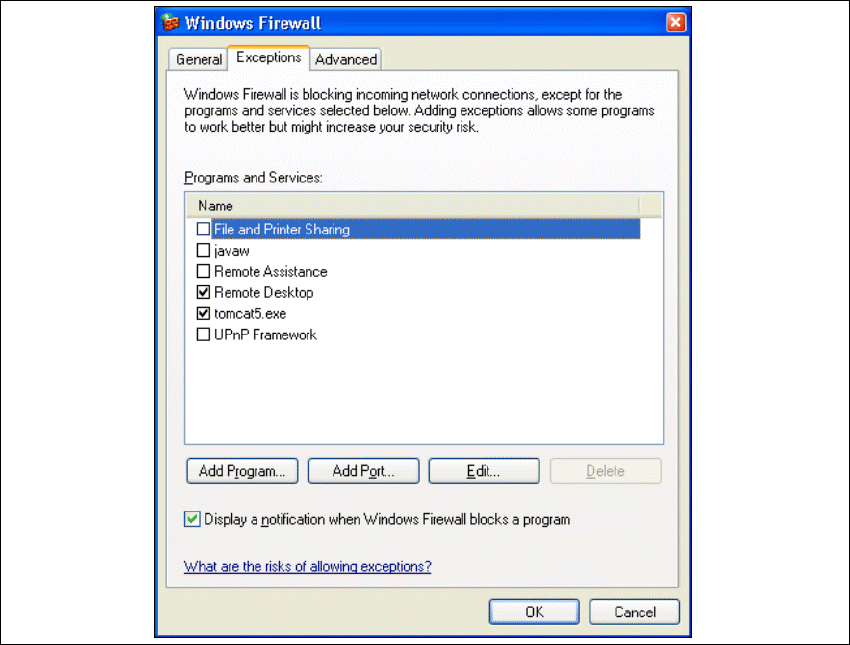
→ Enable the My network option and confirm with OK. You have now released the port for
Tomcat. This can be checked in the Windows Firewall - Exceptions
dialog box.
3
Fig. 3 - 30 Windows firewall - exceptions
→ Now release the port for SIPLACE Explorer V2.2. Proceed as described for Tomcat 5.5.