00195425-01.pdf - 第25页
In st alla tio n an d Co nf igur at ion G uide SI P LACE E xpl ore r 3 I ns tal li ng SIP LAC E Ex plor er Edi tion 05 /200 7 EN 3.1 Ini tia l Ins t a lla t i on of SIP LACE Expl orer 2 .2 25 Co nside r t he fo llow ing …

3 Installing SIPLACE Explorer Installation and Configuration Guide SIPLACE Explorer
3.1 Initial Installation of SIPLACE Explorer 2.2 Edition 05/2007 EN
24
WARNING
Do not install "SIPLACE Explorer V.2.2 Runtime Environment" and "SIPLACE Explorer V.2.2
Development Environment" on the same computer. These two options will not run parallel to
one another. Before working with these options in succession, make sure you know the steps
for starting/terminating the respective option and observe these. 3
(2)Support Media DVD:
The system will be checked for the required software components and their versions. You will
see the result of this check in a notifications window and can then install any missing
components via this option. 3
The following software components are included on the support media DVD and will be
installed when required: 3
– J2SE Runtime Environment 5.0.07 or higher
Install Java 2 SE 5.0 on the same computer as SIPLACE Explorer V.2.2. 3
– Tomcat 5.5.9
– MS XML Core Services 6.0
Install these components if you wish to generate factory reports and reports for certain
production lines. 3
– SQL Server 2005 Express Edition
– MSDE 2000
Install this component if you do not wish to work with MS SQL Server 2000. Install MSDE
2000 on the computer on which the system databases are to be installed. 3
– Microsoft Internet Explorer 6.0
Microsoft Internet Explorer 6.0 is required to view and edit websites.Microsoft Internet
Explorer 6.0 is included on the Support Media DVD. 3
– Adobe Reader 7.0
This component is needed for reading the SIPLACE Explorer V.2.2 documentation. Adobe
Reader 7.0 is included on the Support Media DVD. 3
3
For a detailed description of the specified installations, refer to the document “Navigation
Guide for the Installation Procedure of SIPLACE Software Systems” (Art.No. 00195050-xx).3
3
Installation and Configuration Guide SIPLACE Explorer 3 Installing SIPLACE Explorer
Edition 05/2007 EN 3.1 Initial Installation of SIPLACE Explorer 2.2
25
Consider the following before beginning the installation: 3
NOTE
Before installing Tomcat 5.5.9, make sure that all versions of Tomcat < 5.5.9 have been
uninstalled. Use the Apache Tomcat uninstallation program. This can be started via the
Start → Programs → Apache Tomcat 5.5 → Uninstall Tomcat menu in Windows. 3
NOTE
You will need to specify the following information when installing Tomcat 5.5.9:
- Port number for Tomcat: By default, Tomcat is installed on port 8080. This means that your
users will access your website as follows:
http://yourServerName:8080/yourWebsite/index.jsp.
- Access data for the Tomcat administrator:
User name: admin
Password: MS128. This password is needed for website generation.
This login will automatically be used as default login for Line Configuration - Step 7 "Website
Generation". 3
NOTE
Before you install SIPLACE Explorer V2.2, make sure that Java 2 SE 5.0 update 7 has been
installed on your computer. 3
NOTE
If the Support Media DVD is not available, you can install the following software components
from the SIPLACE Explorer installation CD:
- Tomcat 5.5.9
- J2SE Runtime Environment 5.0.07
- MS XML Core Services 6.0
Proceed as described at “Bundled Web Server Installation” on page 107. 3
3 Installing SIPLACE Explorer Installation and Configuration Guide SIPLACE Explorer
3.1 Initial Installation of SIPLACE Explorer 2.2 Edition 05/2007 EN
26
(3)SIPLACE Explorer V.2.2 options:
The options Backflush V1.0, SIPLACE Traceability Option 1.0 and SIPLACE Maintenance
Manager V1.0 are not included in the SIPLACE Explorer V2.2 delivery package and must be
ordered (installed) separately. 3
3.1.1 Installation of SIPLACE Explorer 2.2 - Initial Installation
NOTE
You must have Windows administrator privileges to perform installation. 3
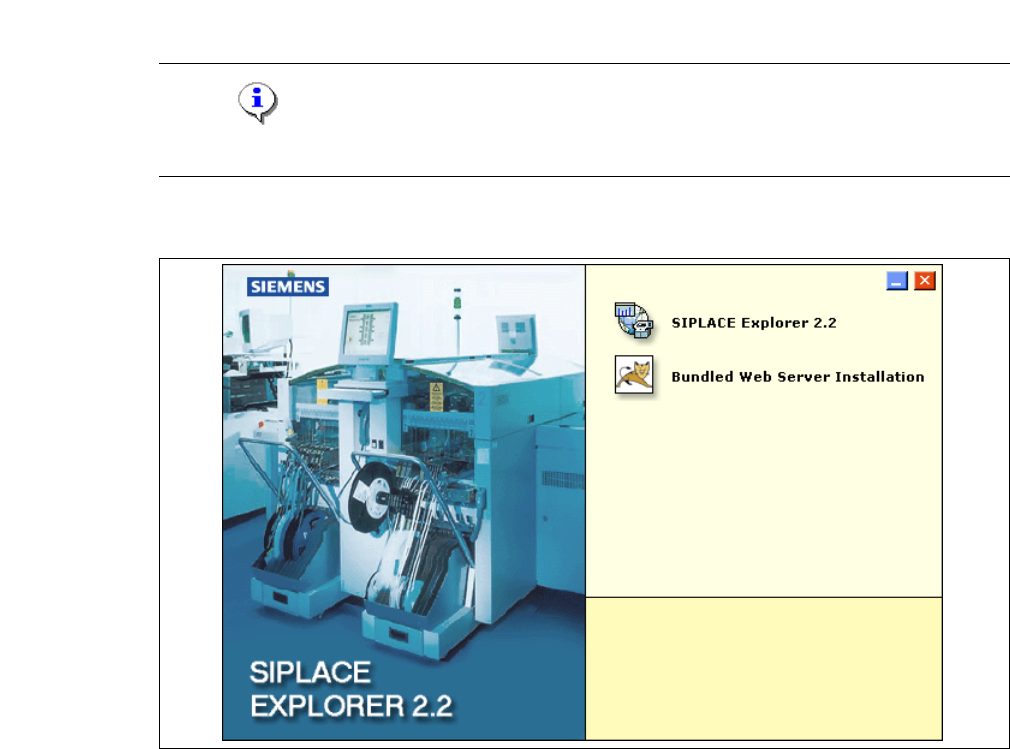
→ Place the SIPLACE Explorer CD in your CD-ROM drive. The Start screen will open.
3
Fig. 3 - 1 SIPLACE Explorer setup - Start screen
→ Select SIPLACE Explorer 2.2.