00195425-01.pdf - 第116页
Anne x Inst al la tion a n d Co nf ig ura tio n Gui de SIP LAC E Ex pl ore r Bu nd led We b S erv er In st all at ion Ed iti on 05 /2 00 7 EN 116 Bund led Web Server Inst allatio n - MS XML Core S ervices 6.0 → Y ou will…
Installation and Configuration Guide SIPLACE Explorer Annex
Edition 05/2007 EN Bundled Web Server Installation
115
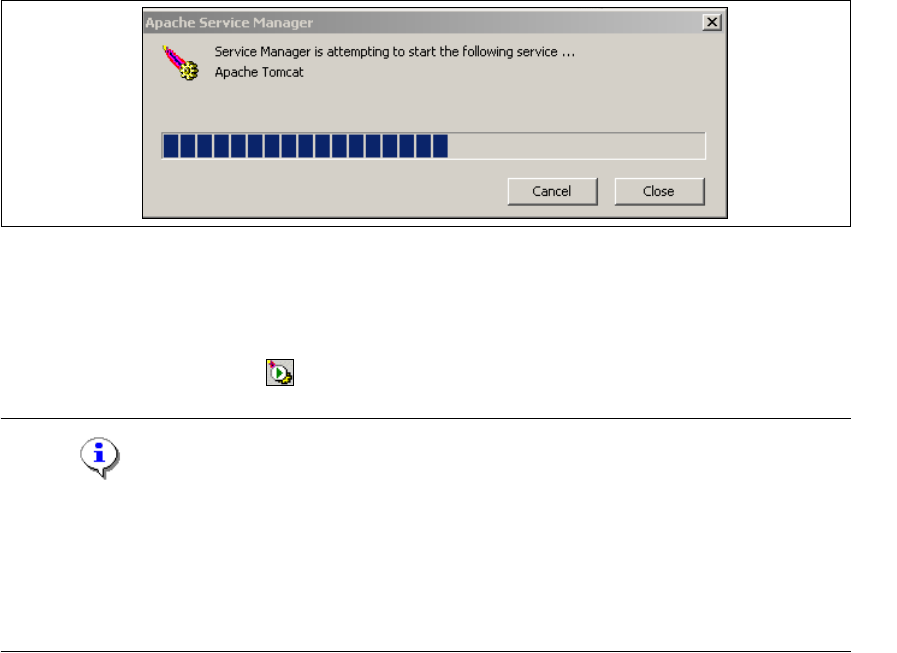
→ If you have enabled the option Run Apache Tomcat, the Windows service for Tomcat will be
started.
5
Fig. 5 - 24 Apache Service Manager
→ If this is not the case, reboot your computer to start Tomcat or start the Tomcat feature
manually.
→ Tomcat 5.5 runs as a Windows service and is automatically started whenever you reboot your
computer. You will see the icon in your console.
NOTE
Tomcat 5.5 needs to be manually reconfigured for working with SIPLACE Explorer in the following
cases:
- When using Windows XP Professional with SP2
- For port configuration, when changing the Tomcat port number.
For a detailed description of these points, please see Section “Tomcat Configuration” on page 43.5
Annex Installation and Configuration Guide SIPLACE Explorer
Bundled Web Server Installation Edition 05/2007 EN
116
Bundled Web Server Installation - MS XML Core Services 6.0
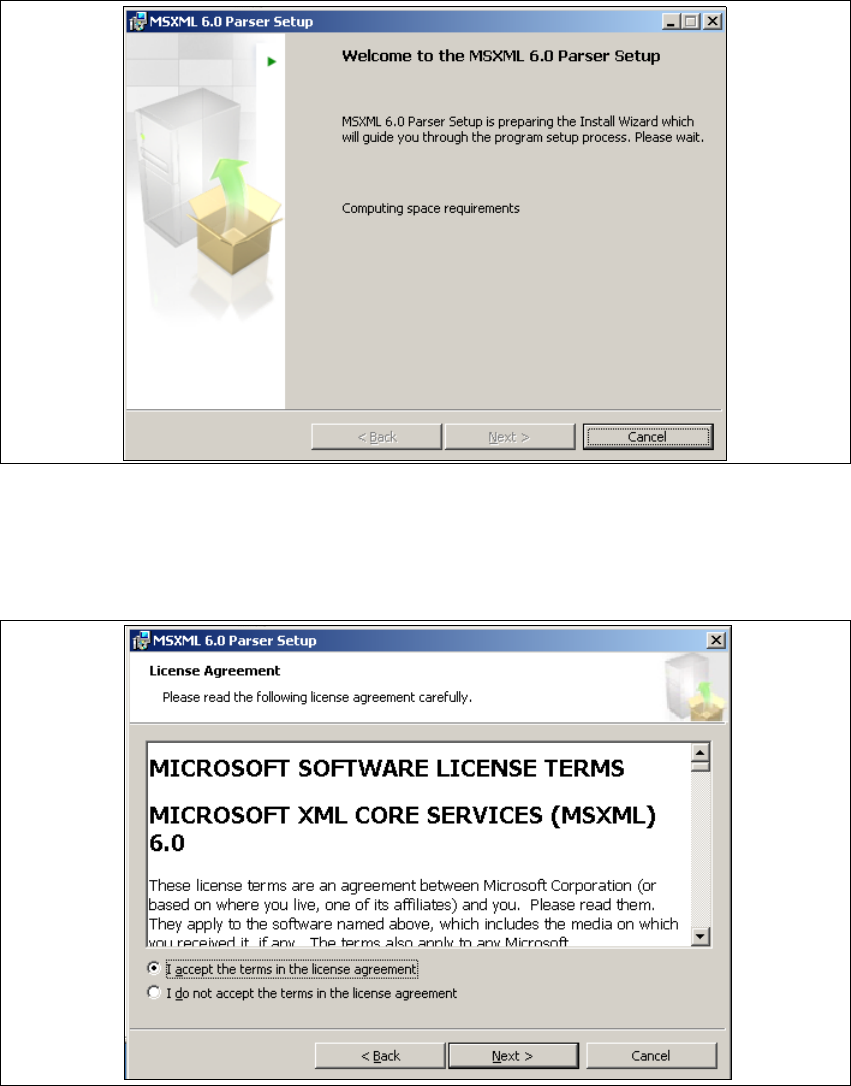
→ You will be guided through the MSXML installation procedure.
5
Fig. 5 - 25 MSXML 6.0 Setup - welcome to MSXML 6.0
→ Exit all other programs and then click on Next. The Licence Agreement dialog box will open.
→ Read the license agreement. If you agree click I Agree, otherwise click I Do Not Agree. Click-
ing on I Do Not Agree terminates the installation.
5
Fig. 5 - 26 MSXML 6.0 setup - license agreement
→ Click on Next, to continue the installation procedure.
Installation and Configuration Guide SIPLACE Explorer Annex
Edition 05/2007 EN Bundled Web Server Installation
117
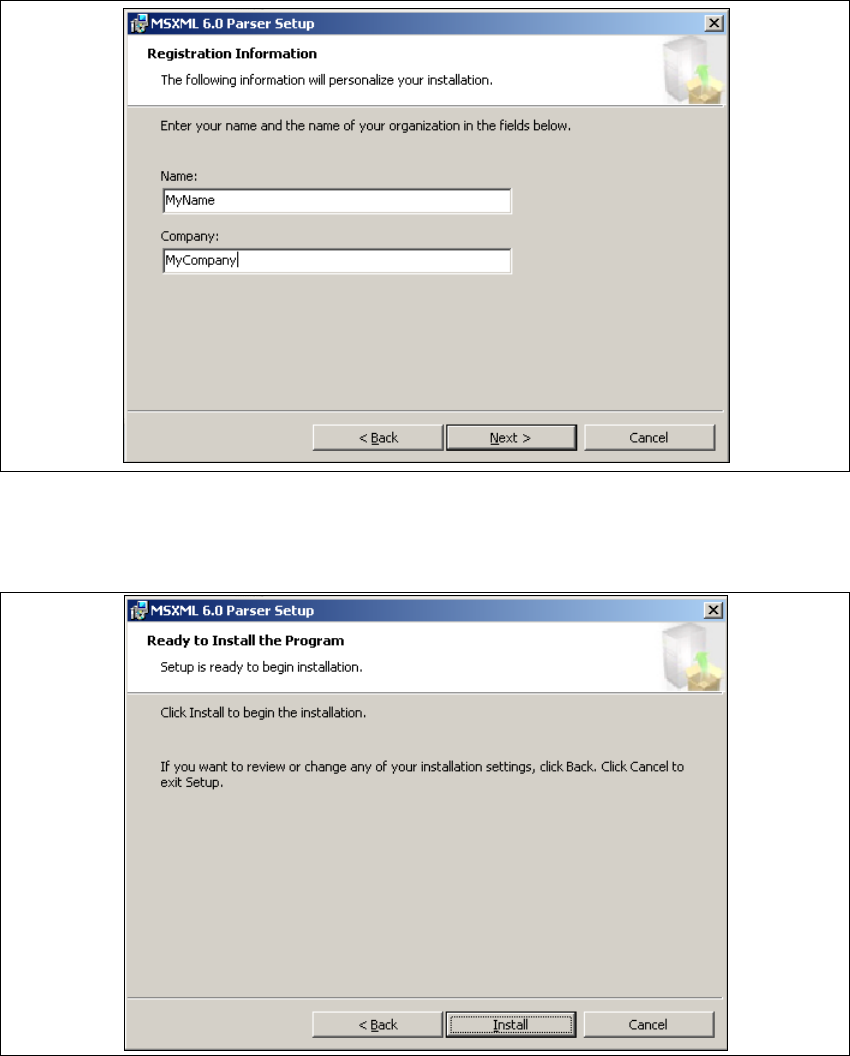
→ The Registration Information dialog box will open.
5
Fig. 5 - 27 MSXML 6.0 Setup - specifying customer data
→ Enter your name in the User Name field and the name of your company in the Company
Name field. Click on Next to continue. The following dialog box will open.
5
Fig. 5 - 28 MSXML 6.0 setup - user information
→ Click on Next to continue. The actual installation of MS XML 6.0 will start.