00195425-01.pdf - 第120页
Anne x Inst al la tion a n d Co nf ig ura tio n Gui de SIP LAC E Ex pl ore r Bu nd led We b S erv er In st all at ion Ed iti on 05 /2 00 7 EN 120 → Read the license agreement. If you agree, click on Accept > t o conti…
Installation and Configuration Guide SIPLACE Explorer Annex
Edition 05/2007 EN Bundled Web Server Installation
119
Bundled Web Server Installation - J2SE Runtime Environment 5.0.07
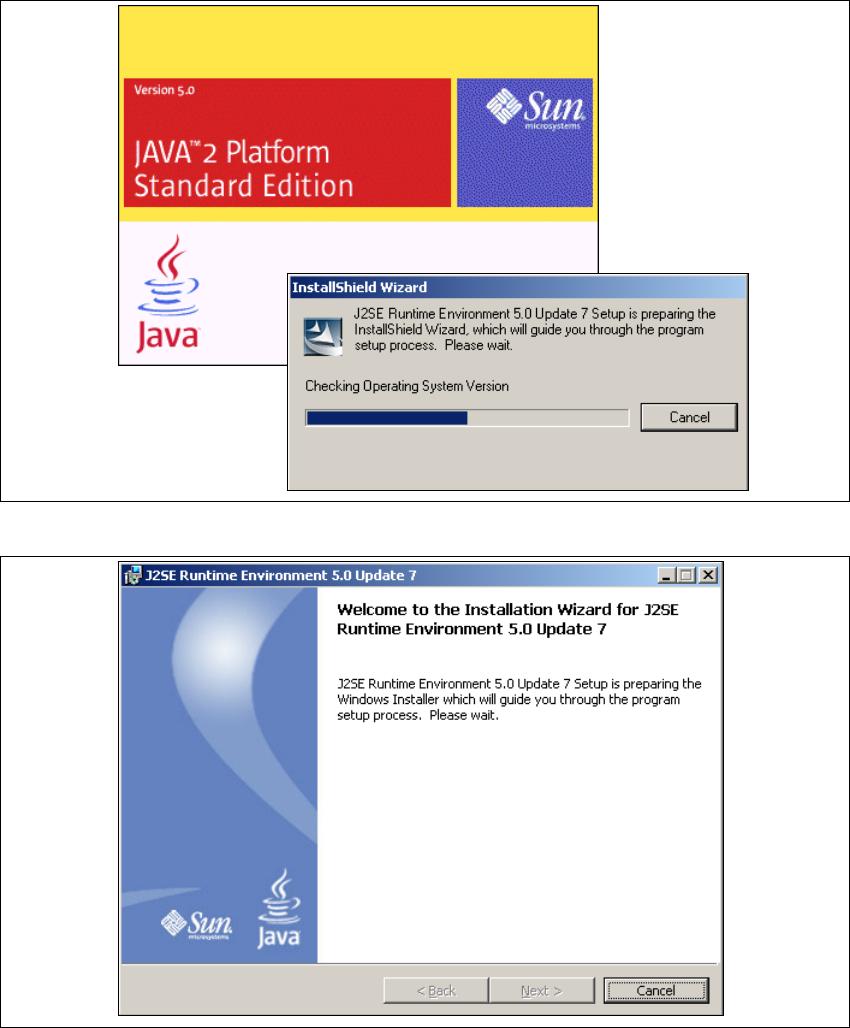
→ You will be guided through the Java J2SE installation procedure.
5
Fig. 5 - 31 Install shield wizard - preparing the installation
5
Fig. 5 - 32 Java 2SE setup - welcome to SIPLACE Explorer
→ Exit all other programs and then click on Next. The License Agreement dialog box will open.
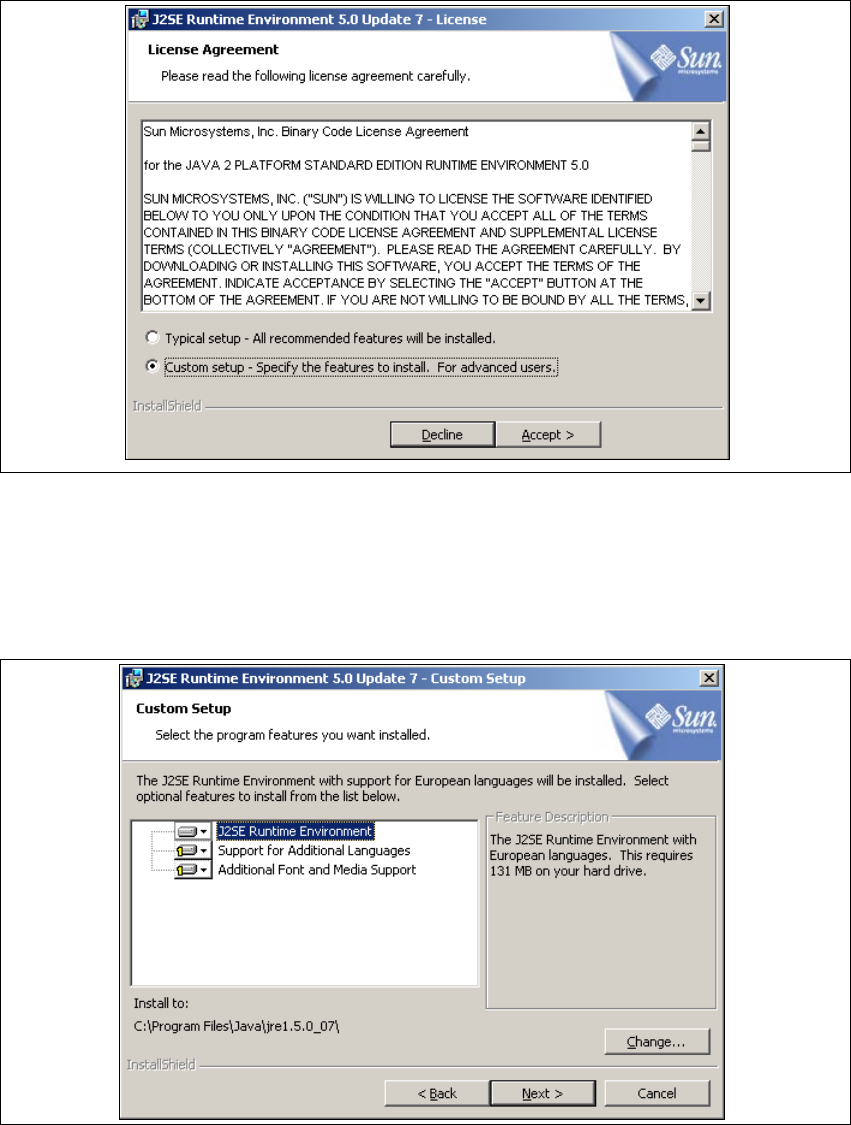
→ Select the option Custom Setup.
Annex Installation and Configuration Guide SIPLACE Explorer
Bundled Web Server Installation Edition 05/2007 EN
120
→ Read the license agreement. If you agree, click on Accept > to continue the installation
procedure. Otherwise select Decline. The installation procedure will be canceled in this case.
5
Fig. 5 - 33 Java 2SE setup - license agreement
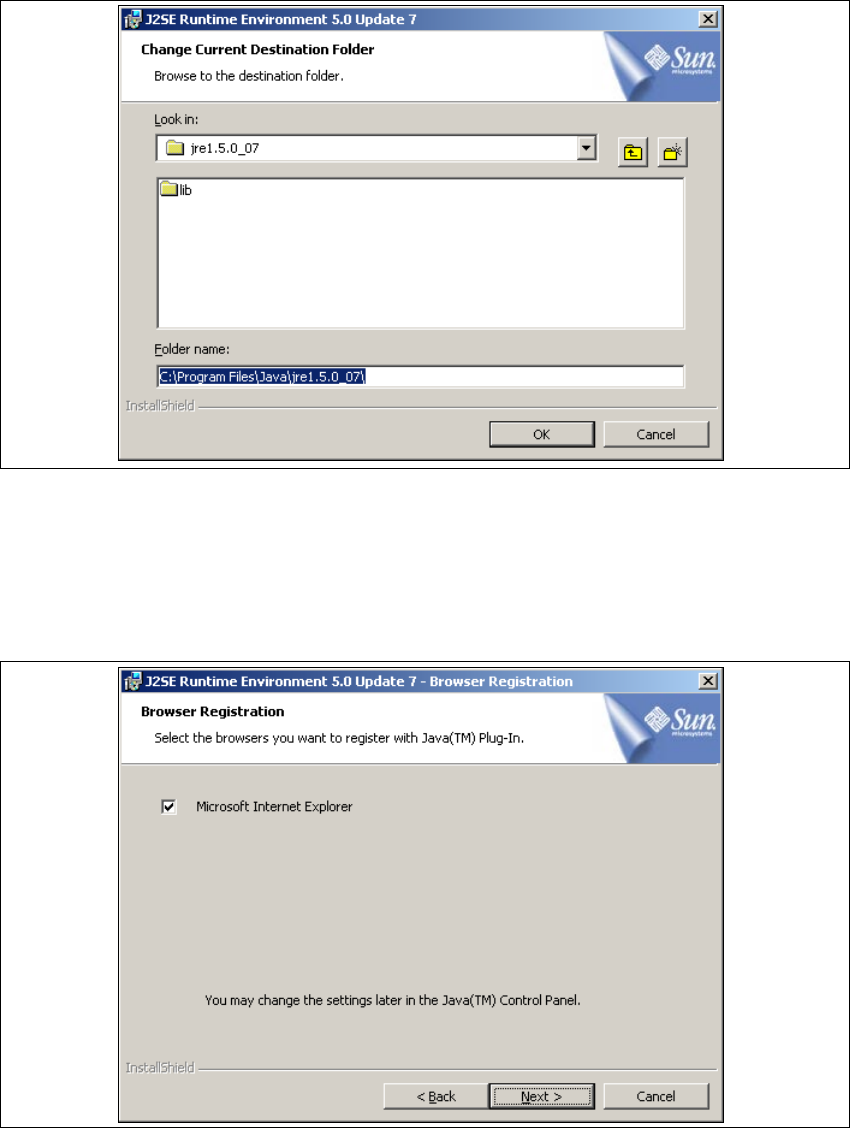
→ The Custom Setup dialog box will open.
→ Now select the required installation option and specify the folder in which you wish to install the
application. The default folder is C:\Program Files\Java\jre1.5.0_07\. This can be altered if
necessary.
5
Fig. 5 - 34 Java 2SE setup - user-defined installation
Installation and Configuration Guide SIPLACE Explorer Annex
Edition 05/2007 EN Bundled Web Server Installation
121
→ You can alter the default installation folder by using the Change button. The Change Current
Destination Folder dialog box will open.
. 5
Fig. 5 - 35 Java 2SE setup - selecting destination folder
→ Specify the required folder and click OK to confirm your choice.
→ To accept the destination folder, click on Next in the Custom Setup window.
→ The Browser Registration dialog box will open. Select the default browser for the application,
here.
5
Fig. 5 - 36 Java 2SE setup - 'browser registration' dialog box
→ Select the required browser by enabling the relevant checkbox.