00195425-01.pdf - 第118页
Anne x Inst al la tion a n d Co nf ig ura tio n Gui de SIP LAC E Ex pl ore r Bu nd led We b S erv er In st all at ion Ed iti on 05 /2 00 7 EN 118 5 Fig . 5 - 29 MSXM L 6.0 Setu p - inst allat ion pr oc edur e → Once the …
Installation and Configuration Guide SIPLACE Explorer Annex
Edition 05/2007 EN Bundled Web Server Installation
117
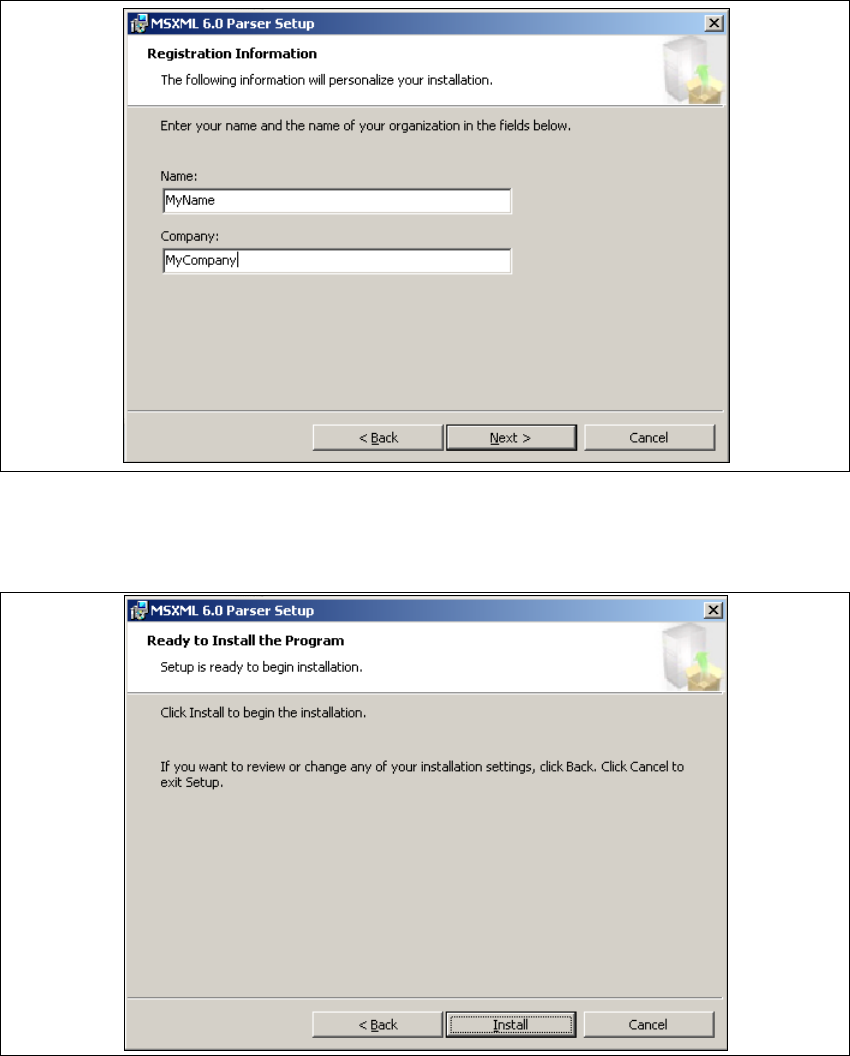
→ The Registration Information dialog box will open.
5
Fig. 5 - 27 MSXML 6.0 Setup - specifying customer data
→ Enter your name in the User Name field and the name of your company in the Company
Name field. Click on Next to continue. The following dialog box will open.
5
Fig. 5 - 28 MSXML 6.0 setup - user information
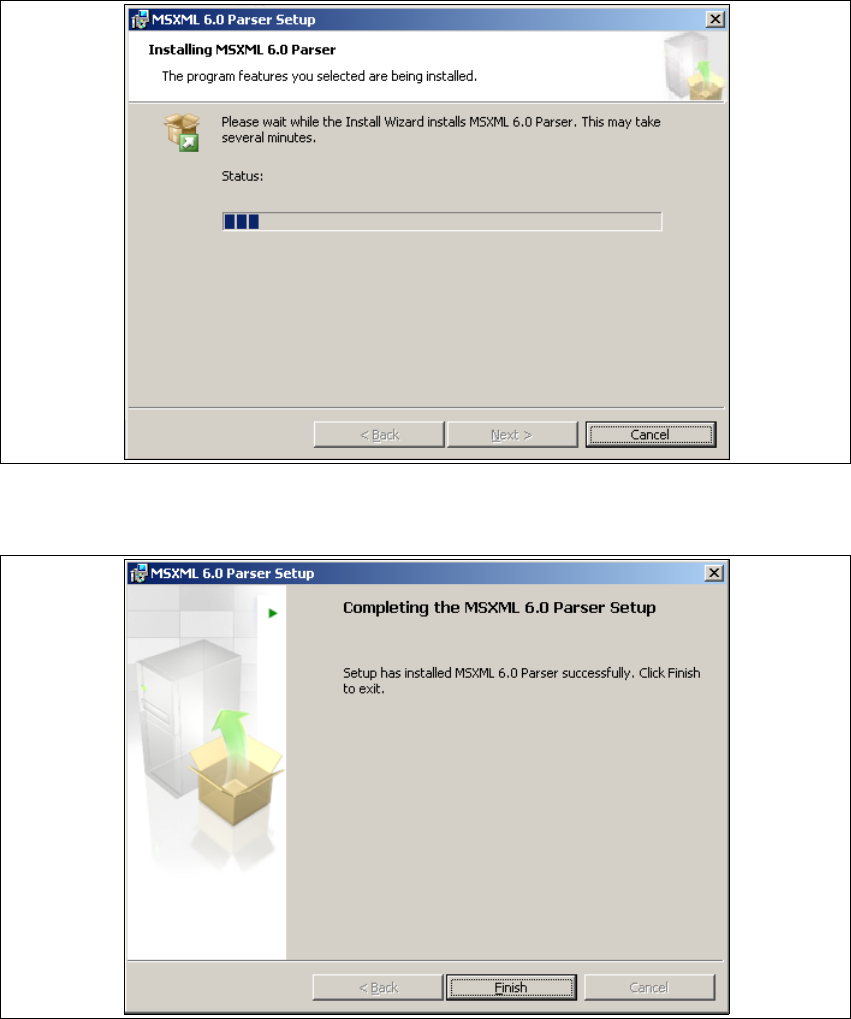
→ Click on Next to continue. The actual installation of MS XML 6.0 will start.
Annex Installation and Configuration Guide SIPLACE Explorer
Bundled Web Server Installation Edition 05/2007 EN
118
5
Fig. 5 - 29 MSXML 6.0 Setup - installation procedure
→ Once the installation procedure has finished, the following dialog box will open.
5
Fig. 5 - 30 MSXML 6.0 setup - installation complete
→ Click on Finish.
Installation and Configuration Guide SIPLACE Explorer Annex
Edition 05/2007 EN Bundled Web Server Installation
119
Bundled Web Server Installation - J2SE Runtime Environment 5.0.07
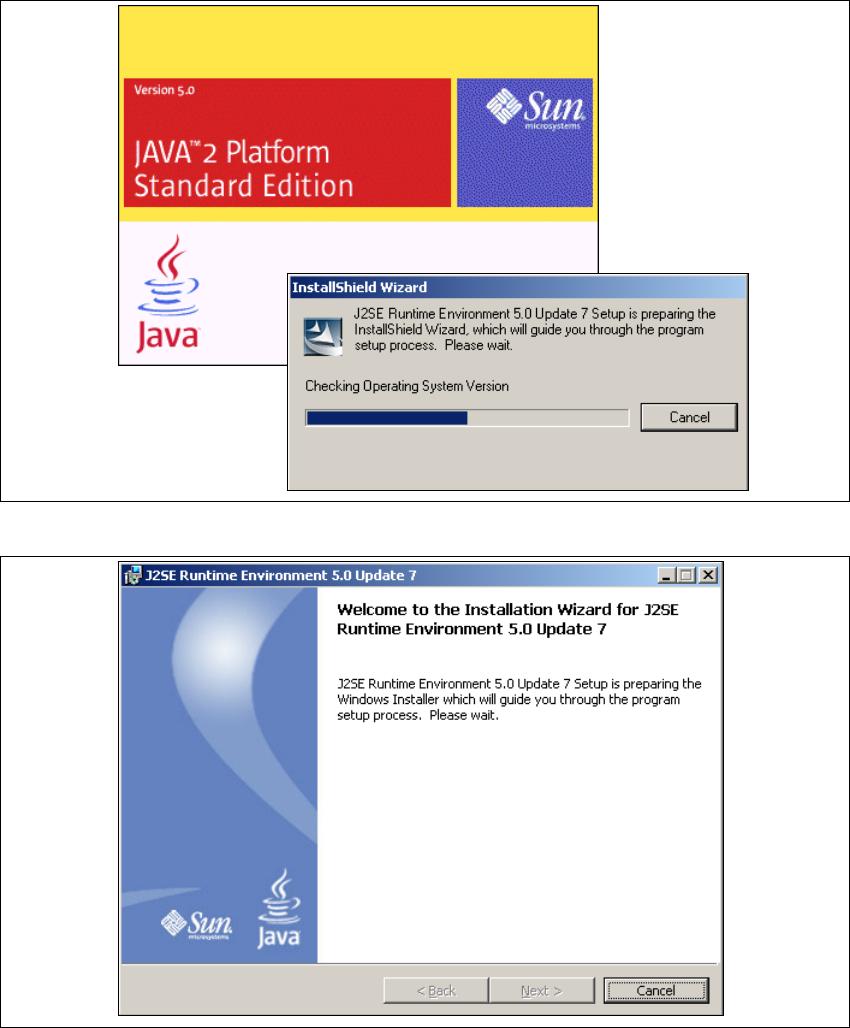
→ You will be guided through the Java J2SE installation procedure.
5
Fig. 5 - 31 Install shield wizard - preparing the installation
5
Fig. 5 - 32 Java 2SE setup - welcome to SIPLACE Explorer
→ Exit all other programs and then click on Next. The License Agreement dialog box will open.
→ Select the option Custom Setup.