TR7600 SIII_Series_Maintenance_en_v_2_0_3.pdf - 第32页
Test Research, Inc. 22 TR7600 SI II Series User Guide – Maintenance 4.3 Check Emergenc y Stop Press front, ri ght, left and rear emergency stops to test if the e m ergency stop is working well. If the em ergency stop but…
Test Research, Inc.
TR7600 SIII Series User Guide – Maintenance 21
4.2 Test Signal Tower
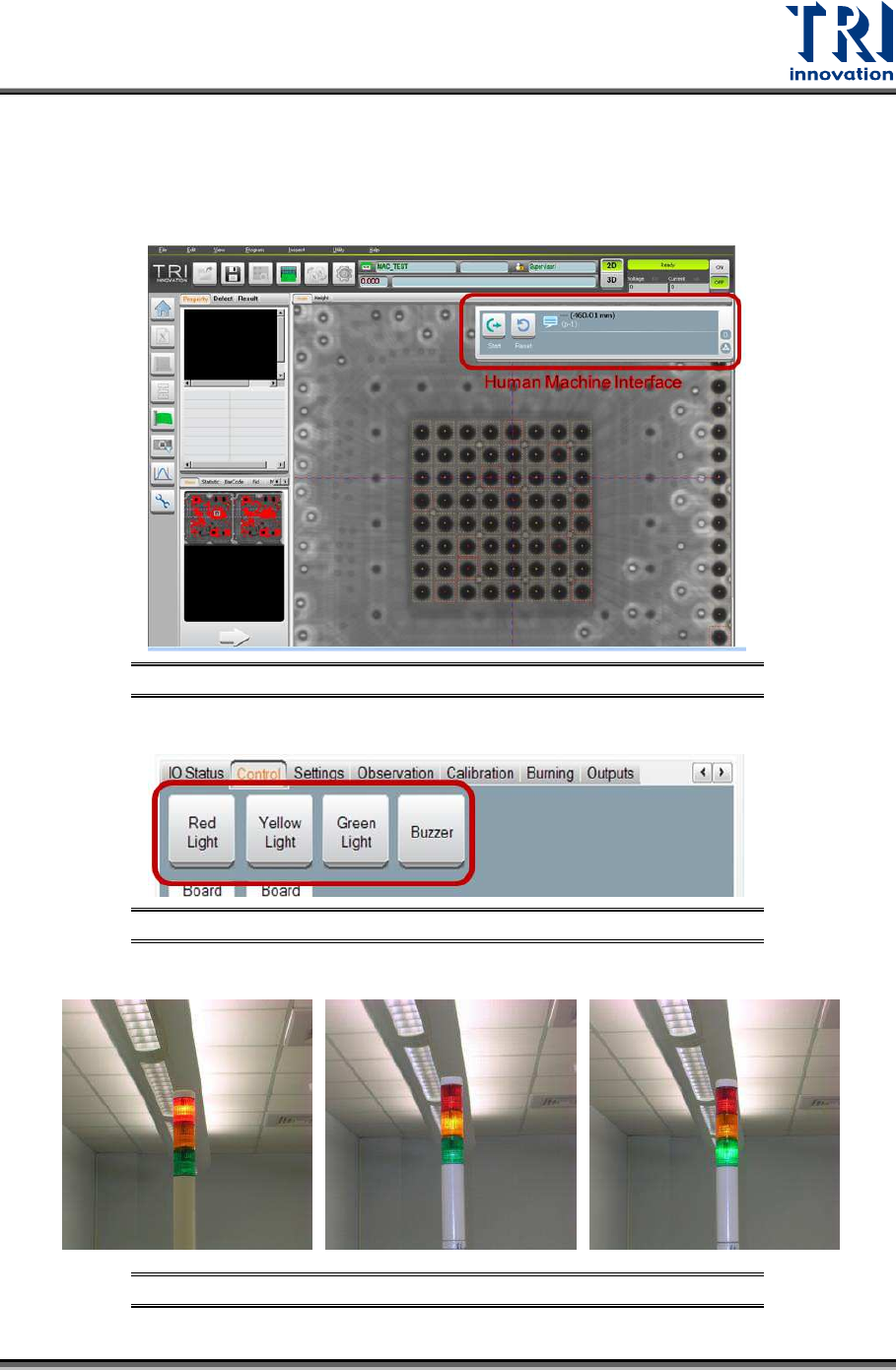
Signal Tower Testing: After the power is turned on, enter CONTROL Mode by Human-
Machine Interface (HMI) in the main program and select [LIGHT] to test if the red light,
yellow light, green light and buzzer are all functioning properly.
Figure 32: Main Program/HMI Window
Figure 33: Select Test Item/ Light Buzzer
Figure 34: Signal Tower Checking/Red/Yellow/Green
Test Research, Inc.
22 TR7600 SIII Series User Guide – Maintenance
4.3 Check Emergency Stop
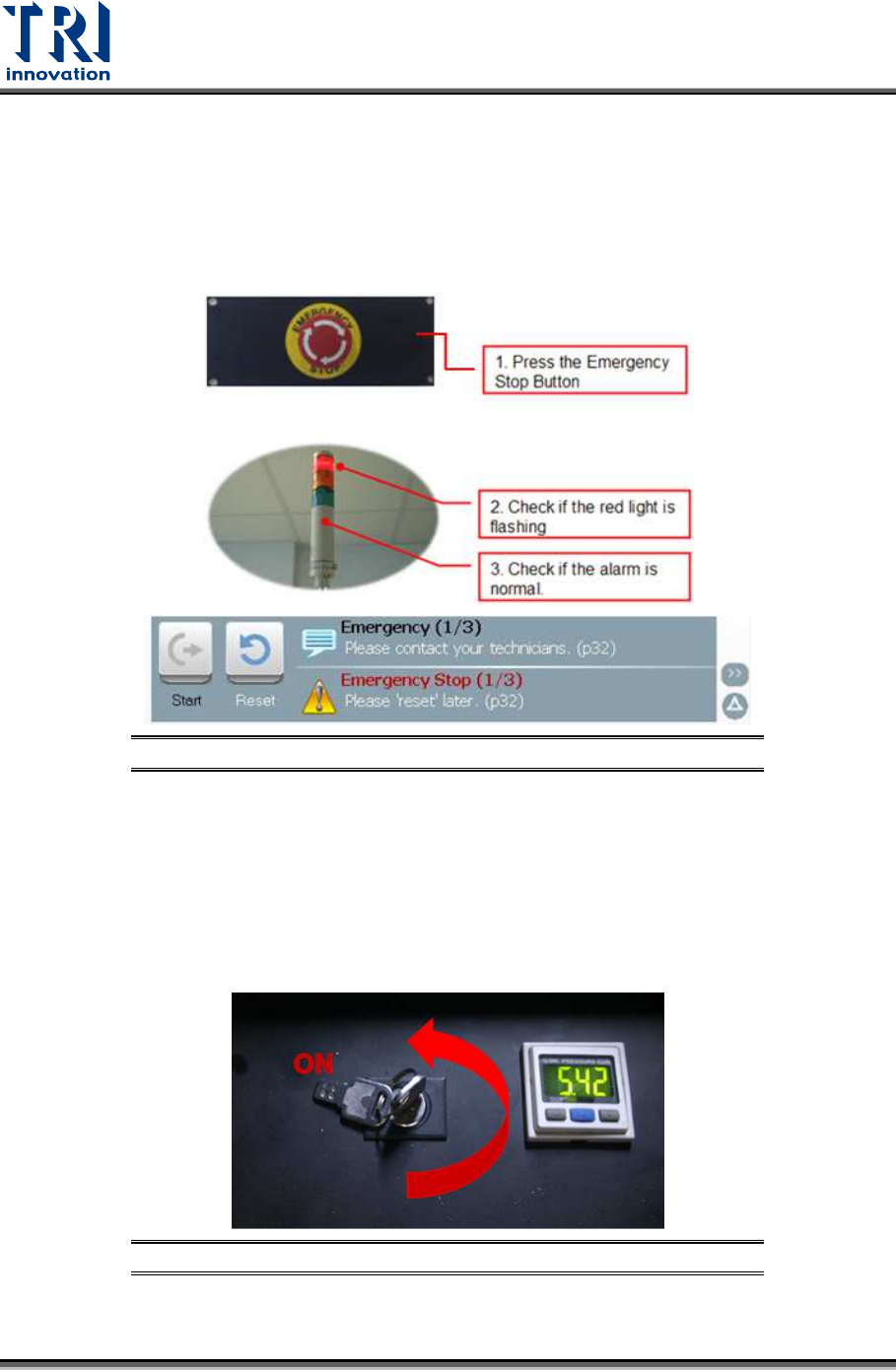
Press front, right, left and rear emergency stops to test if the emergency stop is working well.
If the emergency stop button is pressed, the HCI screen will display [Emergency Stop] in red.
Red light on the signal tower will be on and an alarm will sound. After the function is properly
tested, turn the emergency stop button clockwise and press [Reset] to reset it. No need to
re-start the power of the machine after the test.
Figure 35: Emergency Stop Checking
4.4 Check Interior Safety Lock
Test if the interior safety lock in the front door is working properly. Turn the interior safety
lock to “ON”, then test if the system properly performs an emergency stop (the HCI screen
will display [Emergency Stop] in red, the red light on the signal tower will come on and an
alarm will sound.) when the front door, rear door or side gates are open. After the function is
tested, turn the emergency stop button clockwise and press [Reset] to reset it. No need to
re-start the power of the machine after the test.
Figure 36: Safety Lock Position
Test Research, Inc.
TR7600 SIII Series User Guide – Maintenance 23
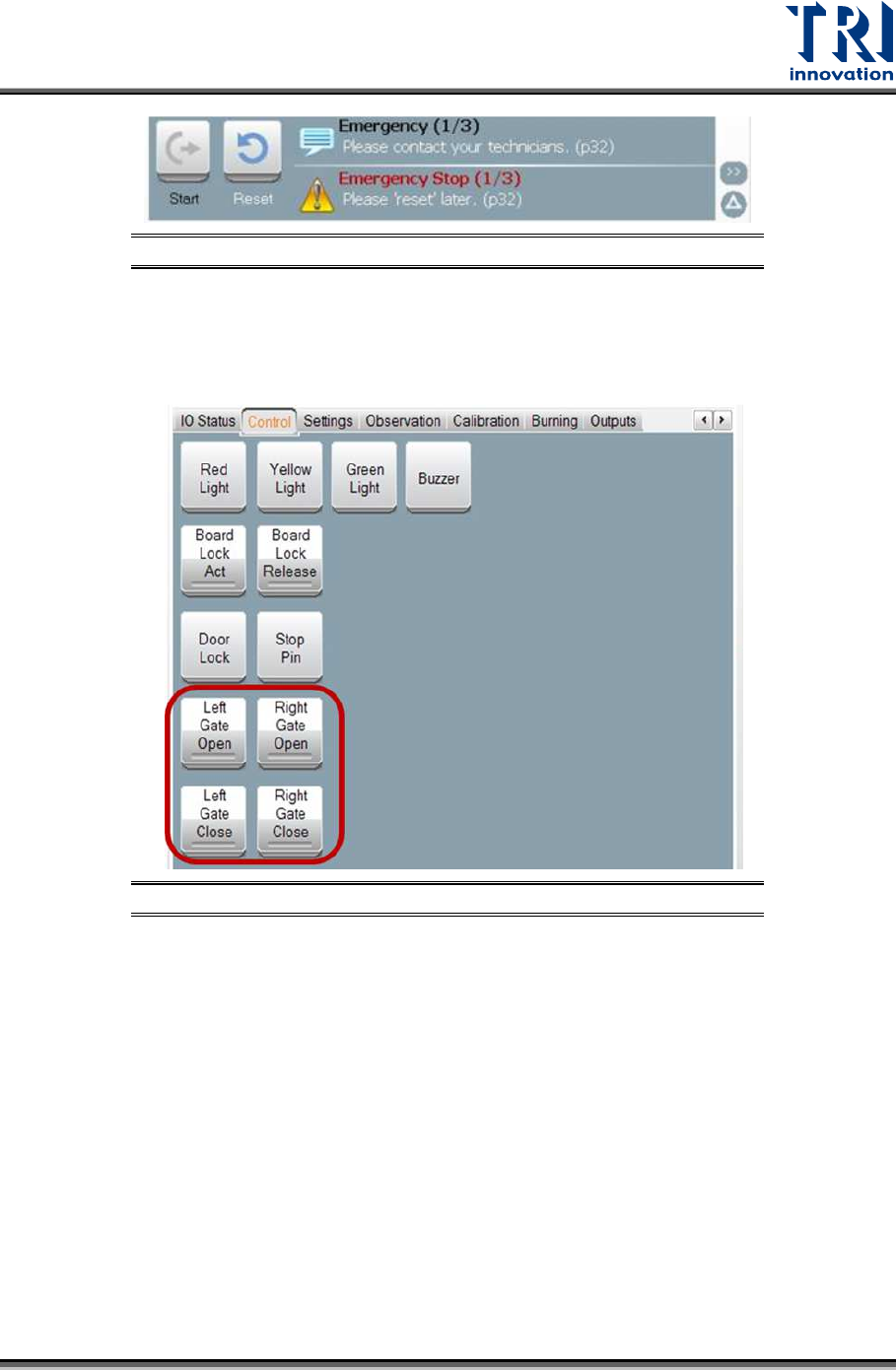
Figure 37: Emergency Stop
4.5 Check the Gate Movement
Use the HMI to test if the movements of left and right gates can work well.
Figure 38: Left and Right Gate Motion Checking
4.6 Check Back Fans Operating
Check the back fans if the fans are working properly.