7OM-1603-006_w.pdf - 第72页
7OM-1603 Chapter 2 : 2. Menus for Automatic Operation 2-3 2. Menus for Automatic Operation 2.1 Outline of Menus for Automatic Operation The following shows the hierarchical structure of the menus (including the submenus …
7OM-1603
2-2
Chapter 2 : 1. "Operation" Windows
1102-001
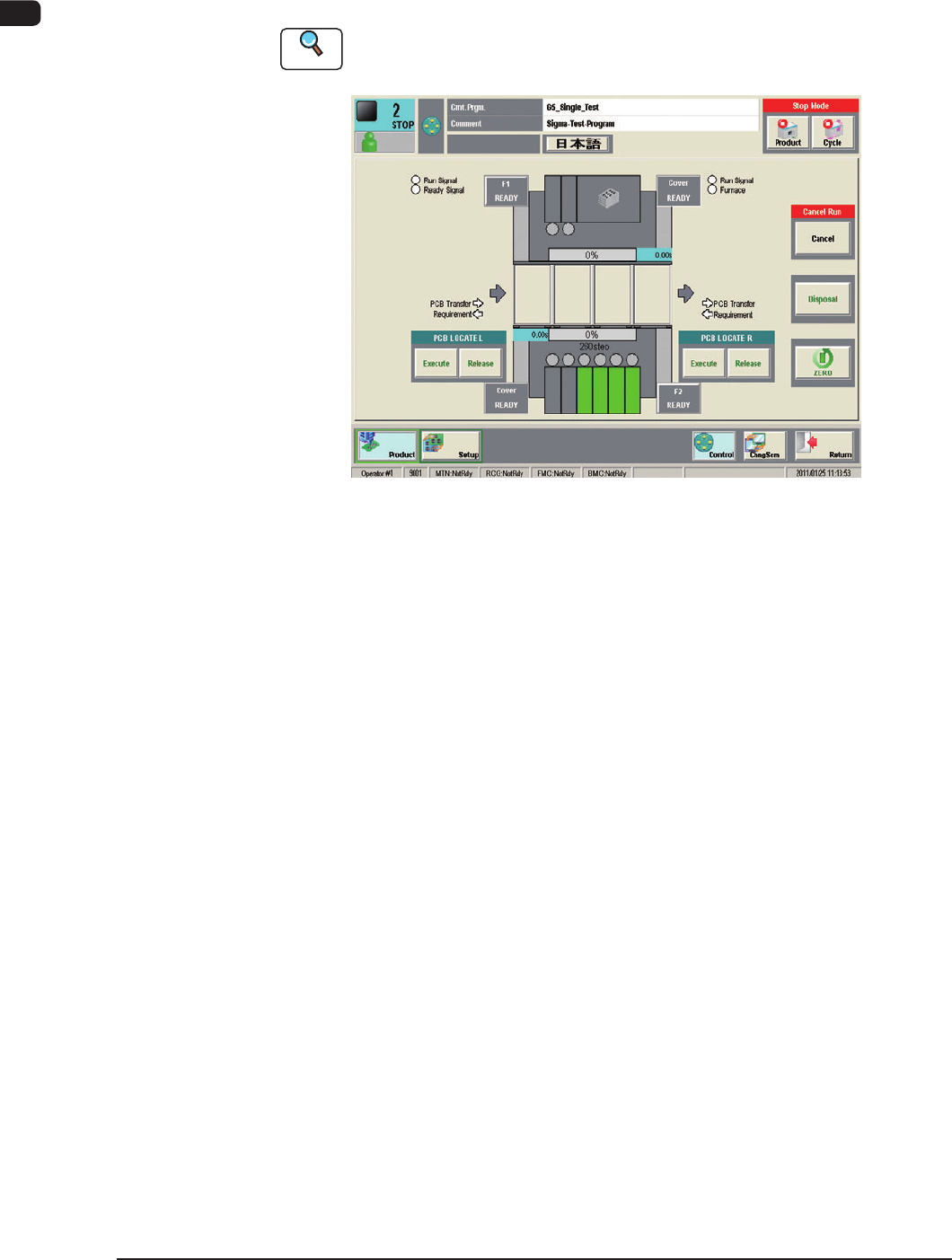
1.2 "Control Menu" Window
When the [Control] button is pressed on the common menu bar, the "Control
menu" window appears.
Reference
Refer to "2.1 "Control Menu" in Chapter 2, Volume 1, for the details of the
"Control Menu" window.
F7B2
7OM-1603
Chapter 2 : 2. Menus for Automatic Operation
2-3
2. Menus for Automatic Operation
2.1 Outline of Menus for Automatic Operation
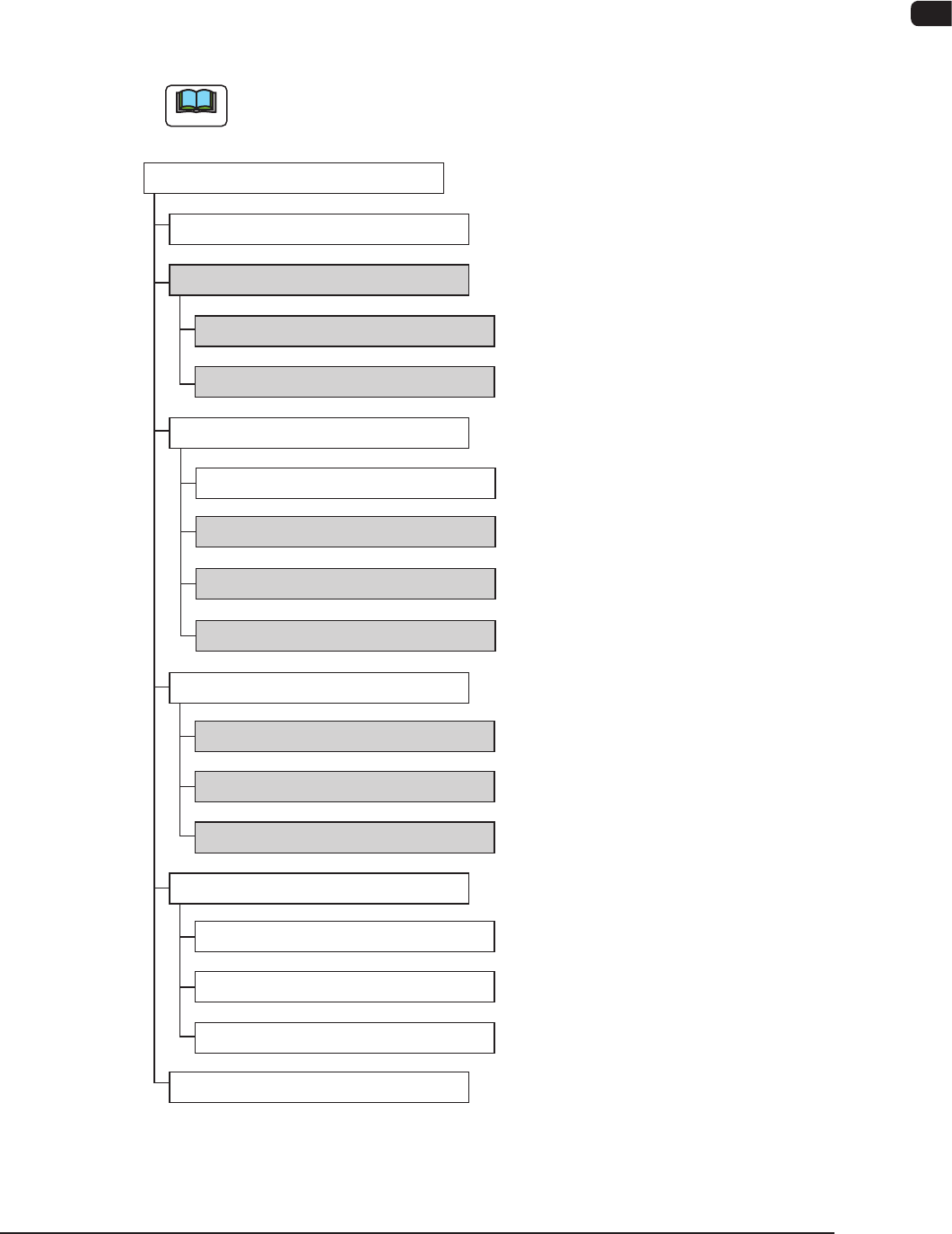
The following shows the hierarchical structure of the menus (including the
submenus and windows) for the automatic operation.
Note
The shadowed (gray) items are related to the multi-layer tray feeder.
Reference Item Nos
Menus for Automatic Operation
"Product" Window
"Comp.Reload" Window
"OPERATION" Window
"Pickup Tray Matrix" Tab Sheet
"Manage" Submenu
"Recall" Window
"Temp Chng Comp Lib" Window
"Prod.Dt" Submenu
"Tray Comp. Dt" Tab Sheet
"Component Library" Window
"Pattern Program" Window
"MESSAGE.RATE.DT" Window
"CRNT.PP.MNG.DT" Window
"MNG.DT" Window
"Altn Mode" Tab Sheet
"Test Mode" Tab Sheet
"Opr. Mode" Tab Sheet
"Run Mode" Tab Sheet
2.2.1
2.2
2.2.2
2.3.1
2.3.2
2.3.3
2.4.1
2.4.2
2.4.3
Outline of Menus for Automatic Operation F7B3
1109-004
7OM-1603
2-4
Chapter 2 : 2. Menus for Automatic Operation
2.2 "Comp.Reload" Window
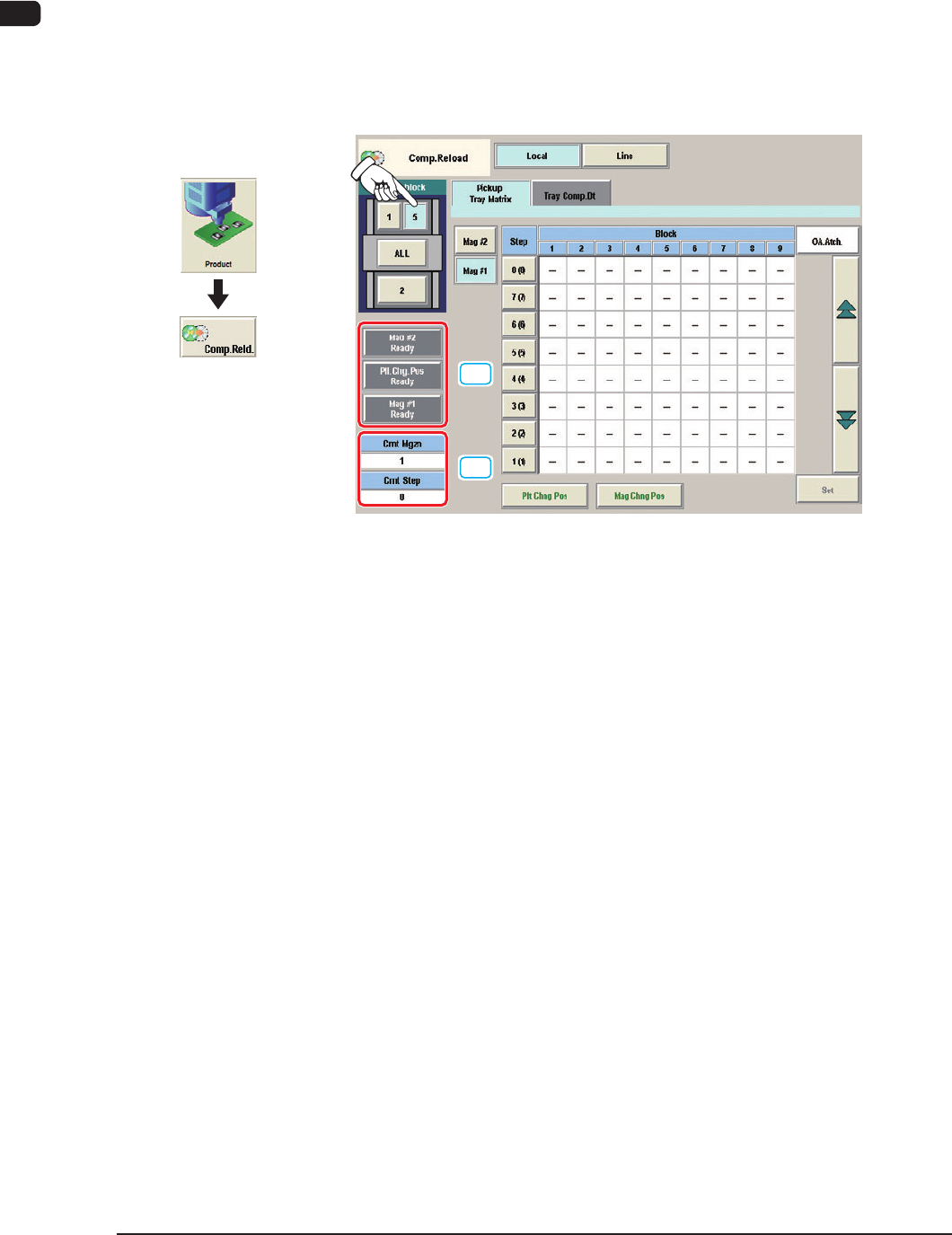
When the selection button for the feeder block No. in the [Select Block] button
section (5), where the multi-layer tray feeder has been installed, is pressed in the
"Comp.Reload" window, the multi-layer tray feeder's component reload window
appears.
The "Comp.Reload" window for the multi-layer tray feeder consists of the
"Pickup Tray Matrix" tab sheet and the "Tray Comp.Dt" tab sheet.
[1]
[2]
"Comp.Reload" window (Multi-Layer Tray Feeder #1 Used) F7B4
[1] [Mag #2 Ready], [Pll.Chg.Pos Ready], and [Mag #1 Ready] Buttons
When each button is pressed, the LED of the Ready switch on the
corresponding door illuminates, indicating that the door is locked.
[2] Crnt Mgzn and Crnt Step
Shown in the text boxes are the numbers of the magazine and step being used
at present.
Graphic
Development
1102-003