00193687-04.pdf - 第41页
In stal latio ns- u nd K onf igura tio nsa nleit ung SIPL ACE Explo rer 3 I ns tall ation des SIP LACE Expl orer Au sgab e 12 /200 5 D E 3. 1 Erst ins tall ation von SI PLA CE Ex plor er 2 .0 SP 1 41 → Da s nachfolgende …
3 Installation des SIPLACE Explorer Installations- und Konfigurationsanleitung SIPLACE Explorer
3.1 Erstinstallation von SIPLACE Explorer 2.0 SP1 Ausgabe 12/2005 DE
40
→ Um die Auswahl des Zielordners zu bestätigen, klicken Sie im Dialogfenster Choose
Destination Location
(Zielinstallationsordner auswählen) die Schaltfläche Next (Weiter) an.
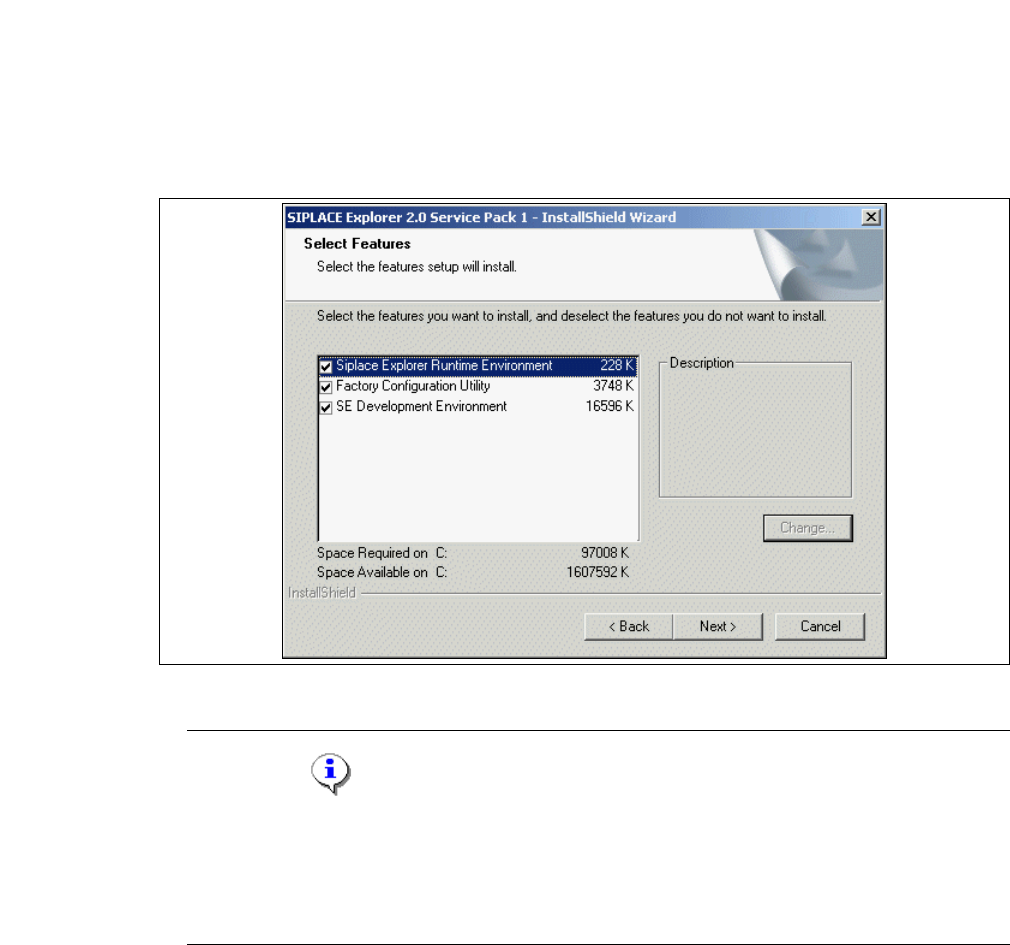
→ Das Dialogfenster Select Features (Installationsoptionen auswählen) wird angezeigt. Wählen
Sie aus den folgenden drei Komponenten aus:
SIPLACE Explorer Runtime Environment,
Factor Configuration Utility (Werks-Konfigurations-Utility) und SIPLACE Explorer
Development Environment
.
3
Abb. 3 - 21 SIPLACE Explorer Setup - Dialogfenster 'Select Features' (Installationsoptionen auswählen)
HINWEIS
Bei der Auswahl der Komponenten können Sie diese zusammenstellen, wie Sie es
benötigen. Allerdings ist es nicht empfehlenwert, "SIPLACE Explorer V.2.0 Runtime
Environment" und "SIPLACE Explorer V.2.0 Development Environment" auf dem gleichen
Computer zu installieren. 3
→ Haben Sie die entsprechenden Installationsoptionen ausgewählt, klicken Sie die Schaltfläche
Next (Weiter) an.
Installations- und Konfigurationsanleitung SIPLACE Explorer 3 Installation des SIPLACE Explorer
Ausgabe 12/2005 DE 3.1 Erstinstallation von SIPLACE Explorer 2.0 SP1
41
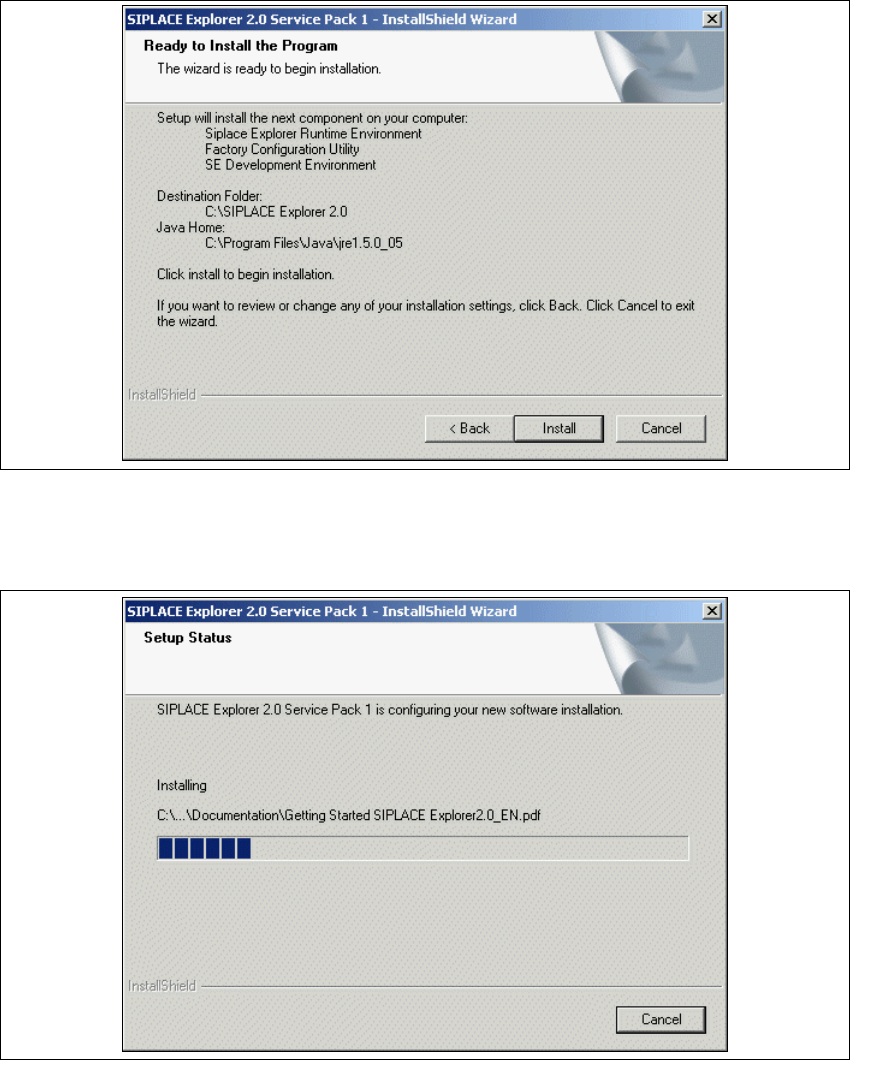
→ Das nachfolgende Dialogfenster wird angezeigt.
3
Abb. 3 - 22 SIPLACE Explorer Setup - Dialogfenster 'Ready to Install' (Bereit für die Installation)
→ Betätigen Sie die Sie die Schaltfläche Install, die eigentliche Installation von SIPLACE
Explorer V2.0 SP1 beginnt.
3
Abb. 3 - 23 SIPLACE Explorer Setup - Dialogfenster 'Setup Status' (Status der Installation)
3 Installation des SIPLACE Explorer Installations- und Konfigurationsanleitung SIPLACE Explorer
3.1 Erstinstallation von SIPLACE Explorer 2.0 SP1 Ausgabe 12/2005 DE
42
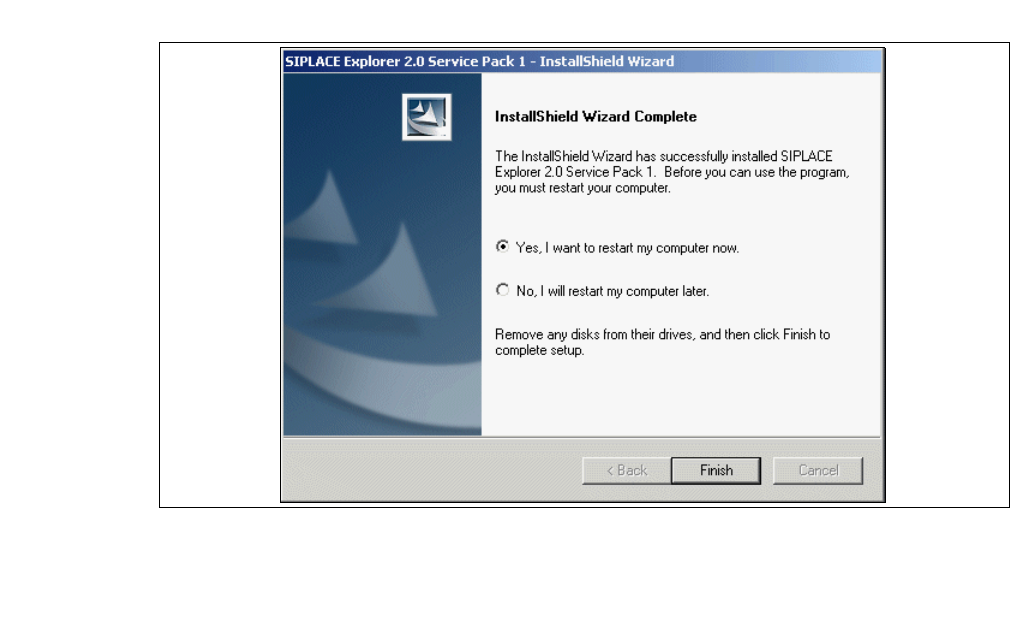
→ Wenn die Installation beendet ist, erscheint nachfolgendes Dialogfenster.
3
Abb. 3 - 24 SIPLACE Explorer Setup - Installation beendet
→ Klicken Sie auf Finish. Nach dem nächsten Start Ihres Computers können Sie SIPLACE
Explorer starten. Gehen Sie dazu vor, wie unter “SIPLACE Explorer starten” auf Seite 58
beschrieben.