00193687-04.pdf - 第48页
3 In stal la tio n des S IPLAC E Expl ore r Inst all atio ns - und Konfi gu rat ions anle itun g SI PLA CE Exp lor er 3. 1 E rst inst allat ion v on S IPL ACE Exp lorer 2.0 SP 1 Au sga be 12 /2 005 DE 48 → Di e Installa …
Installations- und Konfigurationsanleitung SIPLACE Explorer 3 Installation des SIPLACE Explorer
Ausgabe 12/2005 DE 3.1 Erstinstallation von SIPLACE Explorer 2.0 SP1
47
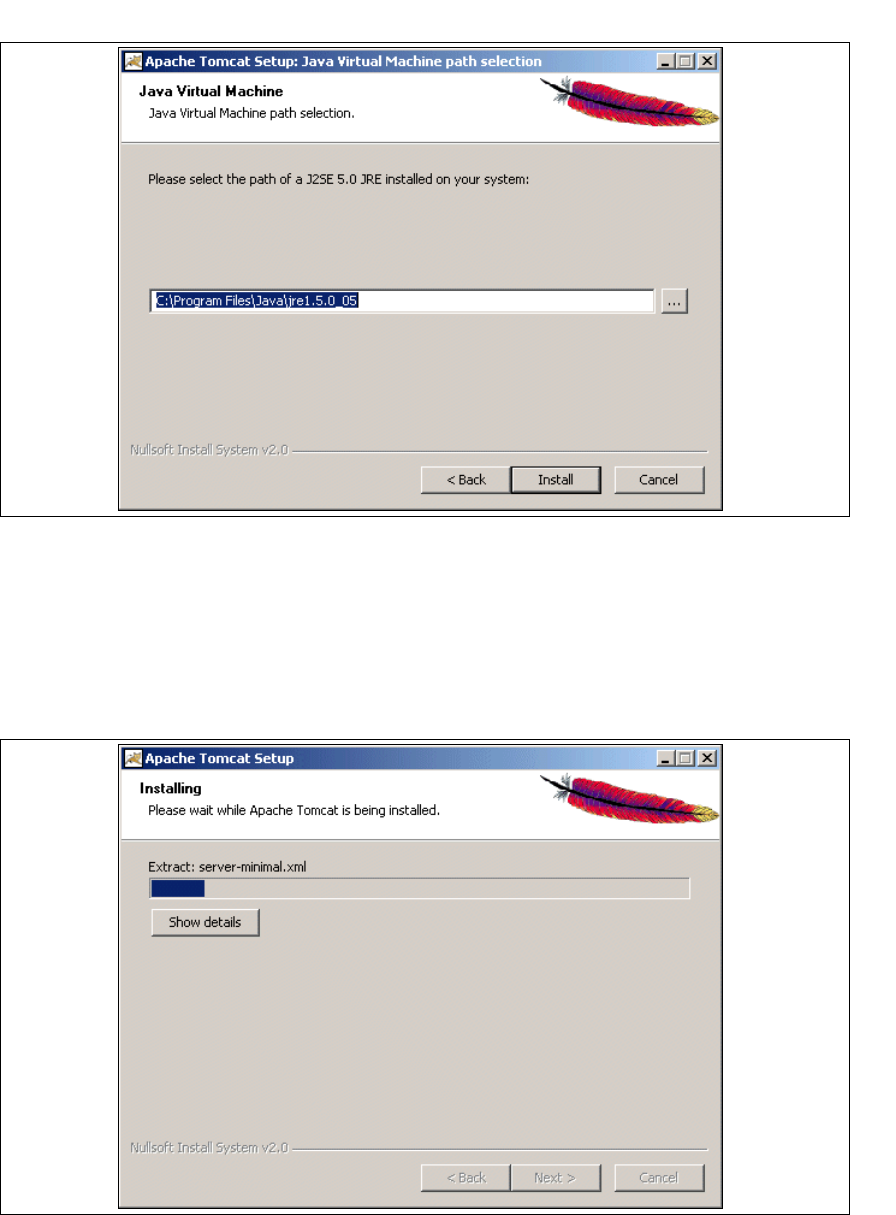
→ Geben Sie jetzt den Pfad von Java 2 JRE 1.5 an.
3
Abb. 3 - 31 Apache Tomcat Setup - Java Virtual Machine
→ Standardmäßig wird bei der Tomcat-Installation C:\Program Files\Java\jre1.5.0_05
angegeben. Diese Angabe können Sie über die Schaltfläche ... ändern. Bei falscher
Pfadangabe können die SIPLACE Explorer Websiten nicht angezeigt werden.
→ Klicken Sie dann auf Install (Installieren).
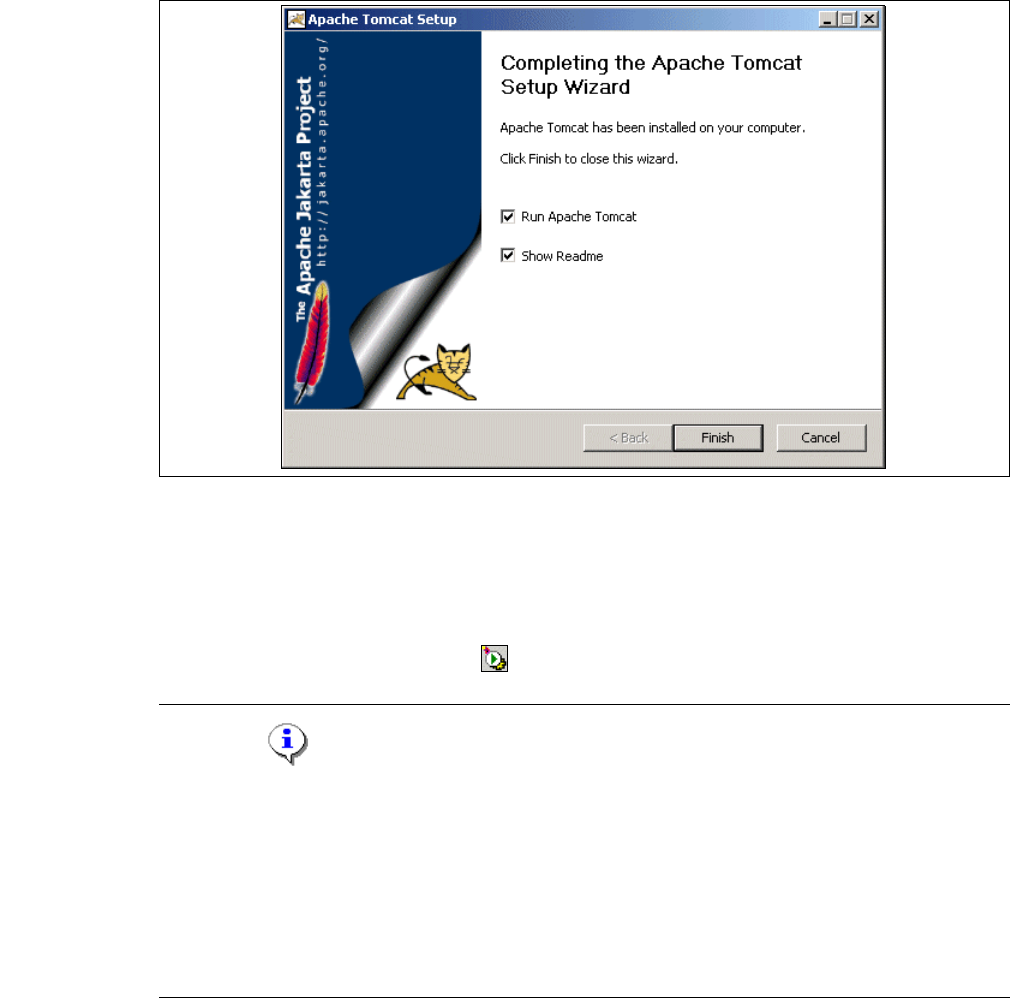
→ Die eigentliche Installation von Tomcat beginnt.
3
Abb. 3 - 32 Apache Tomcat Setup - Installing
3 Installation des SIPLACE Explorer Installations- und Konfigurationsanleitung SIPLACE Explorer
3.1 Erstinstallation von SIPLACE Explorer 2.0 SP1 Ausgabe 12/2005 DE
48
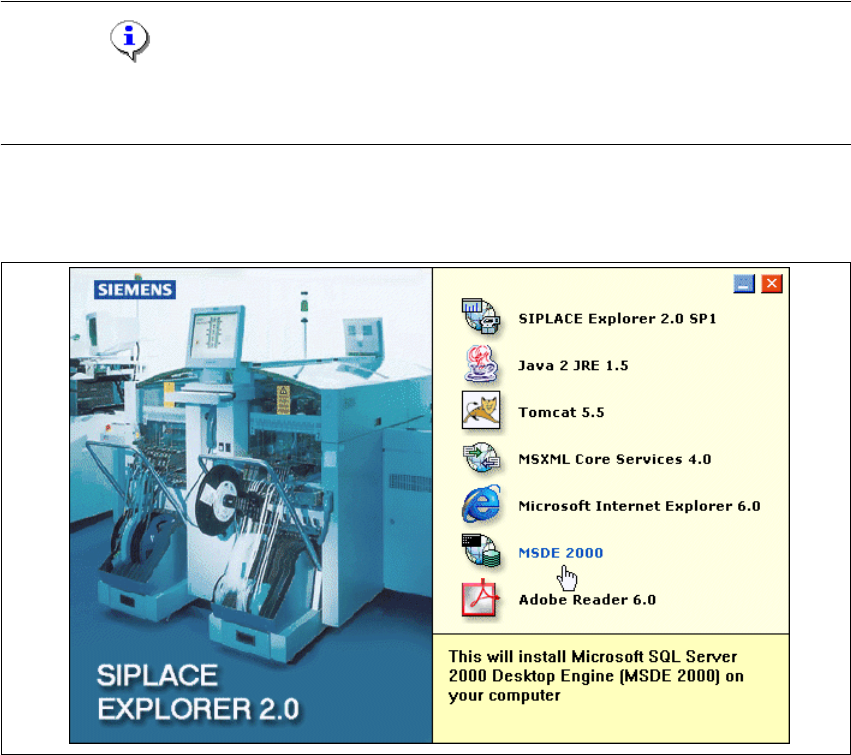
→ Die Installation wurde komplett ausgeführt.
3
Abb. 3 - 33 Apache Tomcat Setup - Installing
→ Klicken Sie Finish (Beenden).
→ Um Tomcat nun zu starten, müssen Sie den Computer neu starten oder Tomcat manuell
starten.
→ Tomcat 5.5 wird bei jedem Neustart des Computers als Windows Service automatisch
gestartet. Sie sehen das Symbol in der Konsole.
HINWEIS
Sie müssen für die Arbeit mit SIPLACE Explorer Tomcat 5.5 in folgenden Fällen
nachkonfigurieren:
- Verwendung von Windows XP Professional mit SP2
- Port-Konfiguration bei Veränderung der Tomcat-Portnummer
- Speichererweiterung für Tomcat.
Eine detaillierte Beschreibung dieser Themen erhalten Sie in dem Abschnitt “Konfiguration von
Tomcat” auf Seite 61. 3
Installations- und Konfigurationsanleitung SIPLACE Explorer 3 Installation des SIPLACE Explorer
Ausgabe 12/2005 DE 3.1 Erstinstallation von SIPLACE Explorer 2.0 SP1
49
3.1.5 Installationsvorgang MSDE 2000
HINWEIS
Sie müssen über Windows 2000 Administrator-Rechte verfügen, um die Installation ausführen zu
können. 3
→ Legen Sie die SIPLACE Explorer CD in Ihr CD-Rom-Laufwerk ein.
→ Es erscheint der Start Screen.
3
Abb. 3 - 34 SIPLACE Explorer setup - Start Screen
→ Wählen Sie MSDE 2000 aus. Die Installation von MSDE 2000 läuft automatisch ab.