00193687-04.pdf - 第56页
3 In stal la tio n des S IPLAC E Expl ore r Inst all atio ns - und Konfi gu rat ions anle itun g SI PLA CE Exp lor er 3. 2 U pdate -In stal latio n von S IPLA CE E xplo rer 2.0 S P1 Au sga be 12 /200 5 D E 56 → Hab en Si…
Installations- und Konfigurationsanleitung SIPLACE Explorer 3 Installation des SIPLACE Explorer
Ausgabe 12/2005 DE 3.2 Update-Installation von SIPLACE Explorer 2.0 SP1
55
→ In diesem Fall können Sie entweder den Pfad direkt im Textfeld des Ordners JAVA 2 JRE v.1.5
eingeben oder die Schaltfläche
Browse (Durchsuchen) anklicken und mit Hilfe des
Dialogfensters
Open File (Datei öffnen) den Ordner JAVA 2 JRE suchen.
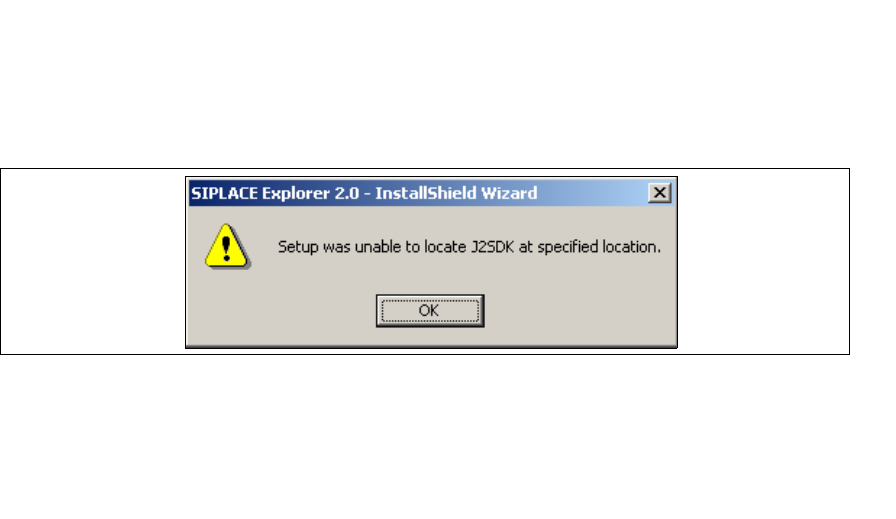
→ Wenn Sie den Ordner, in dem JAVA 2 JRE installiert ist, nicht korrekt angegeben haben,
erscheint das nachfolgende Dialogfenster.
3
Abb. 3 - 40 SIPLACE Explorer Setup - J2SE kann nicht gefunden werden
→ Klicken Sie OK, um zum vorangegangenen Dialogfenster zurückzukehren. SIPLACE Explorer
erfordert vor der Installation von SIPLACE Explorer, dass JAVA 2 JRE installiert wurde.
→ An dieser Stelle können Sie entweder den JAVA 2 JRE Ordner nochmals eingeben oder
Cancel (Abbrechen) anklicken, um die Installation des SIPLACE Explorer abzubrechen.
3 Installation des SIPLACE Explorer Installations- und Konfigurationsanleitung SIPLACE Explorer
3.2 Update-Installation von SIPLACE Explorer 2.0 SP1 Ausgabe 12/2005 DE
56
→ Haben Sie Cancel (Abbrechen) gewählt, installieren Sie die auf der Installations-CD
enthaltene Version von JAVA 2 JRE (siehe Seite 29) oder die kostenlos erhältliche Version von
Sun Microsystems unter http://java.sun.com/j2se. Beginnen Sie anschließend die Installation
des SIPLACE Explorer erneut.
HINWEIS
Wenn auf Ihrem System die von Sun Microsystems unter http://java.sun.com/j2se erhältliche
J2 Runtime Umgebung (und nicht JAVA 2 JRE) installiert ist, funktioniert die von SIPLACE
Explorer Website Builder erstellte Website nicht einwandfrei, da diese auf JSP basiert, was
wiederum JAVA 2 JRE voraussetzt. 3
→ Die Installation von SIPLACE Explorer 2.0 SP1 wird nach Lokalisierung von JAVA 2 JRE v.1.5
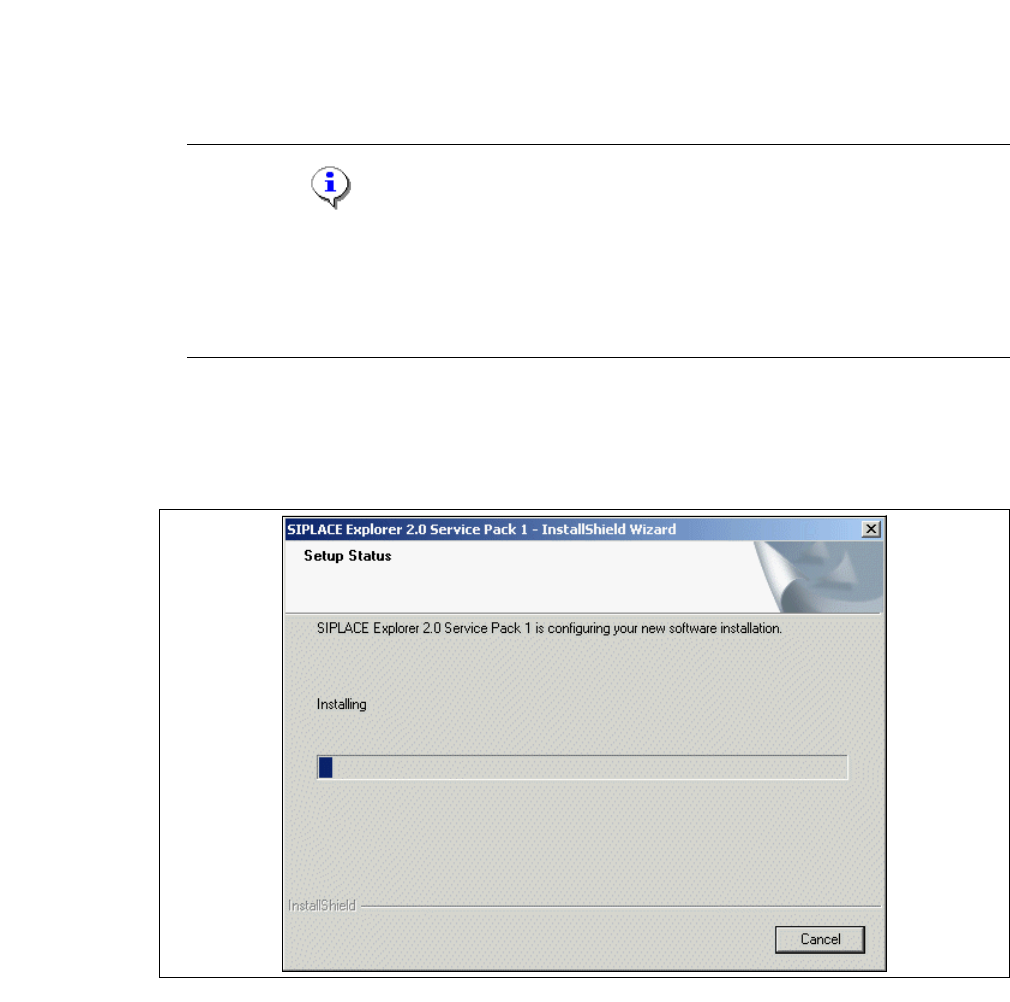
fortgesetzt. Sie erhalten das nachfolgende Dialogfenster.
→ Die eigentliche Update-Installation von SIPLACE Explorer V2.0 SP1 beginnt.
3
Abb. 3 - 41 SIPLACE Explorer Setup - Dialogfenster 'Setup Status' (Status der Installation)
Installations- und Konfigurationsanleitung SIPLACE Explorer 3 Installation des SIPLACE Explorer
Ausgabe 12/2005 DE 3.2 Update-Installation von SIPLACE Explorer 2.0 SP1
57
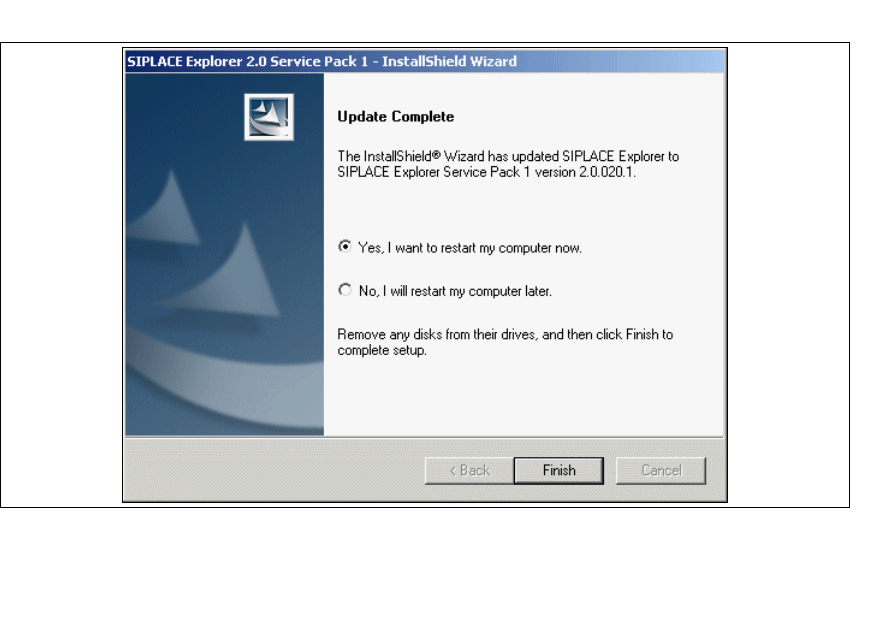
→ Wenn die Installation beendet ist, erscheint nachfolgendes Dialogfenster.
3
Abb. 3 - 42 SIPLACE Explorer Setup - Installation beendet
→ Klicken Sie auf Finish. Nach dem nächsten Start Ihres Computers steht Ihnen die Update-
Version SIPLACE Explorer V2.0 SP1 zur Verfügung. Zum Starten von SIPLACE Explorer
gehen Sie vor, wie unter “SIPLACE Explorer starten” auf Seite 58 beschrieben.