ACT - Accuracy Check Tool User Manual.pdf - 第165页
ACT - Accurac y Check Tool / Us er Man ual 06/2015 Edition 77 ► Create a recipe. Figure 5-5: Creating a recipe – A CT plate ► Use a normal board d escription f or the ACT plate a s described in sect ion 4.1.1 . ► Select …
ACT - Accuracy Check Tool / User Manual 06/2015 Edition
76
5.2.2 Software
5.2.2.1 SIPLACE Pro – Boards
► Import the ACT-Boards_with_ConveyorTray_11.1.0.58.sipro file into SIPLACE Pro ≥12.x.
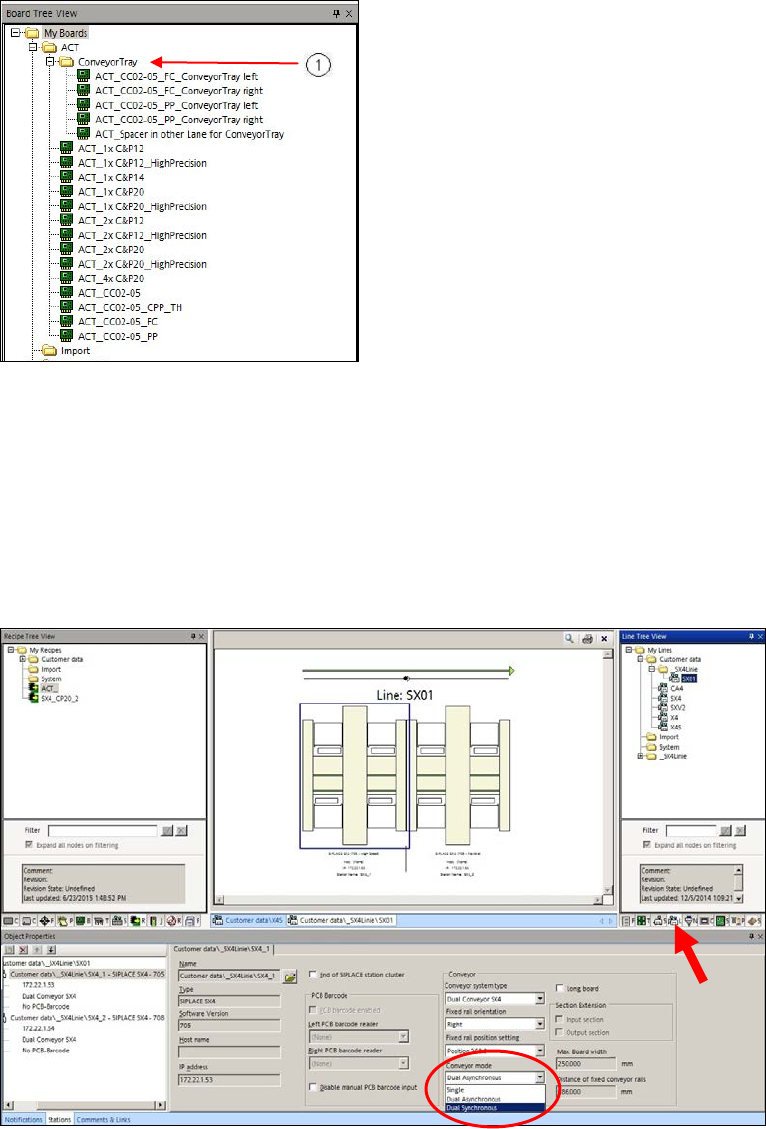
After import, the ACT directory in the Boards view looks like this:
Figure 5-3: ACT directory after import
(1) Additional directory: My boards\ACT\ConveyorTray
Feeding in dual conveyor mode
In machines with dual conveyor, the glass plate can be fed in one lane and the tray in the other
lane.
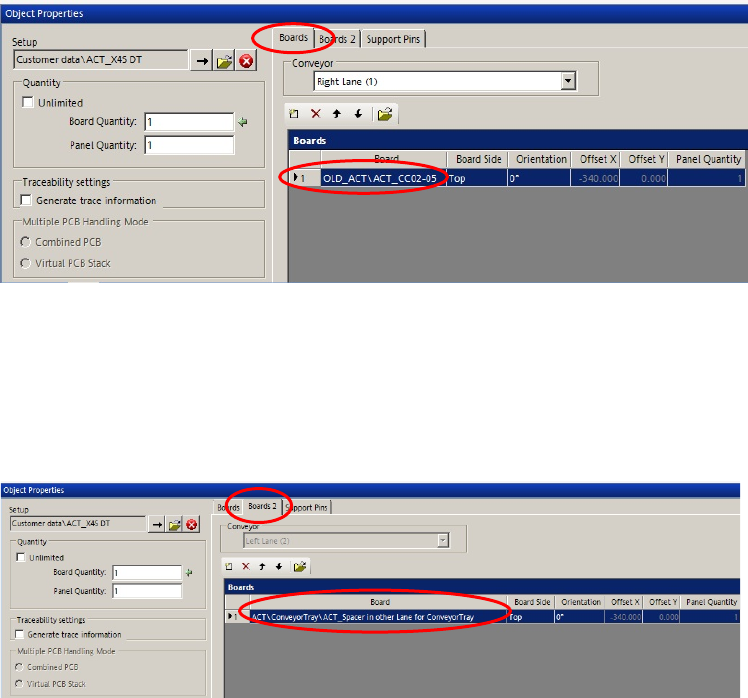
► Set the conveyor in the Line to Dual Synchronous.
Figure 5-4: Setting dual synchronous mode
ACT - Accuracy Check Tool / User Manual 06/2015 Edition
77
► Create a recipe.
Figure 5-5: Creating a recipe – ACT plate
► Use a normal board description for the ACT plate as described in section 4.1.1.
► Select the empty ACT_Spacer in other Lane for ConveyorTray plate as placeholder for the
second conveyor lane in which the tray is to be fed.
Figure 5-6: Creating recipe – second board as placeholder
Feeding in single conveyor mode
► Connect the tray with the glass plate as described in section 5.2.1.
► Set the conveyor width to 428.00 mm using the Automatic width adjustment.
The tray enters the machine together with the plate.

ACT - Accuracy Check Tool / User Manual 06/2015 Edition
78
5.2.2.2 SIPLACE Pro – Setup (Tables)
► In SIPLACE Pro, on the gantry side on which the measurement is to be performed, set up the
Conveyor Carrier X tray carrier from the My Tray Feeder Types directory.
► Draw the tray carrier to an empty track on the corresponding
table.
Figure 5-7: Selecting Conveyor Carrier X
► Select the tray carrier so that it is displayed in the editor screen below.
► Click on the button in the field of the Tray column und select the ACT Tray 13x9 @ Conveyor
tray from the My trays directory.
Figure 5-8: Selecting tray
► Then select the component you want to feed in the tray.