Portal_Manual_1.2.1_Rev_H-1.pdf - 第29页
Portal PVA Revisio n H ( 2018 ) 29 of 93 5. If Custom Mess age is selec ted fro m the Message m enu , y ou can edi t the message win dow. Use the keyboar d to type the messag e exactly as it should be received b y the se…
Portal
PVA
Revision H (2018)
28 of 93
6.7 FIS
The PVA integrated factory information system (FIS) is an optional add-on. It is
configurable and will interface and handshake with the majority of factory information
systems. If necessary, messages can be customized.
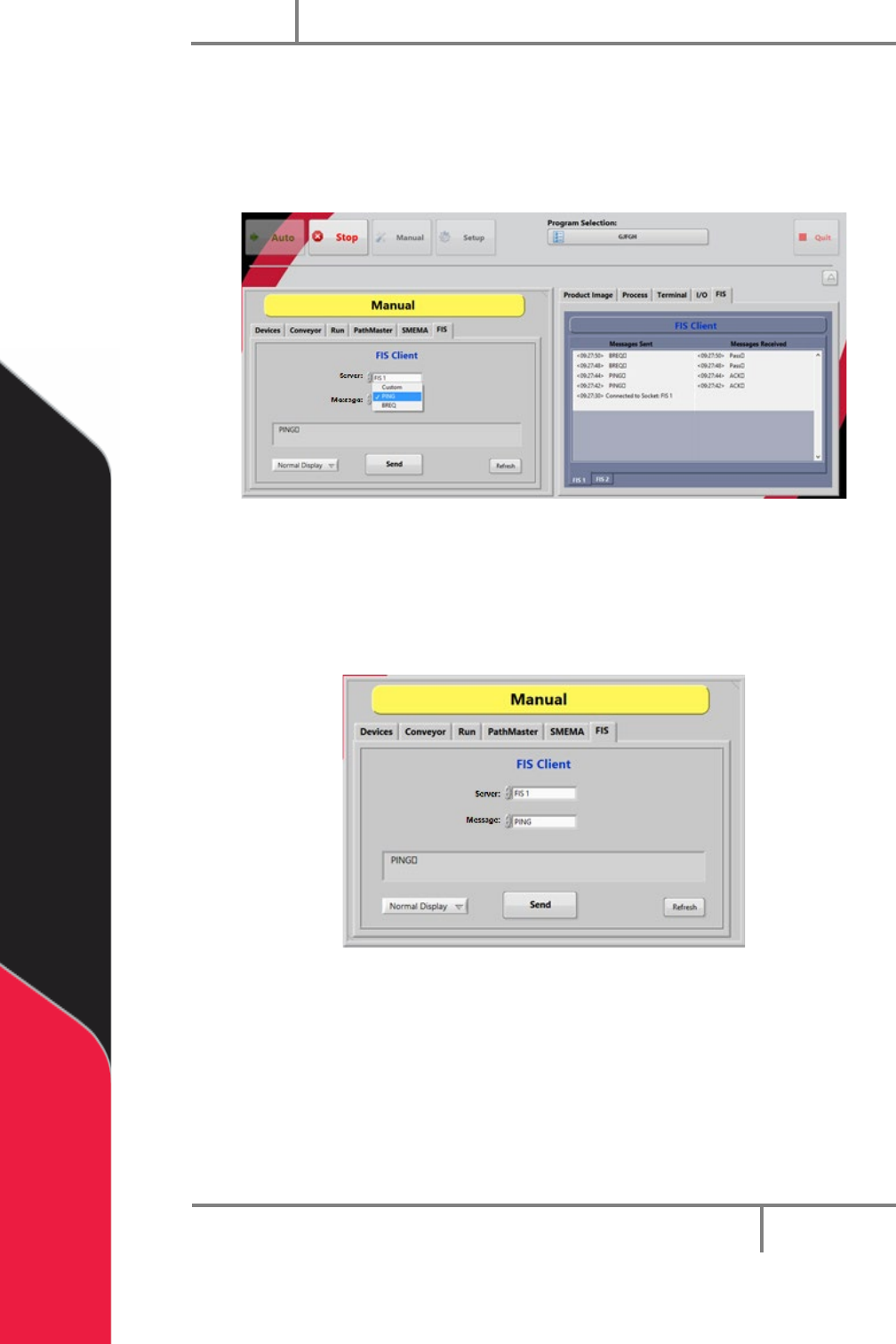
Figure 16: FIS Client Mode and Messages Screens
6.7.1 FIS Client Mode Screen
1. The FIS Client mode screen can be seen in manual mode when the FIS tab is
selected.
Figure 17: FIS Function
2. To change the display format, select an option from the Display drop down
menu (Normal, ‘\’ Code, Hex Code).
3. Select the Server menu to select the sever you want to send a message to. This
list is specific to each workcell.
4. Select the message you want to send from the Message drop down menu. The
message will be shown in the message box.
Portal
PVA
Revision H (2018)
29 of 93
5. If Custom Message is selected from the Message menu, you can edit the
message window. Use the keyboard to type the message exactly as it should be
received by the server.
6. Select “Clear” to clear the custom message. This button is only available for
custom messages.
7. After you have selected or typed the message, select the “Send” button to send
the message.
8. Select “Refresh” to refresh any dynamic data in the message, such as a Galil
variable. The “Refresh” button is not shown for custom messages.
Portal
PVA
Revision H (2018)
30 of 93
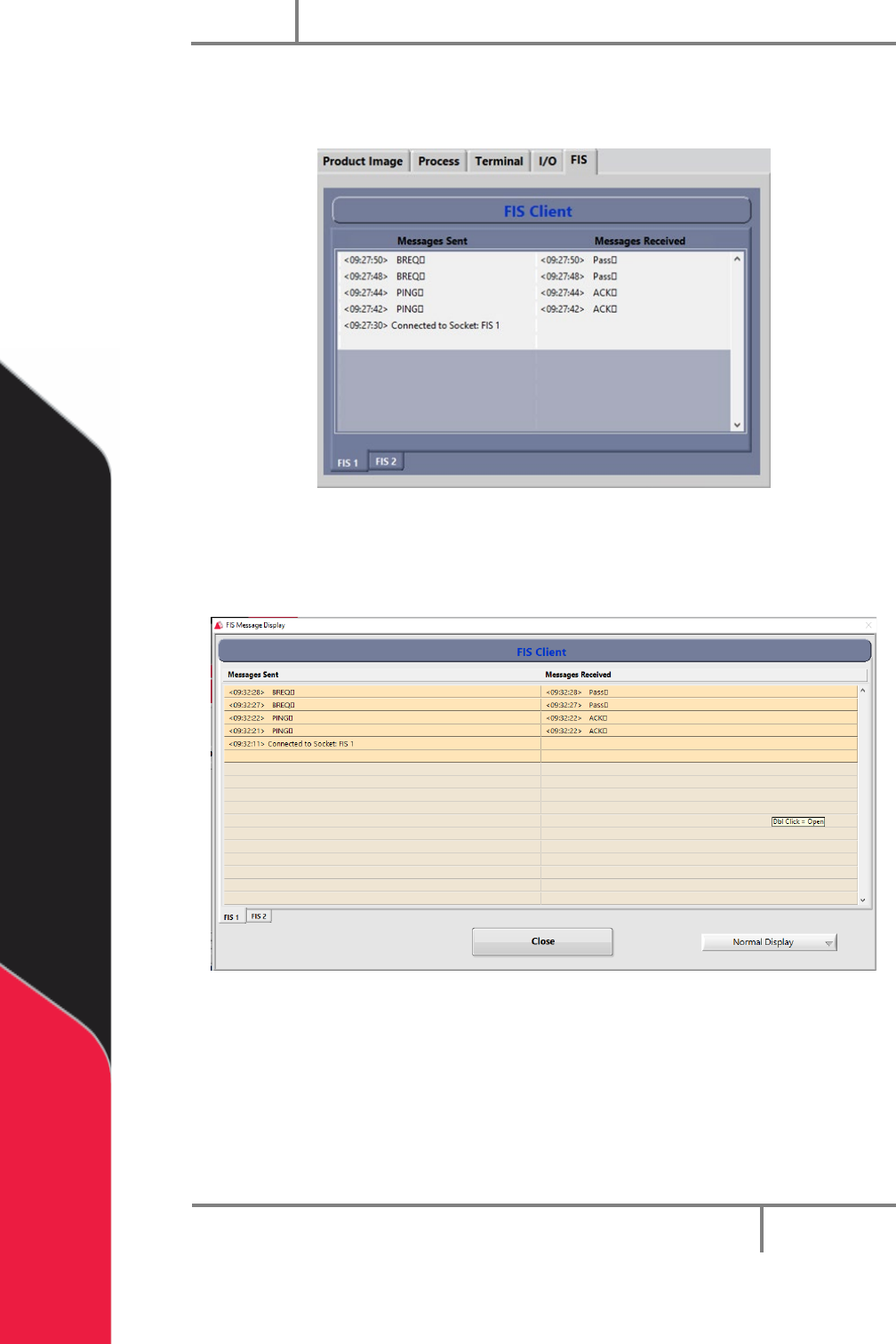
6.7.2 FIS Client Message Screen
9. To see the FIS Client message screen, select the FIS tab from the systems tab.
Figure 18: Message Terminal
10. To access the large pop-up display, hold the “CTR” button on the keyboard and
double click on the message terminal.
Figure 19: FIS Message Display Window
11. To change the display format, select an option from the Display drop down
menu (Normal, ‘\’ Code, Hex Code).
12. Select “FIS 1” or “FIS 2” at the bottom right corner the window to select the FIS
instance (server) you would like to see.
13. Select the “Close” button to close the popup window.