Portal_Manual_1.2.1_Rev_H-1.pdf - 第73页
Portal PVA Revisio n H ( 2018 ) 73 of 93 Train Failed A Train Part Failed error happe ns when the sy stem ret urns a negative ack nowledge ( NAK) whe n aske d to rea d the partcode . T his means devic e could not suc ces…
Portal
PVA
Revision H (2018)
72 of 93
6. Click “Add” to add the new part to the dataset or click Train Part to train
the partcode.
Figure 84: Add
NOTE: If you need to correct an error in the partcode you scanned, or if the
partcode scan was incomplete, select “Train Part”.
14.3.1 Train Part Faults
There are two types of faults that can happen when you train a part.
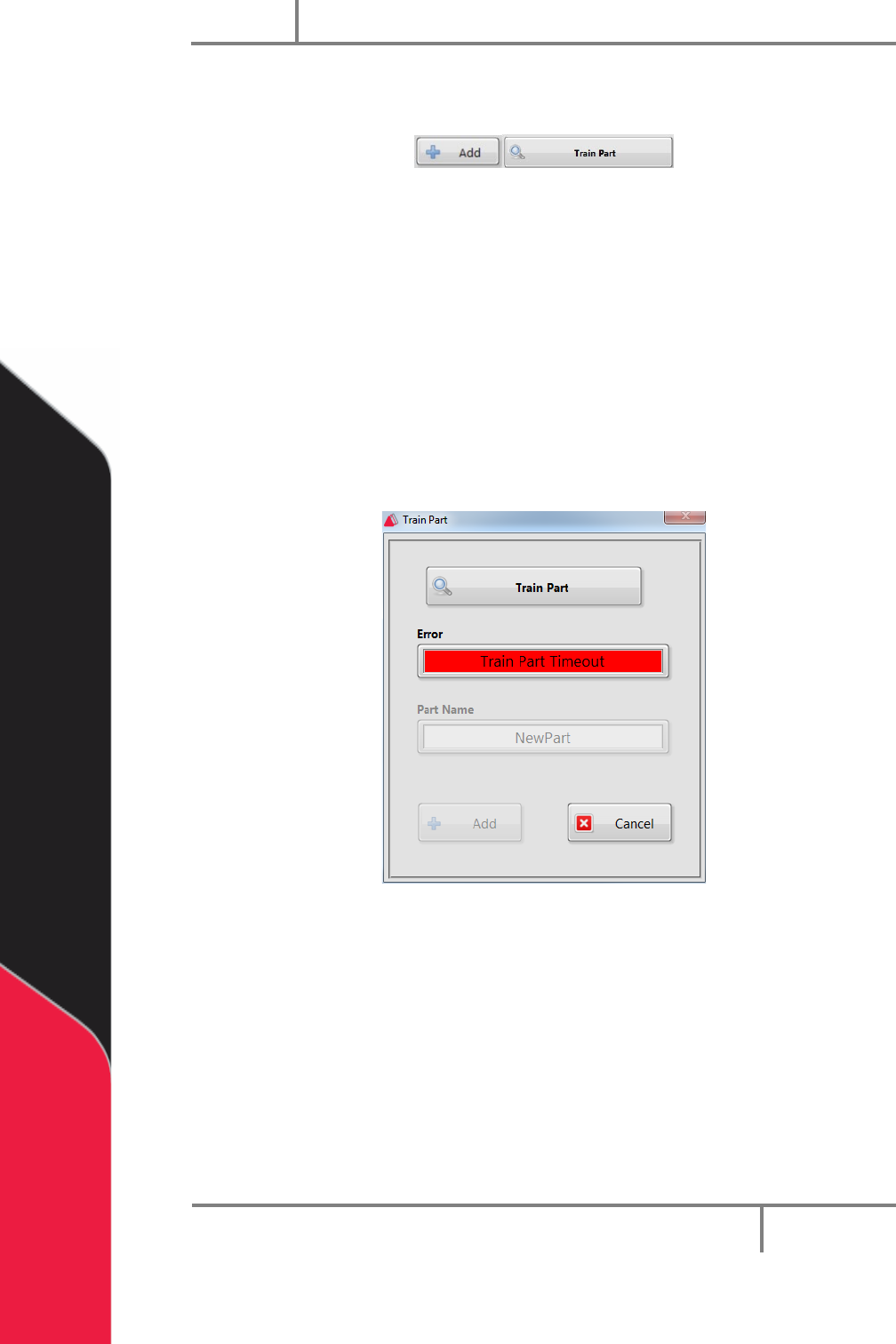
Train Timeout
A timeout fault happens when the user clicked “Train Part” to request a
partcode but the system did not respond within the 10 second timeout period.
Figure 85: Train Part Timeout Error
Portal
PVA
Revision H (2018)
73 of 93
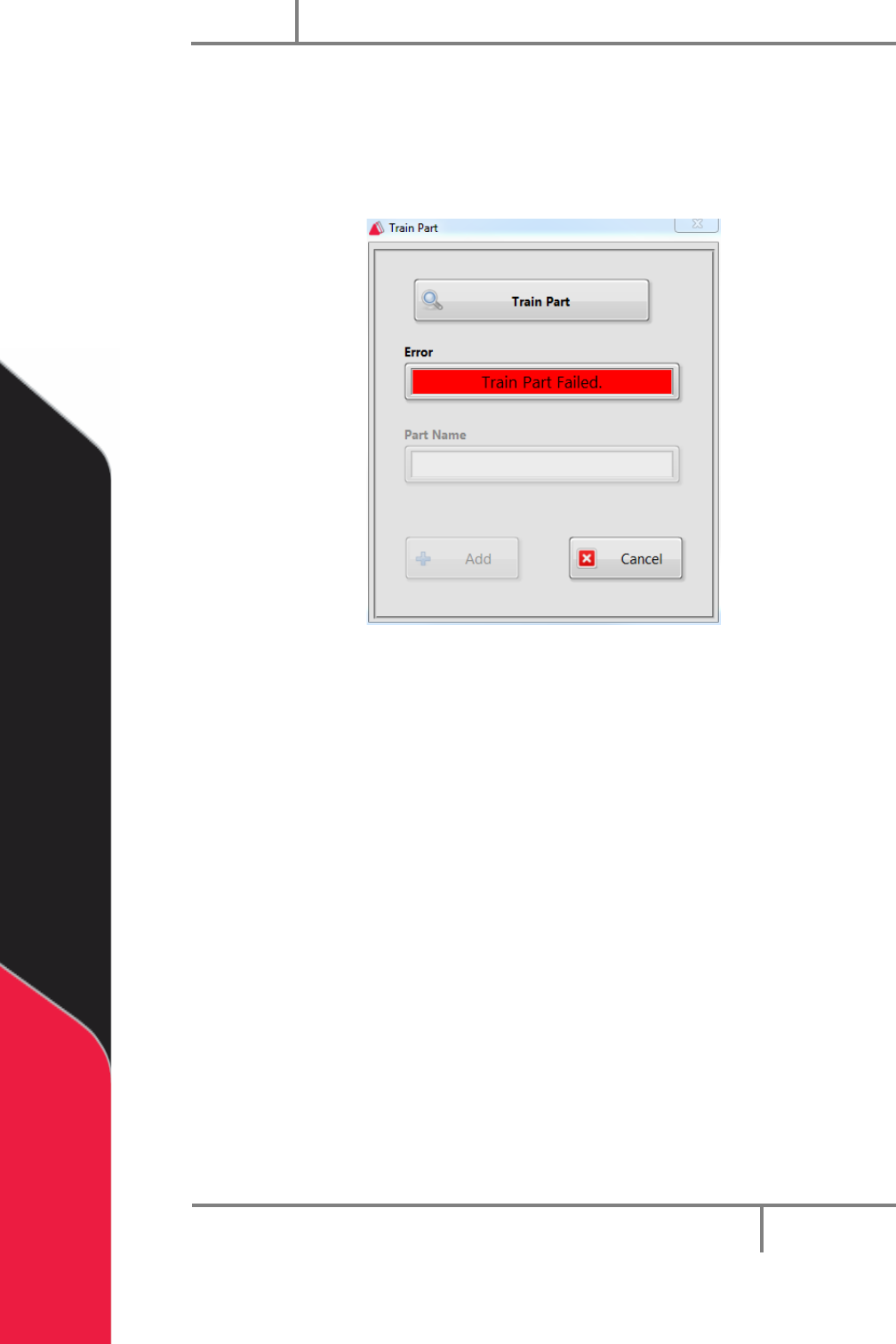
Train Failed
A Train Part Failed error happens when the system returns a negative
acknowledge (NAK) when asked to read the partcode. This means device could
not successfully read the partcode.
Figure 86: Train Part Failed
Portal
PVA
Revision H (2018)
74 of 93
15 Quick Fid Inspection
Quick Fid Inspection is an optional application in Portal. You must have this option to
use the functions shown. This application provides the use of fiducials without the
ability to do inspections.
15.1 To Create a New Inspection
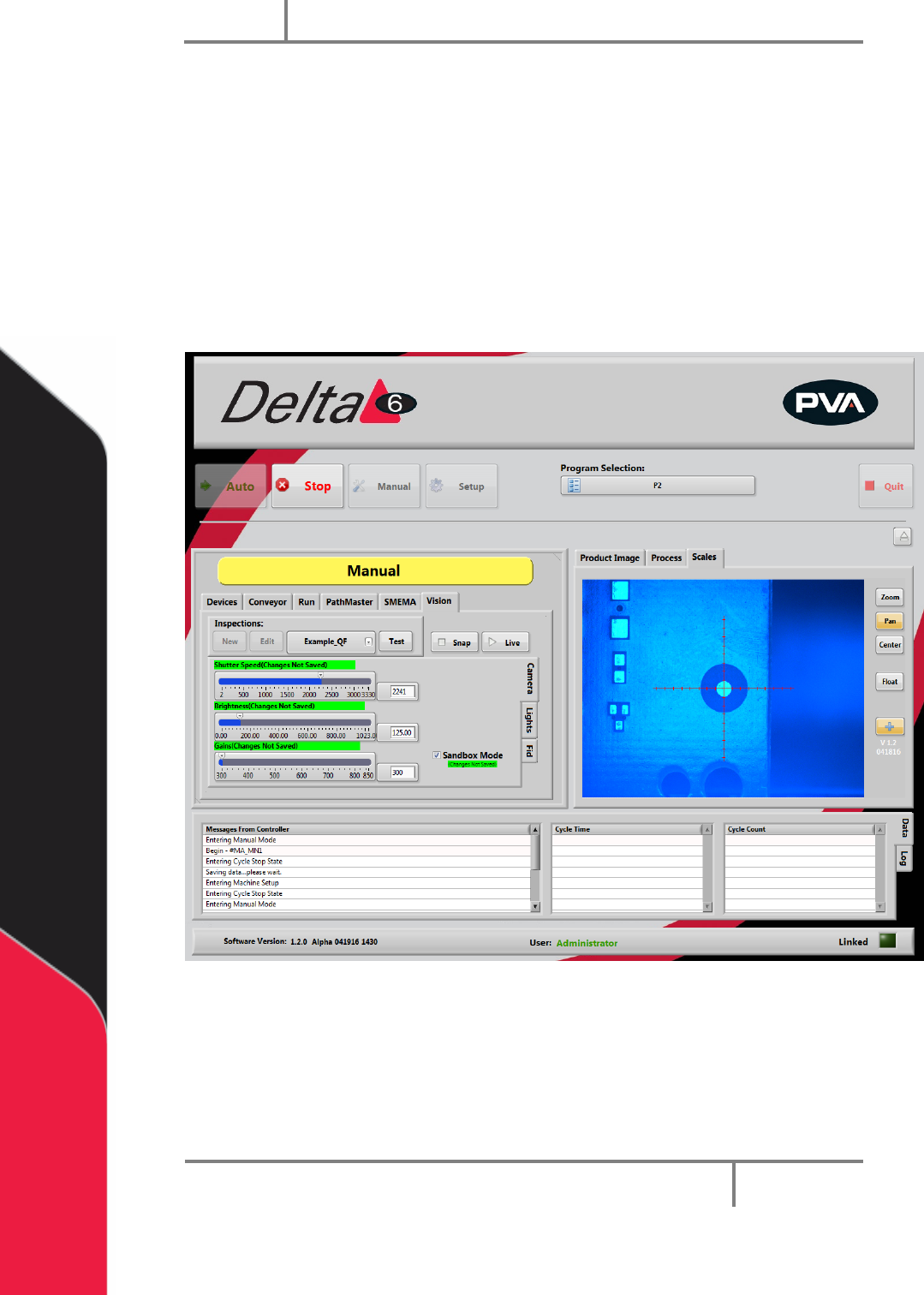
1. Uncheck “Sandbox Mode. You cannot make changes to Inspections in Sandbox
mode. Changes made to the Camera attributes in Sandbox Mode do not change
the current inspection and are discarded.
Figure 87: Quick Fids
2. Under Inspections, select “New”.
3. Select the “Quick Fid” inspection template.
4. Select “OK”.